Host a Virtual Meeting with an Interactive Forum
While in-person meetings are ideal for networking, a virtual meeting with an interactive component can provide that same opportunity. Additional benefits include the ability to pull in registrants outside of your local area, allow interaction when in-person meetings aren't feasible, and reduced costs related to venues and catering. While there are additional steps to host an online meeting, using a combination of the Meeting Manager and Forum provides a comprehensive solution to virtual meetings.
The following steps cover how to set up a meeting within StarChapter to manage registrations, create a restricted forum for the event, and ensure that all registrants can access the meeting. Some of these steps will be completed once to implement a Virtual Meeting resource while others will be meeting-specific.
Create a Virtual Meeting Resource
Set Up the Forum to Support Virtual Meetings
- Configure Forum settings to ensure that all meeting registrants will be able to engage through the forum. Note that these settings are global, so additional limitations to the Forum will have to be handled through restrictions at the page or thread level.
- Create a new Forum category for "Virtual Meetings."
Set Up a Virtual Meeting Page
While a new page could be created for each meeting, it will be easier to manage a single page with all meetings. Restrictions can be set to allow registrants to only see meetings they have permission to view.
- Create a new page within your system.
- Add a "Forum Posts Full" section to the new meeting page.
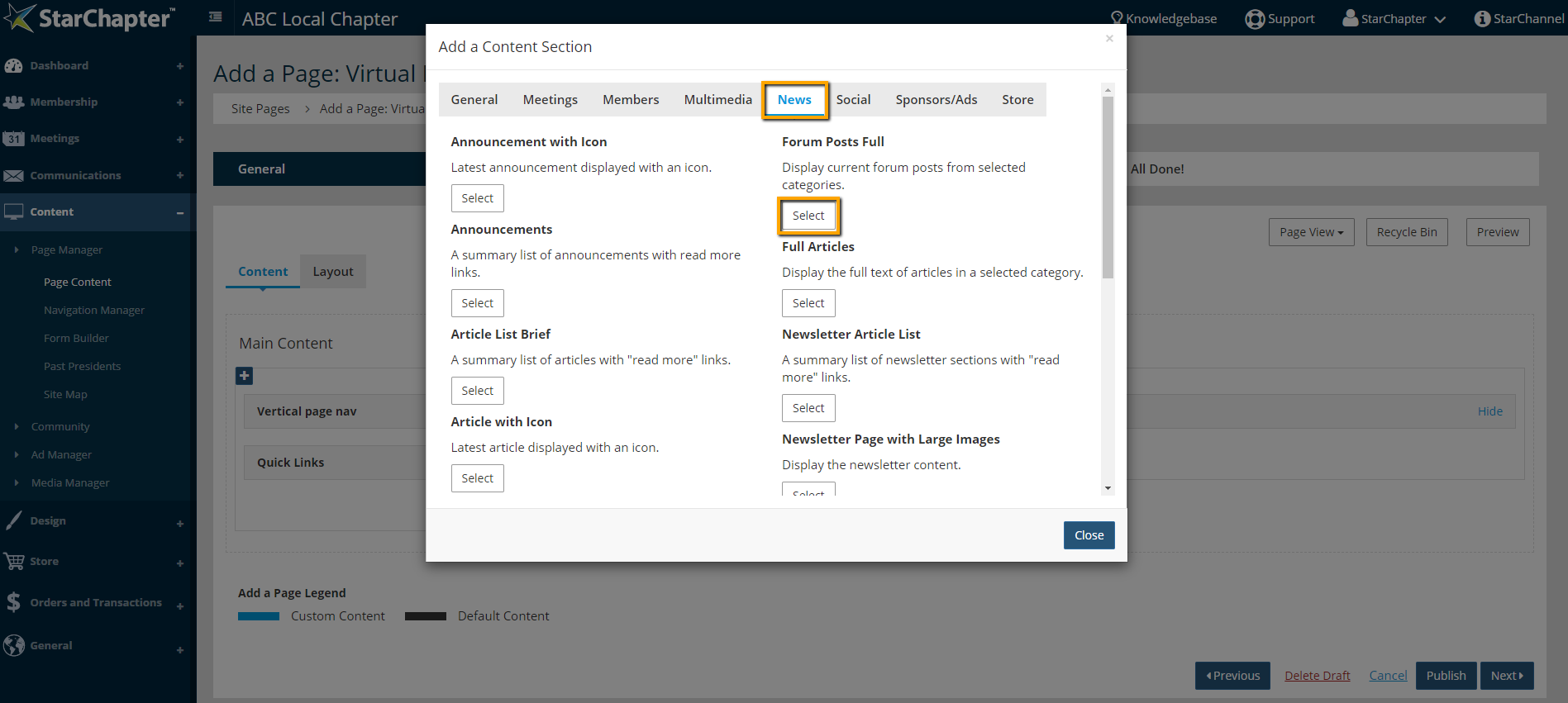
- Select the new forum category to display.
- Publish the new page.
- Add the page to your navigation menu so it's easy for registrants to locate.
Create a Virtual Meeting Group
- Create a group to use for meeting restrictions. Enable the Email Recipients and Page Content functions within this group. Move to step 2 for the subgroup creation.

Tip: Groups are specific to members or non-members. If a meetings are open to non-members, two groups will be needed to manage restrictions. Non-Member logins must also be enabled and managed if non-members are to be included.
- Create a subgroup for each meeting that you will be hosting virtually. This can be completed on an on-going basis as meetings are planned.
Set Up a Virtual Meeting
Create the Meeting and Subgroup
- Set up the meeting. Set the Venue as "Webinar" or a similar term to indicate that it will occur online. Set the date and time for the period when you want all registrants to gather for real-time discussion, but the resources can remain available for a longer period of time.
- Manage registrations as usual.
- Create a subgroup for the meeting within the existing Virtual Meeting group(s).
Create the Meeting Forum
- Create a new forum thread. Be sure to restrict it to the appropriate meeting group(s).
- If a pre-recorded video will be viewed as part of the meeting, embed that video within the original forum post.
Manage Registrants
- Assign registrants to the appropriate group when they register for an event.
- After registration closes for the meeting, send an email to all registrants with instructions to locate the Virtual Meetings page and log in.
Tips for Users
To maximize the user experience, there are a few tips that should be passed onto registrants. These tips can be provided as part of the initial post.
- Click the Subscribe button on the meeting thread to receive email updates regarding ongoing discussion.
- Refresh the page often to ensure that new posts are visible close to real-time.