
Send A Meeting Reminder To Registrants
Meeting reminders are a valuable tool to increase meeting attendance. They can be sent manually or scheduled to go out automatically. Scheduled emails can be scheduled once and set to go out for all future meetings while those sent now can be customized with information specific to each meeting.
 |
Tip: Meeting registrants and attendees can only be targeted for published meetings. If registrants of a past meeting are being targeted, confirm that the meeting is published within Meetings > Meeting Manager prior to drafting your email. |
Send A Meeting Reminder Now
- Go to Communications > Send an Email.
- Click the New Email button and select One-Time Email.

- Select Meetings from the Mailing Type drop-down.
- Select the Email Build you want to use from the Email drop-down.
- Select the desired meeting from the Meeting drop-down.
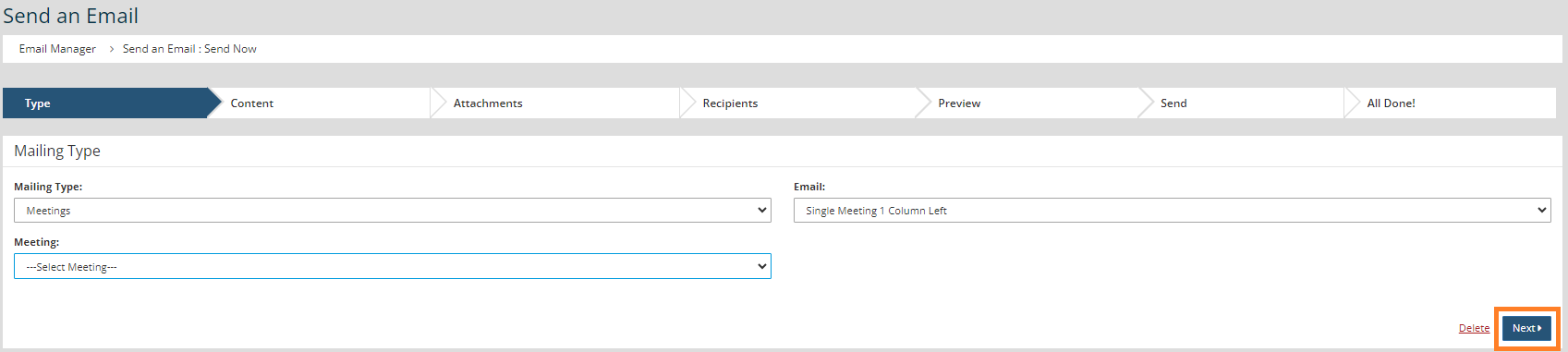
- Click Next 3 times to pass through the Content and Attachment screens.
Tip: You can add additional information on the Content screen, but be careful to not disrupt any variables or formatting within the template.
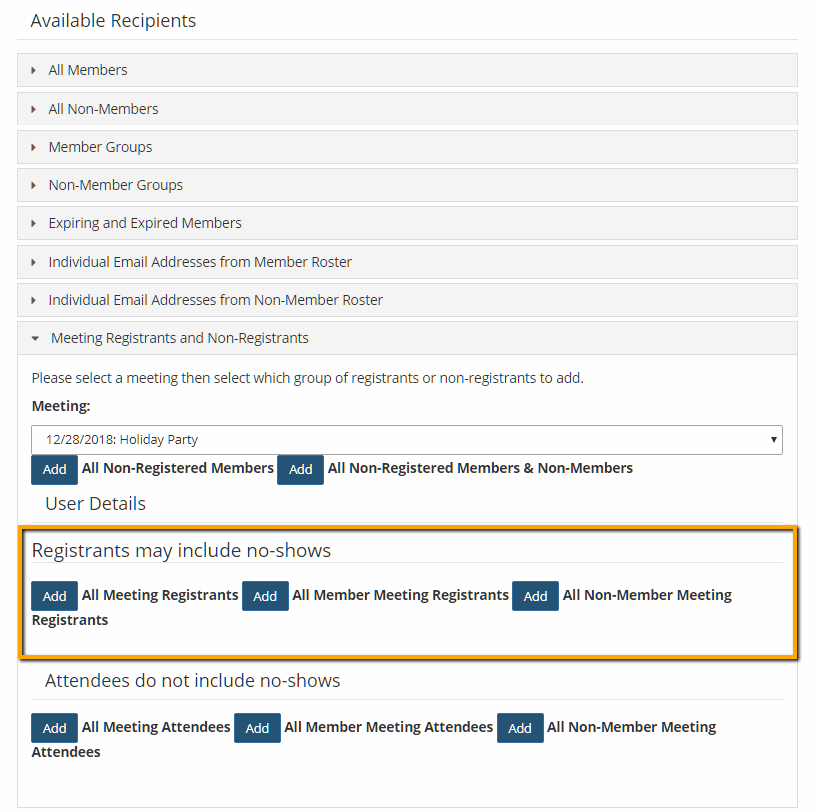
- Click to open the Meeting Registrants and Non-Registrants section.
- Verify that the desired meeting is shown on the drop-down.
- Click Add to include All Meeting Registrants, All Member Meeting Registrants, or All Non-Member Meeting Registrants as needed.
- Click Next.
- Proofread any edits that you made and click Send Email.
Schedule A Meeting Reminder For A Future Date
- Go to Communications > Send an Email.
- Hover over the New Email button and select Recurring Email.

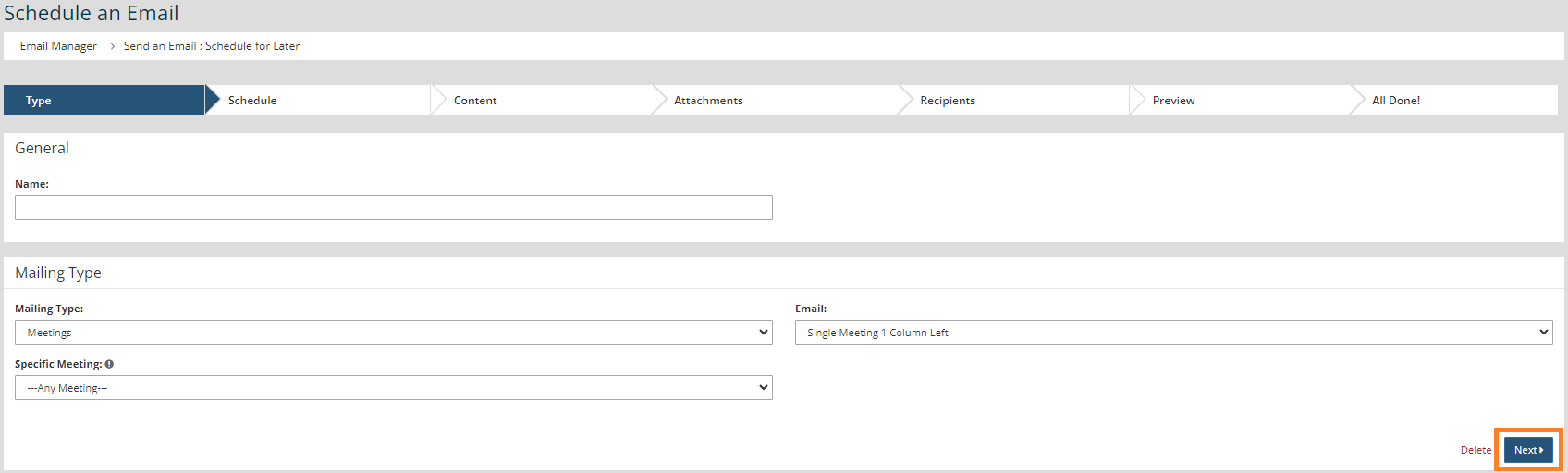
- Name your email something general since it can be set to go out for multiple emails.
- Select Meetings from the Mailing Type drop-down.
- Select the Email Build you want to use from the Email drop-down.
- Select a specific meeting or set the Specific Meeting drop-down to Any Meeting to include all future meetings.
- Click Next.
Tip: You can add additional information on the Content screen, but be careful to not disrupt any variables or formatting within the template.
- Set the Frequency, Days before/after the meeting, and time you would like to send the reminder.
Tip: 3-7 days prior to a meeting is the most effective range for most meetings.
- Click Next.
- Enter a general Subject that will work for all included mailings.
- Click Next twice to pass the Attachments screen.
- Click Add to include All Meeting Registrants, All Member Meeting Registrants, or All Non-Member Meeting Registrants as needed.
Tip: The recipients will be included based on their registration status at the time the email is sent and not when it is scheduled.
- Click Next.
- Review your email and click Finish.


