Add Links to Menus
- Go to Content > Page Manager > Navigation Manager to make any changes to the navigation.
- Locate the menu to change, and click the Add Links button.
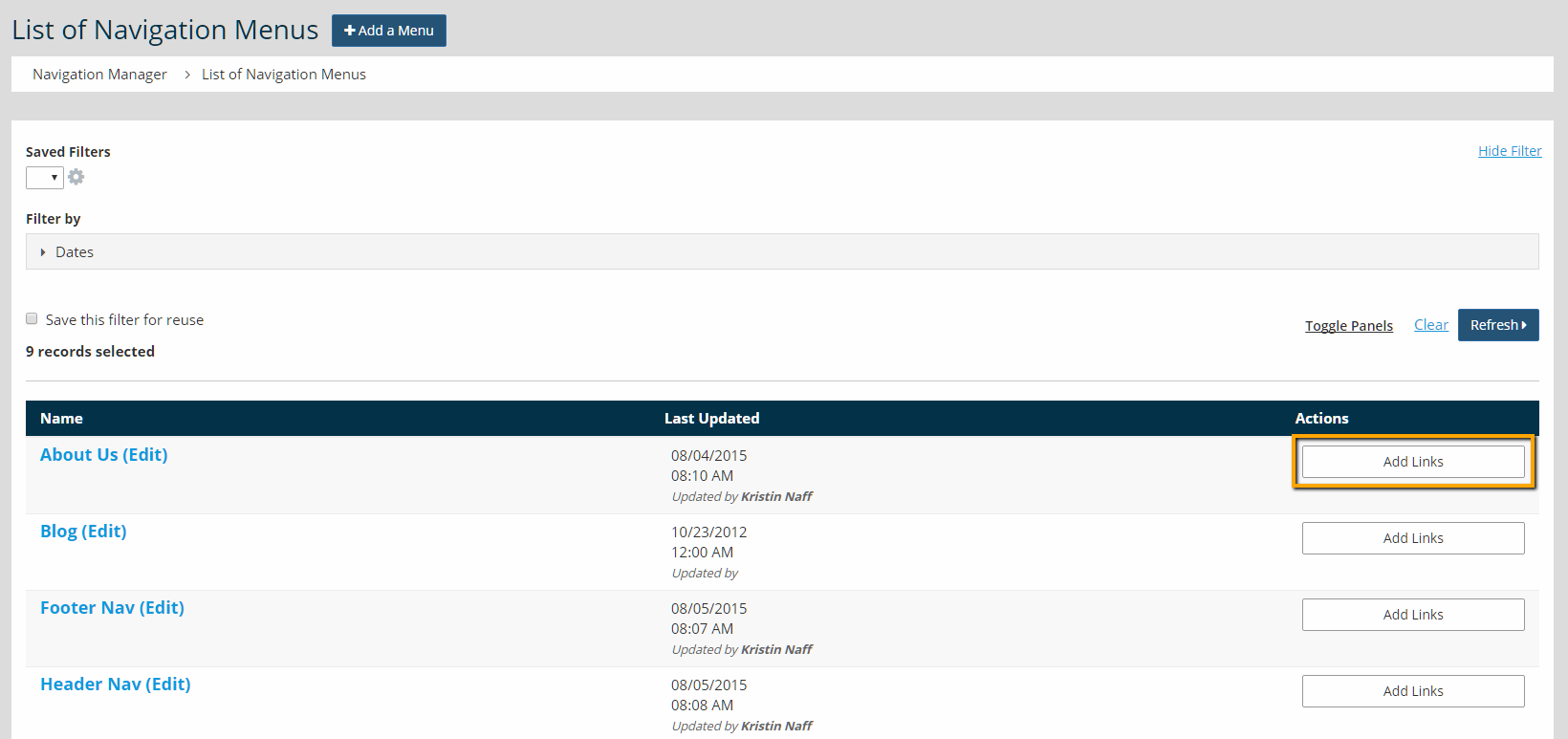
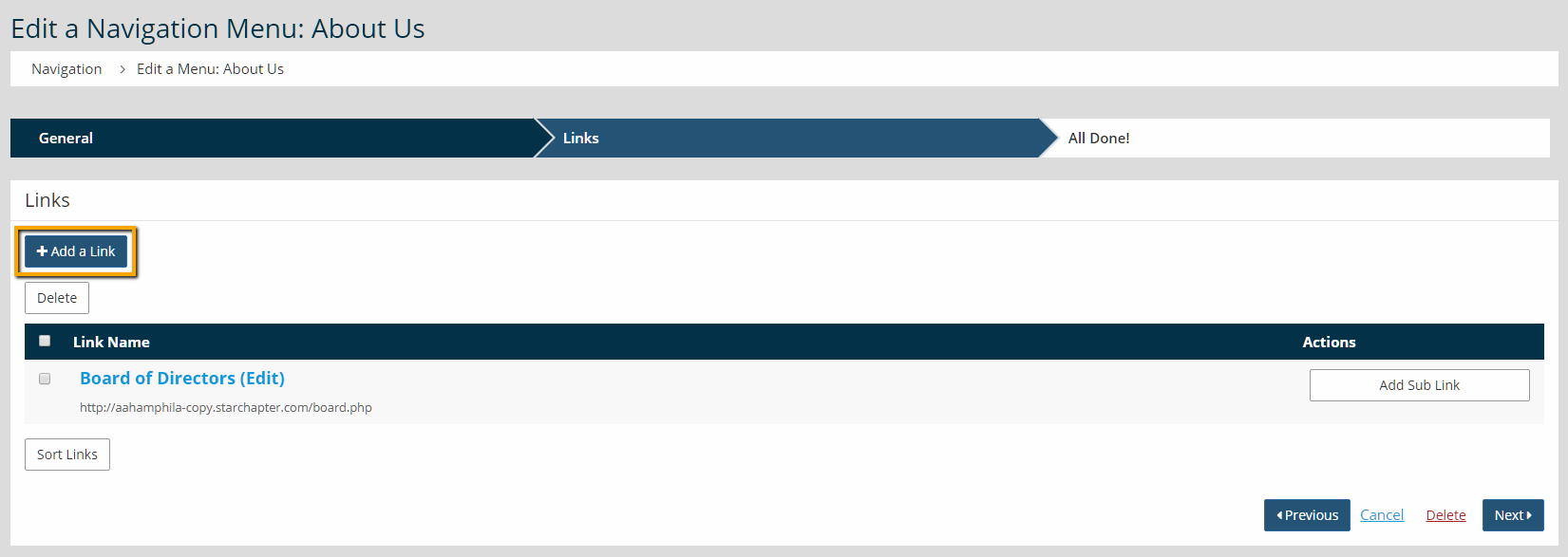
- To add new top-level links, click the Add a Link button at the top of the screen. For drop-down links, find the existing top link and click on the Add Sub Link button to the right of it.
- Choose whether the link is an "Internal Link," "External Link," or "Sub Menu Title."
Internal links are created and managed in StarChapter.
External links are either to content managed and accessible outside of your StarChapter system, specific documents managed within StarChapter, or specific catalogs managed within StarChapter.
Sub Menu Titles are only used on the main navigation bar when sublinks are accessible below that label. Clicking the Sub Menu Title will cause the sub-link list to appear and clicking it again will collapse that list back into the navigation bar.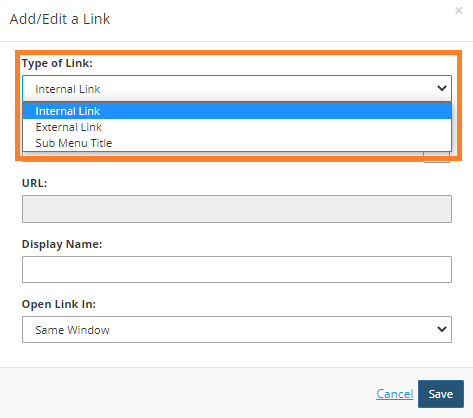
- If this is an internal link, type in the Page Name. The page name populates in the field, and select the appropriate page name. If this is an external link, paste the URL into the URL field and enter a neater display name such as "Visit Our Sponsor".

Tip: Make sure to have external links open in a new window or tab. This means the user stays on your website and accesses the external link in a new tab.
- Click Save.
- If you need to sort or rearrange your links, then click on the Sort Links button. This is below all the link names. Drag and drop the links in any order and click Save.
- Click Next to finalize all updates.