Add a Catalog Link
The main catalog page can contain several different catalogs. Adding a link to a specific catalog requires a slightly different process than linking the main Catalog page. To add a link for one specific catalog to a navigation menu:
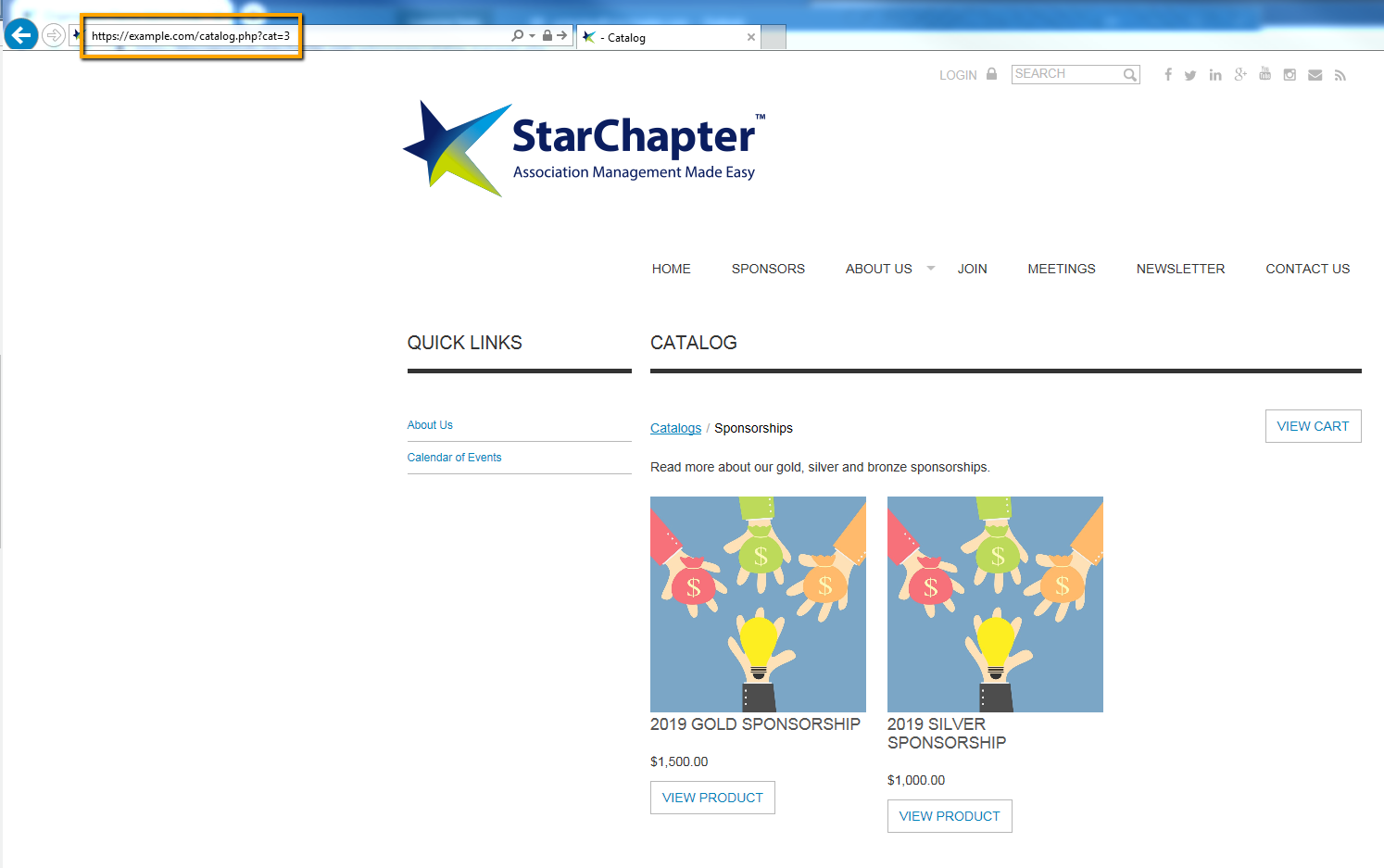
- Access the main catalog page by entering /catalog.php at the end the website's domain name.

- Select the specific catalog that needs to be linked by clicking View.

- Copy the URL for this catalog in the top of the browser.
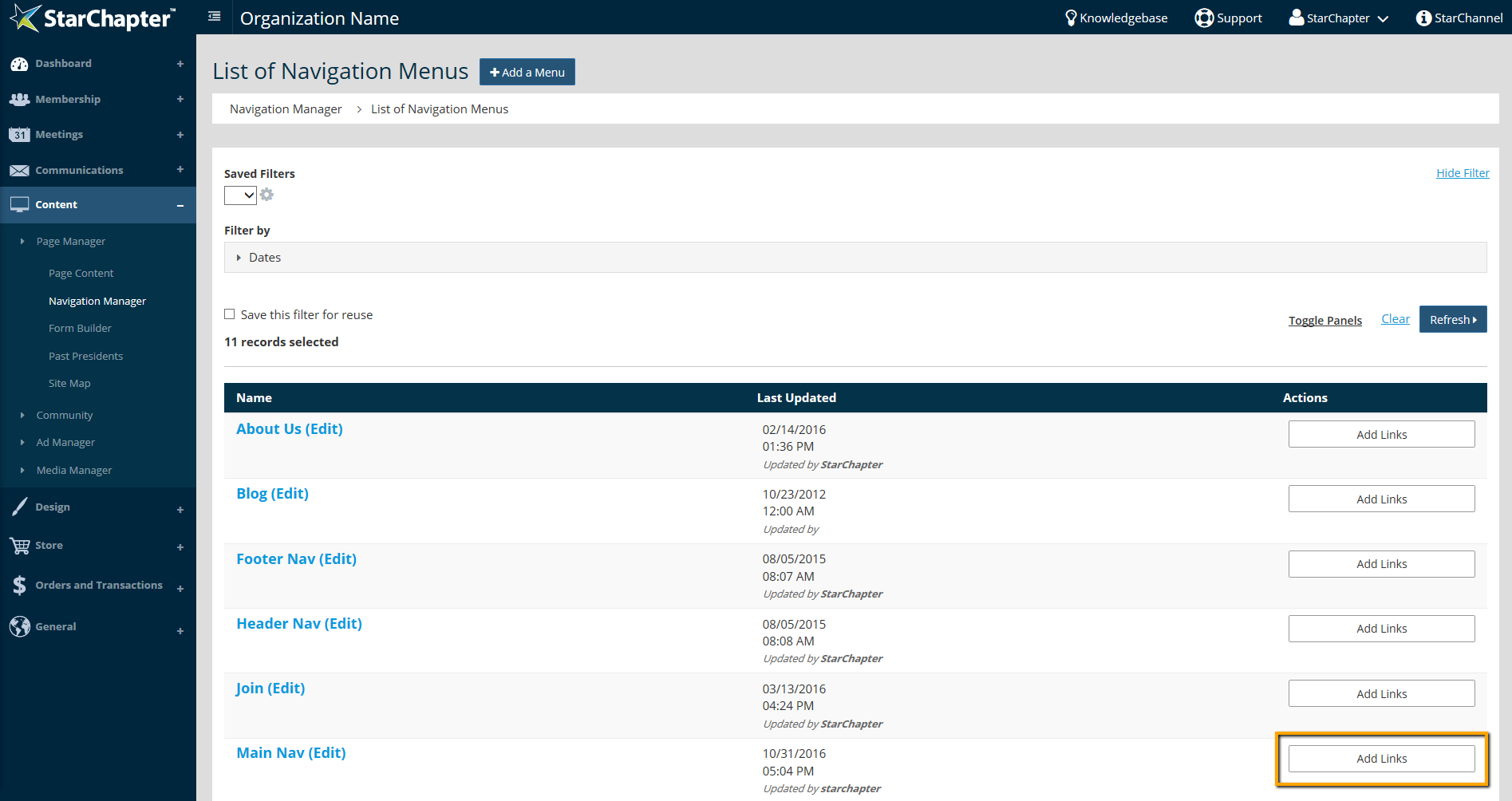
- In the admin area, go to Content > Page Manager > Navigation Manager.
- Click Add Links to select the appropriate menu.
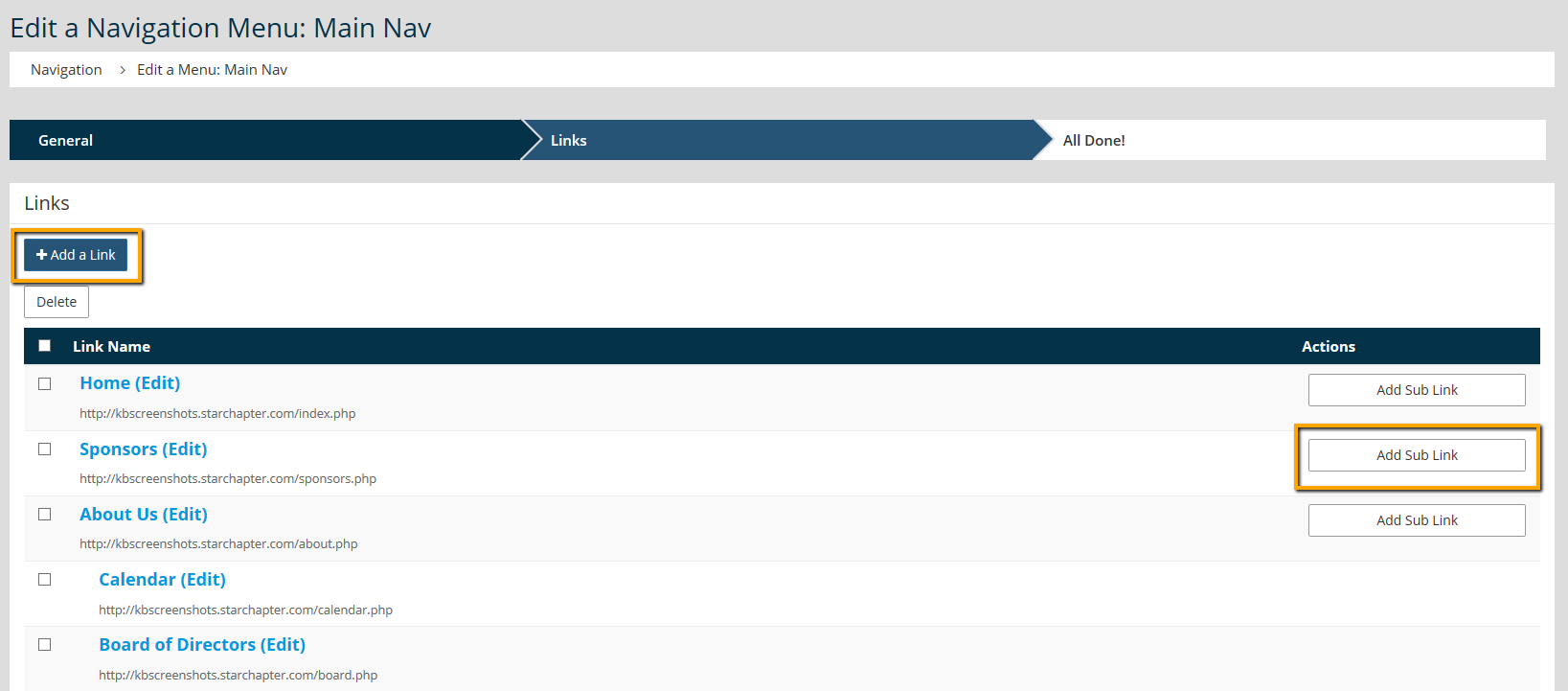
- Click Add a Link if the catalog should be a main item in the menu, or click Add a Sublink if the catalog should be linked as a sublink under a main link.
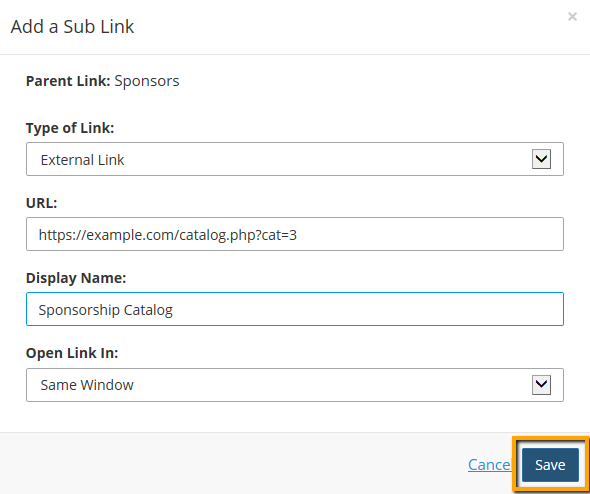
- Under the Type of Link drop-down menu, select External Link.
- Under the URL field, paste the copied catalog URL.
- Enter a Display Name.
- Click Save.