Add A Link To A Document
If you are editing a section of content on your site and you want to upload a document and add a link, there are a couple of steps involved:
- Upload your document
Go to the Content > Media Manager > Documents option in the admin menu.Click on the "+ Add a File" button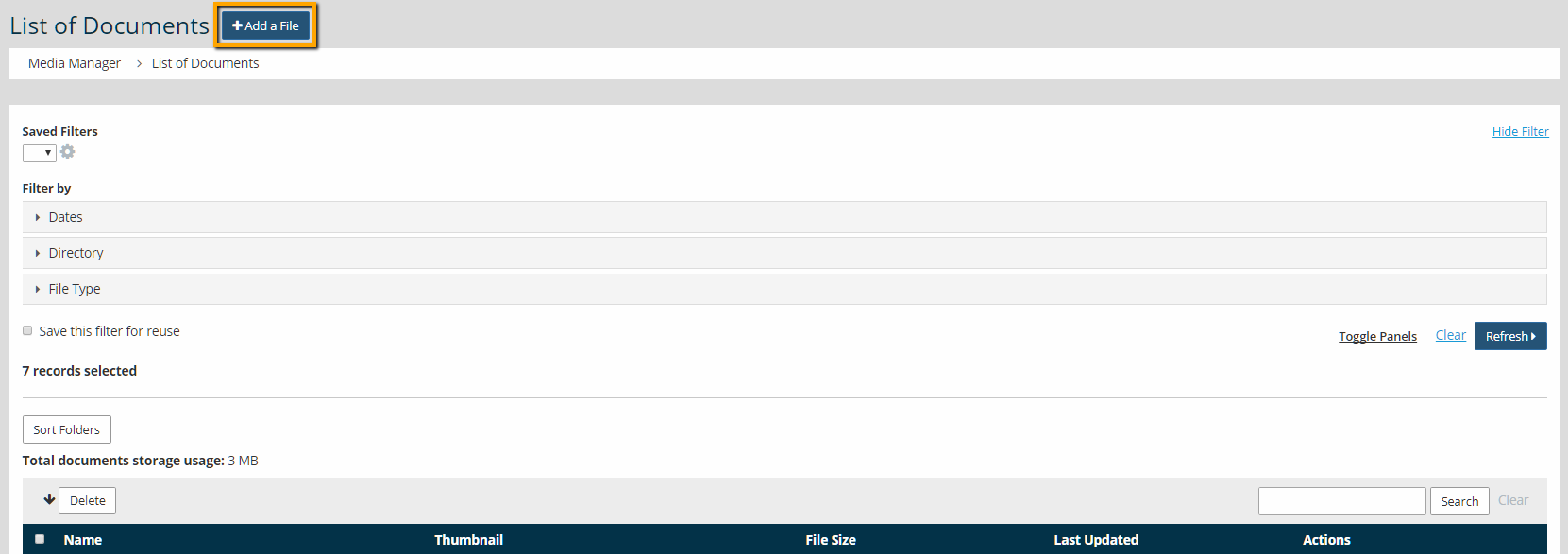
- Enter a title for the document
If you do not upload a thumbnail image, then the title displays as a link to the document - Attach the document
Use the Browse button to upload the document. - Select a thumbnail image if applicable
If you want an image to represent the document, then upload any image. - Restrictions
Add a restriction if you only want logged in members to view the document.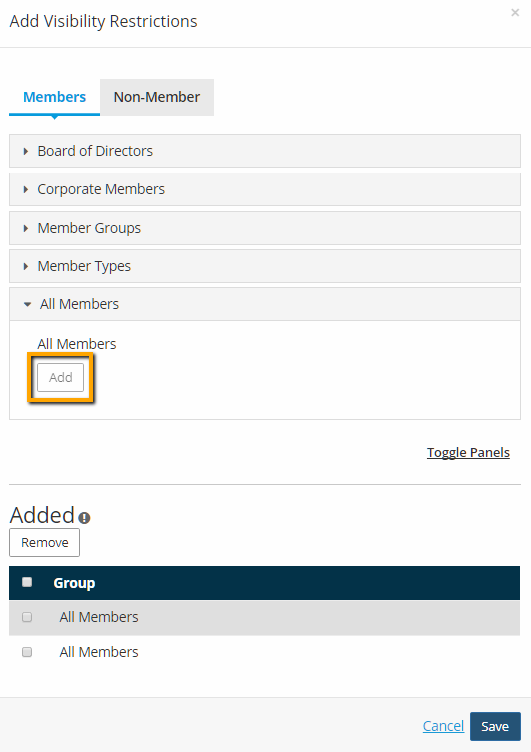

Tip: If you add a link to this document on a page that is visible to the general public, the members only checkbox is meaningless. If you want to link to this document and retain the members only status, you must make sure the page you are adding the link to is only visible to logged-in members.
- Check board only if applicable
Much like the members only field, this is only applicable when viewing documents via the downloads screen. If you add a link to it, you must ensure the screen in question is only visible to board members.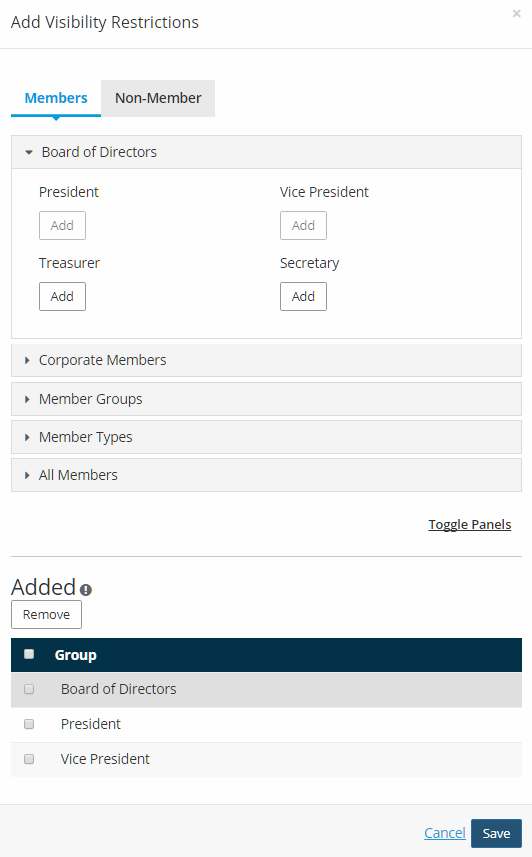
- Select a member group if applicable
Much like the members only field, this is only applicable when viewing documents via the downloads screen. If you add a link to it, you must ensure the screen in question is only visible to the selected member group.
Press Insert to upload the document
- Edit the new document
Click on the edit button next to the button you just uploaded. At the bottom of the screen is a box with the link to the document on your site. Click in this field and press to copy it or right-click and select copy. This will copy the address to the document.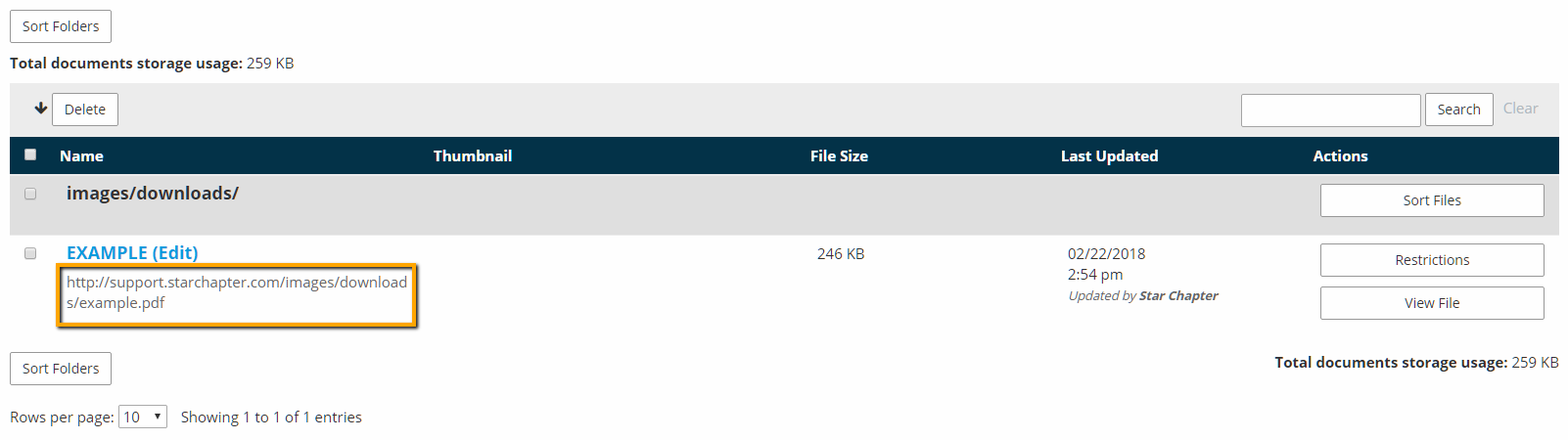
- Edit your page content
Go to the Page Content area and edit the page content section you wish to place the link into - Add the link
Select the text for the link. Select the text or image you want to use for your link by highlighting it by holding down the left mouse key and dragging. - Edit the link
Right click on the selected text and select "Insert/edit link" or click on the link icon in the WYSIWYG Editor.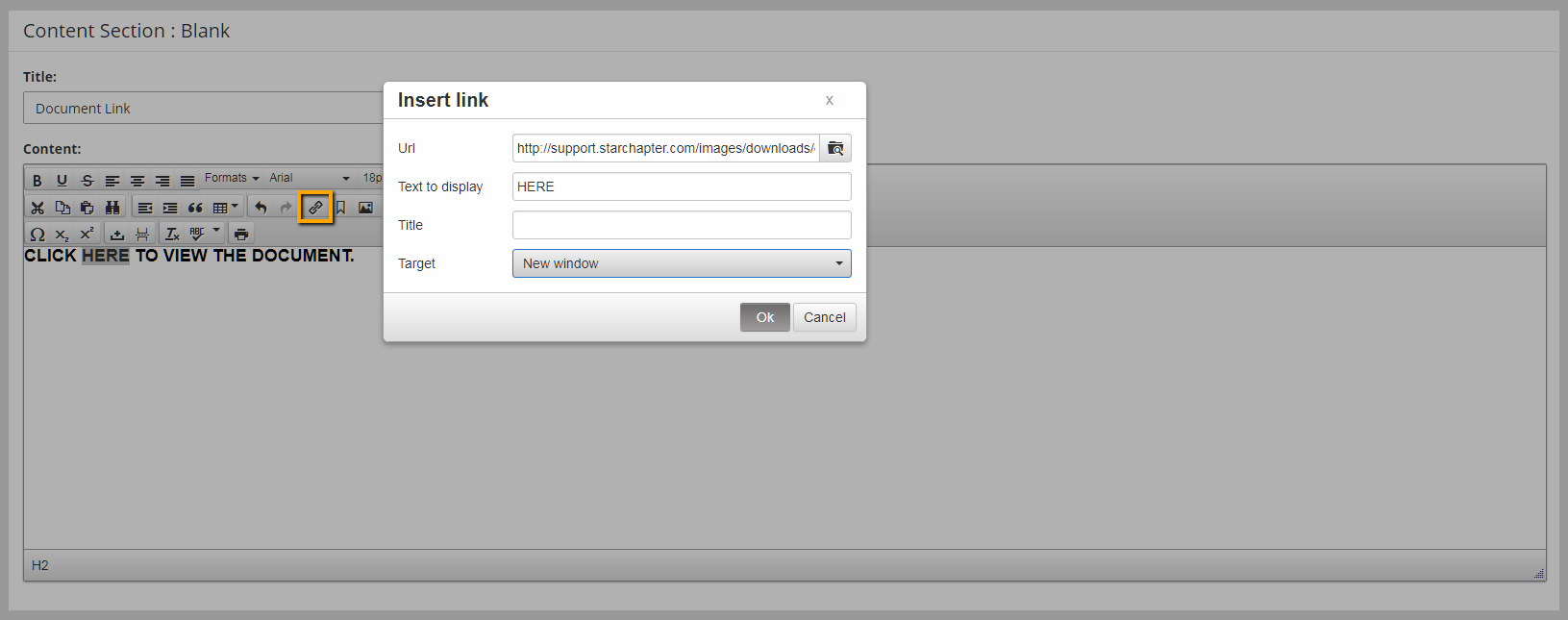
- Paste the document address
Once the Insert/Edit Link dialog box opens, click in the "Link URL" field and paste your link by pressing or right-click and select Paste. - Insert the link
Press Insert to save the link. - Update the content
Press Update to save your page content.
Note that if you copy any other text between when you edited your document and when you added your link, the link address will be overwritten. If this happens, go back to your downloads editor and reselect the link address and re-paste the link in the page editor.