
Edit an Email Build
 |
Warning: Email Builder is only available on current StarChapter design layouts. If your StarChapter system does not include Email Builder, you may want to consider a redesign of your website. |
Email builds in Communications > Email Builder function similarly to pages. Email Builds consist of Email Builder Content Sections that are controlled by email templates (found under Design > Email Templates). Together, these elements generate dynamic emails that automatically pull in current and accurate information from the system’s backend.
Chapters often want to add custom text, images, or additional Email Builder Content Sections to the system-provided email builds. Custom edits can provide valuable chapter-specific information to members and enhance the member experience. Common email builds that chapters may want to edit include, but are not limited to, the "Member Welcome", "Member Renewal Notice", "Single" or "Upcoming Meetings", and "Meeting Registrant" email builds.
Example: Member Welcome Email
To better understand how email builds are constructed and edited, look at the Member Welcome email build. The default Member Welcome email build included with your StarChapter site automatically inserts dynamic content—such as the member’s name, username, and password reset link—into each welcome email. When previewing this email under Communications > Email Builder > Member Welcome, the text displayed comes from the Member Welcome email template under Design > Email Templates > Member Welcome. To enhance this email, one may want to add custom text to describe the organization, custom images, or dynamic content such as a list of upcoming events.
To edit this email build, first identify the type of change you want to make:
- Minor text changes can be made directly in the email template.
- Adding new dynamic content sections (e.g., upcoming events or sponsor displays) requires copying the email build and adding the desired content sections to your new email build.
- Major revisions to text and content sections require copying both the email template and the email build to create a new version. This ensures that the original is always available if you need to start over.
 |
Tip: While StarChapter is a self-managed system, email templates and email builds can be a bit complex for many admin users. If you would prefer to have assistance with edits, submit a Support Ticket, and the StarChapter Support Team can assist you further. |
Table of Contents
Please use the links below for directions on common edits made to Email Builds:
Minor Changes to Text in EMail Build
When minor edits to the text of an email build are needed, edit the email template that feeds into your email build directly. This applies to small changes such as adding helpful text or removing small pieces of existing text. An example of a minor change is adding a paragraph or less of text about your organization to the Member Welcome Email.
- Go to Design > Email Templates.
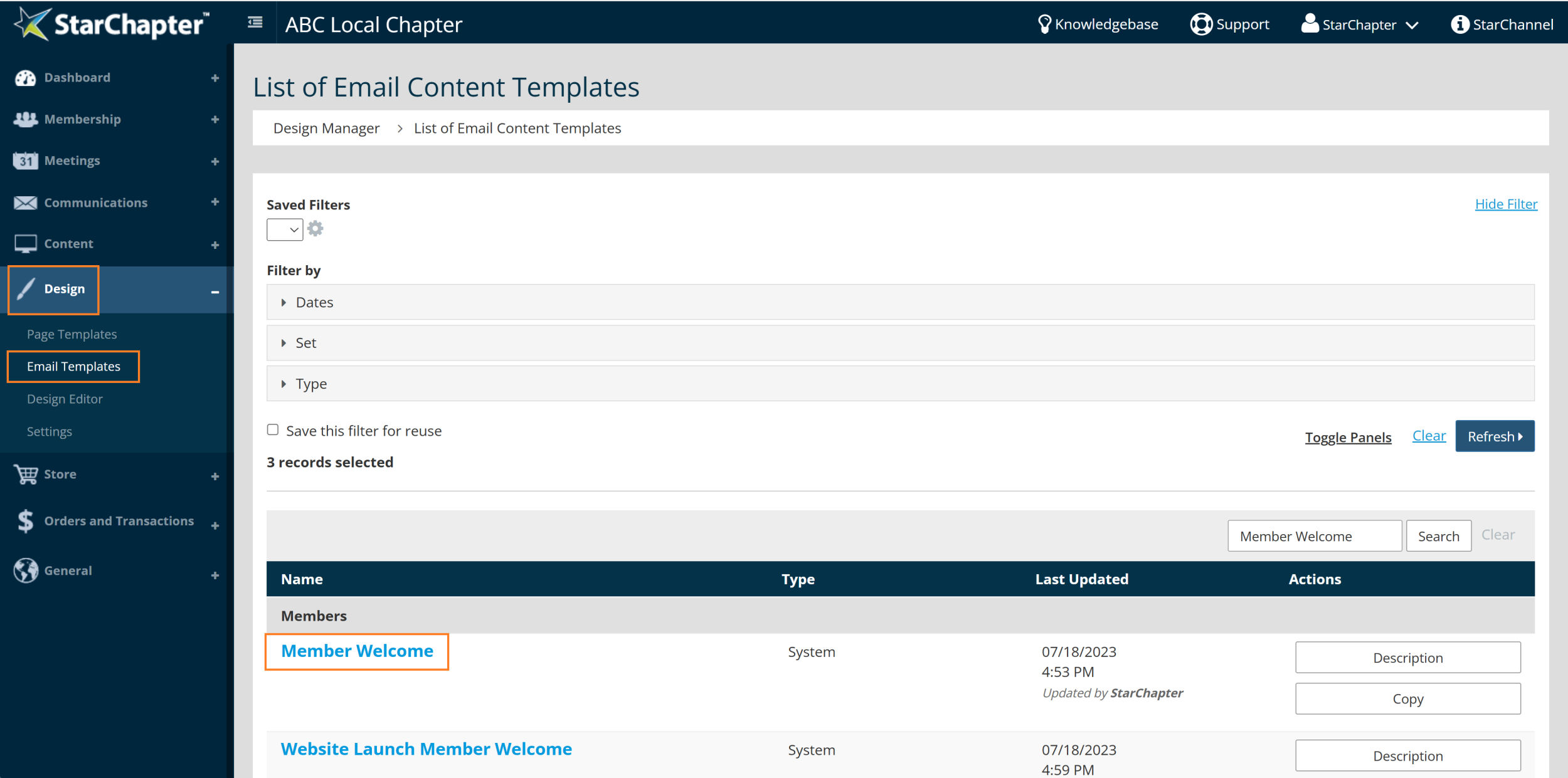
- Search for the email template that requires edits. In this example, we're using the 'Member Welcome' email template for the ‘Member Welcome’ email build.
Tip: When searching for the correct email template to edit, most email templates will have similar names to the email build. However, some email builds have multiple content sections/templates in them. If you need more information, click Copy to the right of the email build, then click Content & Layout to view the content sections. Email template names match the names of the content sections.
- Click on the hyperlinked email template name.
- Make edits to the text as desired.
Warning: Editing an email template will affect any email build that uses that template. If you need a new version of the template, follow the directions here.
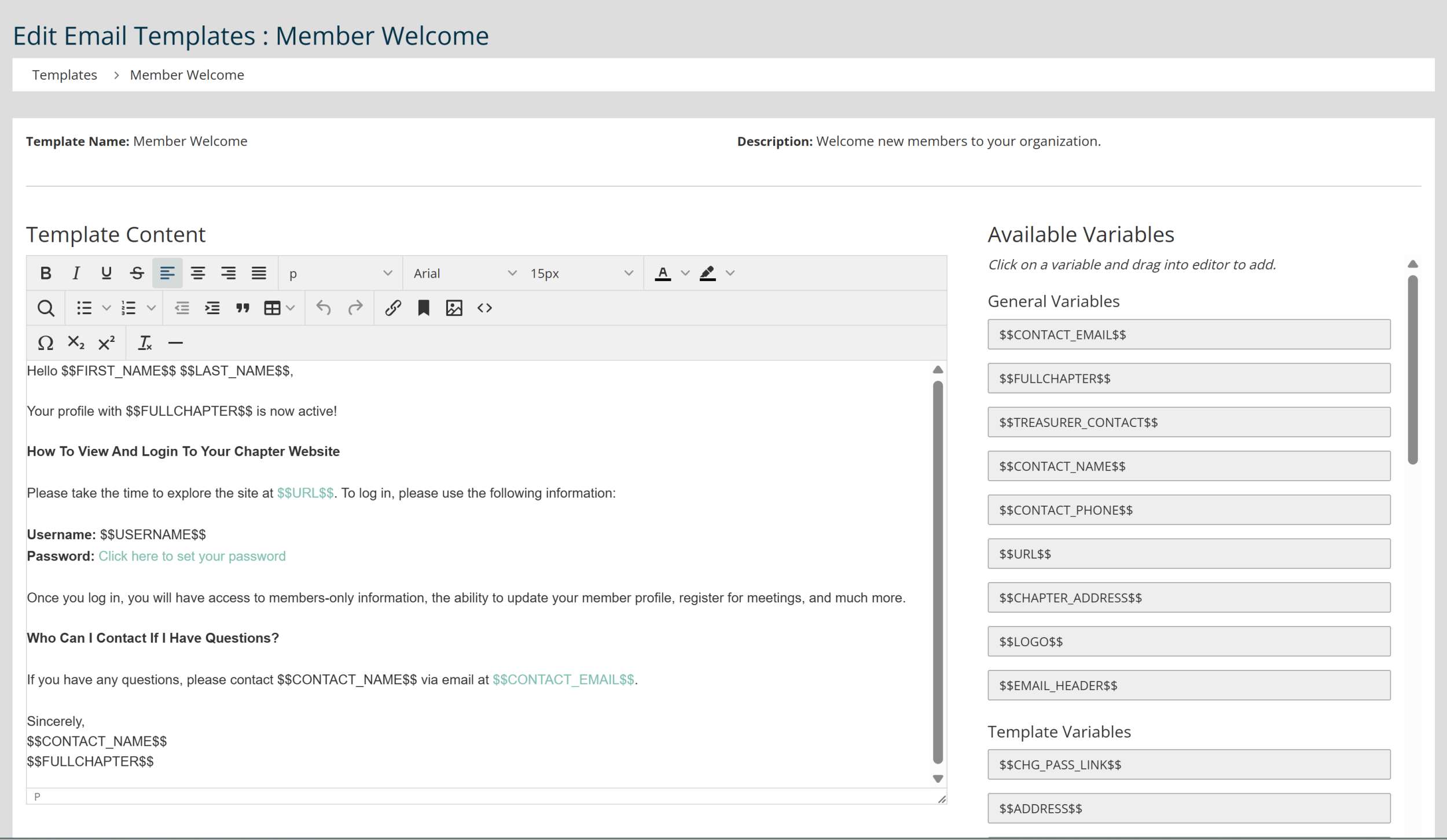
Tip: Drag and drop variables from the right-hand side of the screen to add dynamic text to your email.
- Click Save. Your email build will update automatically.
Adding Content Sections to an Email Build
To add additional content sections to an existing email build, you will need to copy the existing email build and continue editing there. An example of this would be adding upcoming meeting information to your Member Welcome email.
- Go to Communications > Email Builder
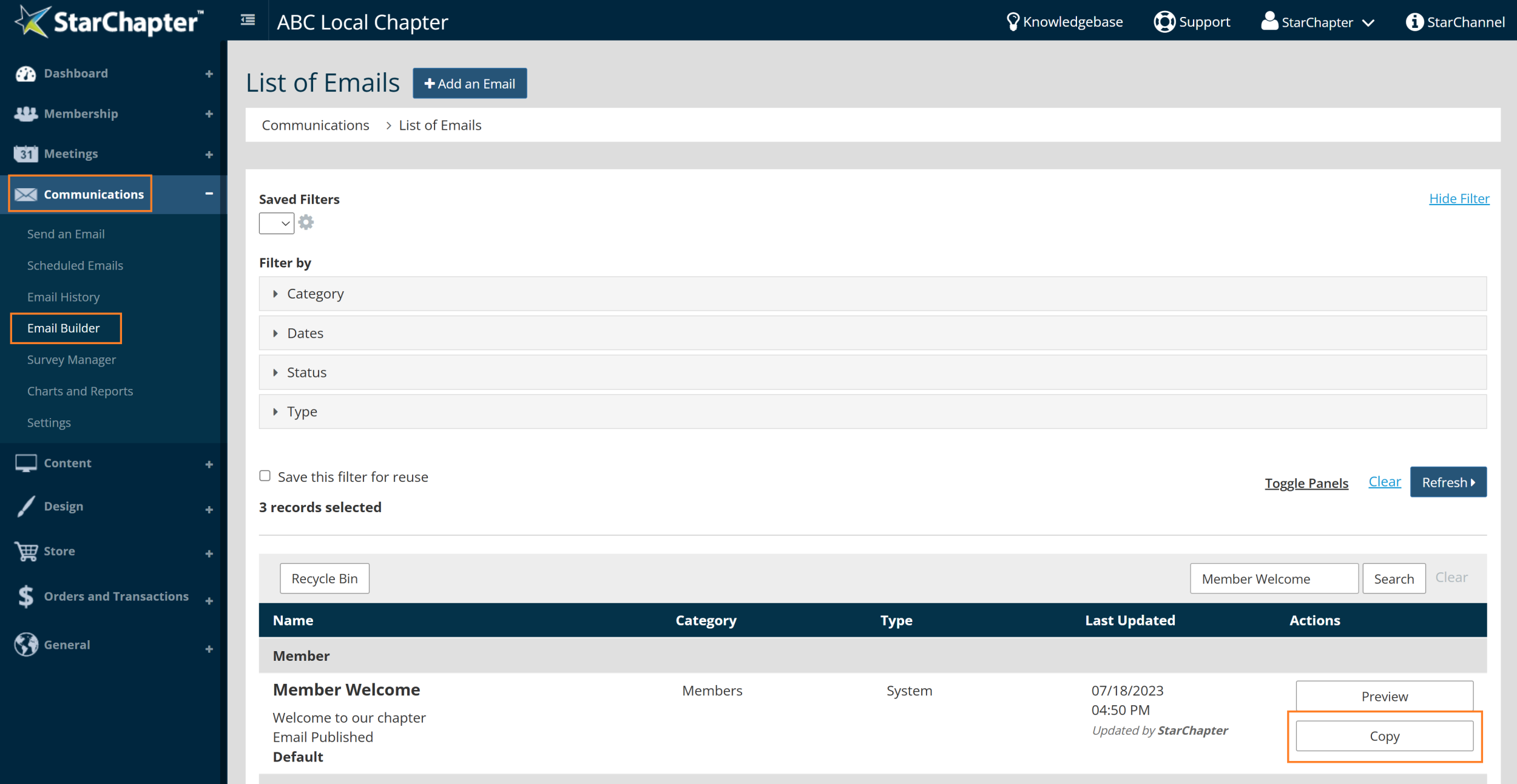
- Search for the email build that requires edits. In this example, we are using the 'Member Welcome' Email Build.
- Click Copy, then OK.
- Update the email build "Name" field (optional but recommended).
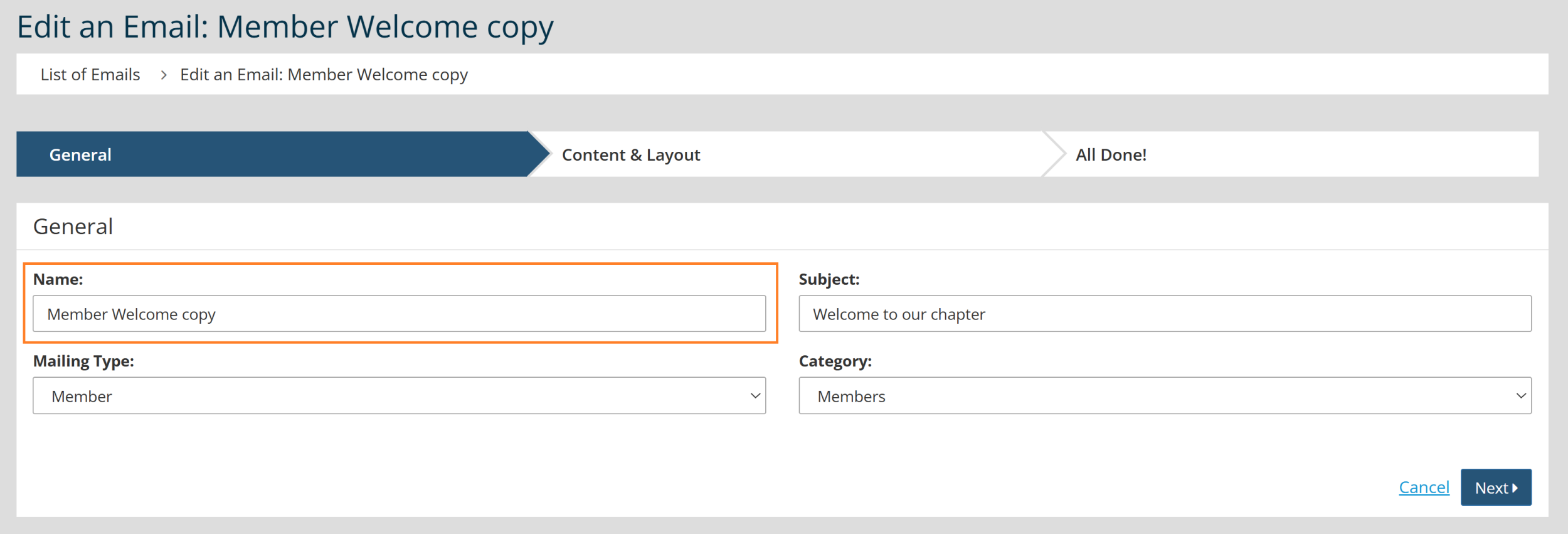
- Click Next.
- Click the blue plus sign under the content and layout tabs to make changes as desired. Use the directions in the Add Email Builder Content and Change an Email Build Layout for guidance.
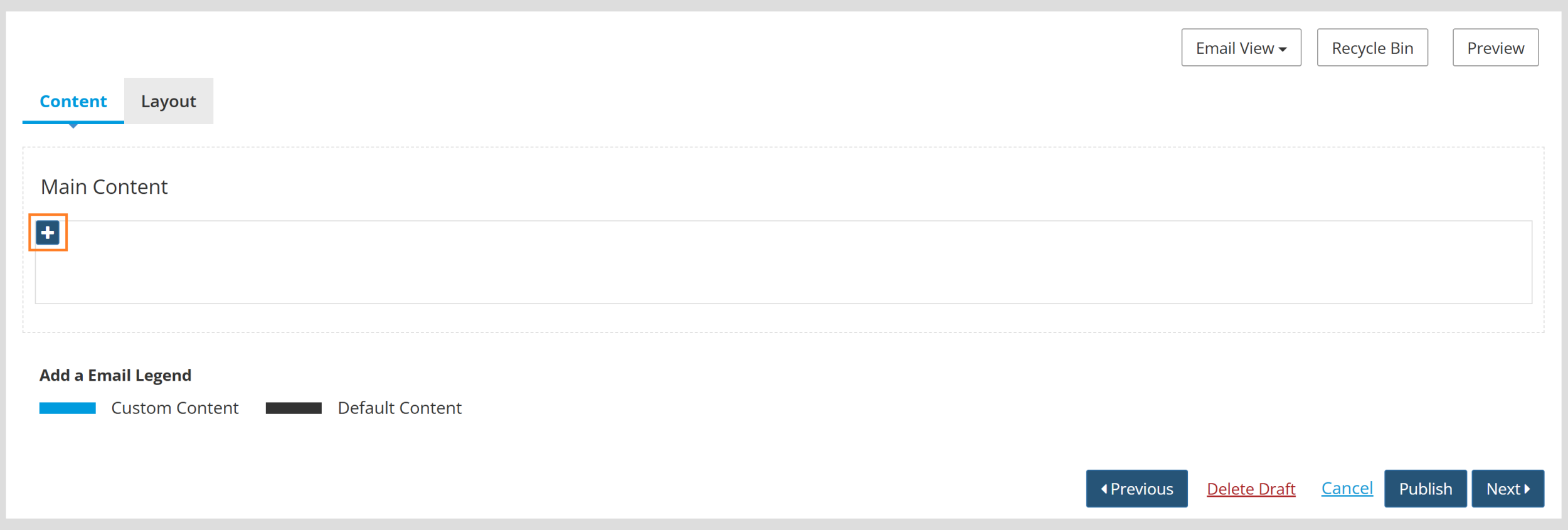
Tip: Use the Email Builder Content Section Library to preview content options
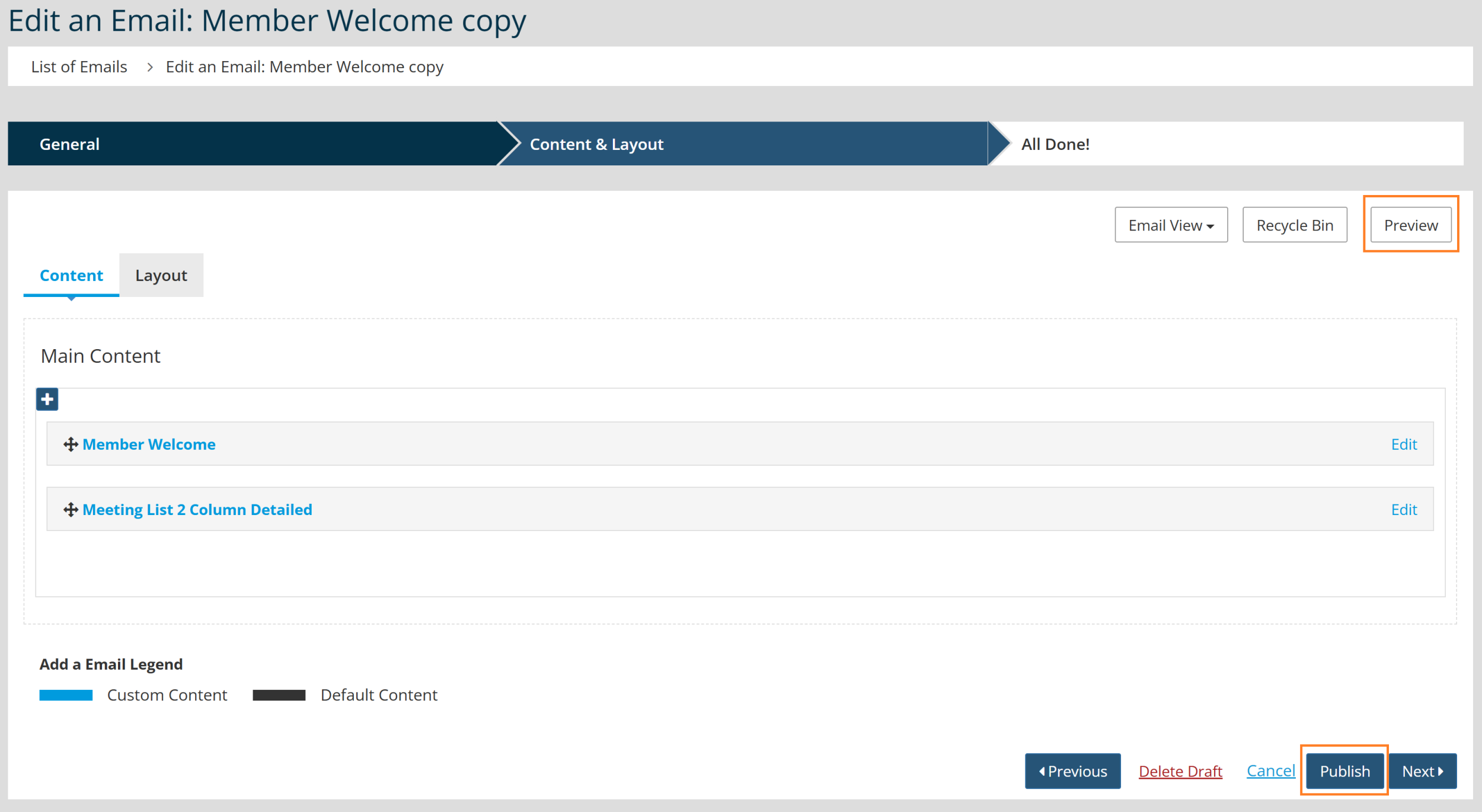
- When complete, click Preview to review your changes.
- Click Publish.
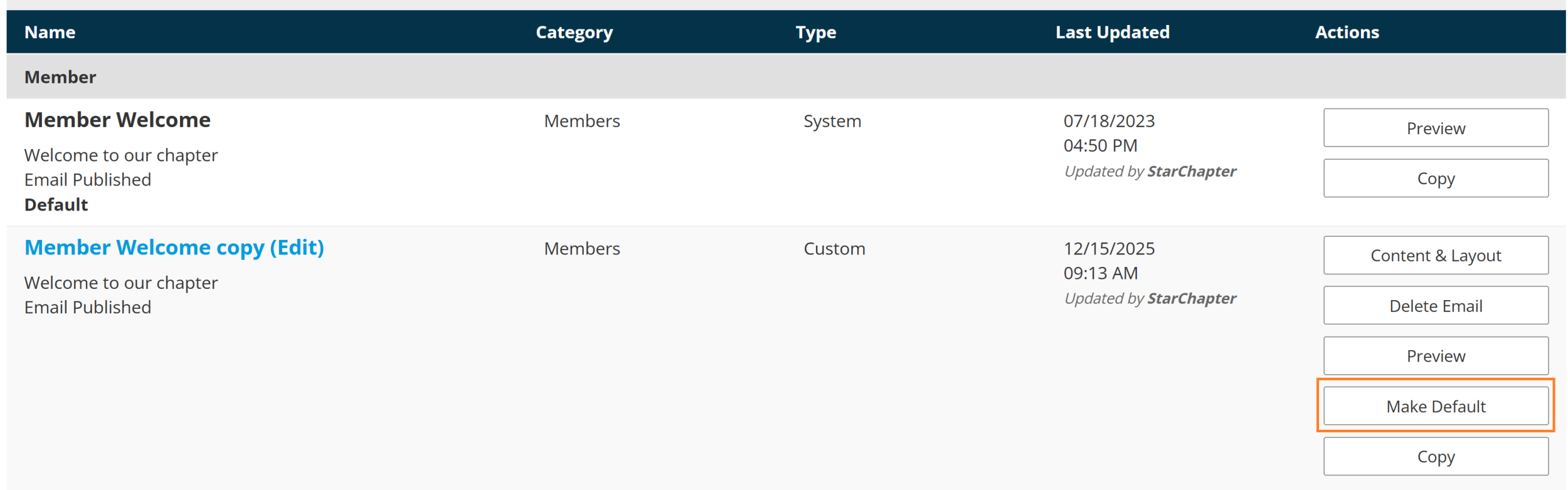
- Click on the Make Default button to the right of that email build if you wish for this new email build you have created to be the new system default for that type. Learn more about default emails here.
Major Changes to Text and Content Sections in Email Build
Major changes to an email build, such as using completely custom text and images as well as adding new content sections, involve making copies of the email templates and a copy of the email build. Copying email templates and email builds ensures that the original is always available if you need to start over.
- Go to Design > Email Templates.
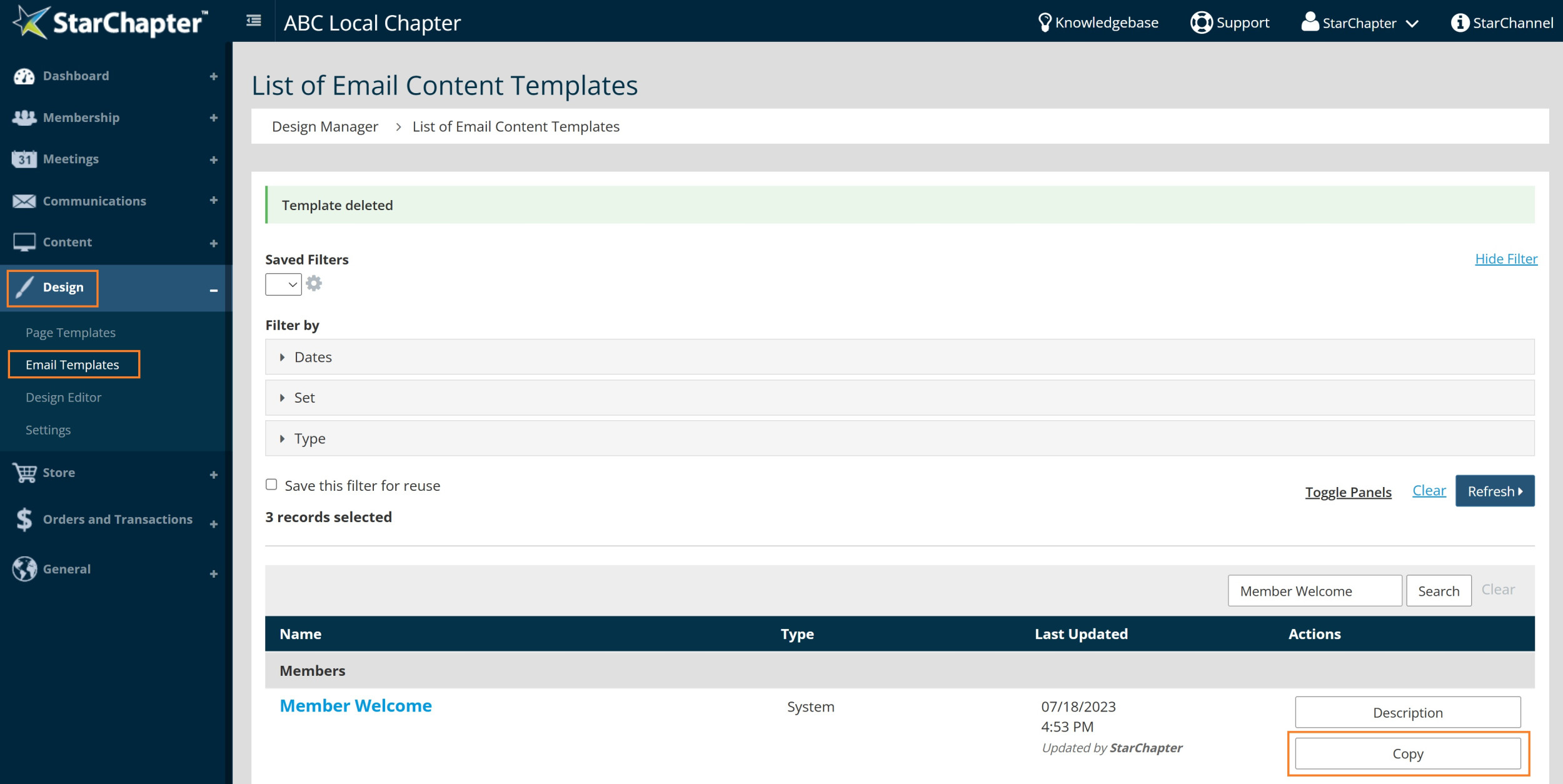
- Search for the email that requires edits. In this example, we're using the 'Member Welcome' email template.
- Click Copy.
- Update the template "Name" field (optional but recommended).

- Make edits to the text as desired. *Please note that additional content sections (such as upcoming events, sponsors, etc) will be added in a later step.
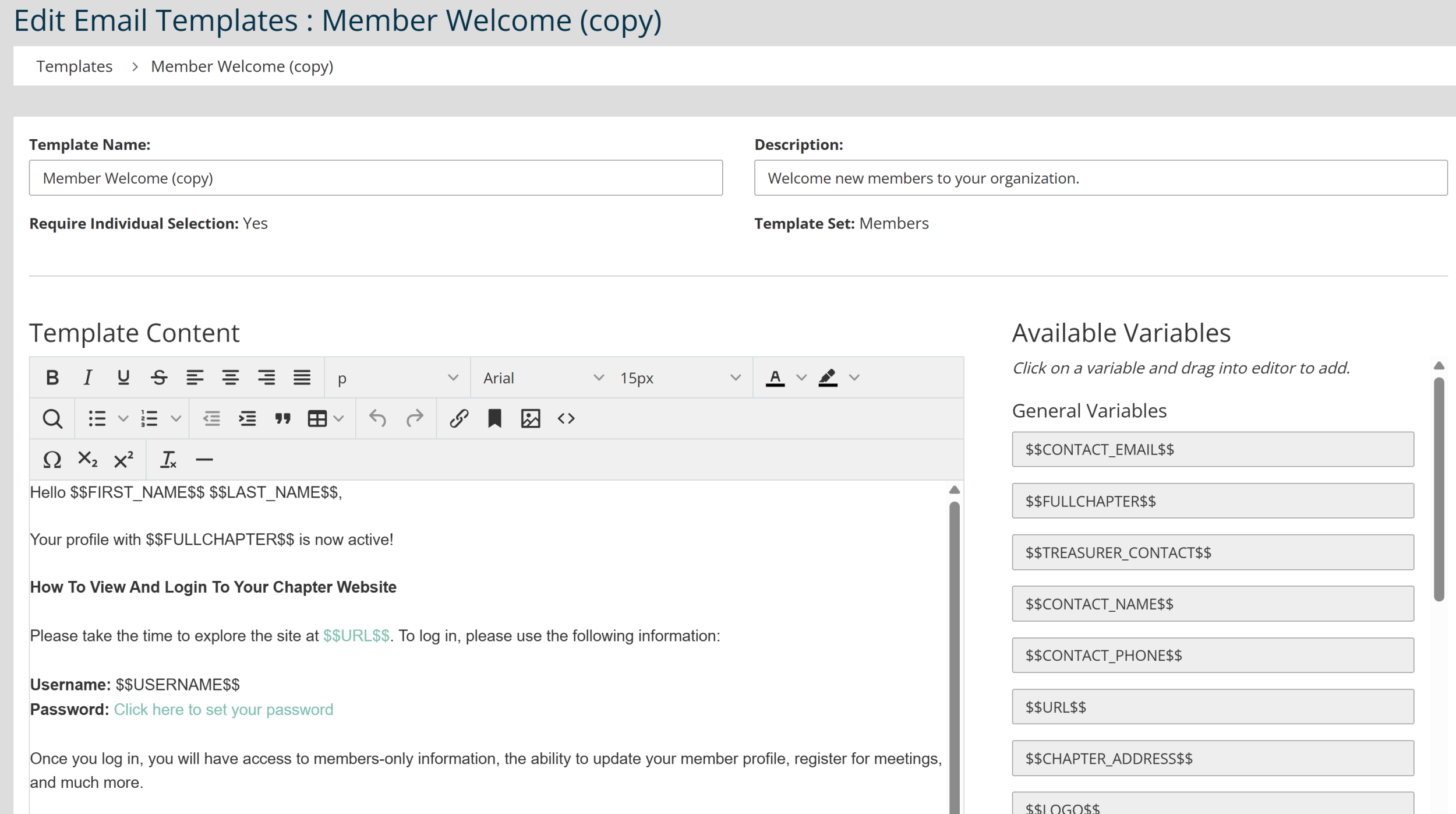
Tip: Drag and drop variables from the right-hand side of the screen to add dynamic text to your email.
- Click Save. This new email template automatically creates a new Email Builder Content Section that can be added to a new/copied email build.
- Go to Communications > Email Builder.
- Search for email build that requires edits. In this example, we are using the 'Member Welcome' email build.
- Click Copy, then OK.
- Update the email build "Name" field (optional but recommended).
- Click Next.
- Click Edit on the existing Member Welcome content section.
- Scroll to the bottom of the page, click Delete.
- Click the blue plus sign.
- Select your newly created Email Builder Content Section from the Membership Information content sections.
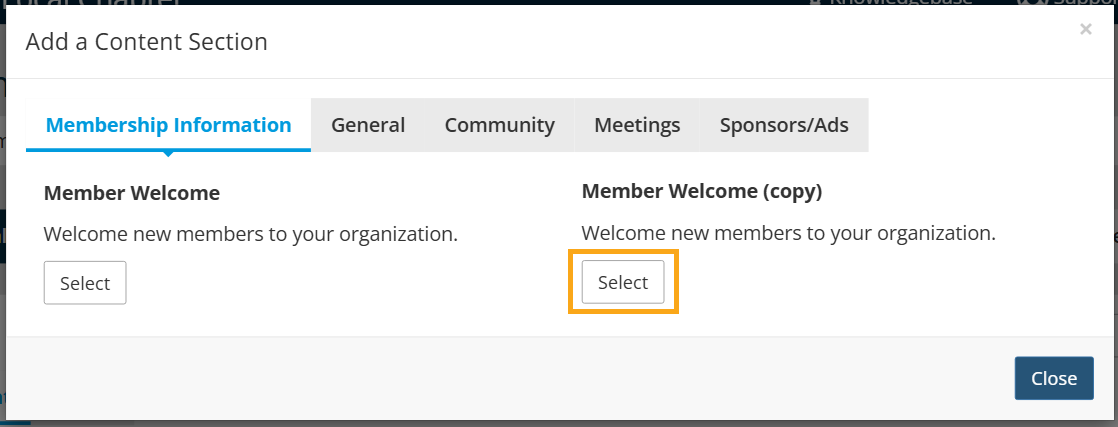
- Click Add.
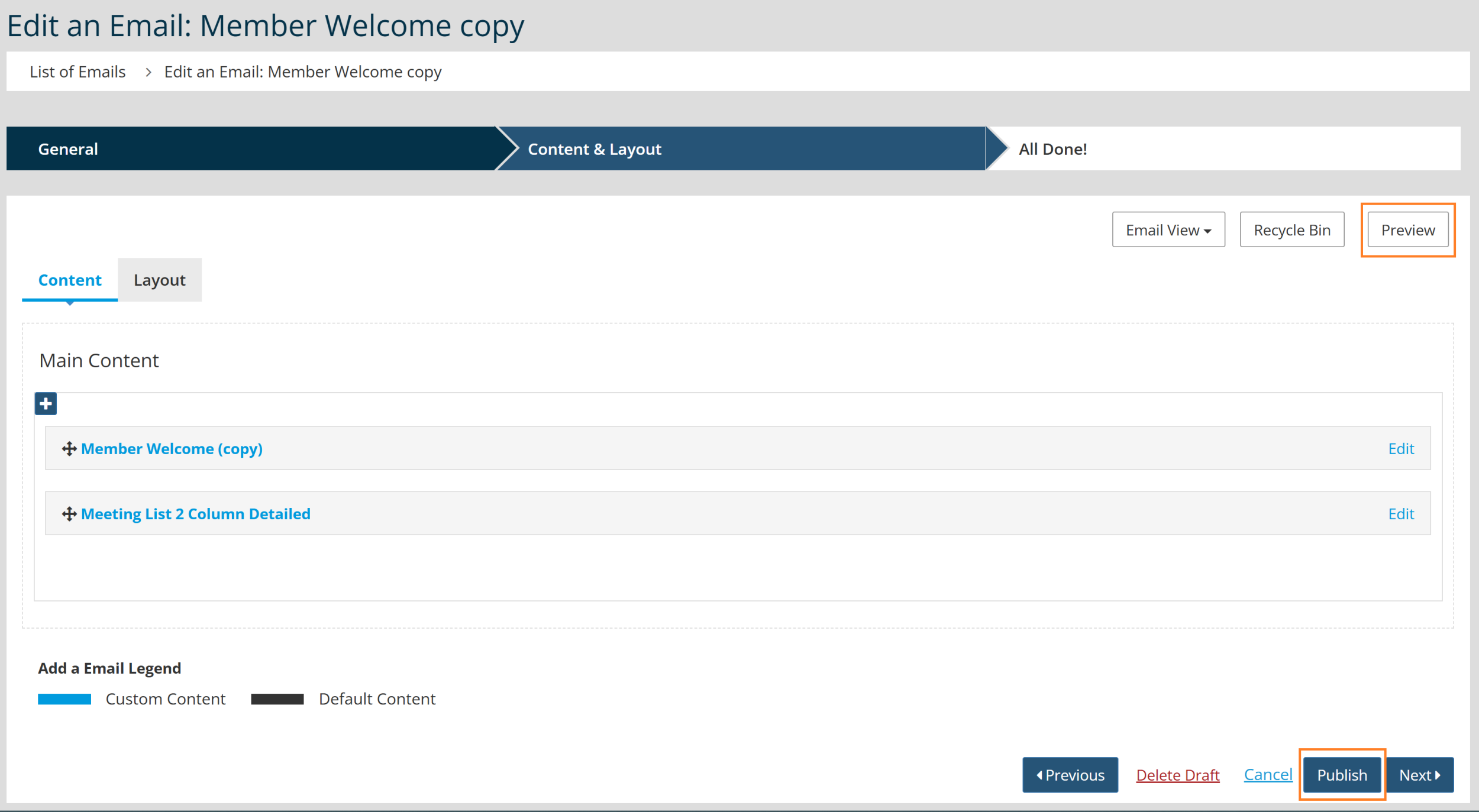
- Update the content and layout of your email build as desired. Use the directions in the Add Email Builder Content and Change an Email Build Layout for guidance.
- When complete, Preview to review your changes.
- Click Publish.
- Click on the Make Default button to the right of the new email build if you want this newly created email build to be the new system default for that type. Learn more about default emails here.
|
Tip: While StarChapter is a self-managed system, email templates and email builds can be a bit complex for many admin users. If you would prefer to have assistance with edits, submit a Support Ticket, and the StarChapter Support Team can assist you further. |


