
Send Out Welcome Email
StarChapter comes with two Member Welcome email builds. They are:
- Website Launch Member Welcome: Send this email after your site goes live.
- Member Welcome: Send this email to new members moving forward.
 |
Tip: This email build is for active members only. The variables pull information from Membership > Member Manager. |
Sending The New Website Announcement
- In the Admin area, go to Communications > Send an Email.
- Hover over New Email and click One-Time Email.

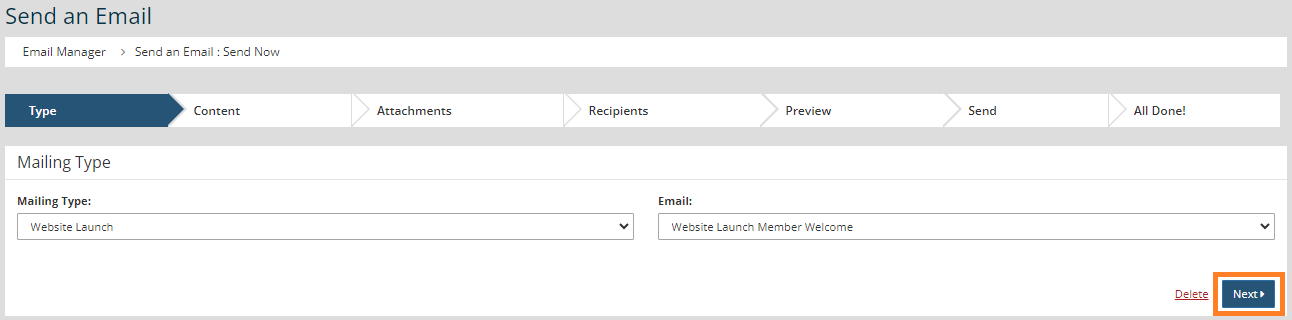
- Choose Website Launch for the Mailing Type and Website Launch Member Welcome in the Email drop-down.
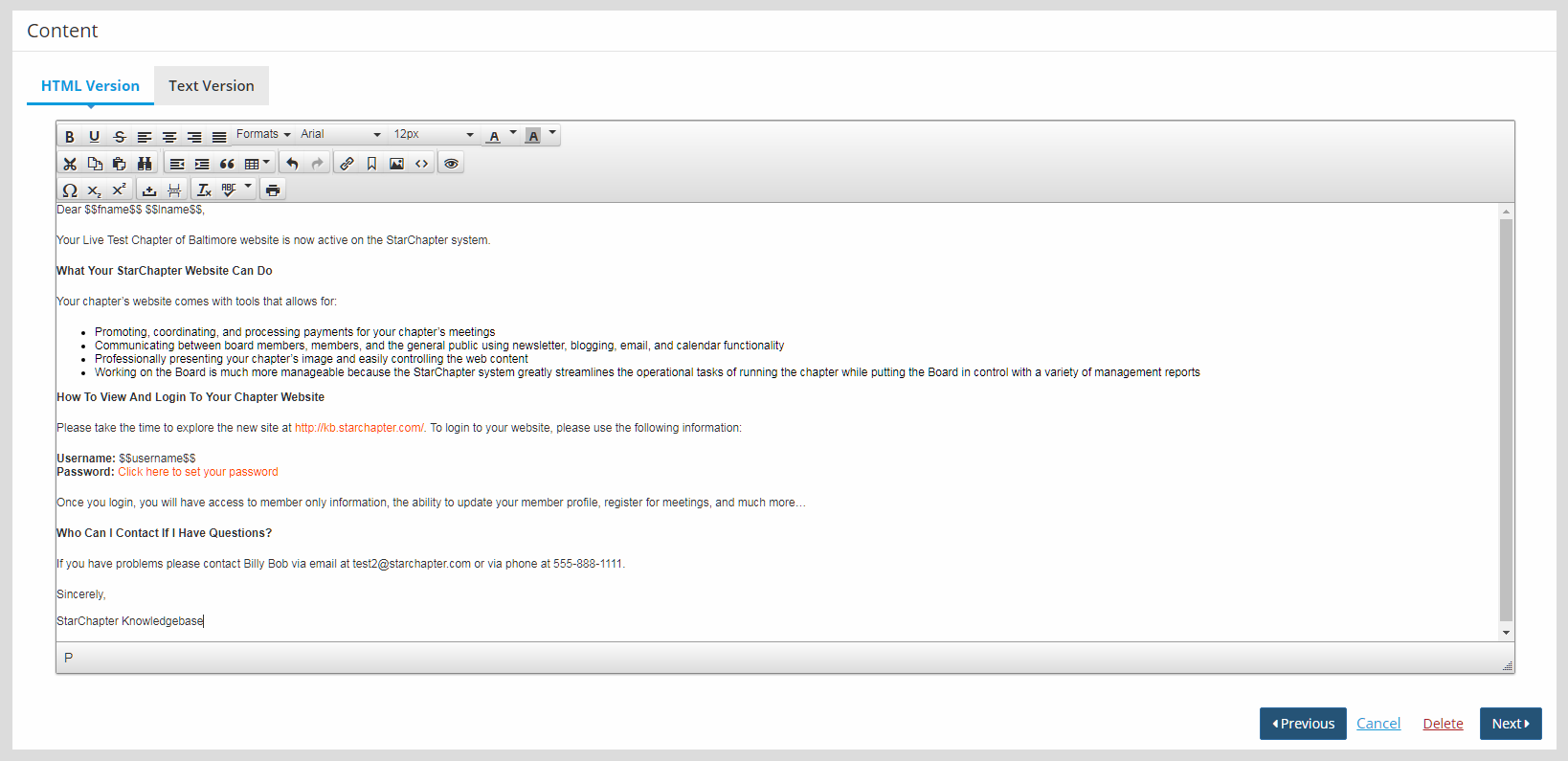
- Make any edits to the email on the Content screen.
- Click Next twice to reach the Recipients screen.
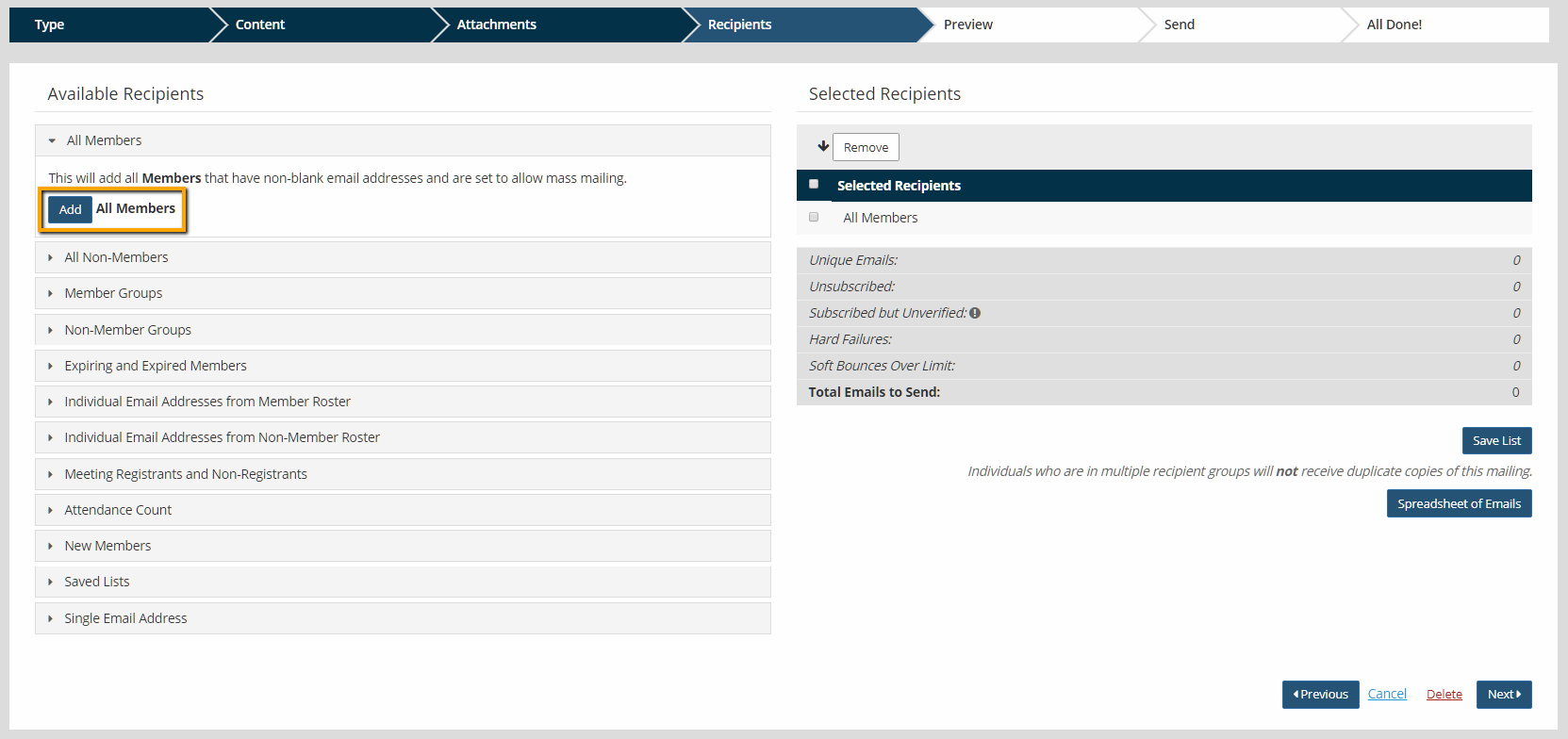
- On the Recipients screen, click on the "All Members" tab. Click the Add button next to "All Members" to add all members to the recipient list.
- Click Next.
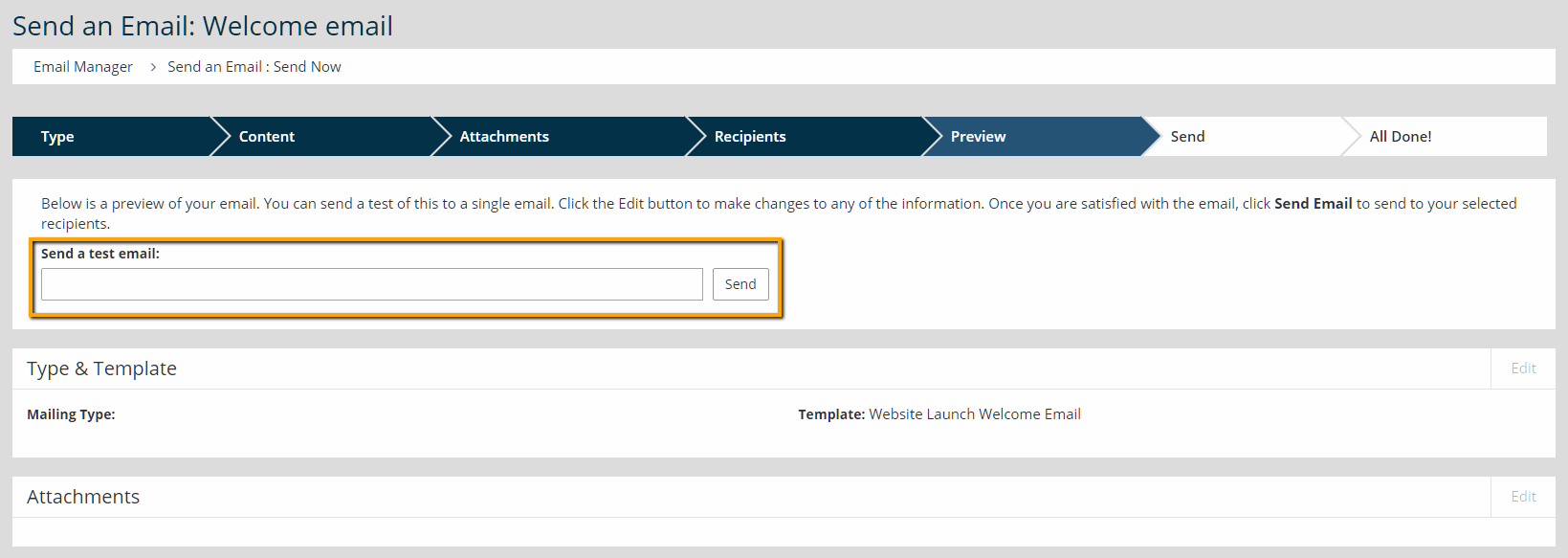
- Send a test email to yourself to review the content in your email account.
- After reviewing the email, click Send Email to send the mailing to all members.
Tip: Once the initial Welcome Email has been sent to current members, automate a welcome email for future members.
Testing A Member Welcome Email
StarChapter recommends testing all emails before sending them to a larger audience. In order to do this, go to the Preview portion of the wizard and enter an email address. Click Send.
A Note About Variables
There are embedded variables in the template that correspond to various values including the member's first and last name ($$FIRST_NAME$$ and $$LAST_NAME$$) and the chapter name ($$FULLCHAPTER$$).
|
Tip: Try testing the member welcome template before changing any of the variables. Then change the variables after reviewing the test email. |


