Reschedule or Cancel a Meeting
It is occasionally necessary to reschedule or cancel an entire meeting. The process to manage this change will depend on whether the meeting is going to occur at a future, known date and whether there are current registrations for the event.
Reschedule a Meeting
- Go to Meetings > Meeting Manager and click on the appropriate meeting.
- Click Edit in the Date and Time section of the event.
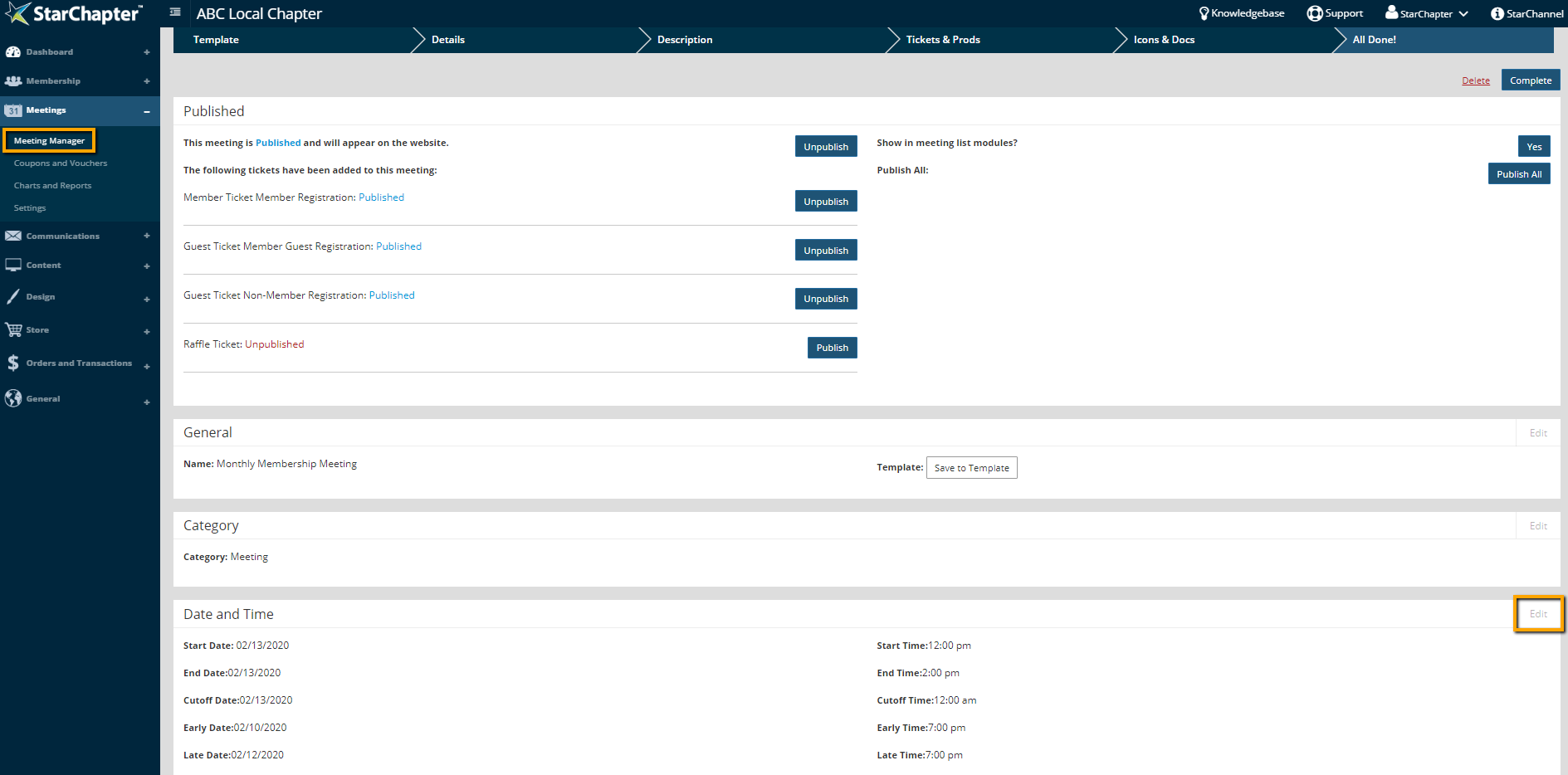
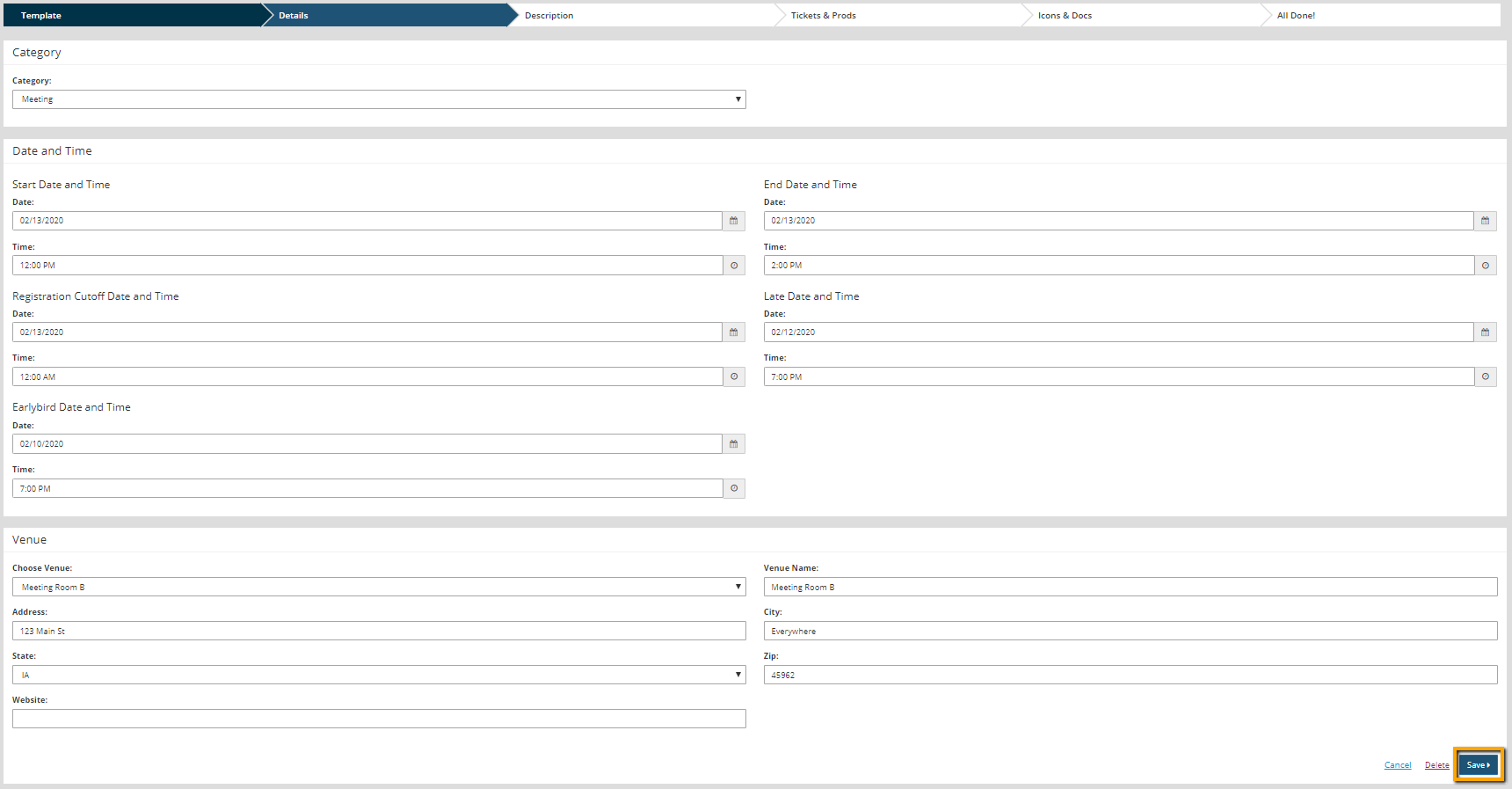
- Update all dates, including Start, End, Cutoff, Early and Late, as needed.
- Click Save. You may see a warning if there are already registrations.
- If a meeting announcement was previously sent out, send an updated announcement to all prospective registrants. Add a call to action, such as "NEW DATE," to the subject line of the message.
- If the meeting has current registrants, use the Chapter Letterhead template to draft a message for current registrants. Explain the change and provide guidance on how to cancel their registration if they are unable to attend the new date. With the proper system configuration, members can initiate cancellation. Non-Member registrants will have to reach out to a chapter leader to request cancellation. Admins in the system can follow the Cancel an Existing Meeting Registration article to cancel any registration.

Tip: Confirm that the configuration setting in Meetings > Settings > Permissions > Allow users to cancel their order and request a refund from the 'View My Order History' page? is enabled. This will allow members to cancel their order through the View My History page in their Member Area.
Cancel a Meeting
Meeting cancellation requires several steps from sending announcements, to updating the website, to processing refunds. Some of these steps may not apply to your meeting or organization, so complete the steps that pertain to your specific event.
Inform Registrants that a Meeting has been Canceled
- Follow the steps to Send a Meeting Reminder to Registrants.
- On the Content step, update the text of the message according and update the Subject of the email to include "CANCELED MEETING" or something to catch the attention of recipients.
- On the Recipients step, be sure to choose All Meeting Registrants.
Cancel Existing Registrations and Process Refunds
- Cancel each Registration individually, as described in the Cancel an Existing Meeting Registration.
- If the associated order was still open and no payment had been received, no future action is needed.
- If the associated order had been paid, process a refund for each registrant, as detailed in Issue a Refund.
Hide a Canceled Meeting
- Go to Meetings > Meeting Manager and click on the appropriate meeting.
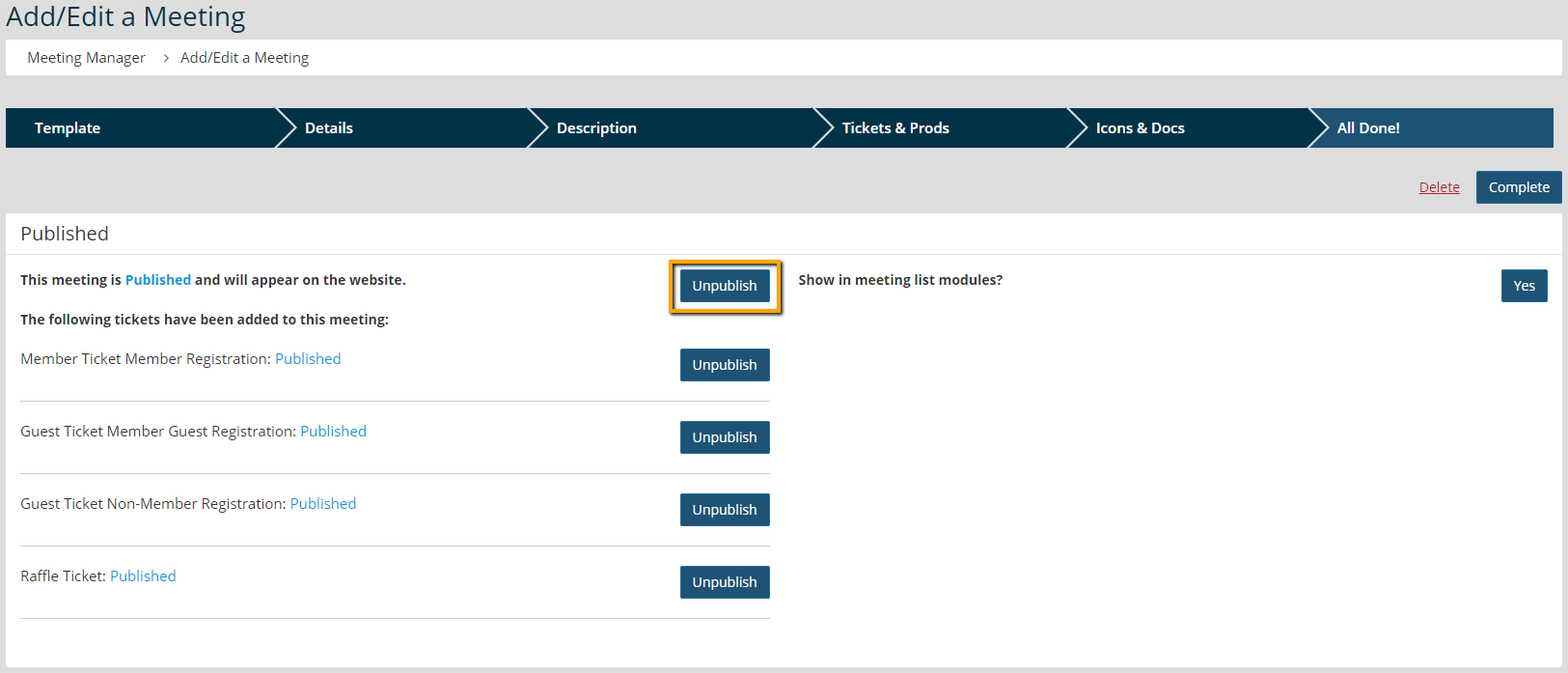
- Click on Unpublish next to "This meeting is Published and will appear on the website."