
Identify Open Orders
Depending upon the system configuration, it can be possible for orders to be placed without payment. If payment bypass is permitted, it will be important to review open orders occasionally. This can be done in bulk, by event, or by member.
View All Open Orders
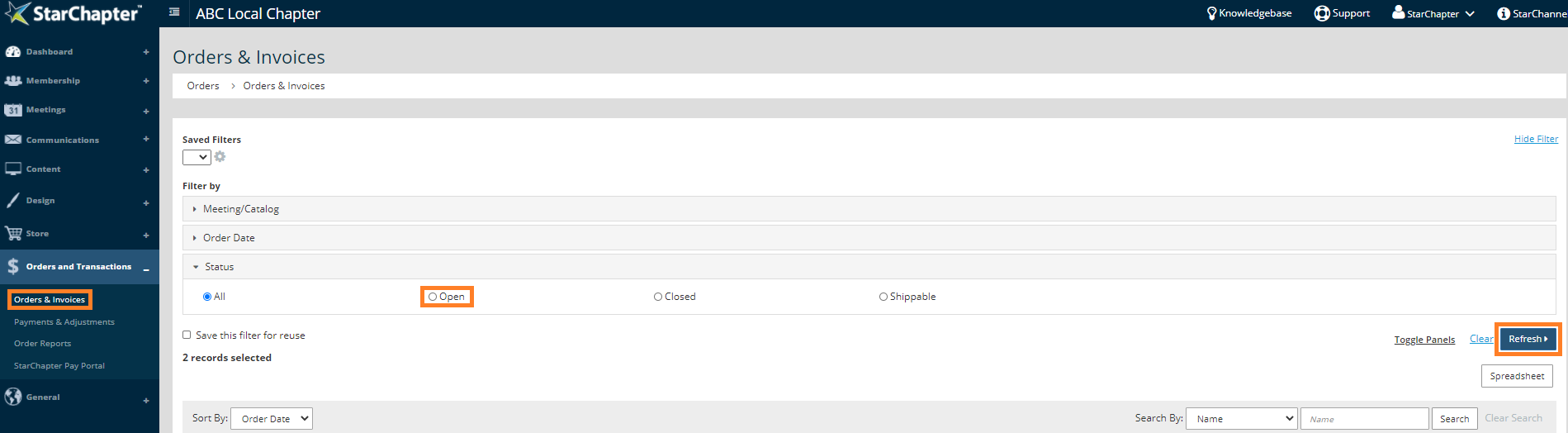
- Go to Orders & Transactions > Orders & Invoices.
- Open the Status filter and select Open orders.
- Click Refresh.
View Open Orders for a Specific Meeting
- Go to Orders & Transactions > Orders & Invoices.
- Open the Status filter and select Open orders.
- Open the Meeting/Catalog filter and select the meeting of interest from the drop-down menu.
- Click Refresh.
View Open Orders for a Specific Member
Members will only have an open order/account balance if an order has been placed on their account. Renewal is not assumed, so there will not be a dues order associated with anyone's profile unless it is opened by either the member or an admin. Instead of opening dues orders for expiring members, send renewal emails to all expiring members to prompt them to pay dues for the upcoming member term. The order will be opened and closed as part of that process without any intervention needed by an admin.
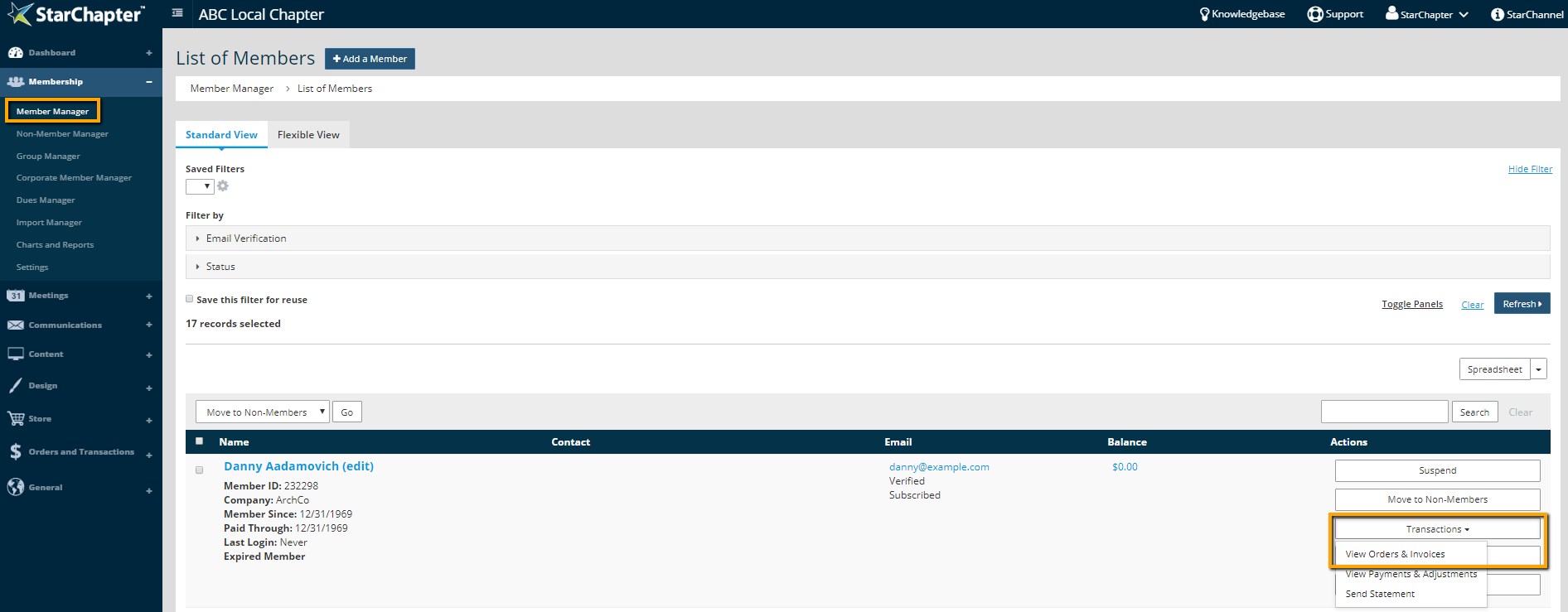
- Go to Membership > Member Manager.
- Search for the member of interest.
- In the Action column, select Transactions > View Orders & Invoices. This will route you to a pre-filtered list of orders in Orders & Invoices.
- Open the Status filter and select Open orders.


