Create and Use a Saved List of Email Recipients
StarChapter includes many built-in email filters as well as the ability to create mailing lists using Email Manager, but there are times when a specific combination of those filters or groups will be needed. Using filters rather than a specific list of emails allows the system to target recipients even as their status changes. For instance, if an email is scheduled to go out to a specific member type, members of a specific committee, and your board members, using those options within the Email Manager will ensure that all appropriate recipients are included even as members join and/or chapter leaders transition. When multiple filters are used, that combination of recipients can be saved as a custom list for future use. This ensures that no recipients are missed or changed between emails.
Create a Saved List
- Go to Communications > Email Manager and draft a message, as usual.
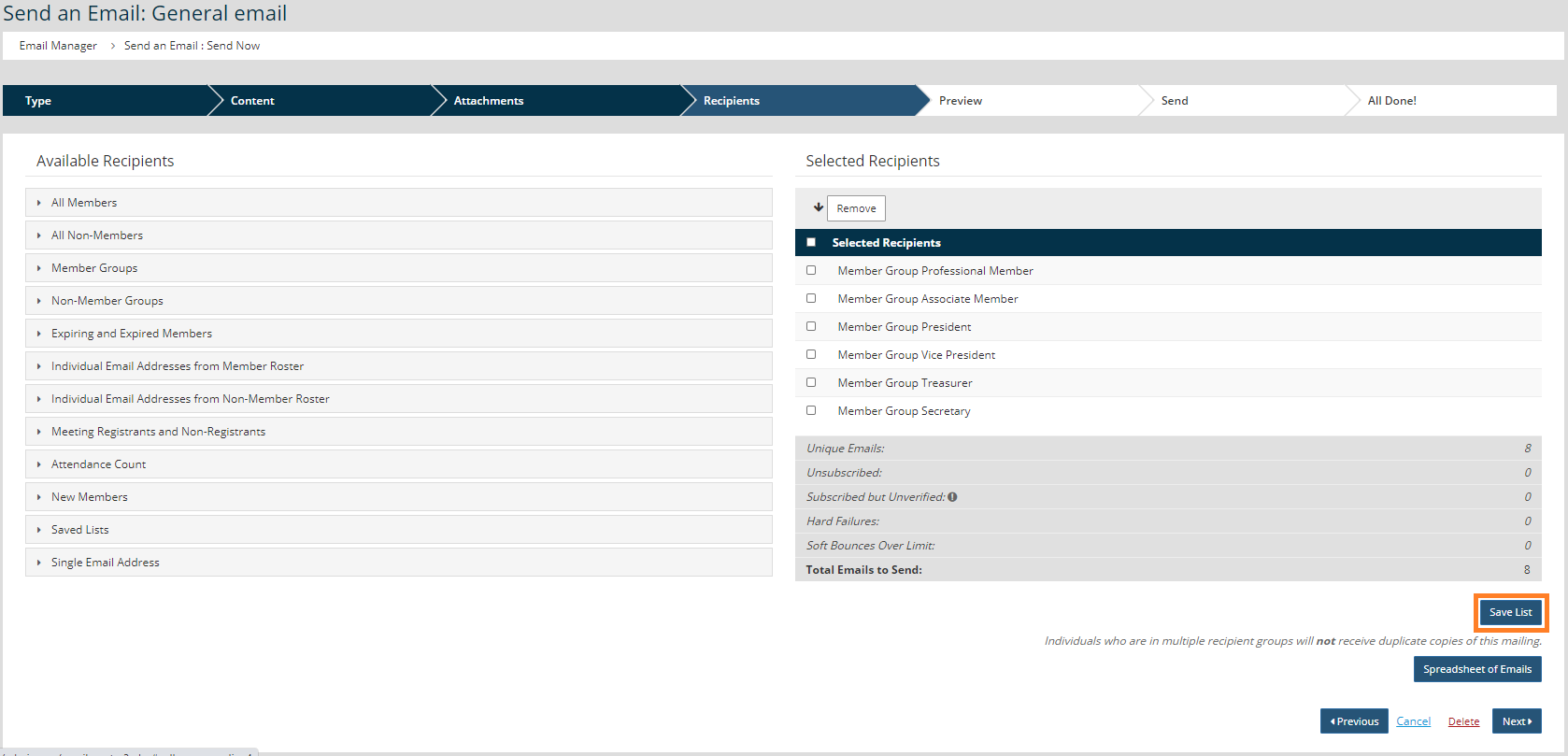
- On the Recipients step, add all appropriate groups and filters to the Recipients' list.
- Click the Save List button.
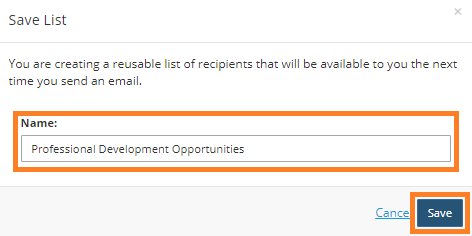
- In the pop-up window, enter a name for this list of recipients.
- Click Save.
- Continue to send your drafted email, as usual.
Use Saved List
- Go to Communications > Email Manager and draft a message, as usual.
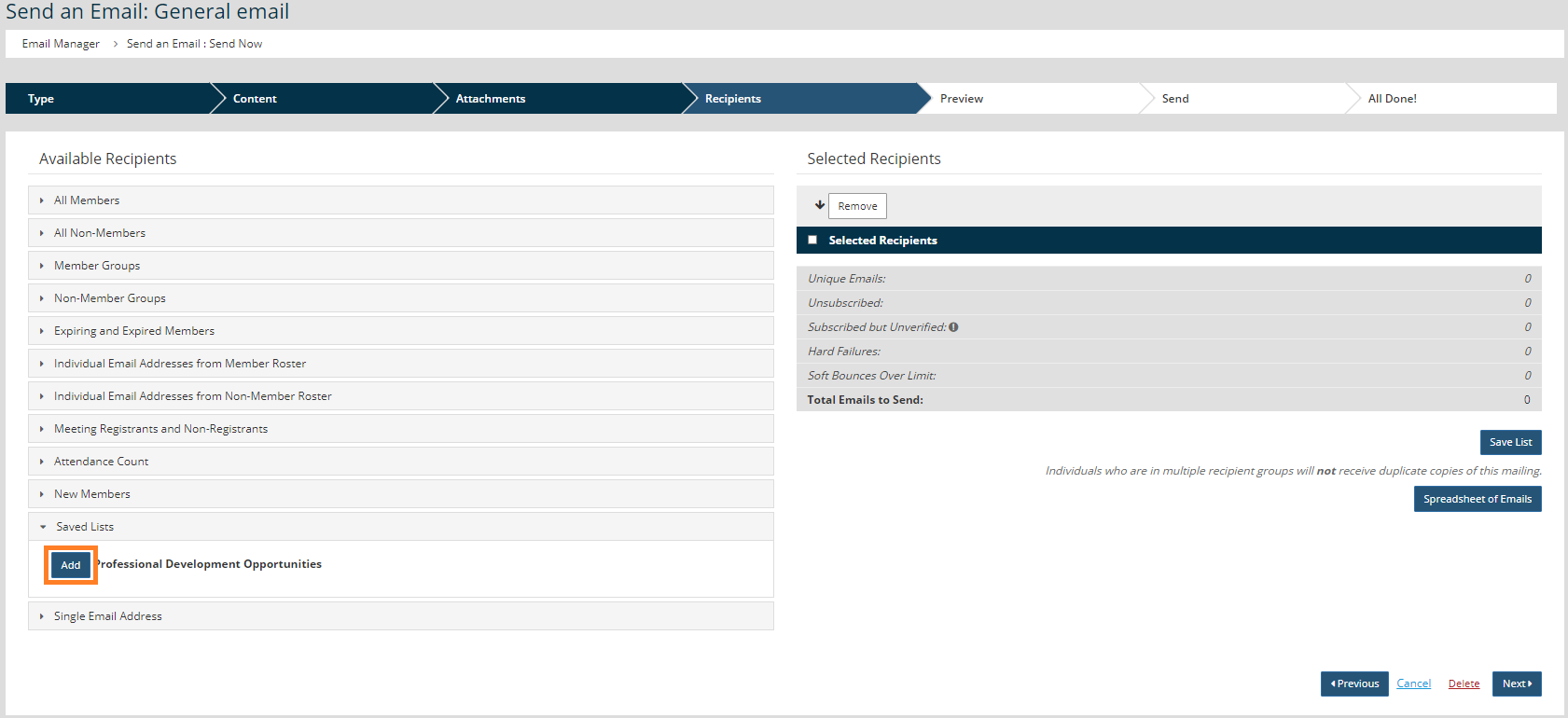
- Click the Saved List filter to expand those selections.
- Click Add next to the Saved List that you want to use.
- Continue to send your drafted email, as usual.
Delete a Saved List
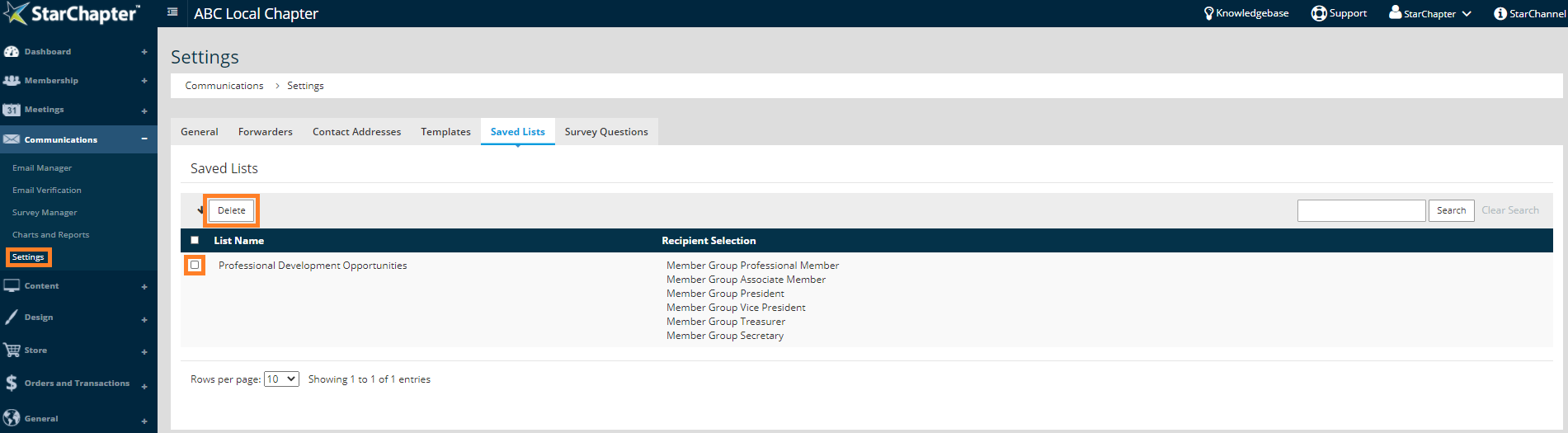
- Go to Communications > Settings > Saved Lists.
- Check the box next to the list you want to remove.
- Click the Delete button at the top of the table.