Action Items After A Meeting Or Event
After an event or meeting, there are tasks StarChapter recommends completing within the system to reconcile key data. This includes:
Tracking Attendance | Entering Ticket Payments | Post Meeting/Event Photos | Send An Event Survey
Track Attendance
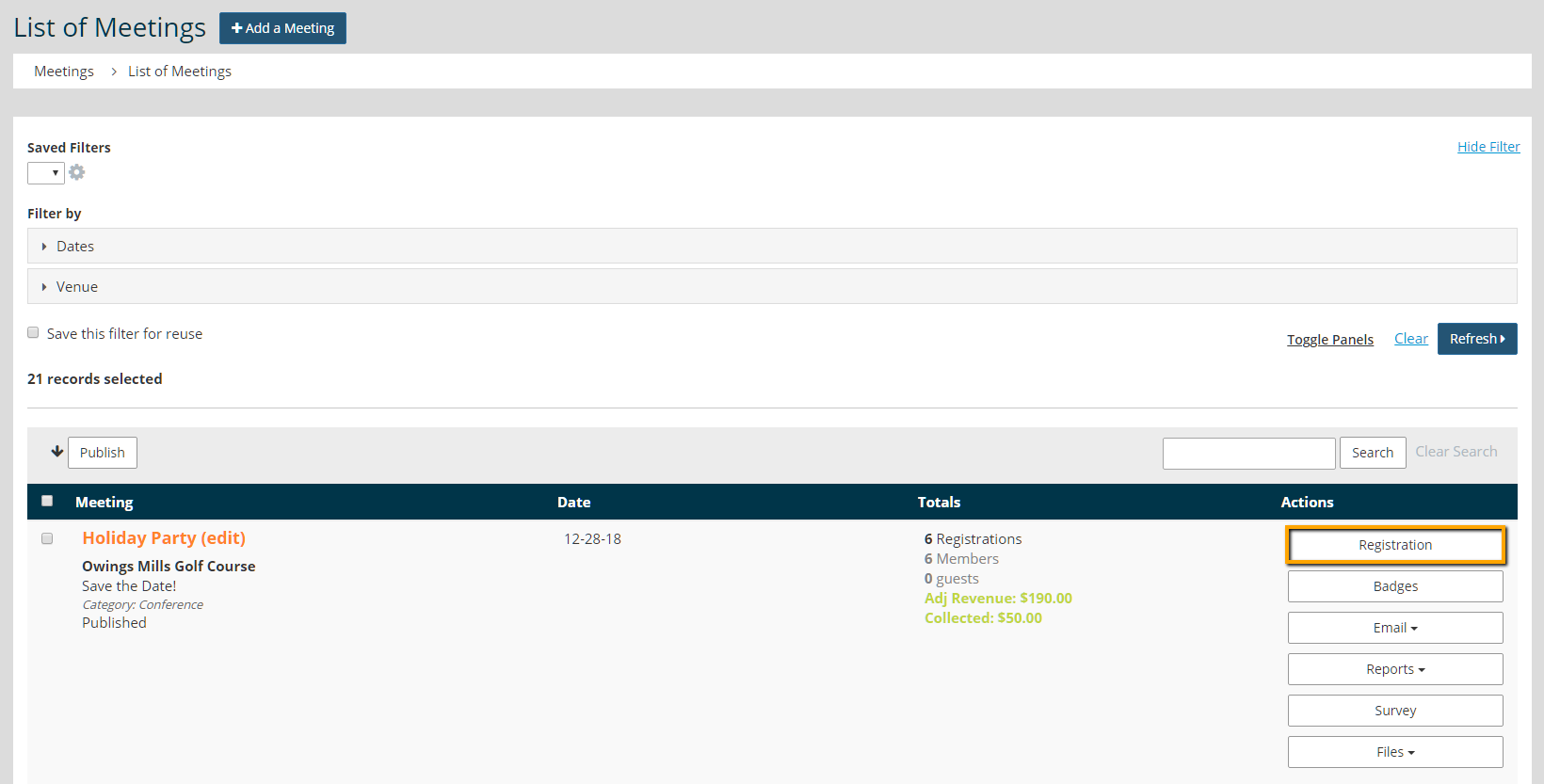
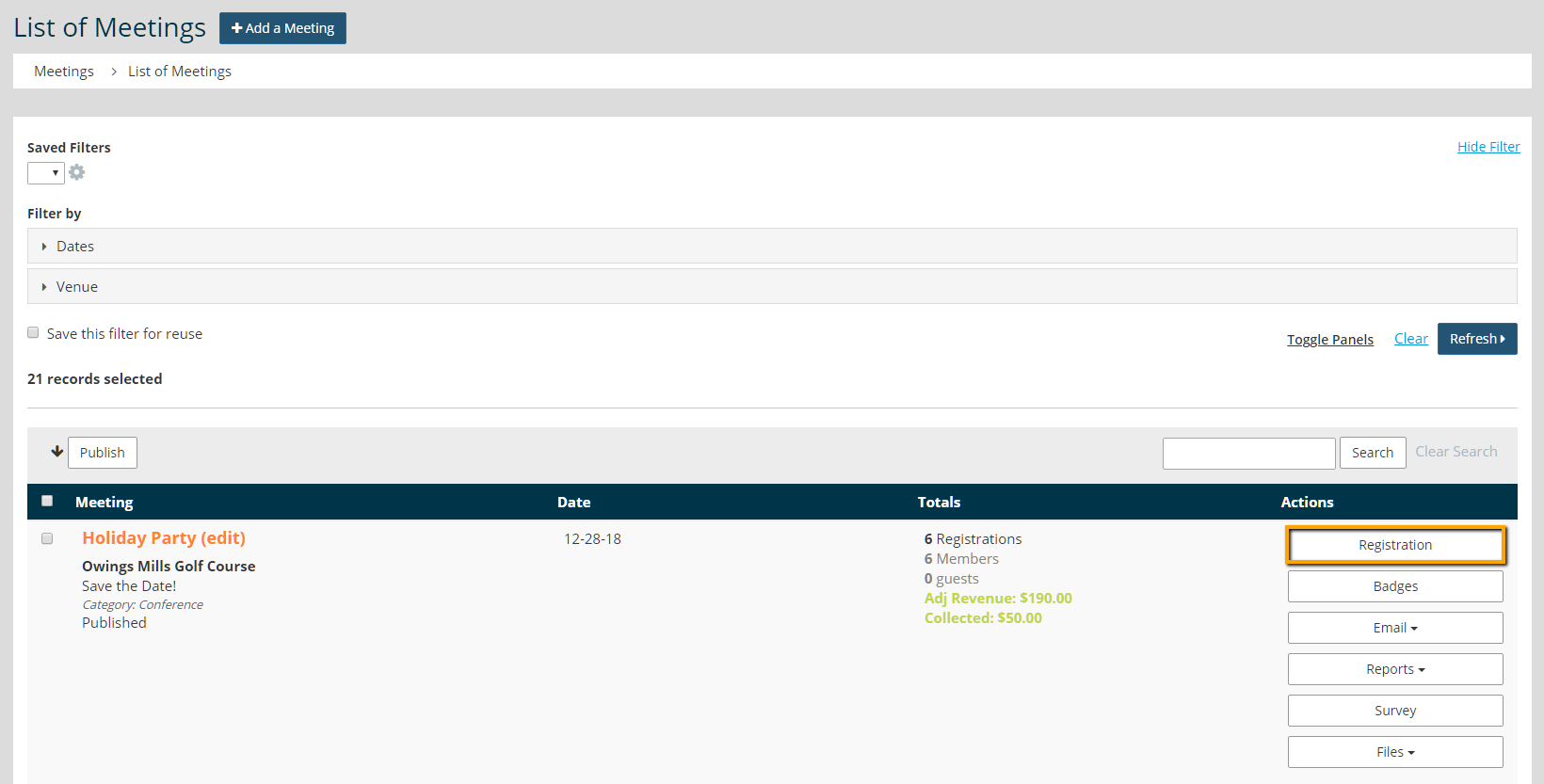
To track attendance for a meeting or event, go to Meetings > Meeting Manager. Click the Registration button under actions.
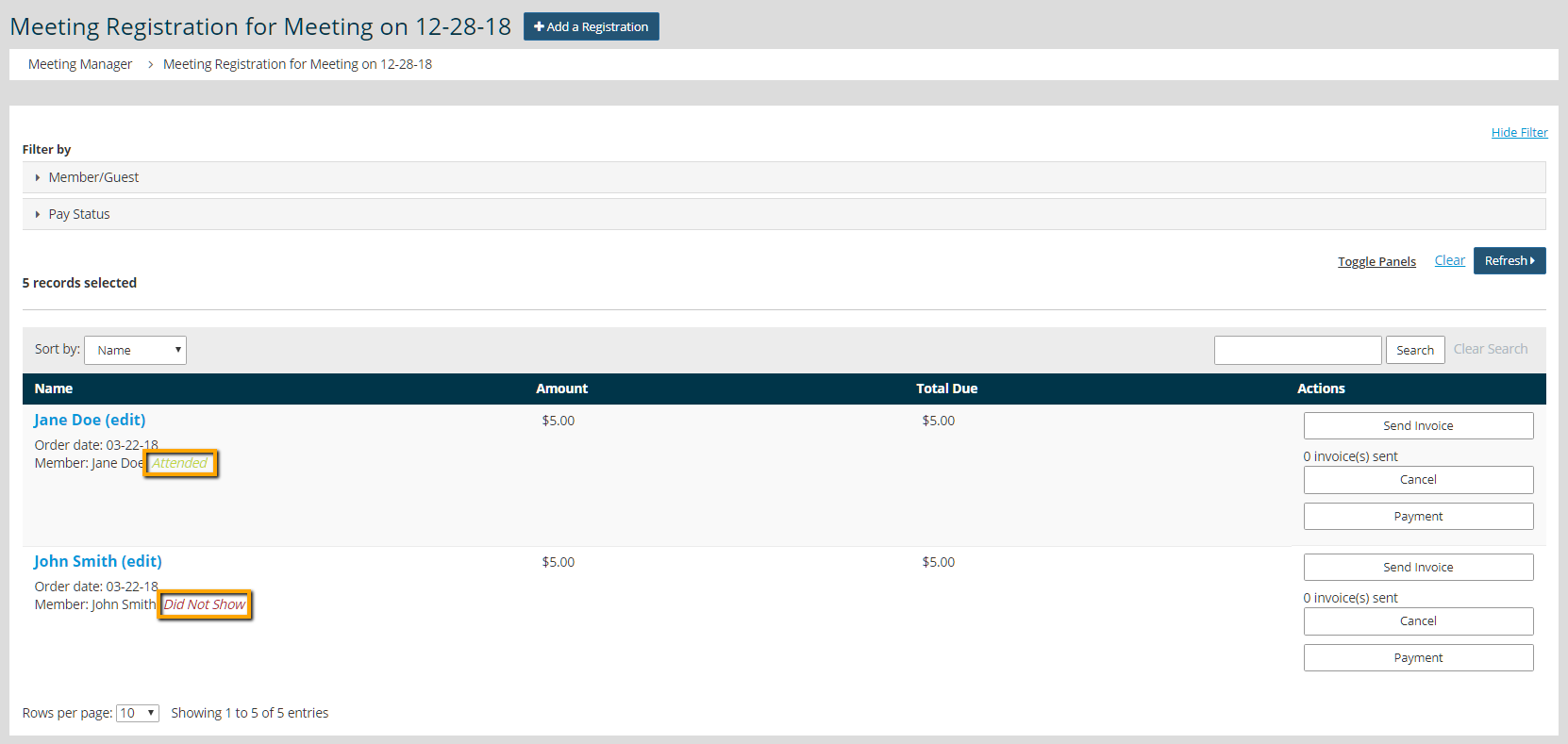
Next to the name, locate Attended or Did Not Show attendance status. Click on the text to change the attendance status.
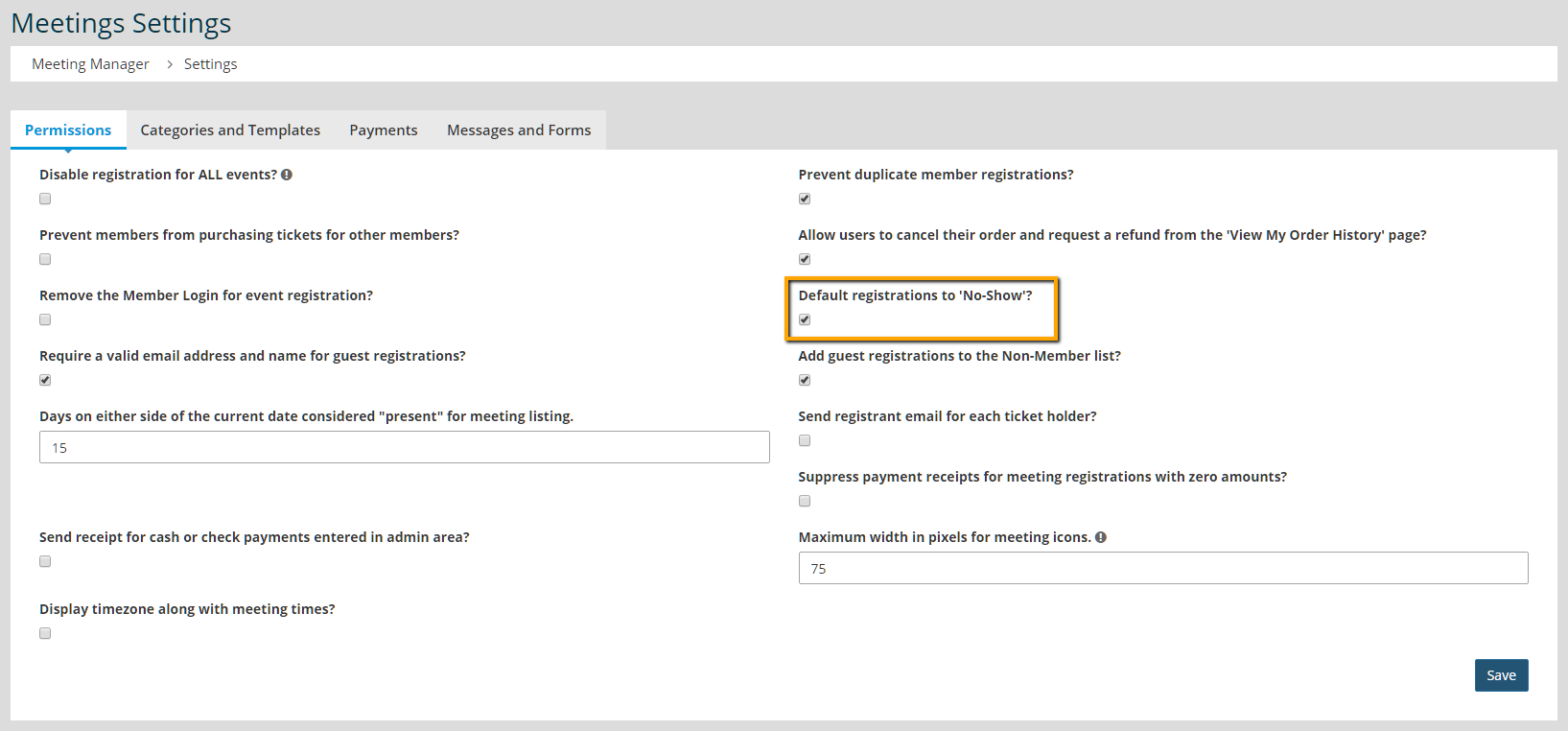
To change the default attendance status, go to Meetings > Settings > Permissions. Check the box for "Default Registrations to No-Show". This setting change is not retroactive and only affects future registrations.
Enter Ticket Payments Collected At The Meeting
Pay at the Door
If someone pays at the door, then they either opted to bypass payment during the meeting registration process, or are a walk-in registrant.
 |
Tip: StarChapter recommends having a laptop or tablet on site to process registrations. If this is not possible, then follow the steps here to enter ticket payments. |
Entering a registrant's payment information into StarChapter is easy. If this is not completed during registration onsite, then the best way to enter a payment is via Meetings > Meeting Manager > Registration.
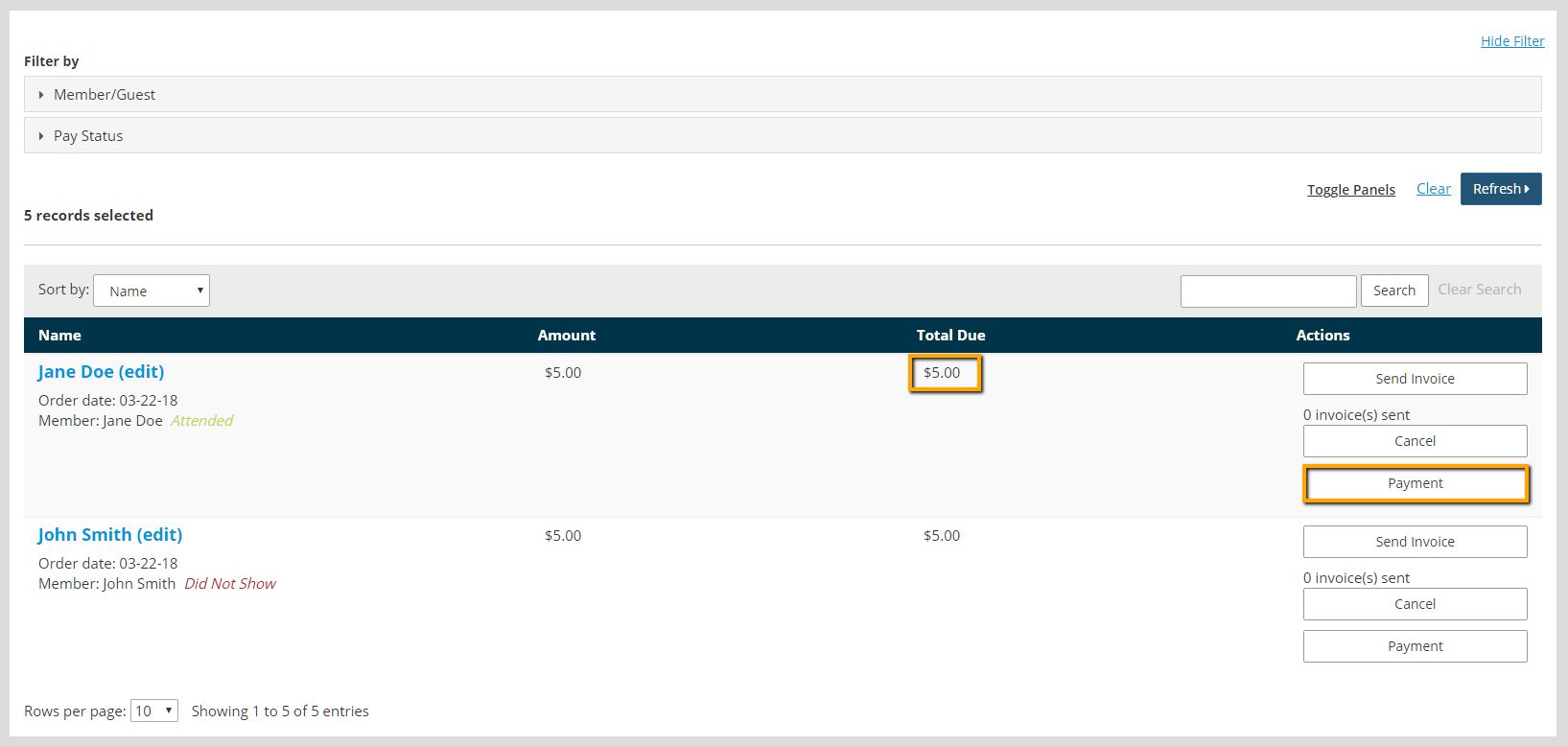
Existing Registration
Members and guests who bypassed payment show on the registration list. Locate the attendee's name, and then click the Payment button.
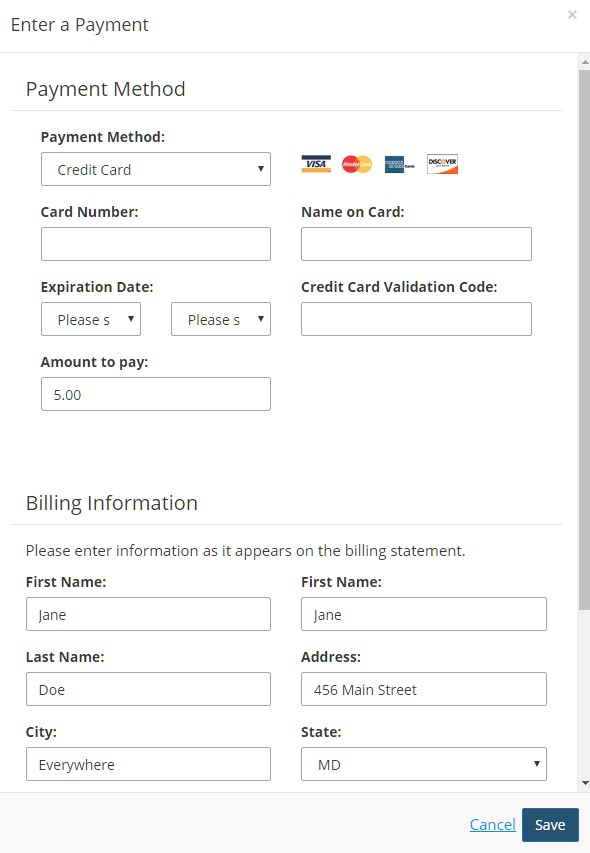
A pop-up appears that enables credit card, cash, check, and unpaid options.
|
Tip: Entering a credit card payment here does charge the credit card. If someome pays by credit card at a meeting independent of the website, then mark the order as unpaid. Then, go to Orders and Transactions > Order Manager and locate the order. Add an adjustment to the order, and then Close the Remaining Balance. |
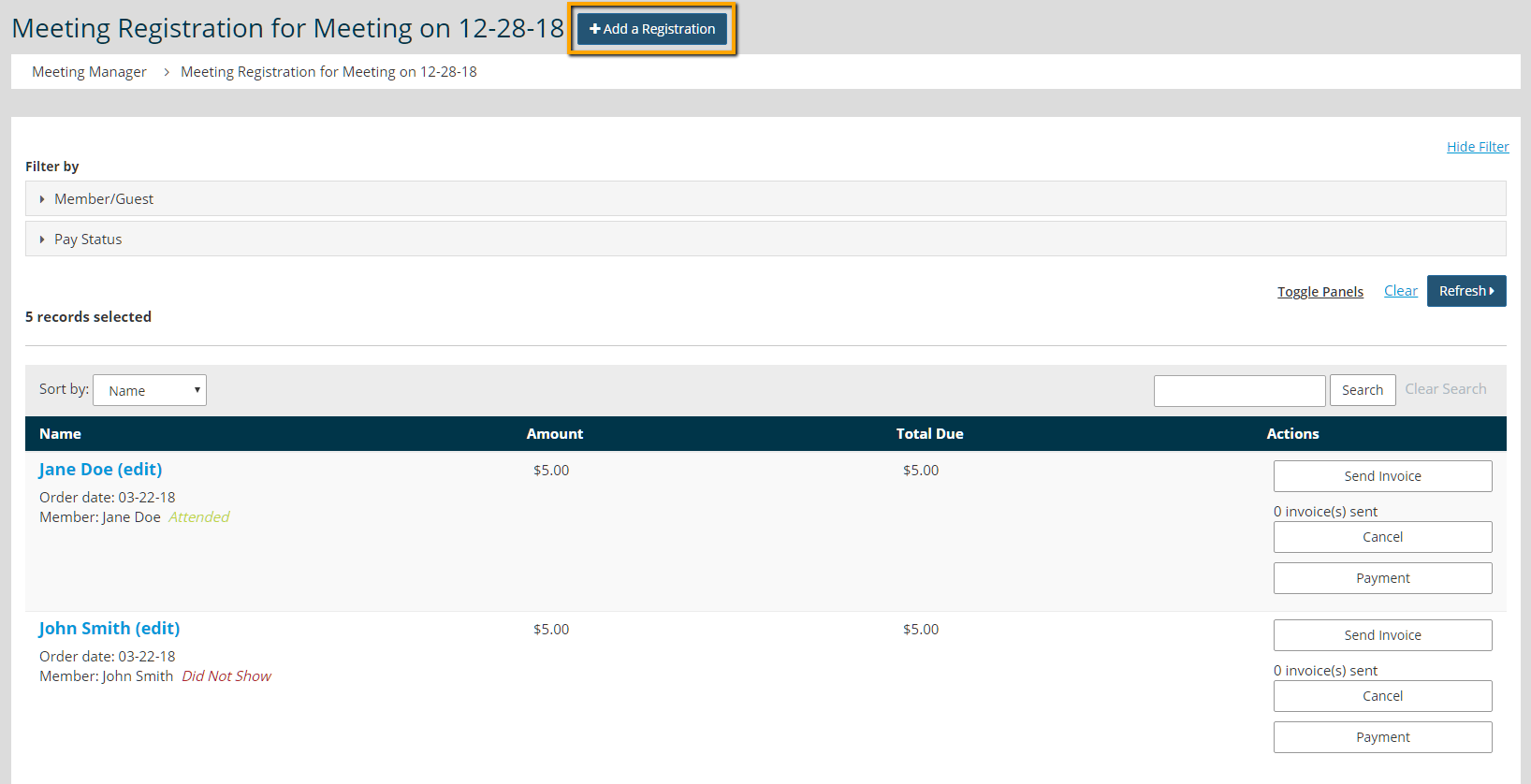
Enter a New Registration
To enter a new registration, go to Meetings > Meeting Manager > Registration. Then, click 'Add a Registration.'
Check Meeting Financials: Credit Card Payments
Credit cards are usually collected prior to or on site at the event. To account for all credit card payments, StarChapter recommends comparing payment gateway data with Orders and Transactions > Order Manager.
|
Tip: StarChapter stores payment gateway information via Dashboard > Quick Start > Payment Processing. |
Post Meeting/Event Photos
StarChapter recommends two different ways to post event photos. The first is posting the photos directly onto the event page. The second way is posting a lightbox of images on the home page. Both of these options require uploading the photos in Content > Media Manager > Photo Gallery.
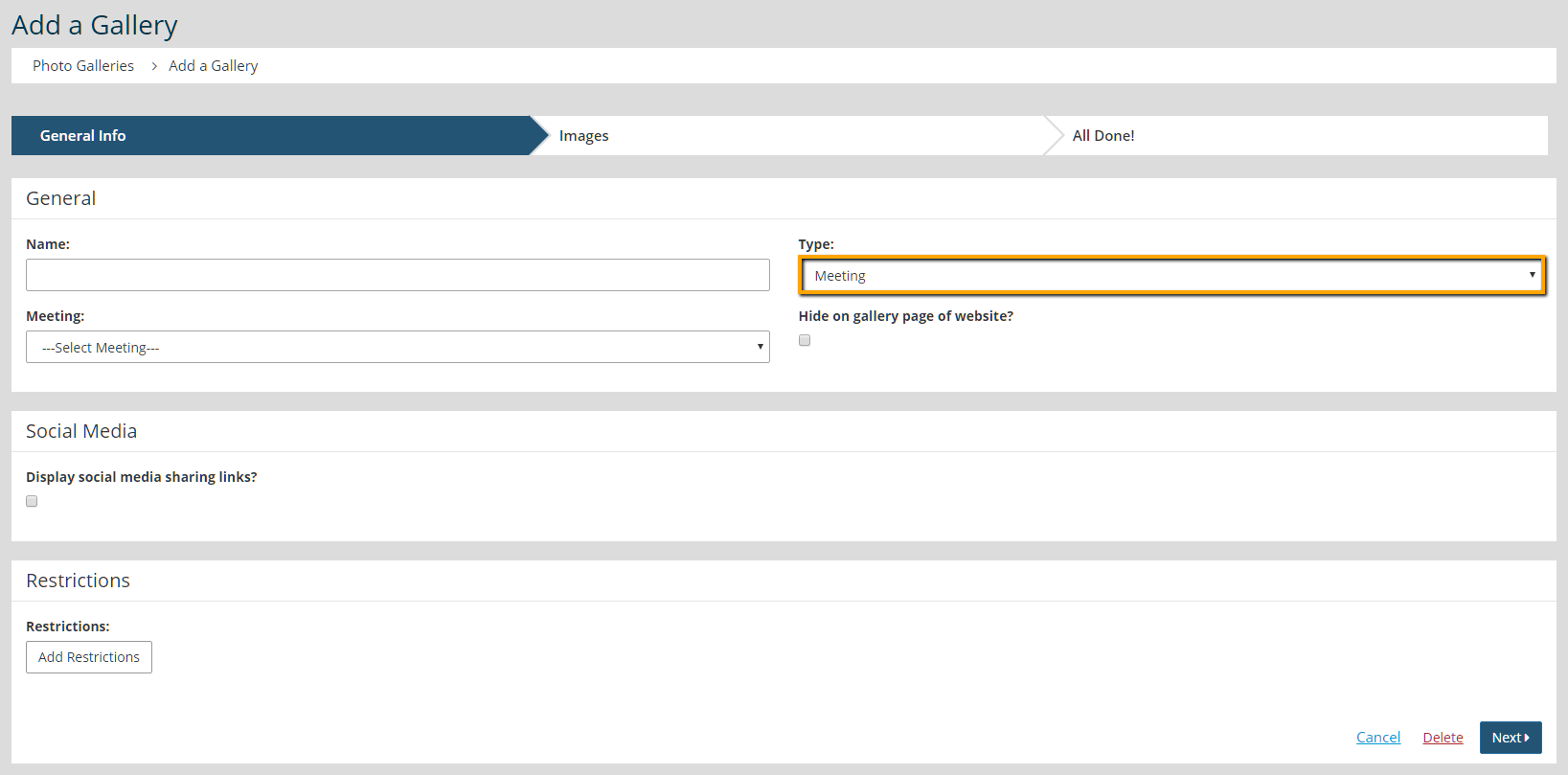
When adding a new gallery, make sure to select "Meeting" under the Type drop down. A Meeting option will display, so you can select the correct meeting from the drop down.
Posting Photos On The Event Page
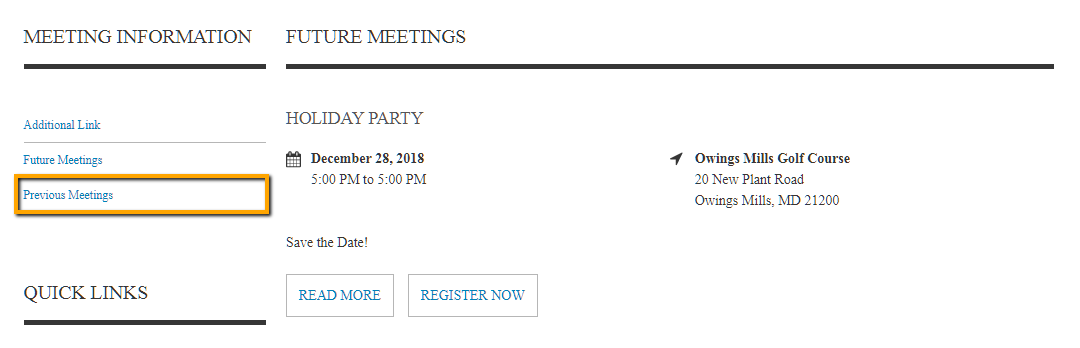
All past events within StarChapter are accessible via the Previous Meetings tab on the system Meeting/Event Information page.
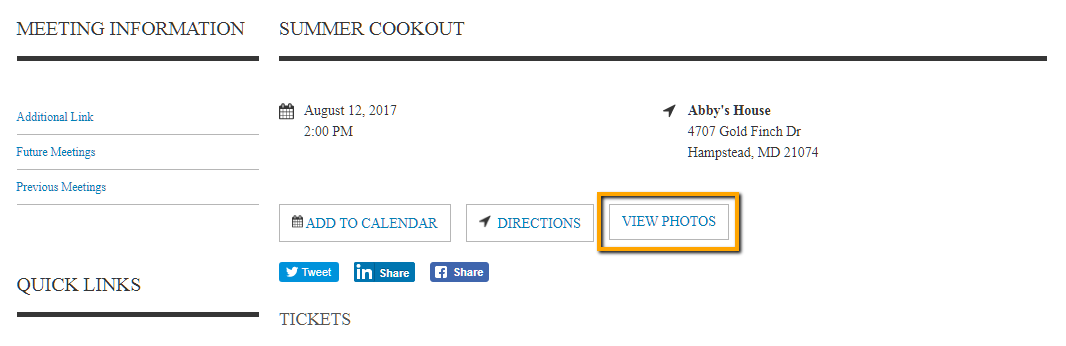
After a visitor click Read More, a screen shows where users can view photos from the event.
Posting Photos On The Home Page
Adding photos on the home page is a great way to display event photos. To accomplish this, go to Content > Page Manager > Page Content > search for Home Page. In the Content & Layout portion of the wizard, click the blue "+" sign button. Go to the Multimedia tab and select either the Gallery Rotator or Photo Lightbox options.
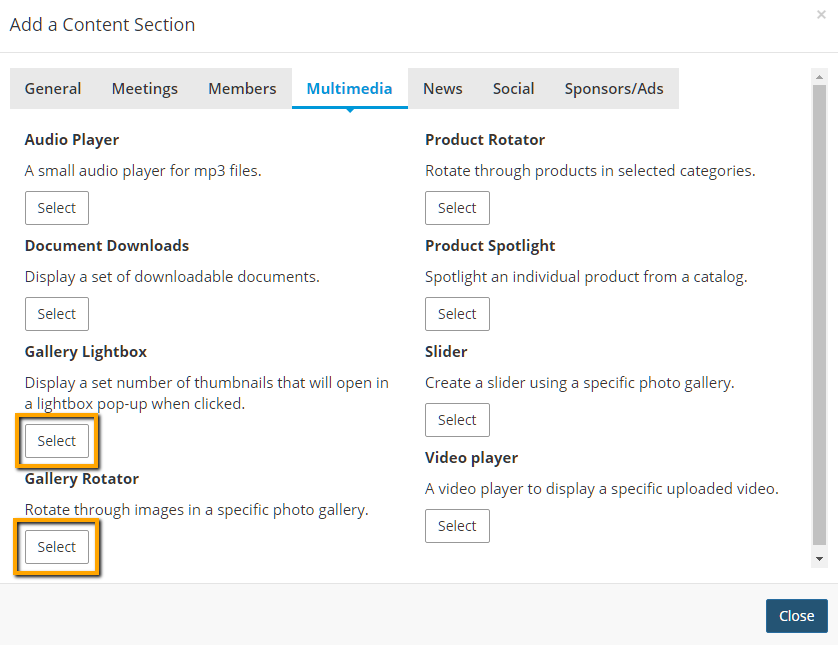
Both options provide a drop down Gallery. In this drop down, select a specific meeting gallery, or set it to Most Recent Meeting w/Photos.
Send An Event Survey
After an event, members and non-members alike are eager to give feedback.
Setup any survey via Communications > Survey Manager. There are options within StarChapter's survey feature to make responses anonymous and restrictions that only make the survey available by invitation.
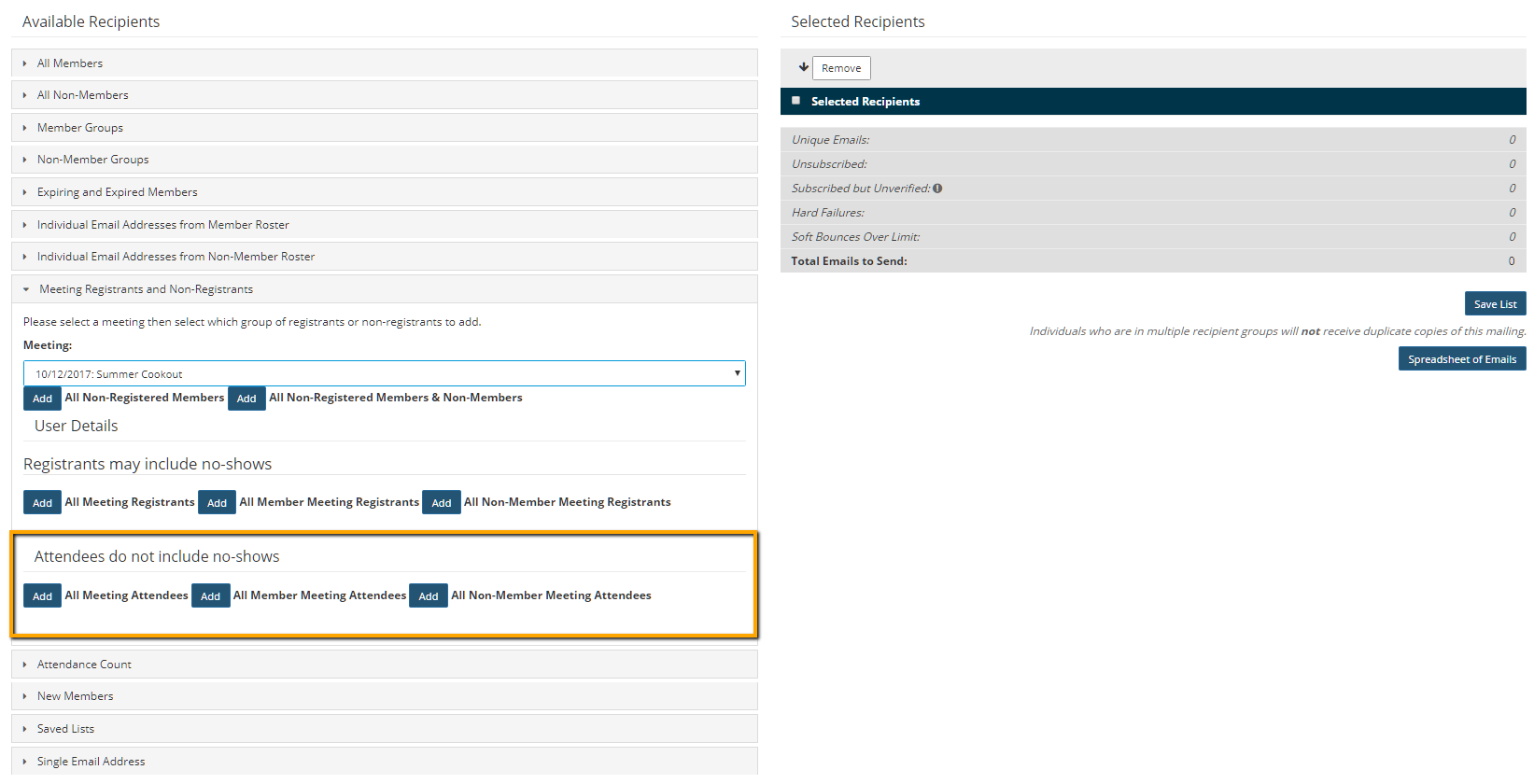
To distribute the survey, use the option to target meeting attendees via Communications > Email Manager.