Update an Existing Import Map
An Import Map allows you to import member or contact information quickly by saving a list of which fields in those individual profiles should be updated based on each column from the incoming spreadsheet. As long as the spreadsheet headers remain consistent, these imports are very fast, but a change to the column headers or the addition of data will require an update to the import map.
- Go to Membership > Import Manager.
- Begin the import as you typically would and choose your typical Import Map.
- On the "Confirm Fields & Import" step, review all mapped fields.
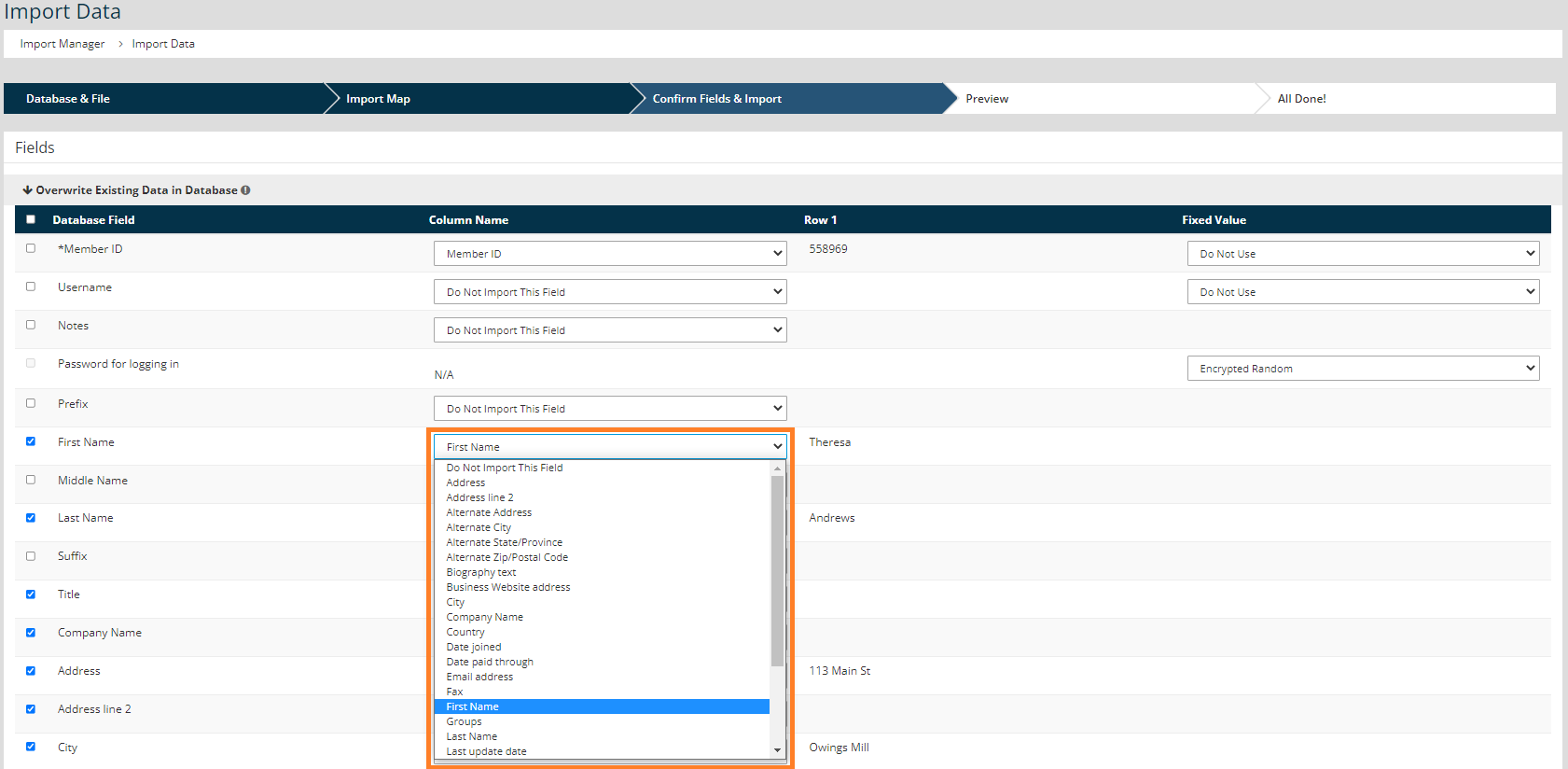
- If a previously mapped field has a new header in the spreadsheet, locate that field on the Import Map table and update the Column Name drop-down menu. If the previously mapped header is no longer in the spreadsheet, it will be set to "Do Not Import" until you make your update.
- If a new field has been added to the spreadsheet, locate the appropriate field for that information within the import map and update the Column Name drop-down menu. Check the box to the left of that field, if you want this information to be updated with each import.

Tip: If a new field is required for the information being imported, create a new member field prior to completing the import.
- When all fields are mapped, click Next and complete the import as usual.