Select Alternate Background for Content
Current layouts include three (3) background colors that can be used throughout page content. Each background color has pre-set colors for text, headers, links, and buttons, so changing the background color for a content container can be easy and consistent throughout the system. Using bands of differing background colors can break up large amounts of content or differing content to make browsing easier for users.
 |
Tip: StarChapter systems that pre-date current designs can choose to redesign their system to one of these current design layouts. Contact StarChapter's Support Team for further information and next steps, if you are interested in learning more. |
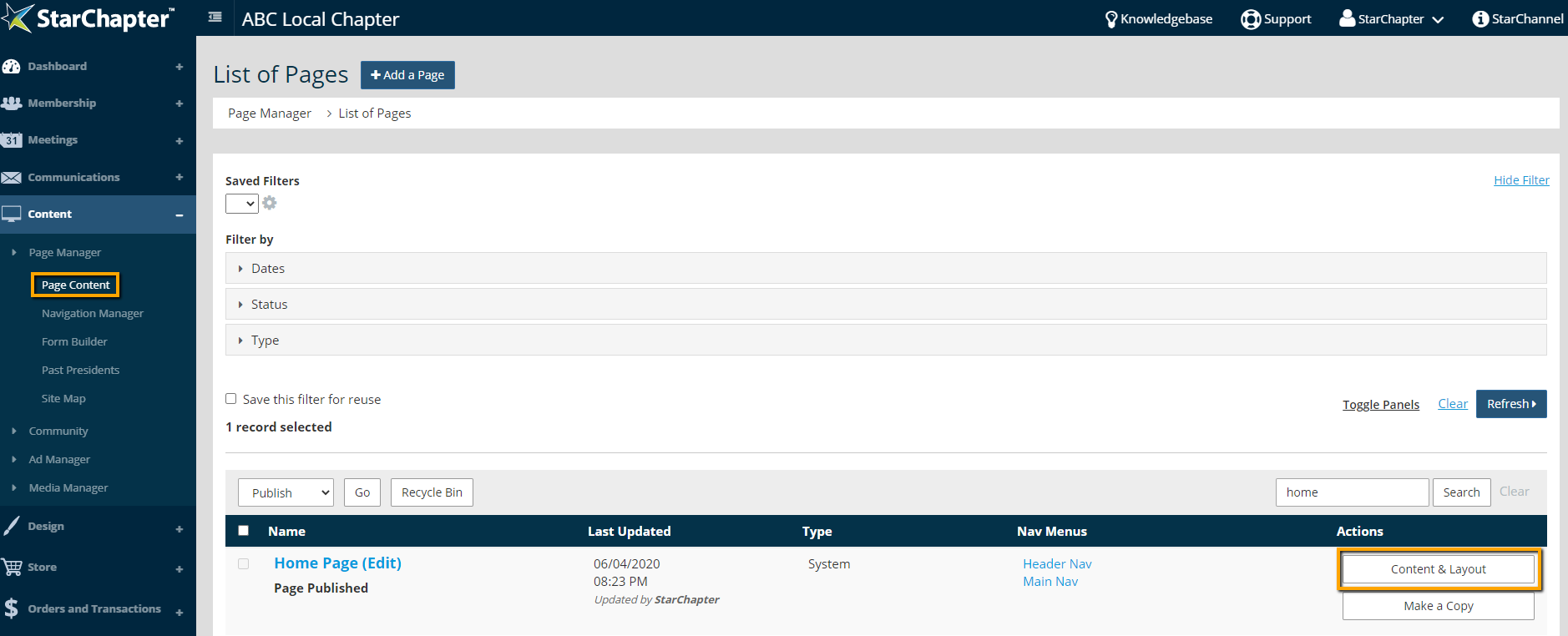
- Go to Content > Page Manager > Page Content.
- Search for the page of interest.
- Click Content & Layout.
- Go to the Layout tab.
- Click Add Container or Edit on an existing container. For this example we will be editing the 50/50 container

Tip: Only top-level containers can define the background color. Nested containers will inherit the background color of the container they are within.
- Locate the layout option that you want to use, click the radio button to choose the Alternate 1 or Alternate 2 background beside that option, and click Change.

Tip: If you are on a current design, you can also adjust the container divider to add visual interest to the edges of your containers.
- If adding a new container, drag and drop this new container into your preferred place on the page.
- Go to the Content tab.
- Drag and drop content sections into the new container or click the blue + to add new content sections.
- When all containers and content are in their preferred places, click Publish.