Run a Report of Past Dues Orders
There are two areas within StarChapter to access reports on dues orders. The Dues Manager is the fastest option and provides rate-specific reporting. The Orders & Invoices area provides the ability to filter and compile customized reports.
Dues Manager
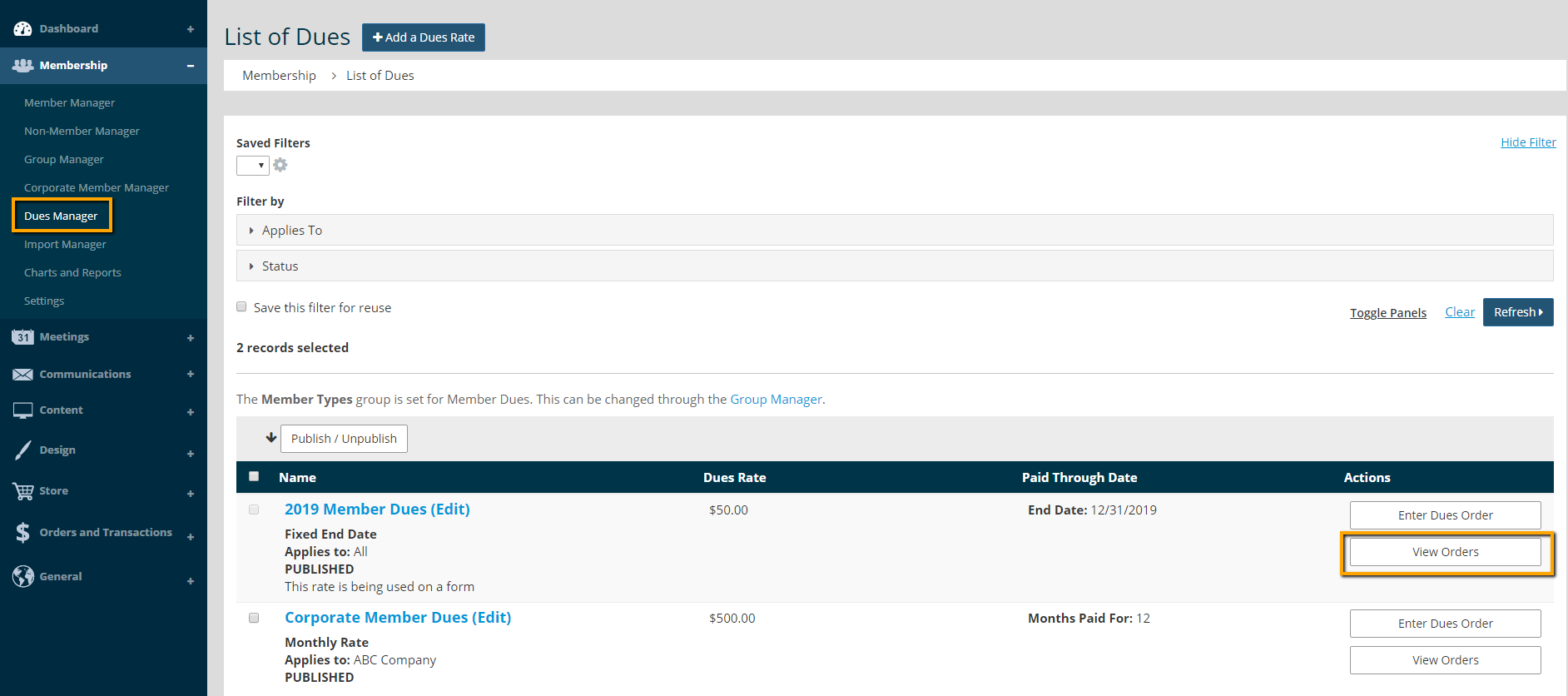
- Go to Membership > Dues Manager.
- Find the dues rate, and click the View Orders action button.
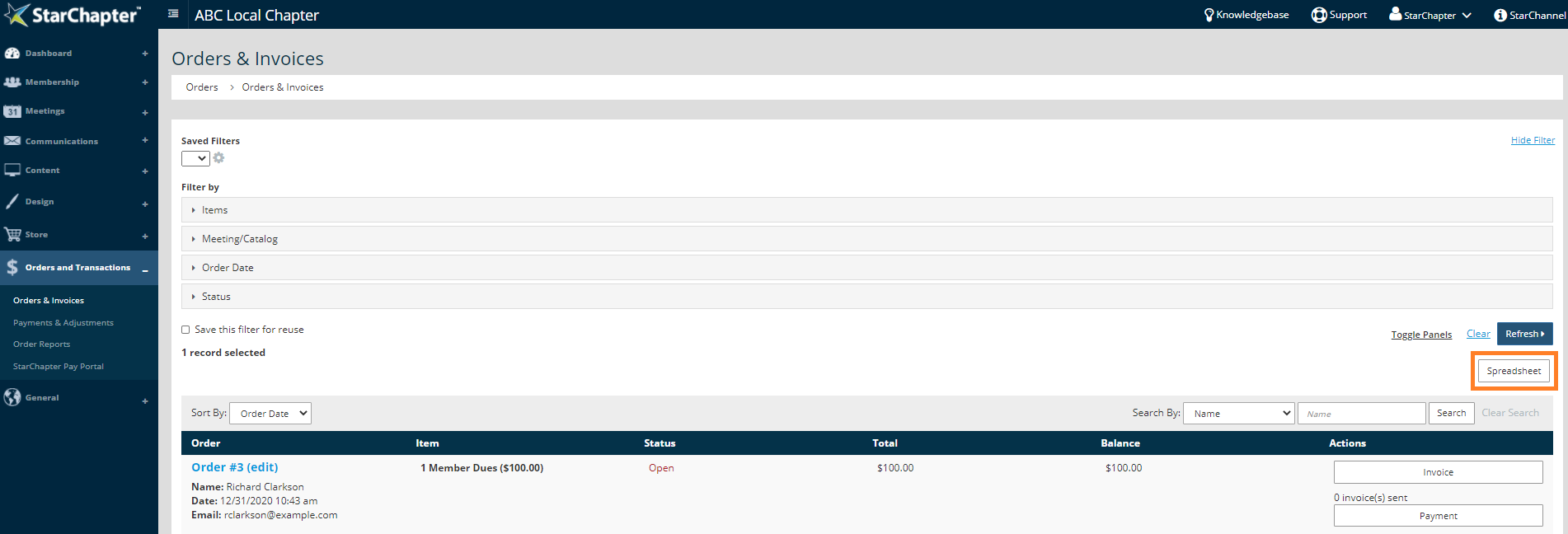
- You will land in the Orders and Transactions > Orders & Invoices area. The system will automatically apply filters to ensure any orders associated with the selected dues rate appear. This list can be filtered further if needed, and exported by clicking the Spreadsheet button.
Orders & Invoices
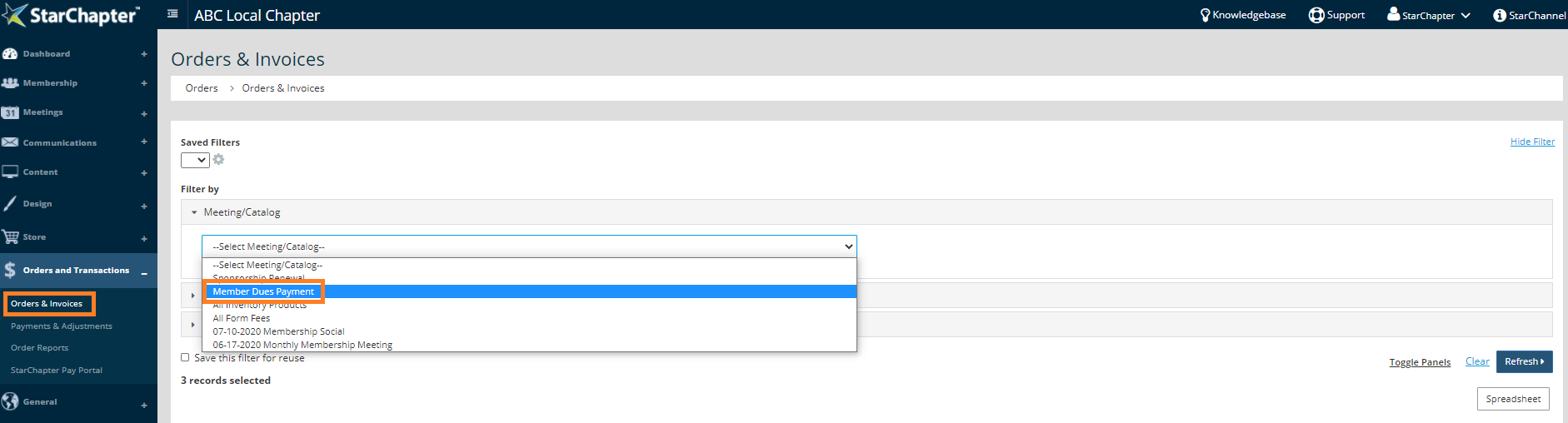
- Go to Orders and Transactions > Orders & Invoices.
- Click the Meeting/Catalog filter, and select Member Dues Payment.
- Click the Items filter, and check the box(es) for the dues rates you want to include on your report.

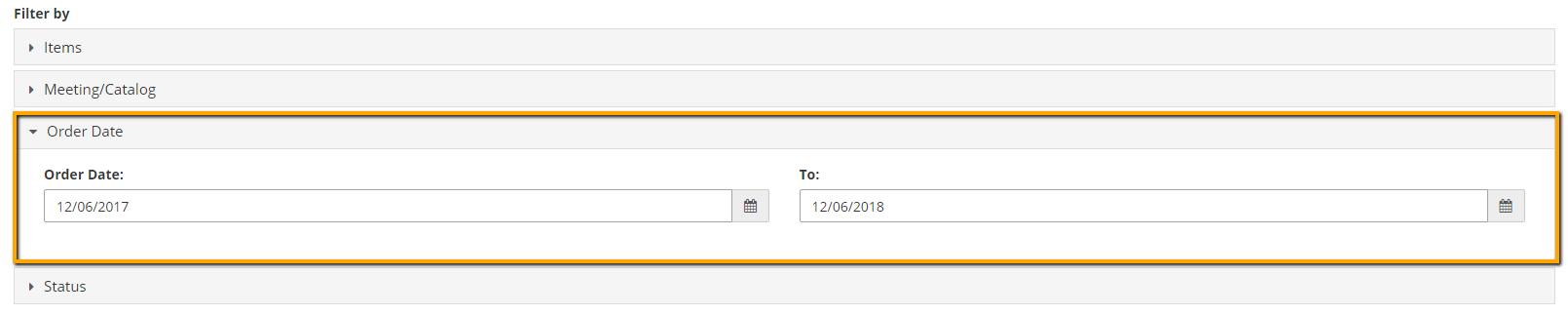
- Use the Order Date filter to search for dues orders that were submitted within a certain date range.
- Use the Status filter, if you want to filter by open or closed orders.

- Click the Refresh button to apply your selected filters.
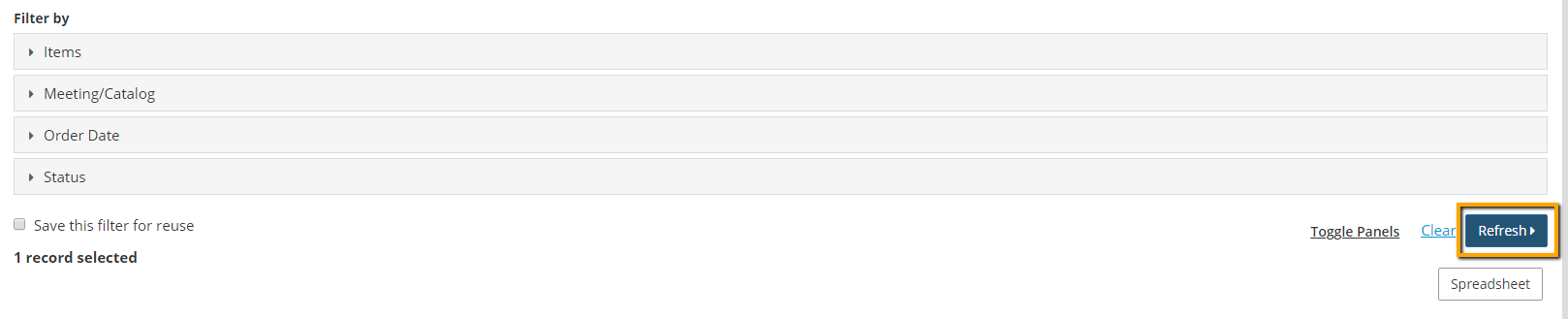
- Click the Spreadsheet button to download the excel report.