
Manage Email Forwarders
StarChapter supports e-mail accounts in the form of forwarders. A forwarder provides an alias similar to your chapter’s domain. If someone sends an email to the alias, then the communication forwards to your personal or work inbox.
Create Email Forwarders
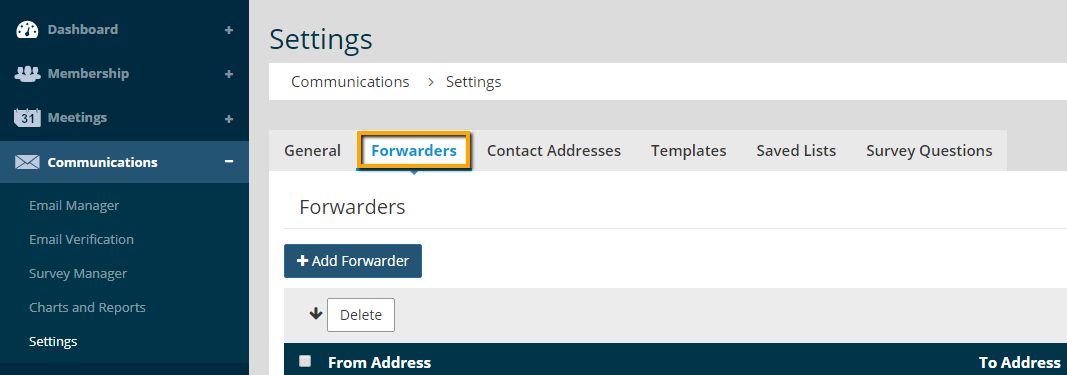
- Go to Communications > Settings > Forwarders.
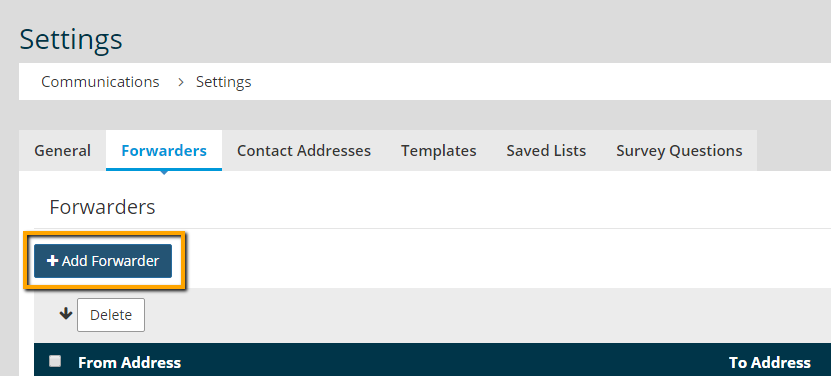
- Click on the Add Forwarder button.
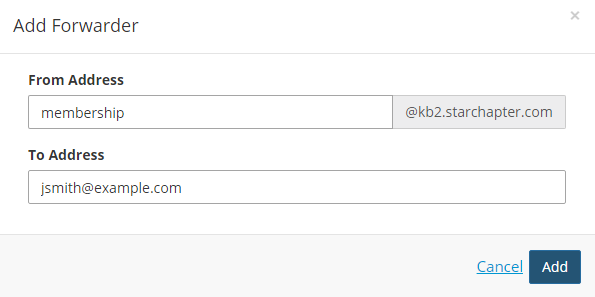
- Enter the first part of the e-mail alias in the "From Address" field. Your chapter’s domain will show by default after the first step. Then, enter the recipeint's e-mail address in the "To Address" field.
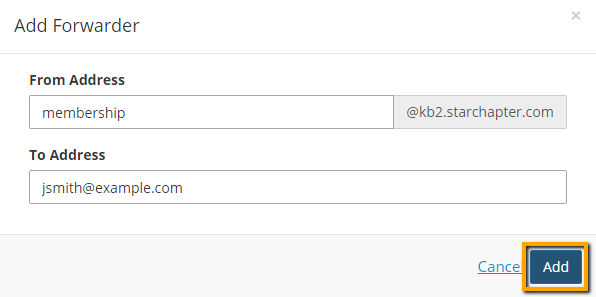
- Save your new forwarder by clicking the "Add" button.
Update Existing Email Forwarders
 |
Tip: To smooth board transitions, email forwarders can be routed to both the outgoing and incoming officers for a period of time. Duplicate the existing forwarder and add the new officer as the recipient. After transition, delete the forwarders routing to past officers. |
- Go to Communications > Settings > Forwarders.
- Click the Edit button next to the email forwarder to be updated.
- Enter a new email address in the "To Address" field.

- Click Add.


