You are viewing this design in preview mode. The design MUST be published to be live on your website.
    •   New Board Member?
    •   Support
    •   Video Library
    • Workflow Library
    •  Page Content Library
    •  Email Builder Content Library

    Knowledgebase

    • Home
    • > Communications
    • > Scheduled Emails
    • > Cancel a Scheduled Email

    Cancel a Scheduled Email

    Scheduled emails can be setup to go out on a recurring basis. If a previously scheduled email needs to be paused, the mailing can be suspended. This will leave it setup in the system so it can be reactivated at any time.

    1. Go to Communications > Scheduled Emails.
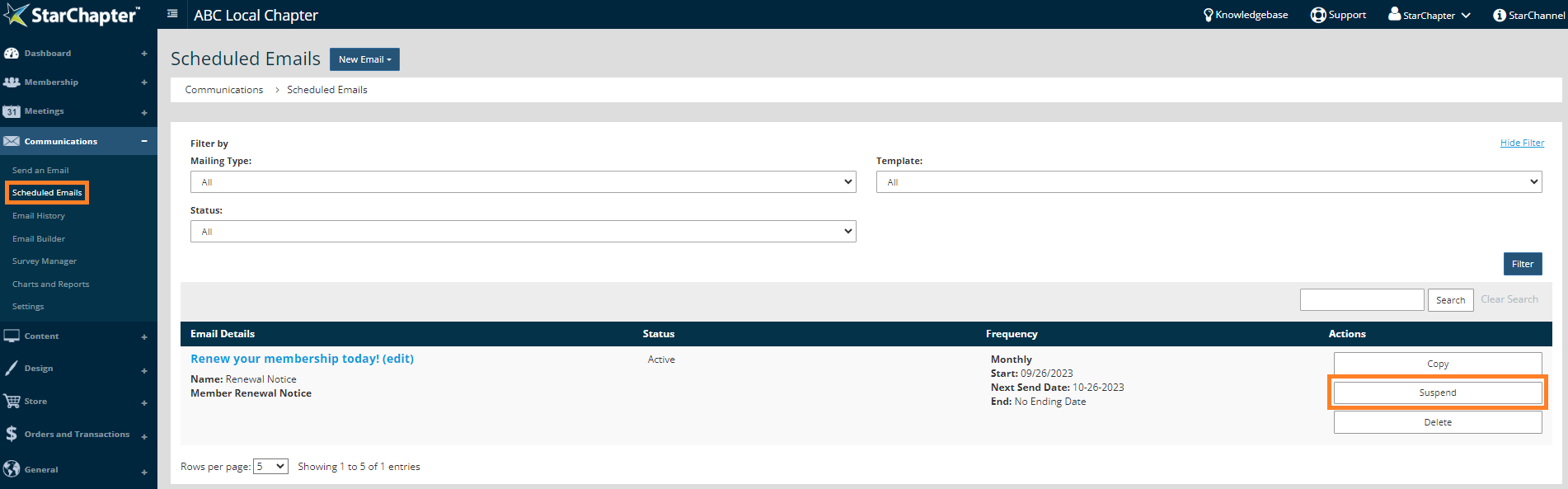


    2. Locate the mailing that should be paused.
    3. Click the Suspend button.

    Chapter Insights

    Posted by [email protected] on 02/14/2018 1:10 pm  /   Communications

    millennial engagement

    Improve Your Millennial Engagement Through Better Understanding

    redefine use of social media

    Is It Time to Redefine Your Chapter's Use of Social Media?

    generational marketing

    Is Generational Marketing Part of Your Plan?

    email fatigue

    Decrease Your Audience's Email Fatigue by Segmenting Your Audiences and Your Emails


    Communications Blog Image - 5 Goals for Using the Chapter Newsletter to Increase Member Value

    5 Goals for Using the Chapter Newsletter to Increase Member Value

    © 2026 StarChapter Software LLC All rights reserved.

    •  
      Board Training
    •  
      Services
    •  
      KB Home
    • Master Service Agreement
    • |
    • Privacy Policy
    . .