Add Forwarder Address to Board of Directors Page
Most templates have a consistent set of available variables, but any template that pulls data from member profiles can have additional variables created based on custom member fields. This can make updating the Board of Directors templates a two-step process, if you don't already have a field to hold those forwarder addresses. If you find that a field was already created for that information, you'll be able to skip the first section of this article.
Create a Custom Field for the Email Forwarder
- Create a field for "Board Email" or something similar that will be clear to your members. If there is already a field for that information, you can skip this step.
Update the Page Template
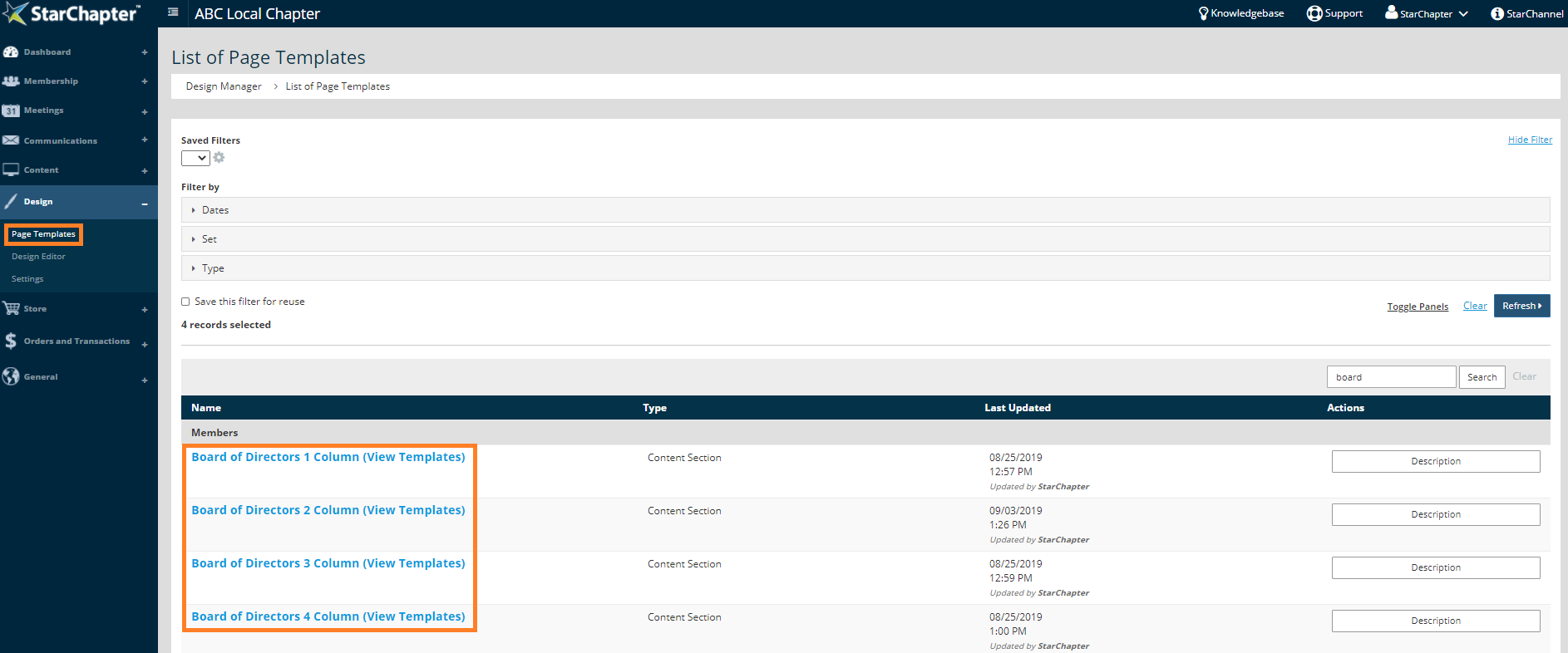
- Go to Design > Page Templates.
- Search for "board" and identify the template you are currently using. Click that set of templates.
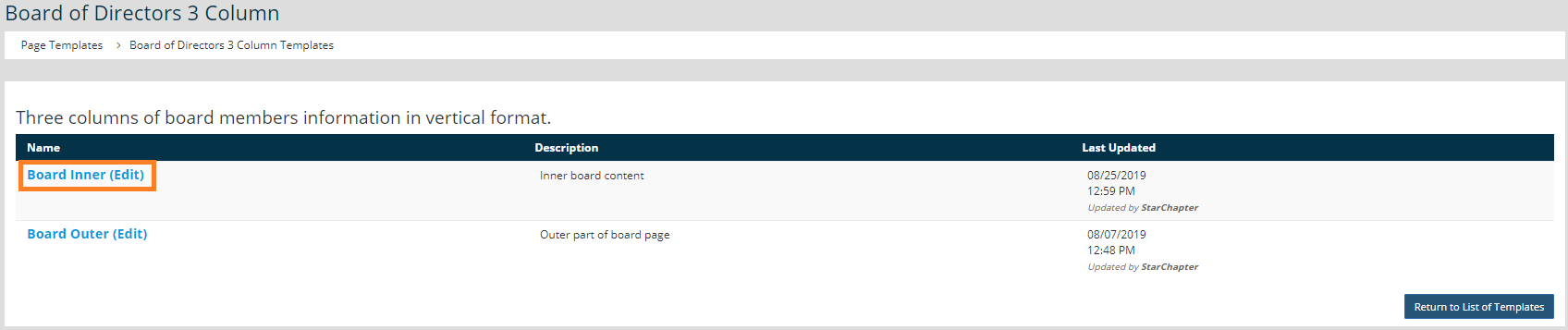
- Click Board Inner.
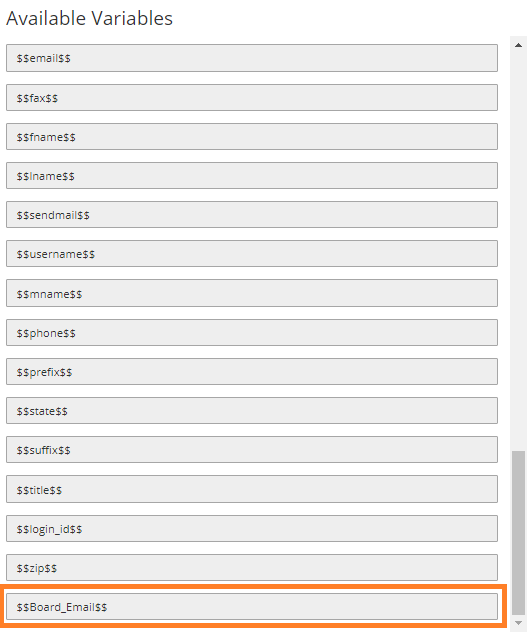
- In the list of Available Variables on the right side of the page, identify the new variable that you've created. This is most likely at the bottom of the list of variables.
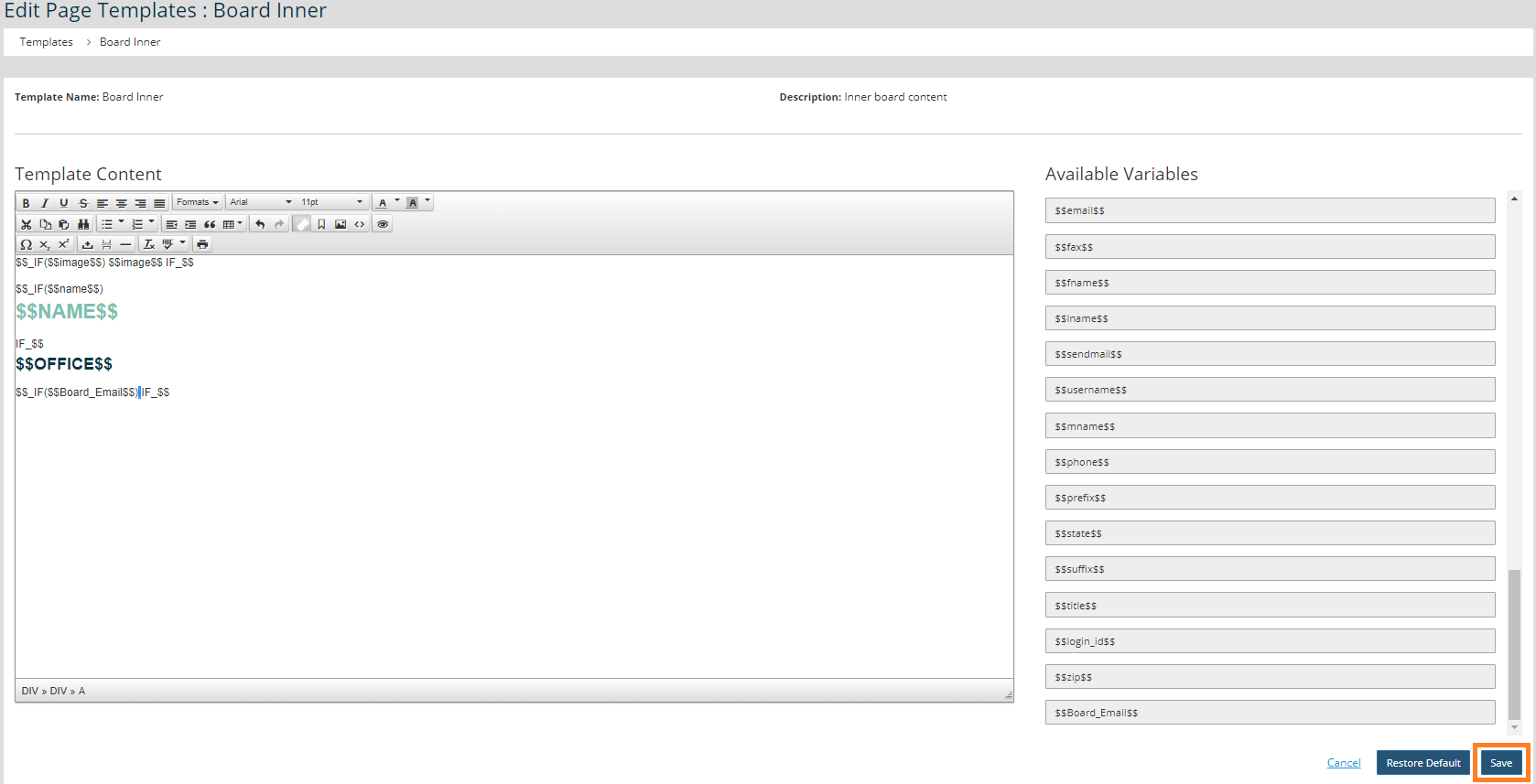
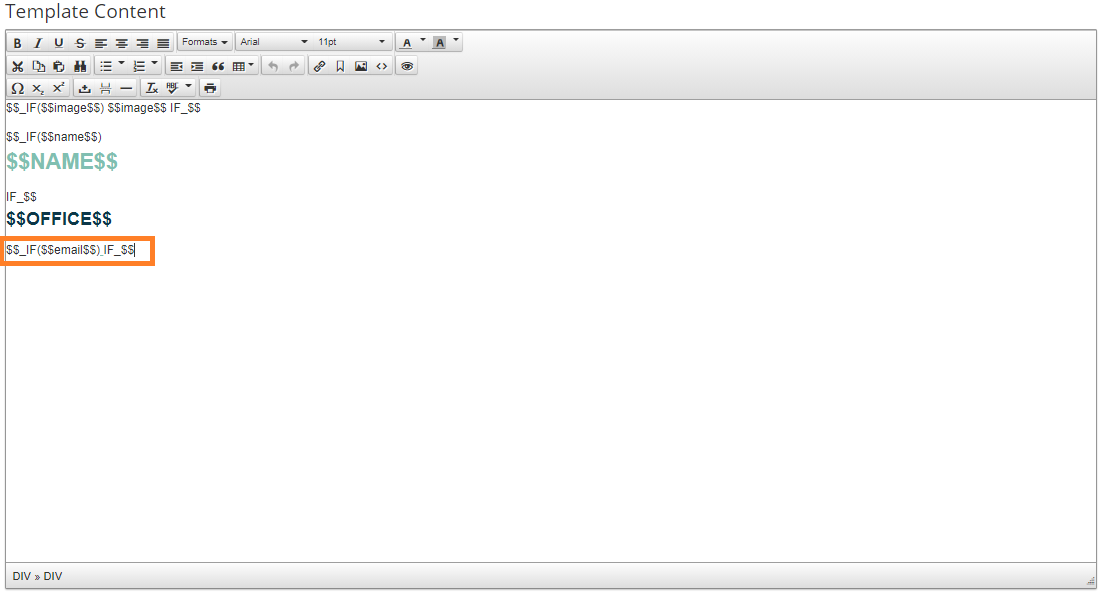
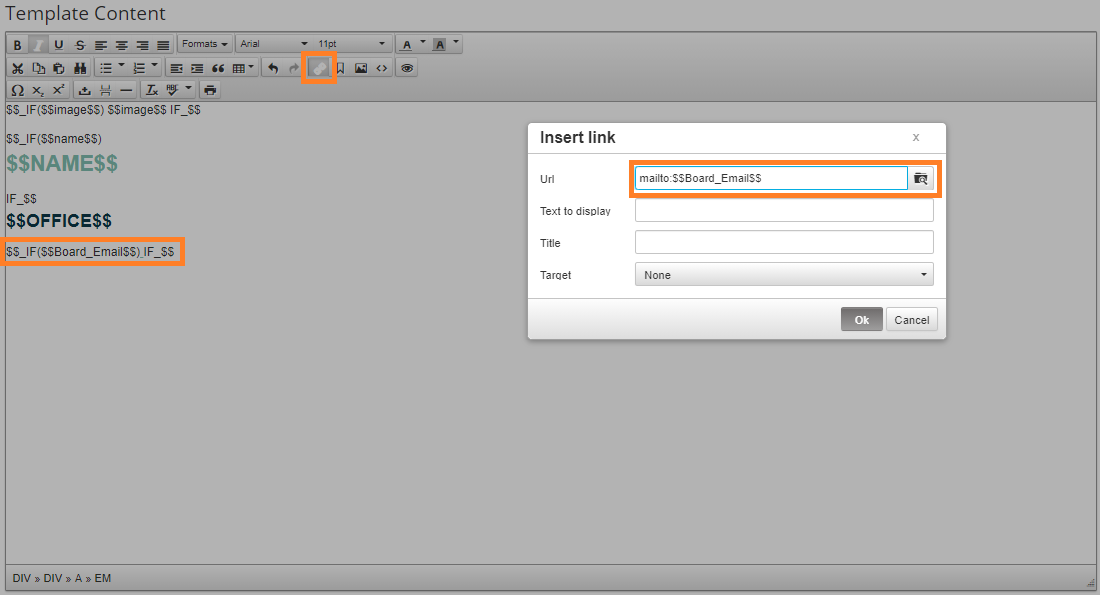
- Update the template to replace $$email$$ with your new variable. Update all instances of that variable.
- If your template, as the one in the example shown, uses a image for the email link, place your cursor on that underscore. When you're in the correct place, the Hyperlink button on the text editor will be selected. Click that button and update the URL field to replace the variable shown.
Prior to Update
After Update
- Click Save to make the updates live on your website.