If All New Members are Placed in a Pending Status
If your member application is configured to place all applicants into a pending status, all submissions will need to be reviewed and manually approved.
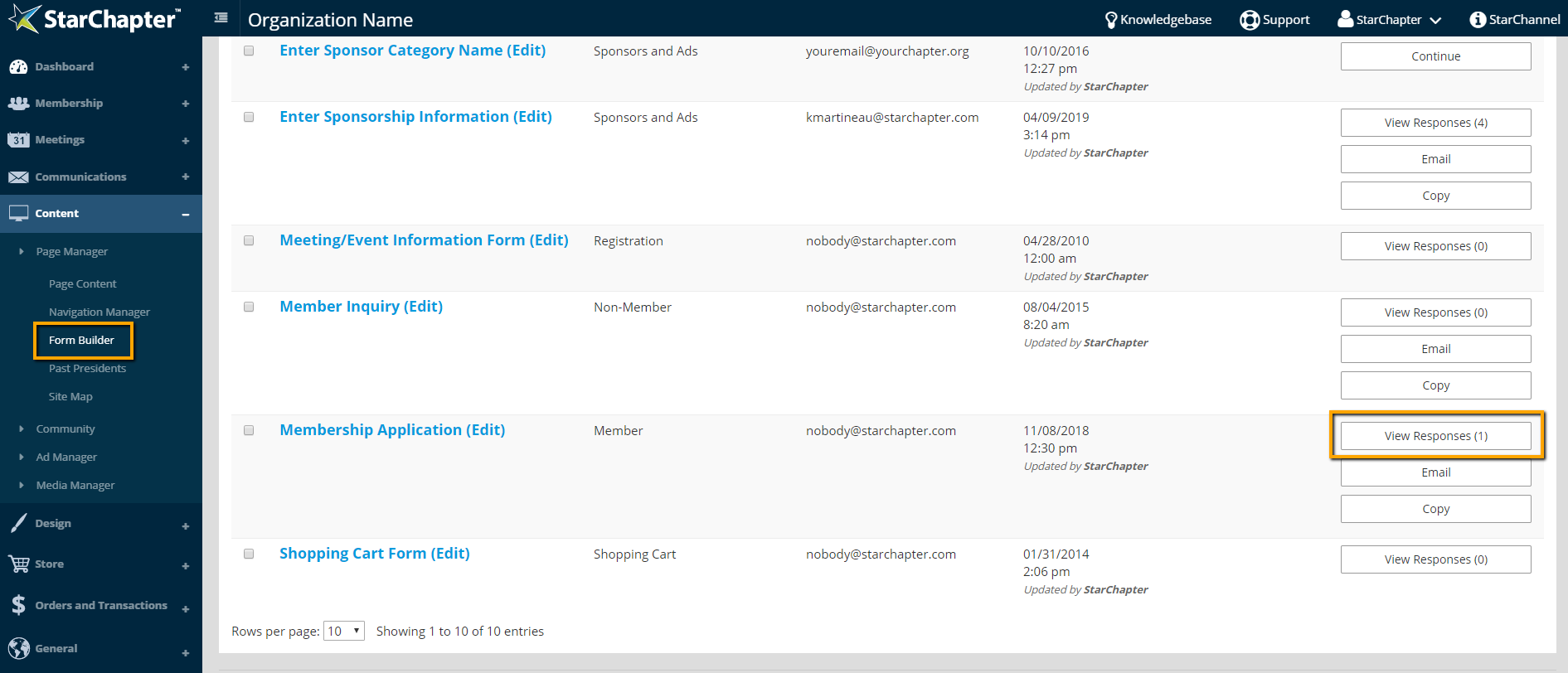
- Go to Content > Page Manager > Form Builder.
- Click on the View Responses button next to the local member application form.

Tip: An email copy of the application responses will also be sent to the submission email set for this form.
- Review the new member's application to verify that they are quailifed for membership.
- Confirm receipt of dues payment. Click the Transactions > View Orders & Invoices button on the pending profile to view existing orders.
- If a closed order is listed, proceed to Step 5.
- If an open order is listed, note payment on that order.
- If no order is listed, open a dues order for this new member.
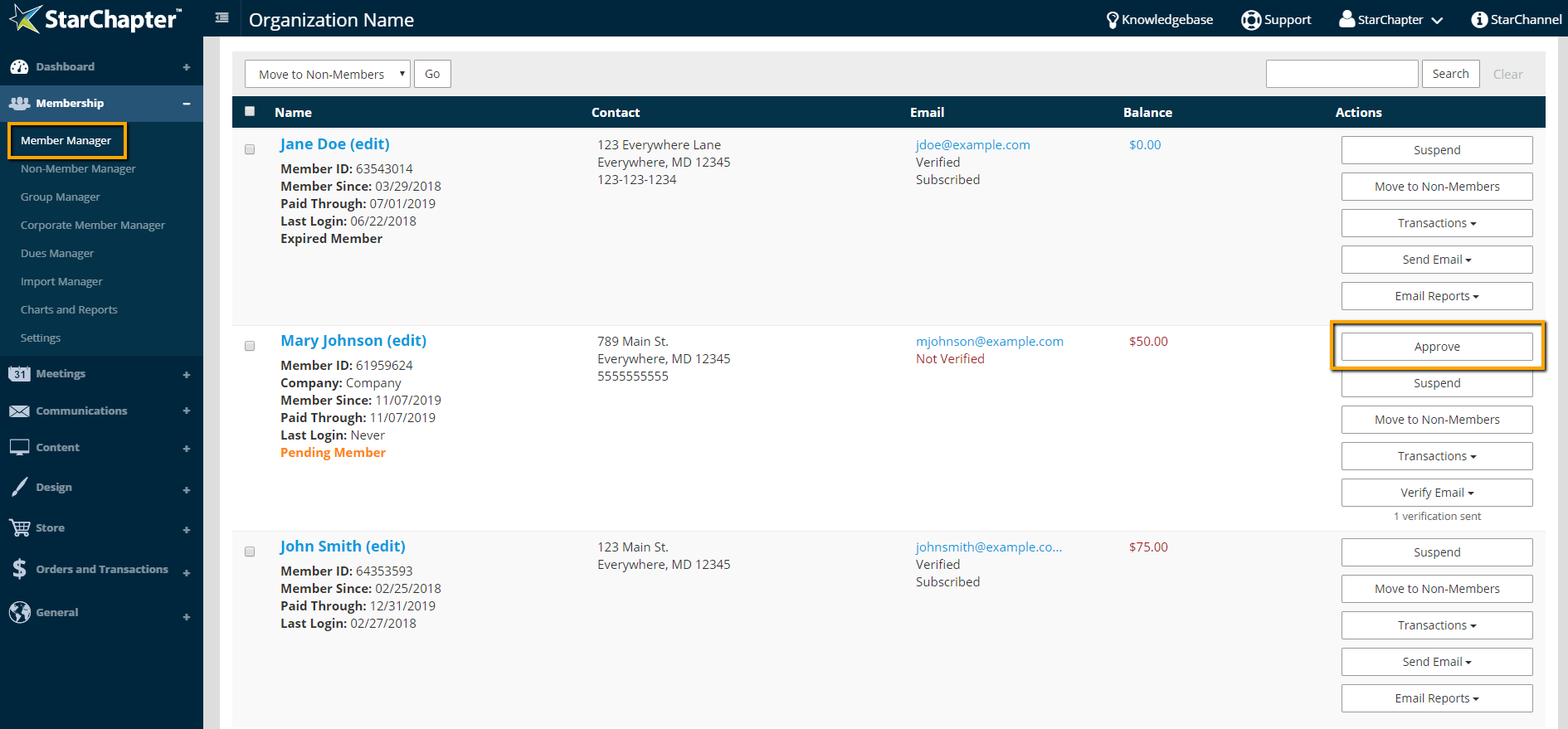
- If they are qualified, go to Membership > Member Manager and click the Approve button next to the member's record. If they are not qualified, do not approve their member application, and reach out to the applicant to discuss membership options.
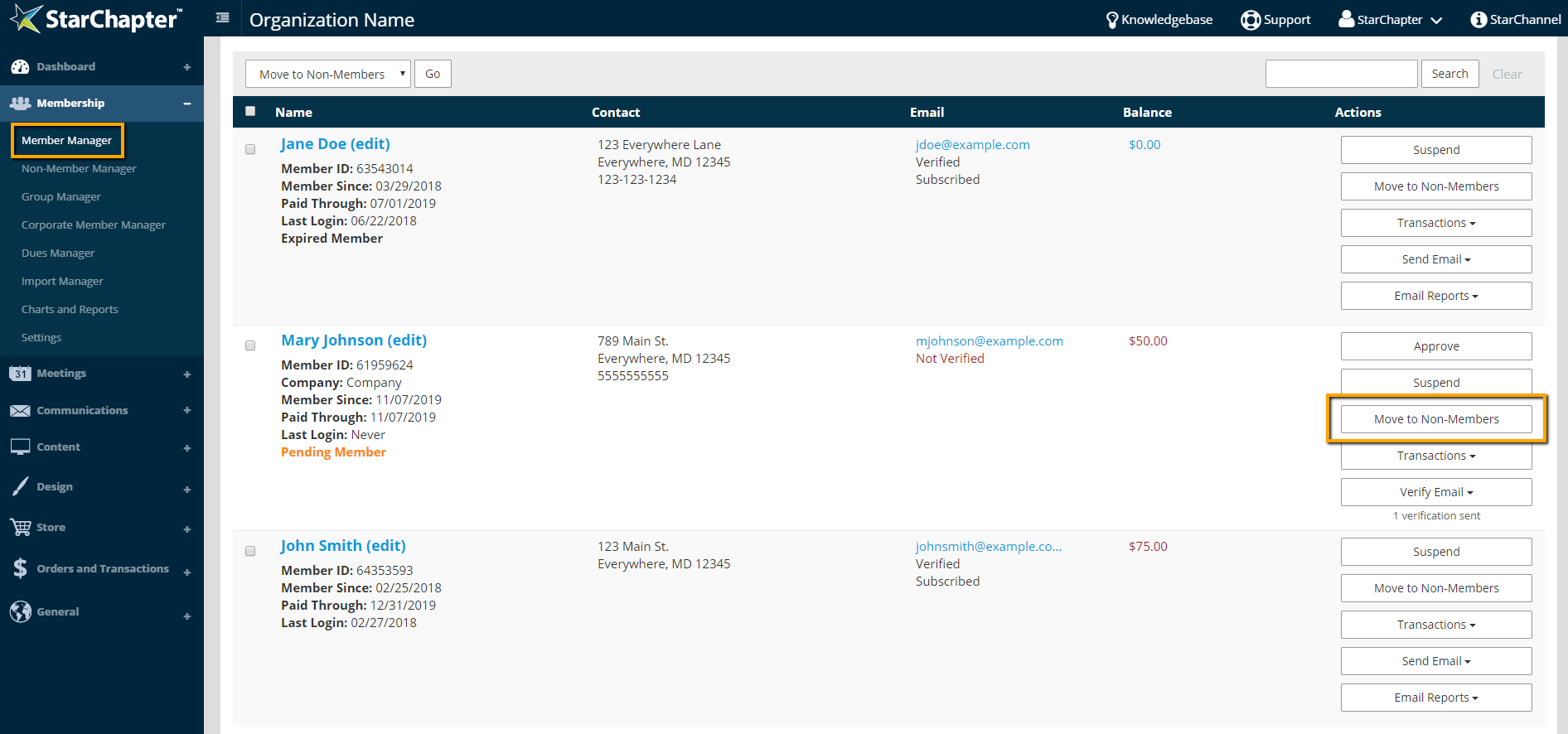
- If the applicant cannot become a member, go to Membership > Member Manager and click the Move to Non-Members button next their record.
Tip: If dues were received for an unqualified member, a refund should be processed according to the organization’s policies.
If All New Members are Auto-Approved
If your member application is configured to auto-approve all new members, any pending applicants will require review by an admin. Pending members are added to the Member Manager when the application is submitted, and left in that state when they do not complete the dues payment.
- Go to Content > Page Manager > Form Builder.
- Click on the View Responses button next to the local member application form.
Tip: An email copy of the application responses will also be sent to the submission email set for this form.
- Review the member's application, and contact them to determine whether they would like to proceed with membership.
If the applicant wants to proceed with membership
- Go to Membership > Member Manager.
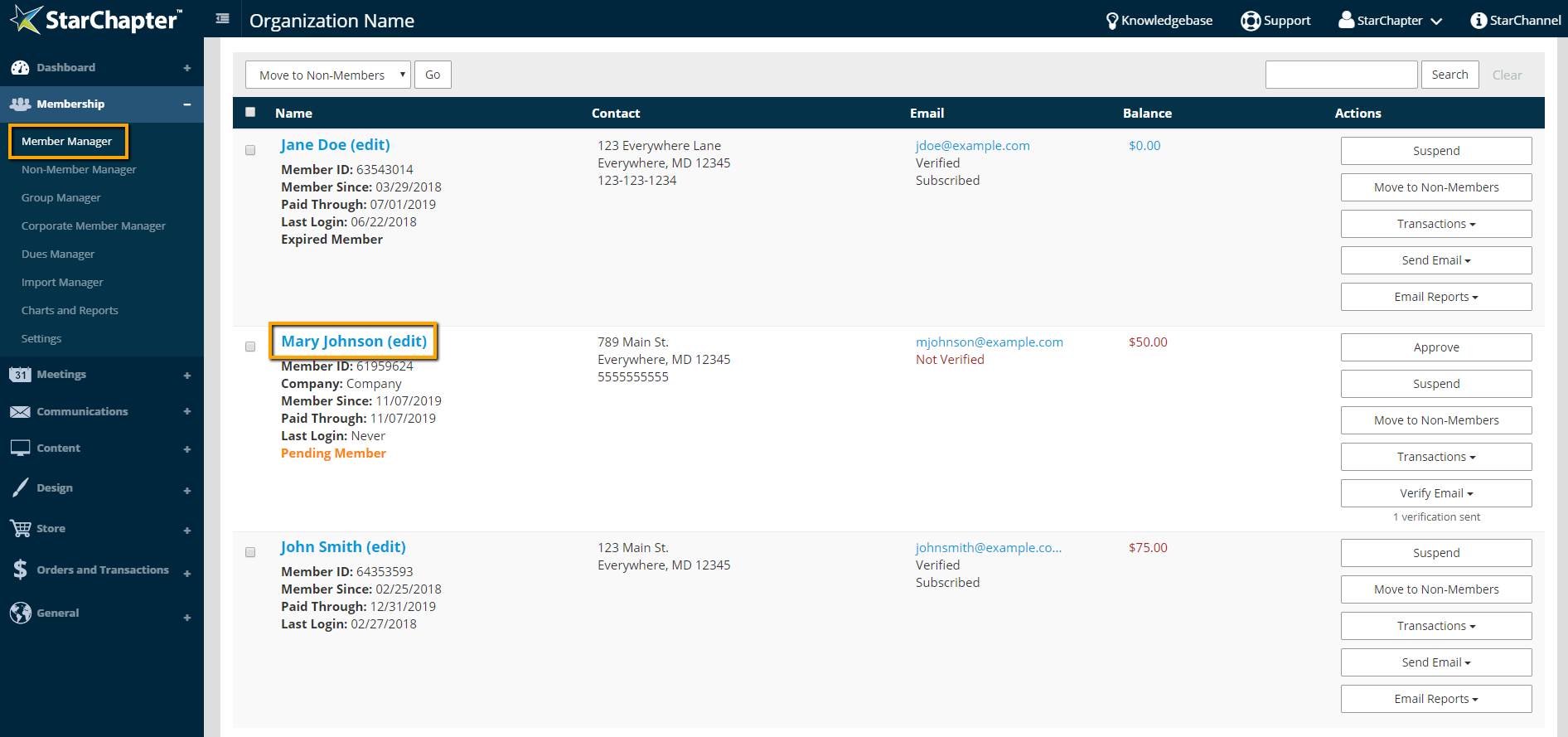
- Click the member's name to edit their profile.
- Click Edit on the Groups section.

- Click on Member Types, and click Add next to the correct member type, which will be associated with appropriate dues rate.
- Click Next to save.
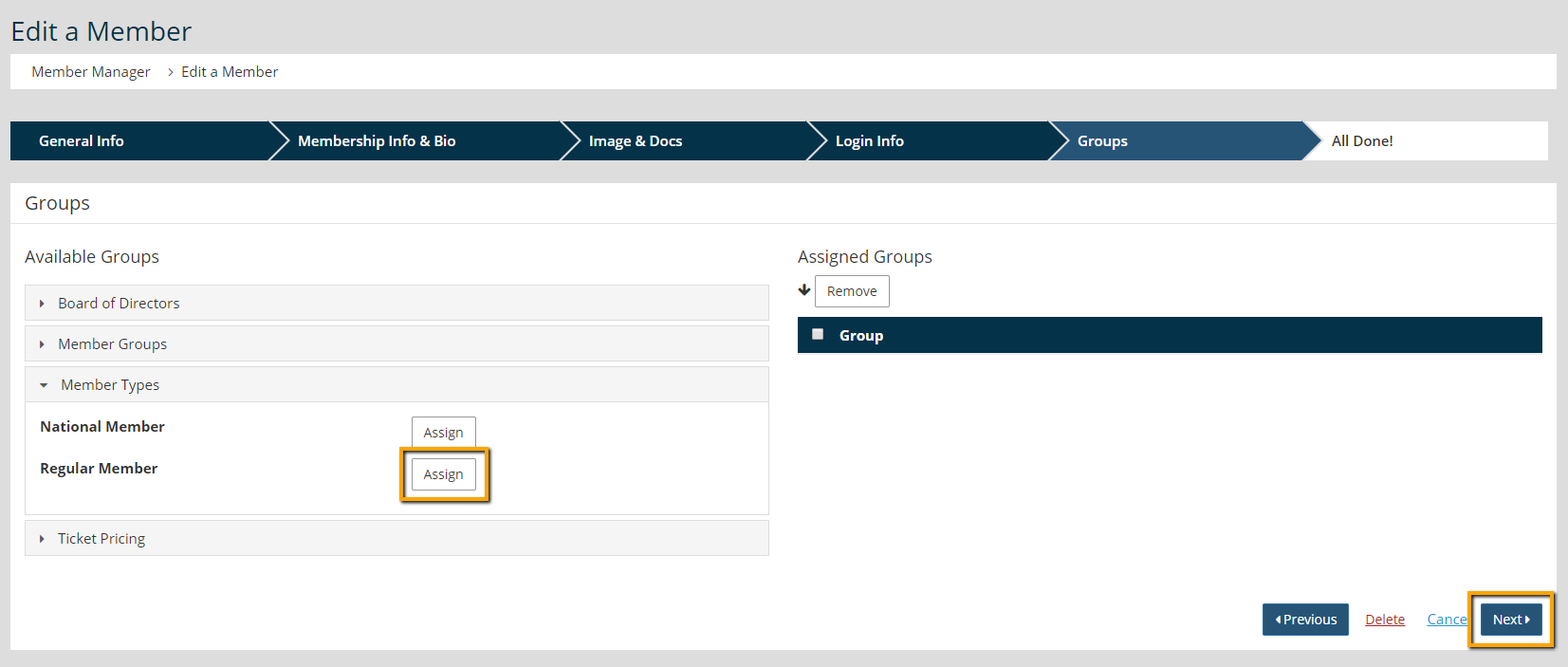
Tip: Not all organizations will have member types. This step can be skipped if this functionality is not used by an organization.
- Click on Membership > Dues Manager.
- Click Enter Dues Order for the appropriate dues rate.
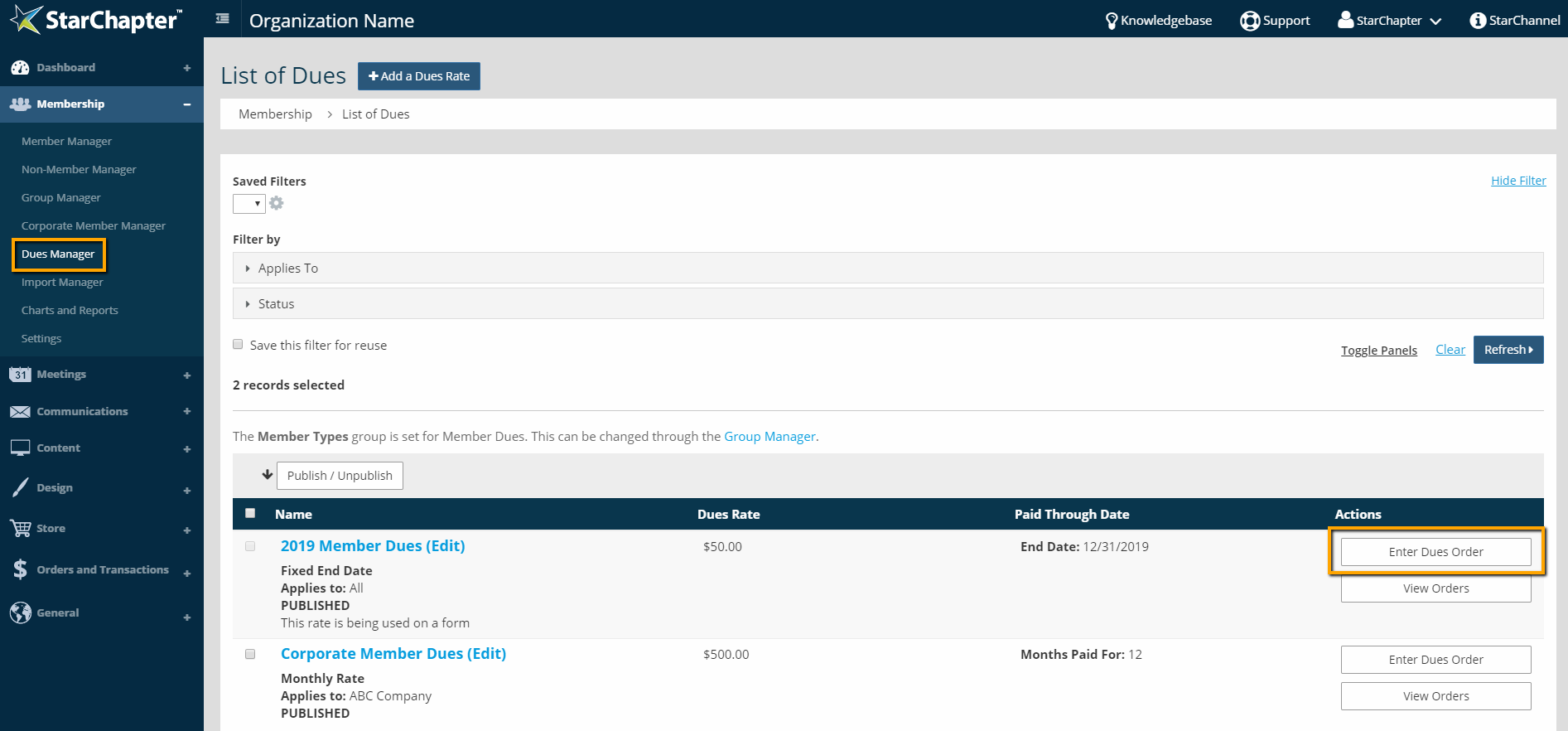
- Follow the prompts to select the correct member and open a new dues order.
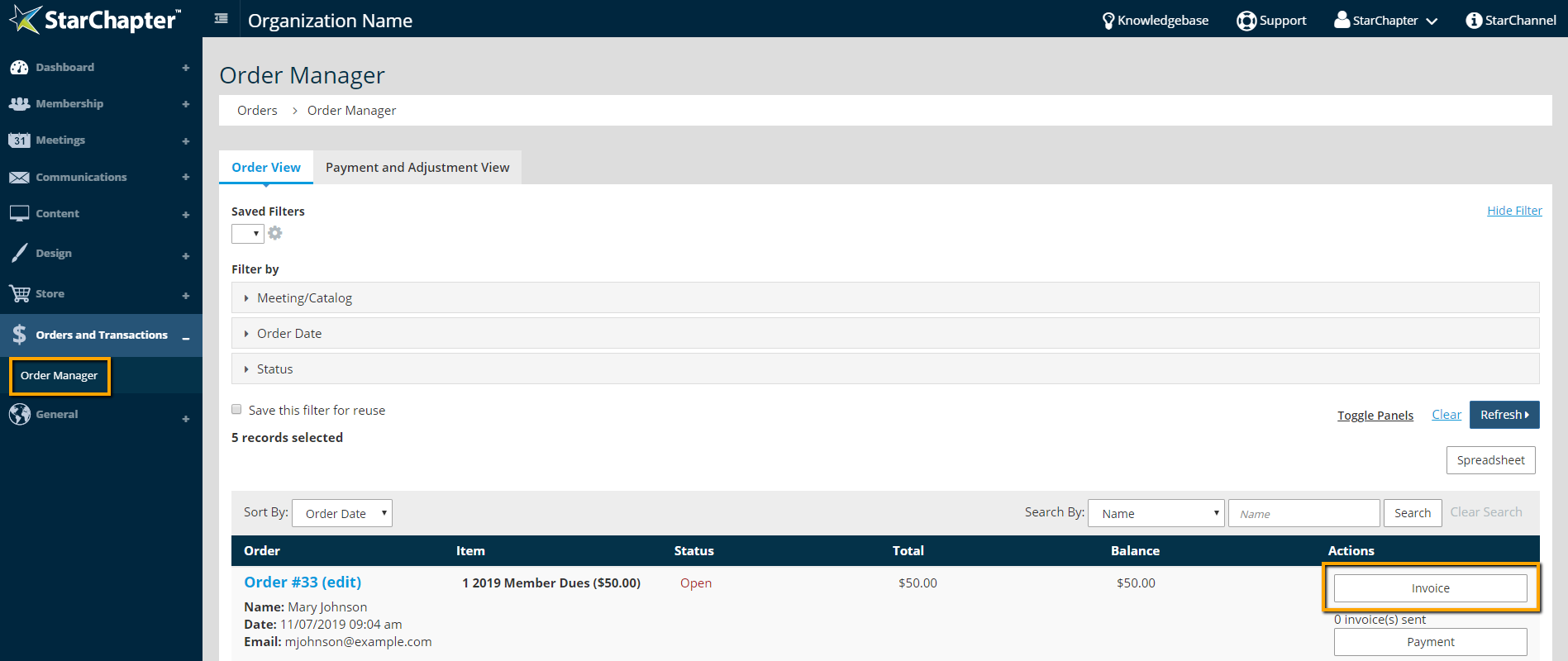
- Once the order is created, go to Orders and Transactions > Order Manager to send an invoice to the new member.
If the applicant does not want to proceed with membership
- Go to Membership > Member Manager.
- Click the Move to Non-Members button next their record.