You are viewing this design in preview mode. The design MUST be published to be live on your website.
    •   New Board Member?
    •   Support
    •   Video Library
    • Workflow Library
    •  Page Content Library
    •  Email Builder Content Library

    Knowledgebase

    • Home
    • > Orders and Transactions
    • > Orders and Invoices
    • > Note Payment on an Existing Order

    How to Note Payment on an Existing Order

    If members and/or guests bypass payment and send reimbursement at a later date, admins are able to add payment information to the open order to ensure the order is closed. 

    1. Go to Orders and Transactions > Orders & Invoices.
    2. Use the Search box to find the appropriate order.
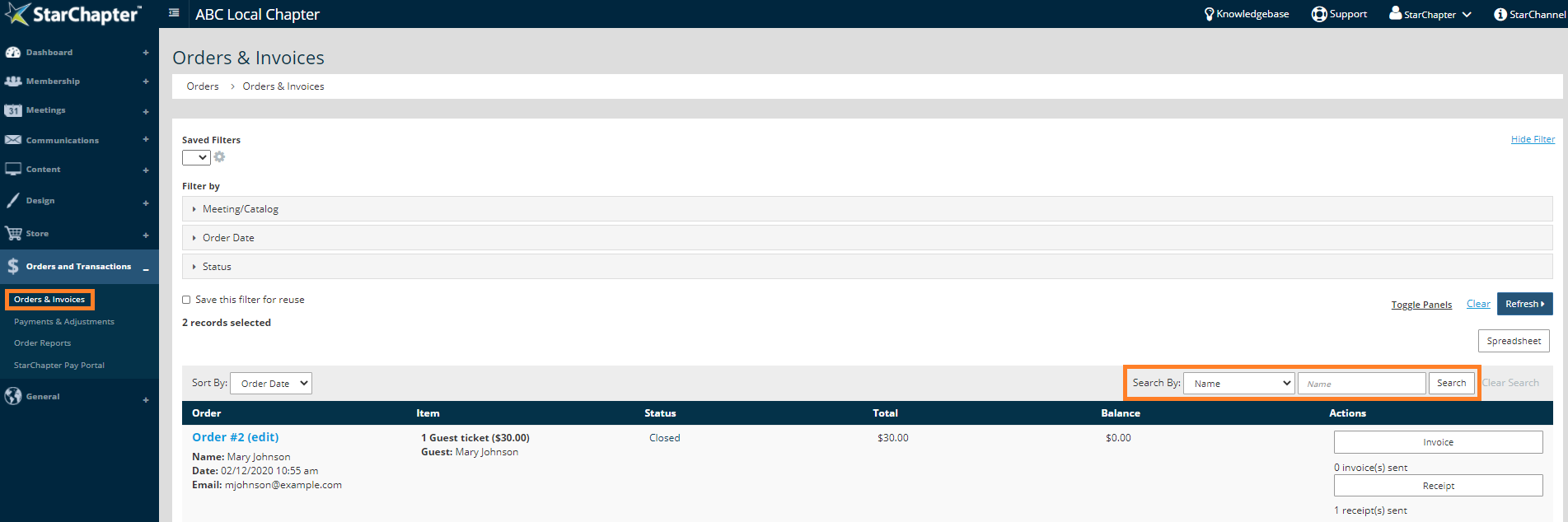
      Access orders

    3. Click on the Payment action button for the open order. 

      Payment Button
    4. A window will appear where you can select your payment method from a drop down list (credit card, check, cash, or mark as complimentary.) Select the appropriate option and enter the required information.
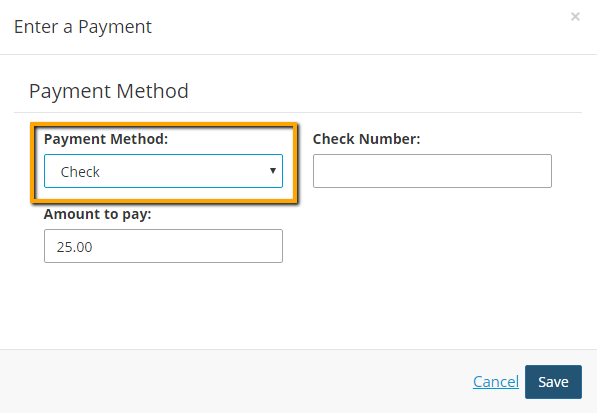
      Payment Method
    5. Save your changes.
    6. The Balance will now show as $0.00, and the order status will be noted as "Closed."

      Balance Updated

    Chapter Insights

    Posted by [email protected] on 02/14/2018 11:41 am  /   Content

    content part of redesign

    Consider Your Content as Part of Your Website Redesign

    member stories

    3 Reasons to Invest in Member Stories

    Cotent Blog Image - Advanced SEO – Name it Right, and they will Read

    Advanced SEO – Name it Right, and they will Read

    Content Blog Image - Advanced SEO – The 80/20 Rule for Success

    Advanced SEO – The 80/20 Rule for Success

    video for sponsorship

    Video is Key to Your Sponsor Strategy

    © 2026 StarChapter Software LLC All rights reserved.

    •  
      Board Training
    •  
      Services
    •  
      KB Home
    • Master Service Agreement
    • |
    • Privacy Policy
    . .