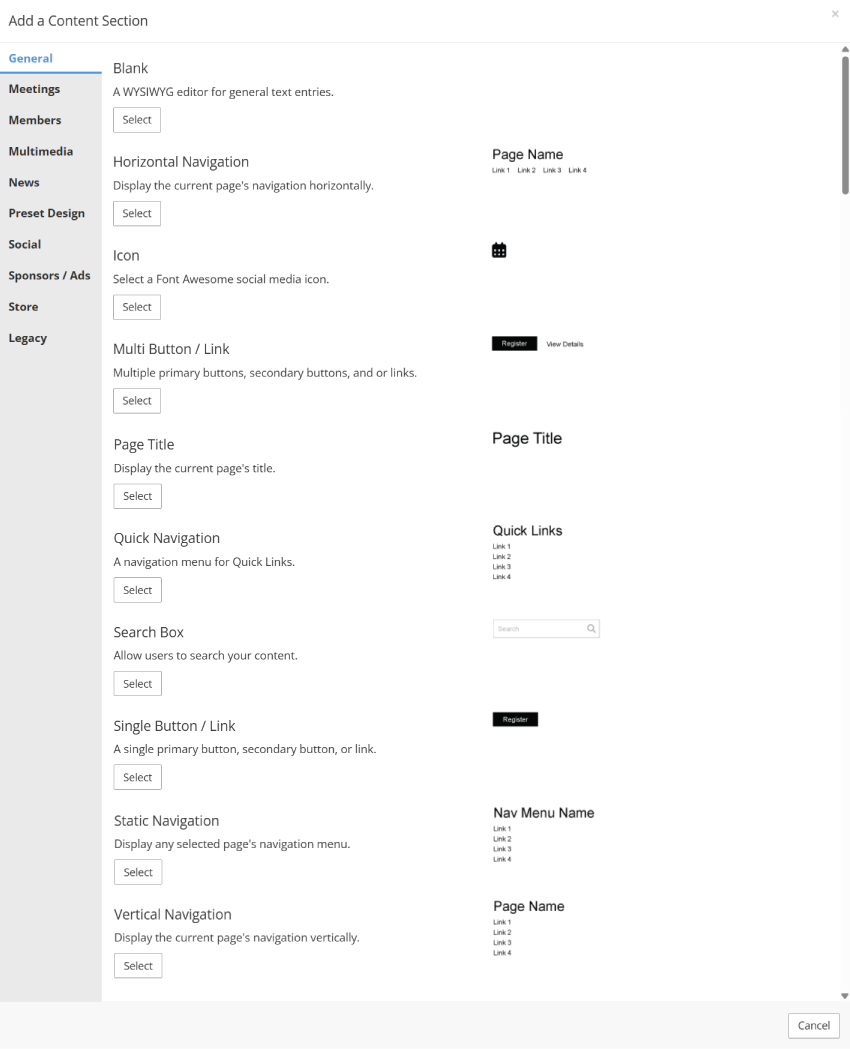
Blank
- Provides an empty text editor.
- Best used for text or images that will remain on the website indefinitely and don't already exist elsewhere in the StarChapter system.
- Content within a Blank content section can be edited at any time.
- No archive of past content from Blank content sections is saved within the system.

Horizontal Navigation
- Display the assigned navigation menu from Content > Page Manager > Navigation Manager.
- The menu must be setup as a Horizontal menu within the menu configuration and assigned to the specific page it's being placed on in order to display properly.

Icon
-
Select from thousands of icons to display on your site.
- Icons grab attention and add visual interest when you don't have images

Multi Button/Link
- Display multiple buttons or links in a row or stacked on top of each other.
- Add as many buttons or links as desired, selecting between your primary or secondary button design colors.
- Buttons create clear calls to action by guiding visitors to specific actions like signing up, registering, and clicking to learn more.

Page Title
- Display the name of the page this content section is placed on.
- This content section is typically included on the Default page so that it auto-generates on all other pages.

Quick Navigation
- Displays the Quick Links navigation menu.
- This is a vertically oriented menu managed in Content > Page Manager > Navigation Manager.

Search Box
- Allow website users to search the website for pertinent content.
- Page titles, content, and documents are picked up by the Search function.

Single Button/Link
- Display a single button or link.
- Select between your primary or secondary button design colors.
- Buttons create clear calls to action by guiding visitors to specific actions like signing up, registering, and clicking to learn more.

 |
Tip: If you want to display multiple links, use the ‘Multi Button/Link’ Content Section instead. |
Static Navigation
- Displays a navigation menu created in Content > Page Manager > Navigation Manager.
- Select from full list of menus created, regardless of whether the current page is included on that menu.