
Address Hard and Soft Bounces
Hard Failures and Soft Bounces indicate that mail failed to reach the recipient and require action. Both instances are noted in several locations throughout StarChapter and can be managed in similar ways.
Definitions
Hard Failure
A Hard Failure indicates a permanent failure caused when an email account is disabled. If the email is confirmed, it could have been caused by a temporary outage of the recipient mail server. Any email with a hard failure will be removed from mass mailings.
Soft Bounce
A Soft Bounce indicates rejection by the recipient email server's firewall or spam filters. Any email with over 10 soft bounces will be removed from mass mailings.
Where To Identify Delivery Failures
Bounce Checker
The Bounce Checker report lists all delivery failures caused by hard failures and soft bounces. Go to Communications > Charts and Reports > Bounce Checker. This list can be filtered and exported.

Member Manager
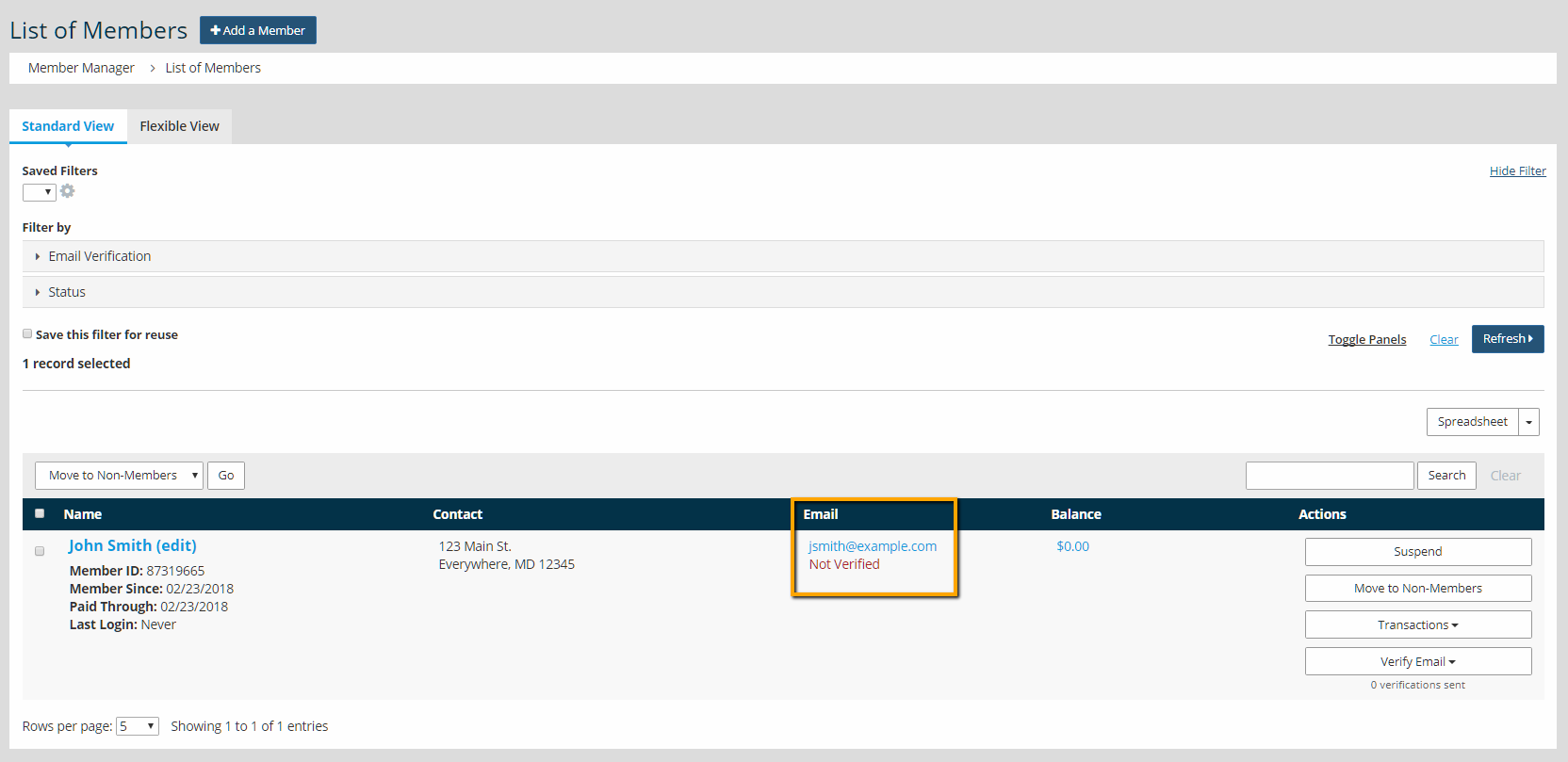
Go to Membership > Member Manager. Email addresses that have been removed from the mass mailing list will be marked in red text on the Email column of the member table.
Email Manager
When composing a message in Communications > Email Manager, the recipient summary notes any email addresses that will be omited due to a history of delivery failtures.
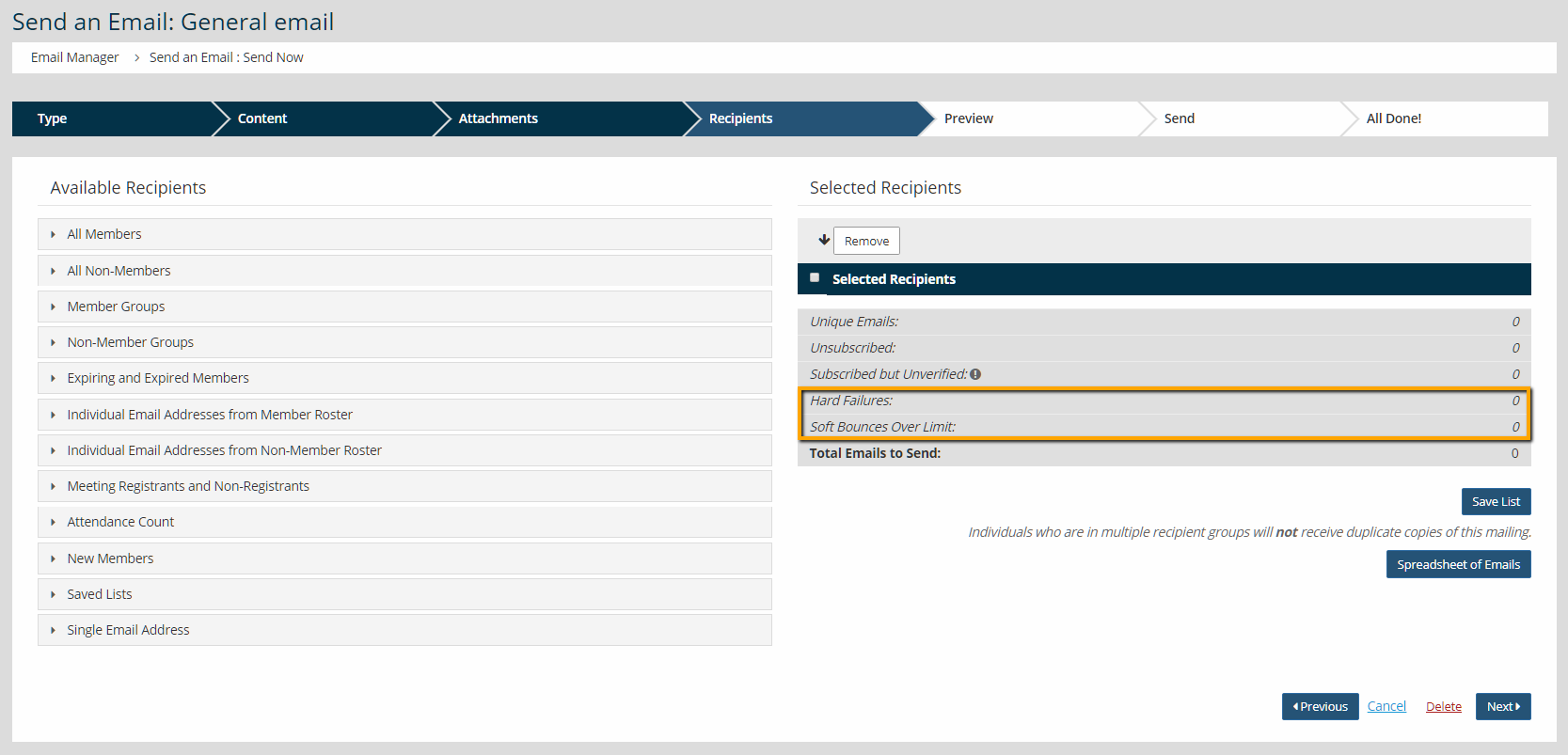
For large mailings, the omited emails can be quickly gathered by clicking the Spreadsheet of Emails button on this page. Failure and Bounce status will be noted on the resulting csv file.
Addressing Hard Failures
Reach out to your contact to confirm the email address. If the email on file is incorrect, ask your contact to update it either through their StarChapter member account or through your National organization.
If the email on file is correct, ask your contact to add your organization to their allow list. After the allow list procedure has been followed, open a support ticket including the email address and confirming what action was taken to resolve the underlying issue.
Addressing Soft Bounces
If the email is on a public email account (gmail, yahoo, aol, etc), ask your contact to add all of your organization's email addresses to their safe sender list. Specific instructions to complete this task can be found in each mail host's help literature. After the allow list procedure has been followed, open a support ticket including the email address and confirming what action was taken to resolve the underlying issue.
If the email is on a private email account (typically through an employer), ask your contact to add your organization to their allow list. After the allow list procedure has been followed, open a support ticket including the email address and confirming what action was taken to resolve the underlying issue.


