You are viewing this design in preview mode. The design MUST be published to be live on your website.
    •   New Board Member?
    •   Support
    •   Video Library
    • Workflow Library
    •  Page Content Library
    •  Email Builder Content Library

    Knowledgebase

    • Home
    • > Content
    • > Videos > Upload A Video

    Upload A Video

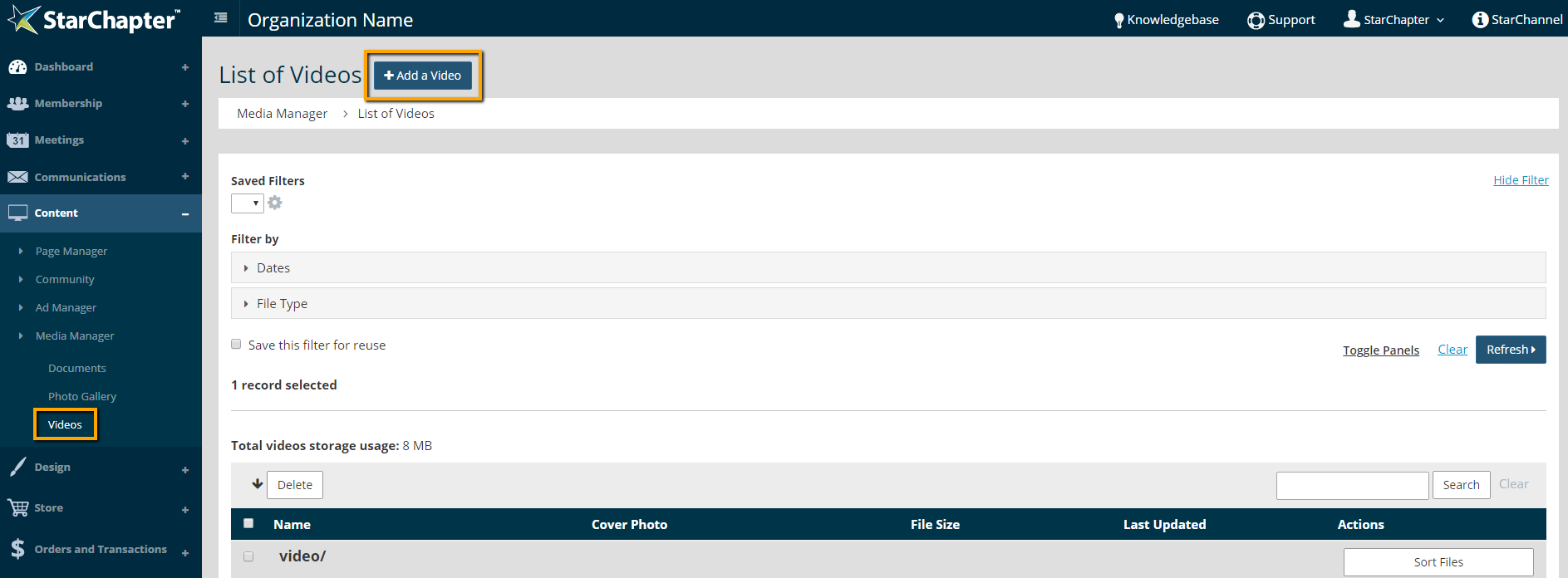
    1. Content > Media Manager > Videos
    2. Click Add a Video

      Add a Video button location
    3. Name the video and add a Description and Restrictions, if necessary.
    4. Click Next
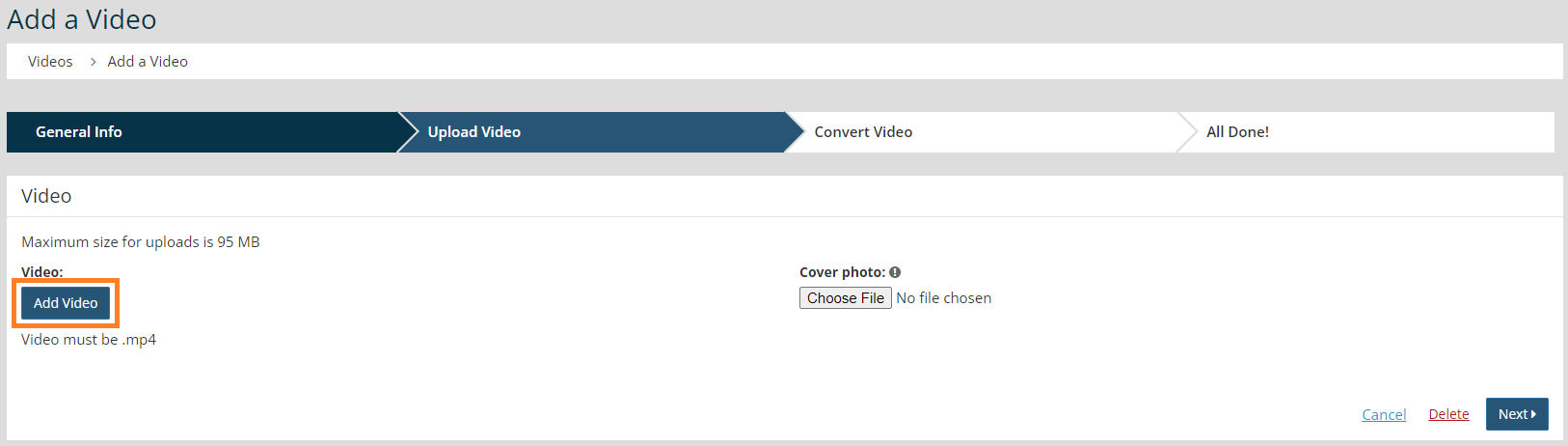
    5. Click Add Video and select your file from your local network. All videos must be saved as must be mp4 files.


      Tip Icon

      Tip: There is a limit of 100 megabytes (MB/s) per file upload.

    6. Click Choose File and upload a Cover Photo to represent the video.
    7. Click Next twice.

    The video is in place and can be used in a page section. Embed the video on a page via Page Content using a Video Player content section.

    Chapter Insights

    Posted by [email protected] on 02/14/2018 11:41 am  /   Content

    content part of redesign

    Consider Your Content as Part of Your Website Redesign

    member stories

    3 Reasons to Invest in Member Stories

    Cotent Blog Image - Advanced SEO – Name it Right, and they will Read

    Advanced SEO – Name it Right, and they will Read

    Content Blog Image - Advanced SEO – The 80/20 Rule for Success

    Advanced SEO – The 80/20 Rule for Success

    video for sponsorship

    Video is Key to Your Sponsor Strategy

    © 2026 StarChapter Software LLC All rights reserved.

    •  
      Board Training
    •  
      Services
    •  
      KB Home
    • Master Service Agreement
    • |
    • Privacy Policy
    . .