You are viewing this design in preview mode. The design MUST be published to be live on your website.
    •   New Board Member?
    •   Support
    •   Video Library
    • Workflow Library
    •  Page Content Library
    •  Email Builder Content Library

    Knowledgebase

    • Home
    • > Store
    • > Products
    • > Set Up Low Inventory Notifications

    Set Up Low Inventory Notifications

    Set up a low inventory notification to get an email when product quantities drop below a certain amount.

    1. Go to Store > Products and click the name of the product
    2. Click Edit in the "Inventory" section.
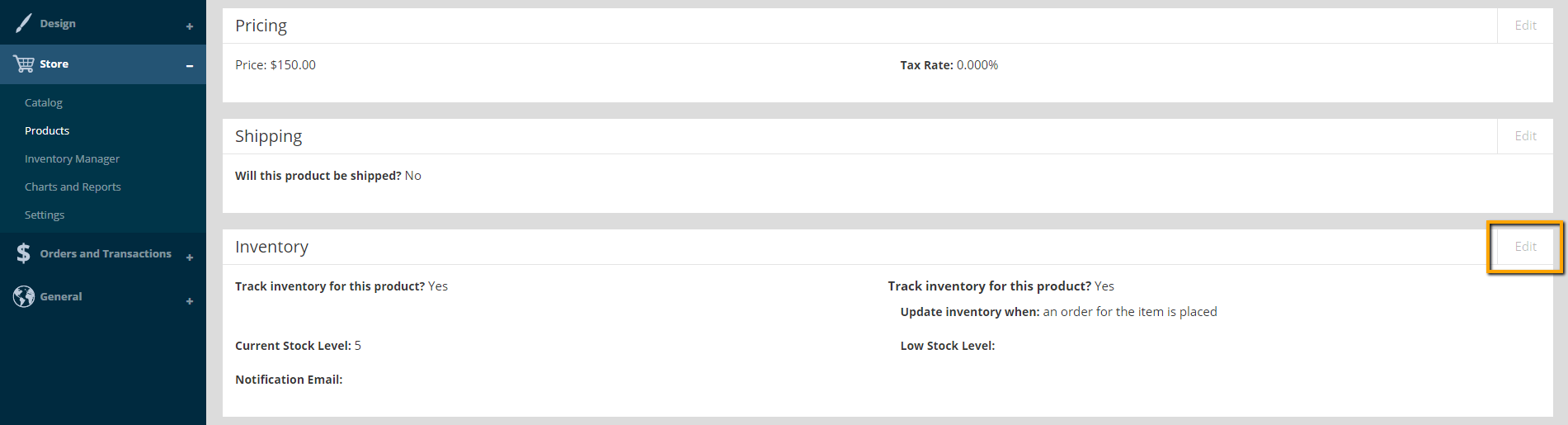
      Product Inventory Section
    3. Check the box for Track Inventory For This Product?
    4. Set each relevant field for your chapter and product 

      Tip Icon

      Tip: Enter an email in Notification Email to receive a warning after reaching the Low Stock Level.
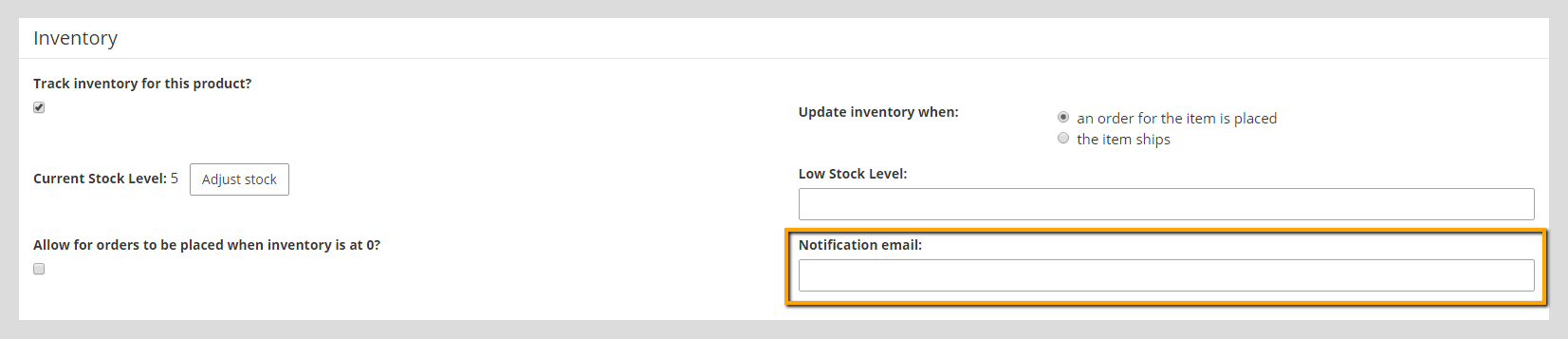
      Inventory Section Options
    5. Click Next to implement final changes.

    Chapter Insights

    Posted by StarChapter on 03/07/2018 9:39 am  /   Store

     chapter swag

    You're Missing Out On Engagement If You're Not Offering Swag


    Store Blog Image - The Non-Dues Revenue Formula

    The Non-Dues Revenue Formula

    © 2026 StarChapter Software LLC All rights reserved.

    •  
      Board Training
    •  
      Services
    •  
      KB Home
    • Master Service Agreement
    • |
    • Privacy Policy
    . .