Set Up A Multi-Seat Ticket
Any event that requires group registrations requires the Multi-Seat Ticket option. Common examples include groups of four for golf tournaments or full tables for fundraisers. Use the Multi-Seat Ticket setting to properly track attendance and to gather registrant information for each attendee.
- Set up your meeting or event in Meetings > Meeting Manager
- At the the Tickets & Prods screen, click Add a Ticket
- Choose your Ticket Type, enter the ticket Description, and set the Price

Tip: The Price of a Multi-Seat ticket is the cost for the entire group and not per person. In addition, the registration process requires the end user to fill all seats with names. If the names of the guests are unknown, then the registrant can send the details to the website administrator closer to the event date.
- Click the Multi-Seat Ticket? option and enter the # of Seats included with this ticket
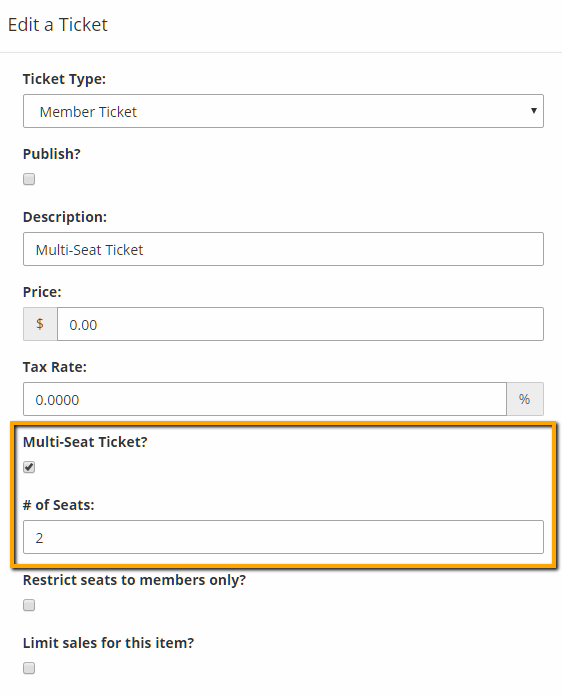
- Complete the remainder of the ticket set up as usual
- Click Add
- Complete the remainder of the meeting set up
- Publish the Multi-Seat Ticket

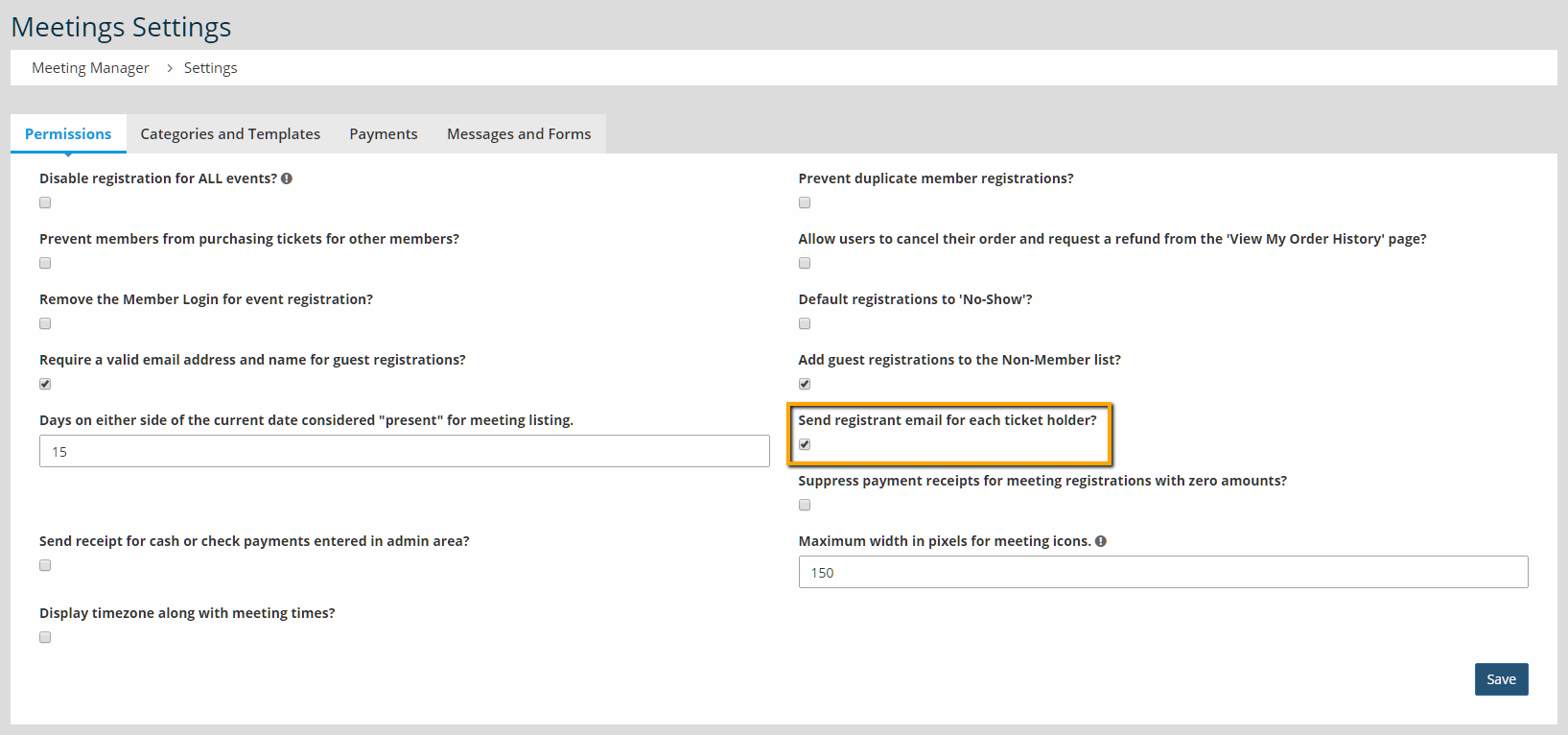
Tip: When using the Multi-Seat Ticket feature, you may want to adjust the setting Send Registrant Email For Each Ticket Holder? in Meetings > Settings > Permissions to allow all registrants to recieve registration email.