You are viewing this design in preview mode. The design MUST be published to be live on your website.
    •   New Board Member?
    •   Support
    •   Video Library
    • Workflow Library
    •  Page Content Library
    •  Email Builder Content Library

    Knowledgebase

    • Home
    • > Content
    • > Calendar
    • > Set Up A Multi-Day Event

    Set Up A Multi-Day Event 

    Meeting Manager

    1. Create the event in Meetings > Meeting Manager.
    2. Set the Start Date and Time and End Date and Time to the first instance of the meeting. 
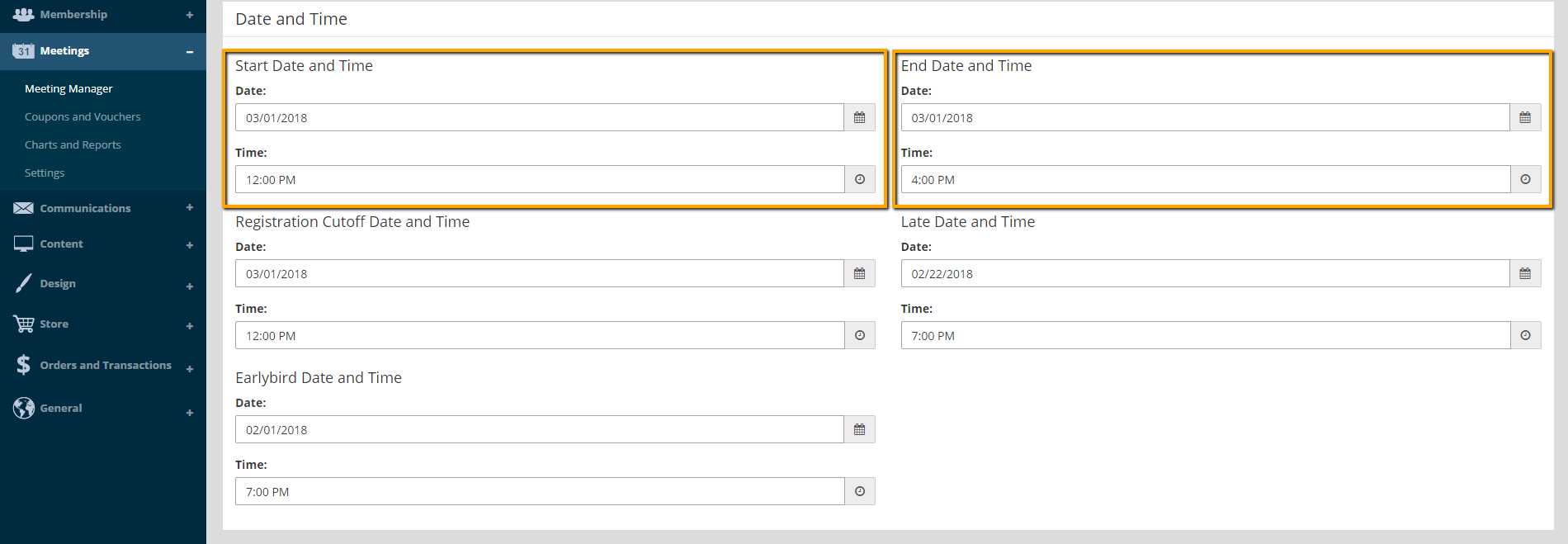
      Meeting Star Date and End Date
    3. Include additional details about the full run of the event in the Description field.
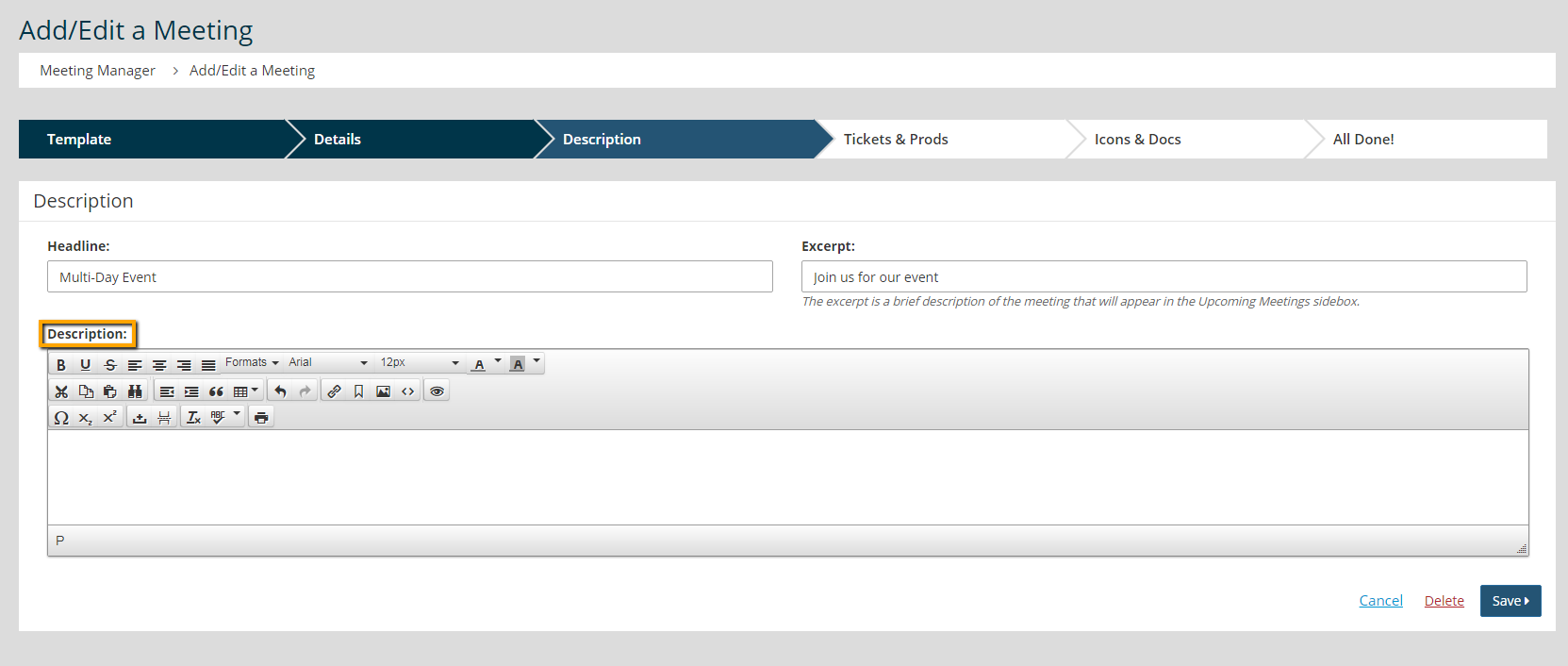
      Meeting Description
    4. Publish the event.

    Calendar

    1. Go to Content > Community > Calendar.
    2. Click Add Calendar Post.
    3. Set the Dates and Times field to the second instance of the meeting.
    4. Click the Frequency option and set the Frequency and Until fields to cover the remainder of the event.
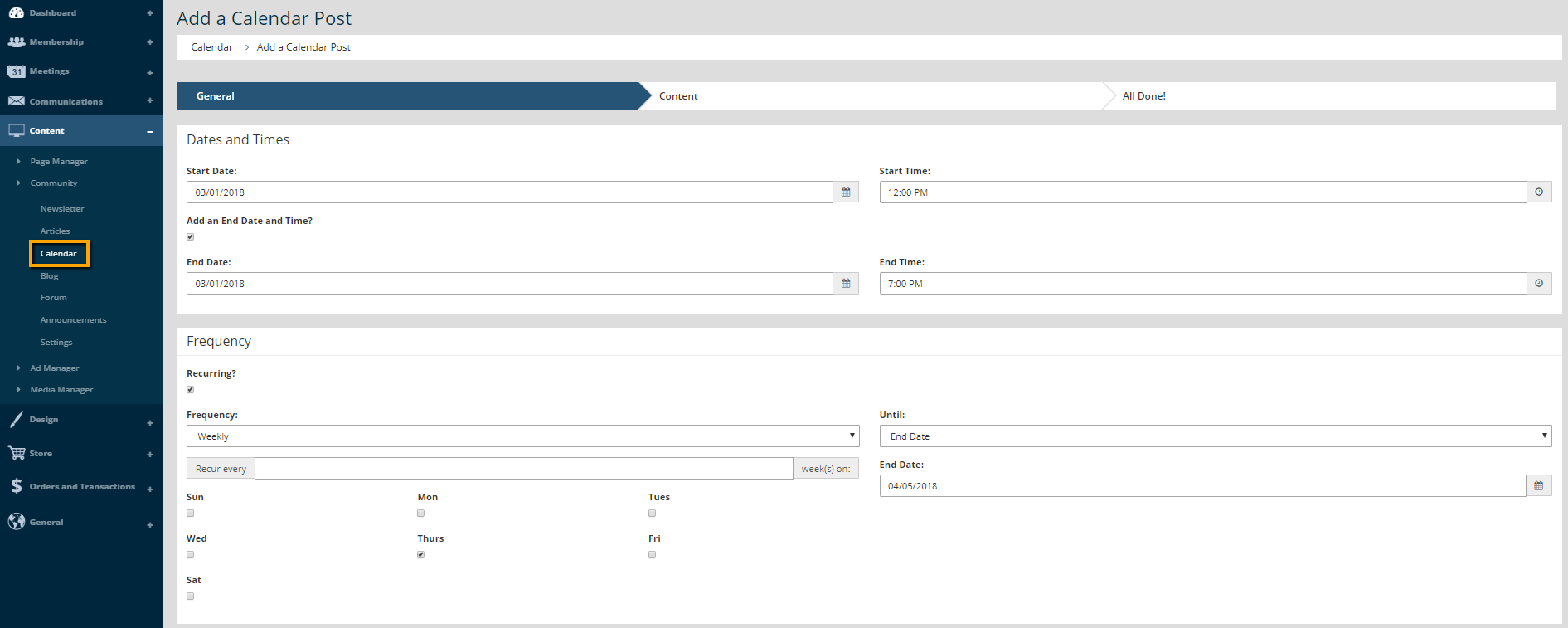
      Create a multi-day event

    5. Click Next.
    6. Set the Title to the name of the event. Add pertinent information regarding the event to the Content field.
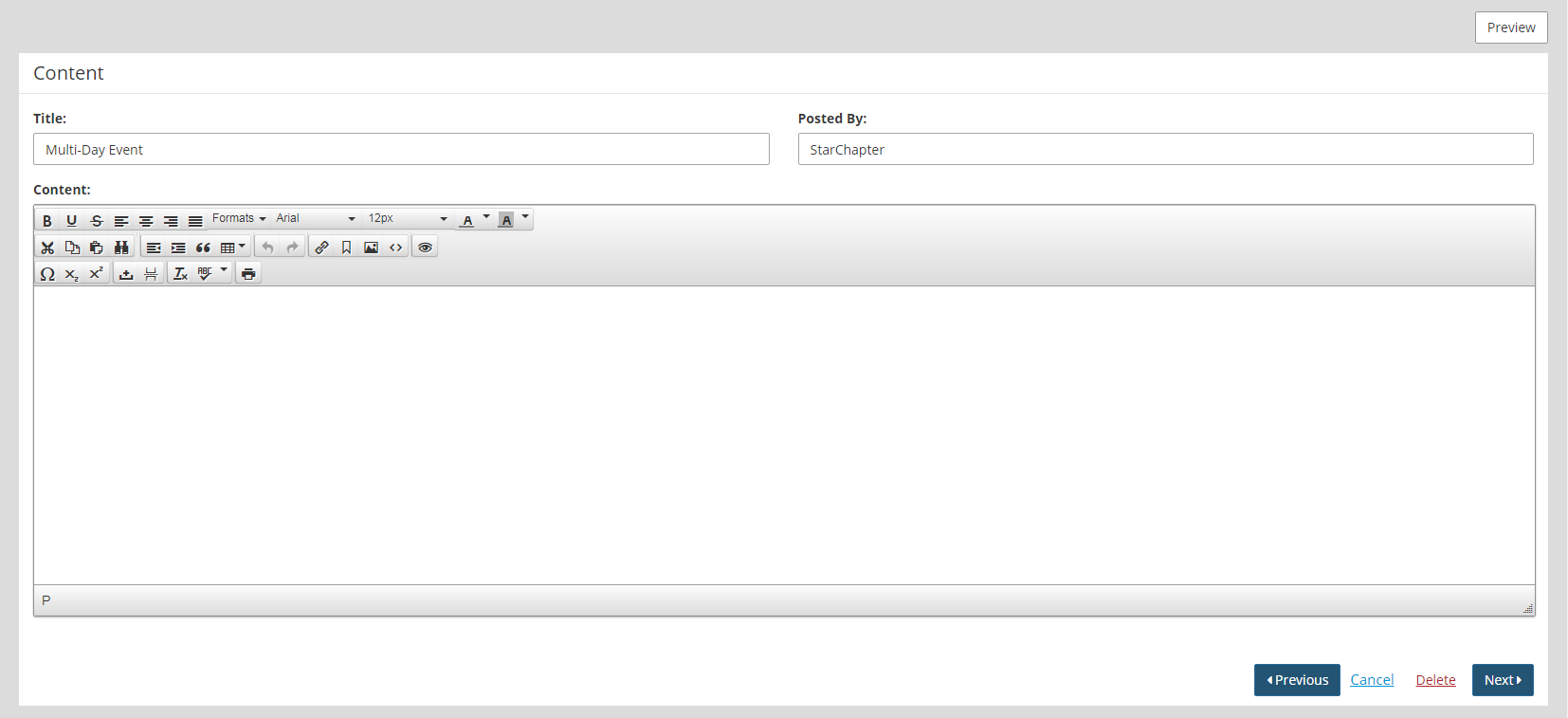
      Calendar Description
    7. Click Next.
    8. Publish the Calendar entry.

    Chapter Insights

    Posted by [email protected] on 02/14/2018 11:41 am  /   Content

    content part of redesign

    Consider Your Content as Part of Your Website Redesign

    member stories

    3 Reasons to Invest in Member Stories

    Cotent Blog Image - Advanced SEO – Name it Right, and they will Read

    Advanced SEO – Name it Right, and they will Read

    Content Blog Image - Advanced SEO – The 80/20 Rule for Success

    Advanced SEO – The 80/20 Rule for Success

    video for sponsorship

    Video is Key to Your Sponsor Strategy

    © 2026 StarChapter Software LLC All rights reserved.

    •  
      Board Training
    •  
      Services
    •  
      KB Home
    • Master Service Agreement
    • |
    • Privacy Policy
    . .