You are viewing this design in preview mode. The design MUST be published to be live on your website.
New Board Member?
Support
Video Library
Workflow Library
Page Content Library
Email Builder Content Library
Knowledgebase
Home
> Content
> Page Content
>
Rename an Existing Page
Rename an Existing Page
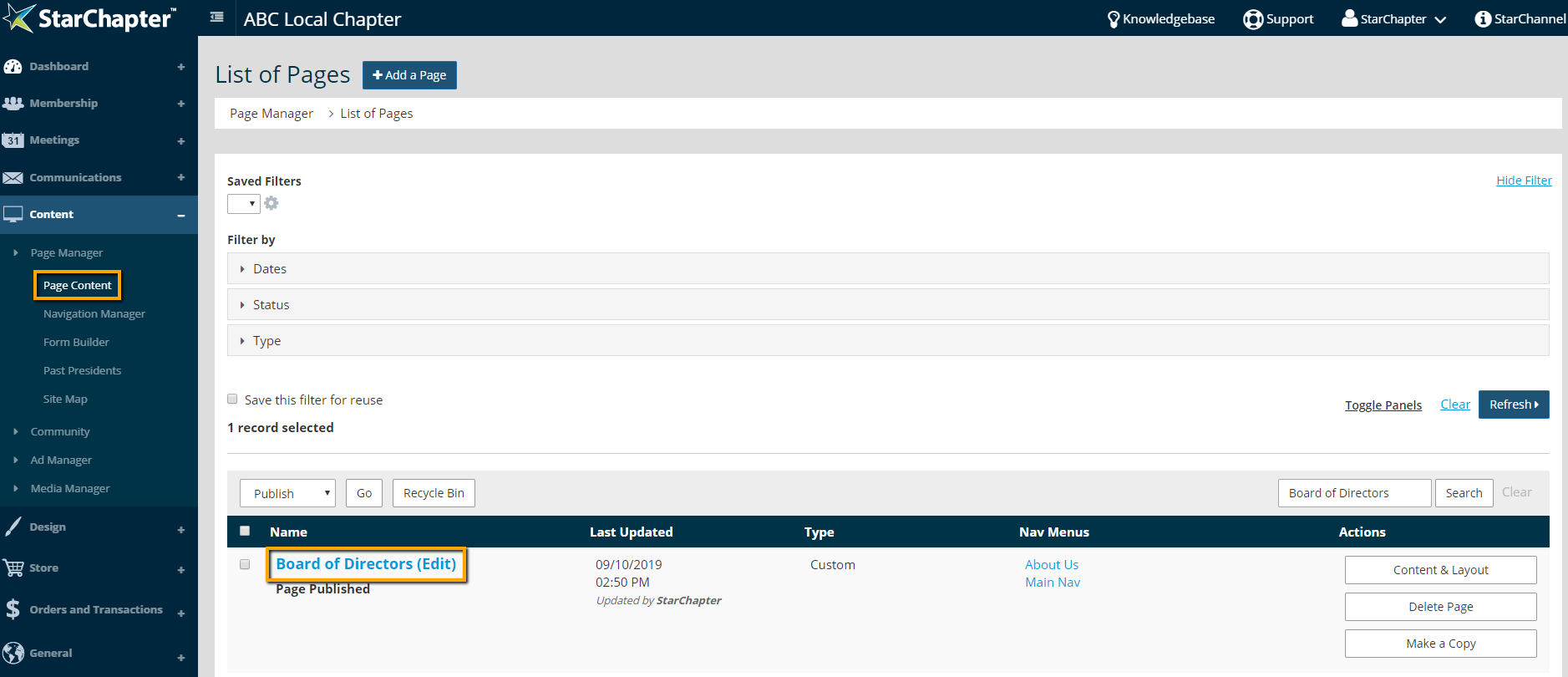
Go to
Content
>
Page Manager
>
Page Content
.
Search for the page to be edited.
Click on that page name.
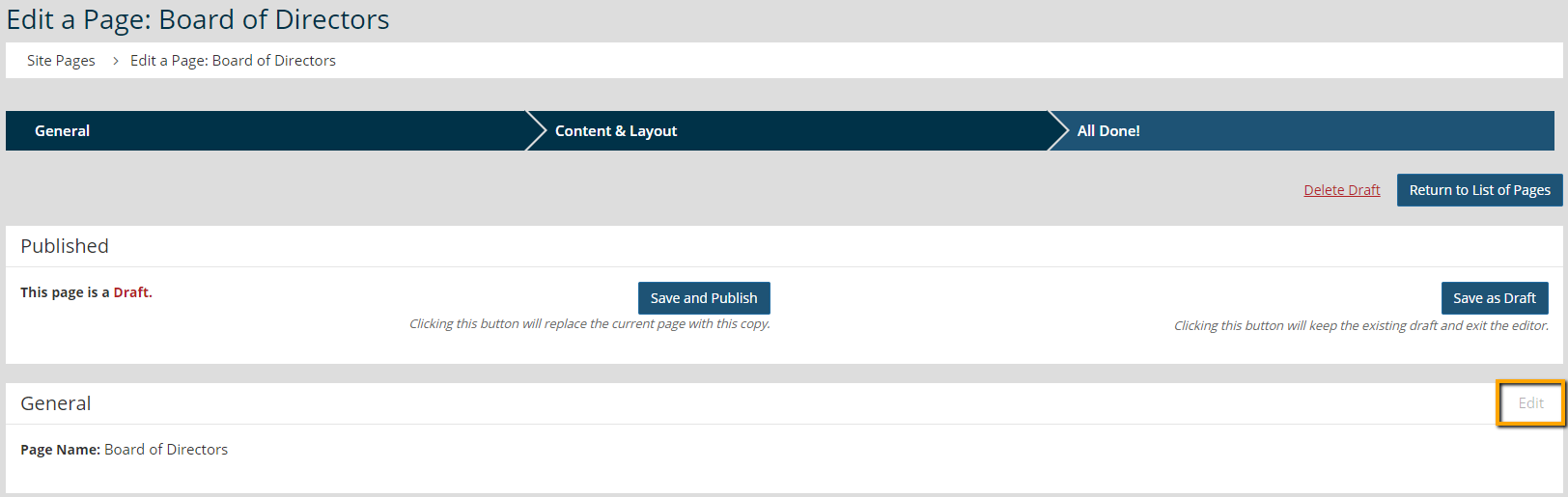
Click
Edit
in the General section of the page.
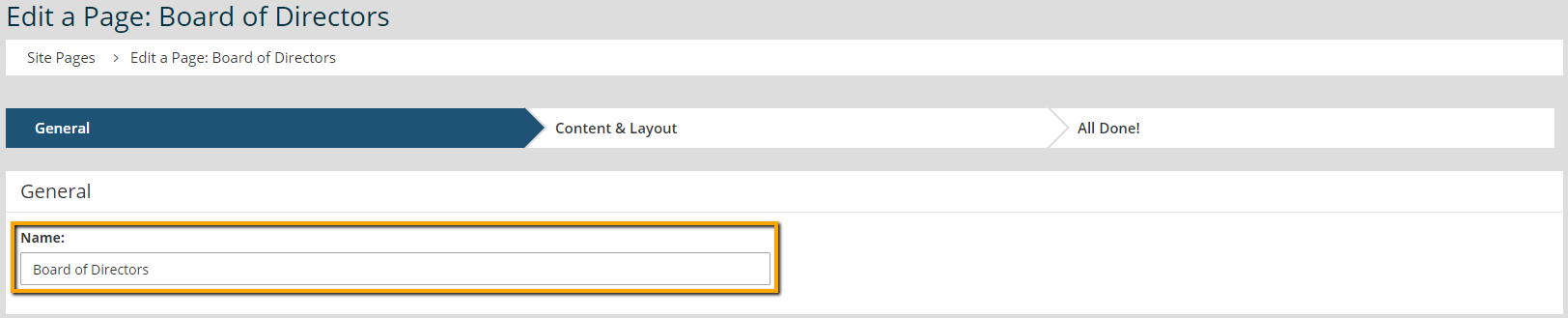
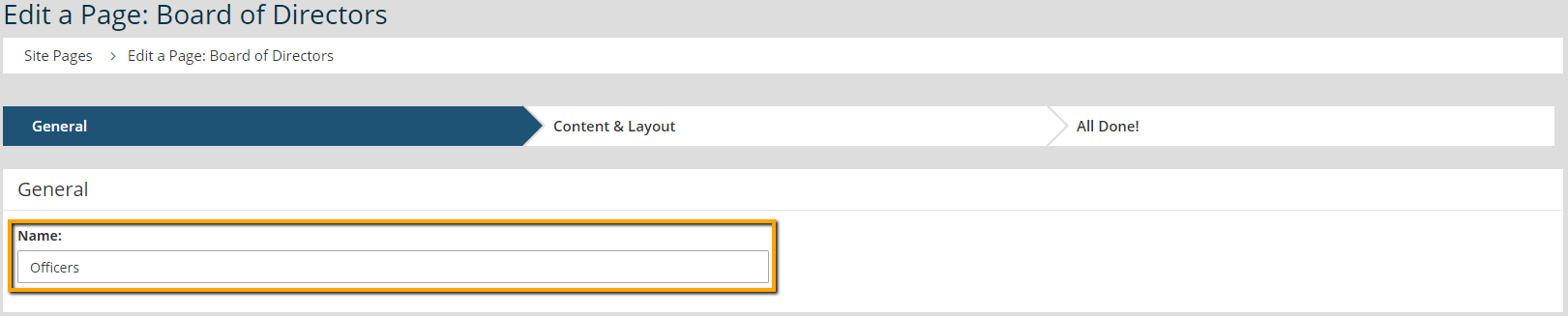
Update the "Name" field.
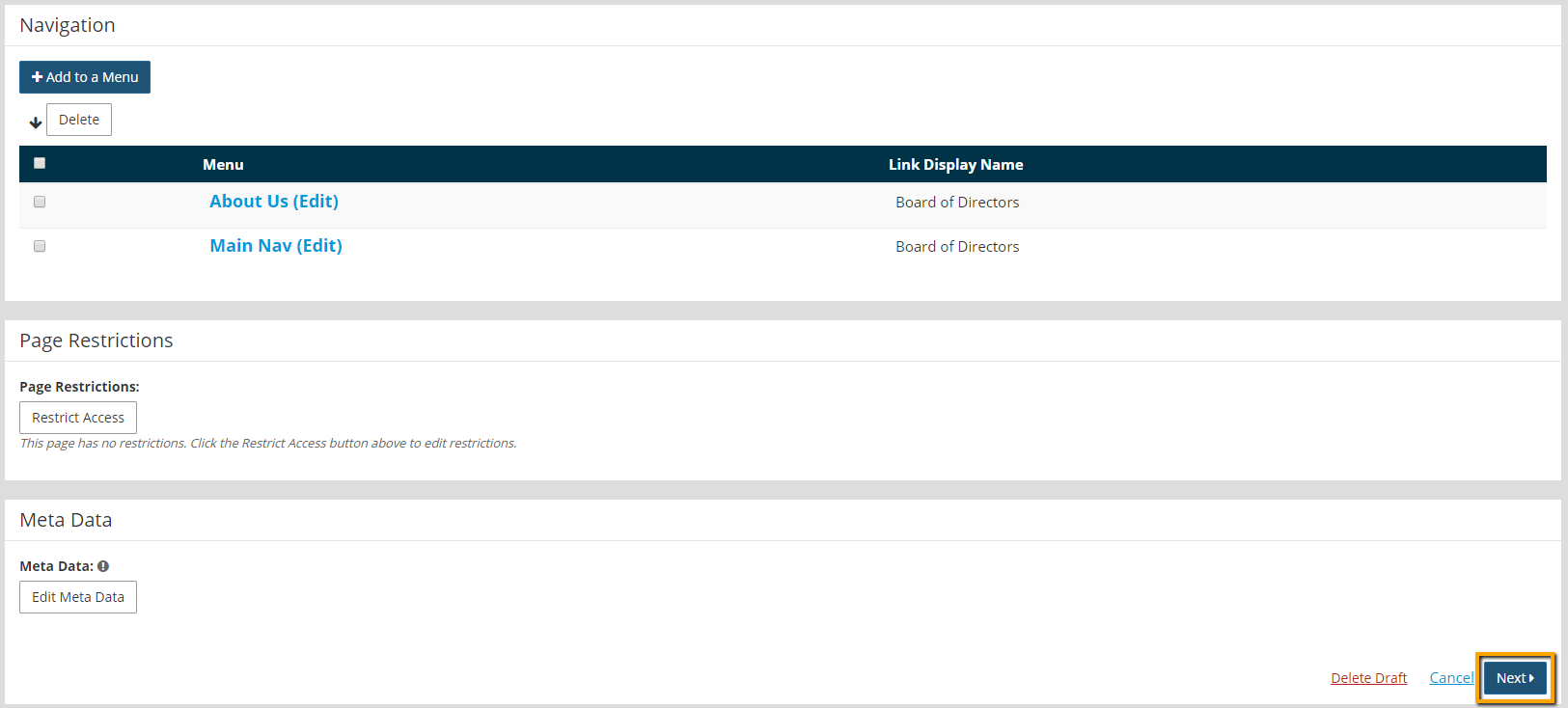
Click
Next
.
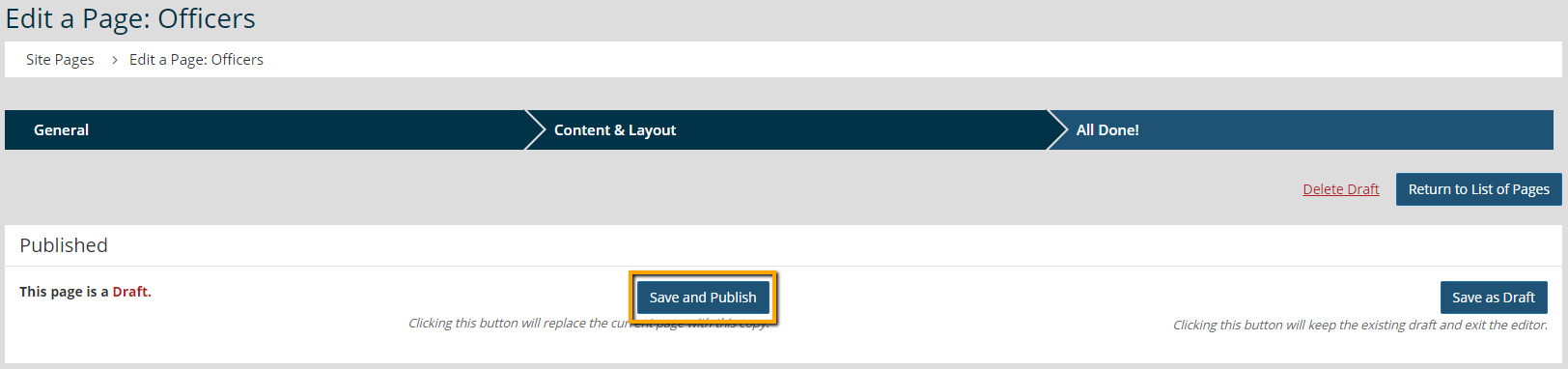
Click
Save and Publish
.
Chapter Insights
Posted by
[email protected]
on 02/14/2018 11:41 am /
Content
Consider Your Content as Part of Your Website Redesign
3 Reasons to Invest in Member Stories
Advanced SEO – Name it Right, and they will Read
Advanced SEO – The 80/20 Rule for Success
Video is Key to Your Sponsor Strategy