You are viewing this design in preview mode. The design MUST be published to be live on your website.
    •   New Board Member?
    •   Support
    •   Video Library
    • Workflow Library
    •  Page Content Library
    •  Email Builder Content Library

    Knowledgebase

    • Home
    • > Content
    • > Page Content
    • > Rearrange Content Sections

    Rearrange Content Sections

    It may be necessary to move sections of content to different areas of a page. 

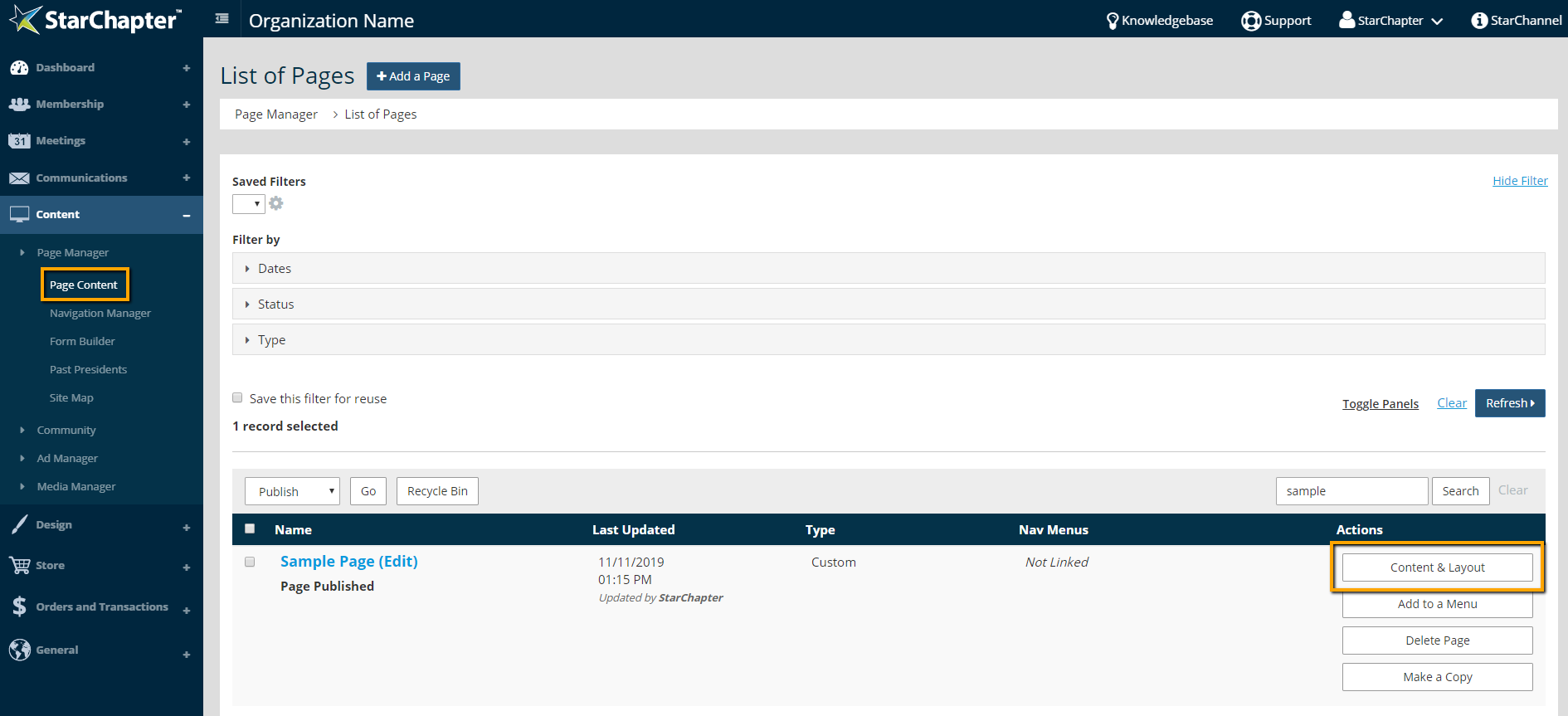
    1. Go to Content > Page Manager > Page Content.
    2. Search for the name of the page you would like to rearrange content in.
    3. Click on the Content & Layout button to the right of that page.
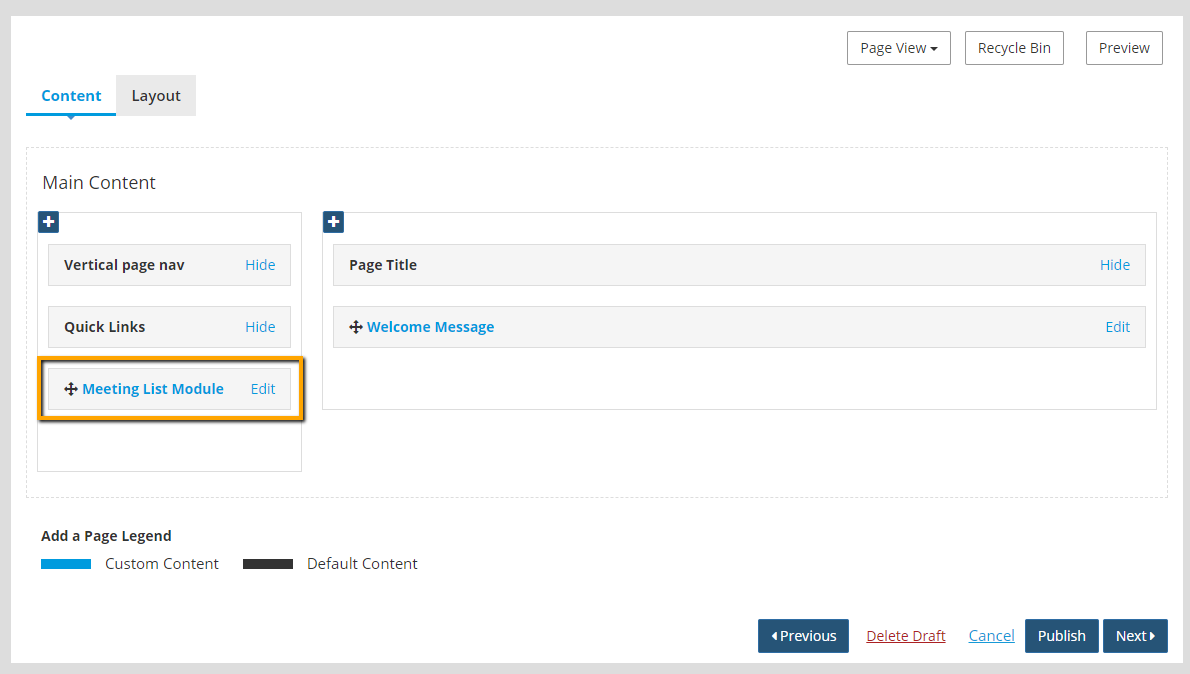
    4. Click and drag a content section to the desired container.
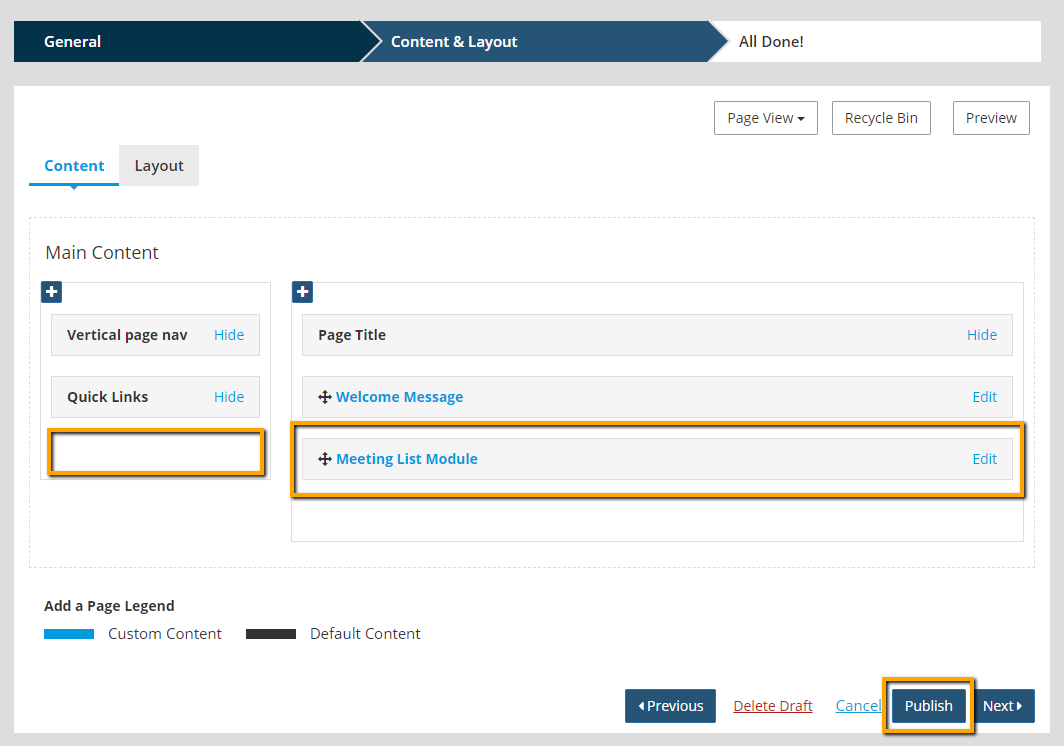


    5. Click Publish to save any changes.

    Chapter Insights

    Posted by [email protected] on 02/14/2018 11:41 am  /   Content

    content part of redesign

    Consider Your Content as Part of Your Website Redesign

    member stories

    3 Reasons to Invest in Member Stories

    Cotent Blog Image - Advanced SEO – Name it Right, and they will Read

    Advanced SEO – Name it Right, and they will Read

    Content Blog Image - Advanced SEO – The 80/20 Rule for Success

    Advanced SEO – The 80/20 Rule for Success

    video for sponsorship

    Video is Key to Your Sponsor Strategy

    © 2026 StarChapter Software LLC All rights reserved.

    •  
      Board Training
    •  
      Services
    •  
      KB Home
    • Master Service Agreement
    • |
    • Privacy Policy
    . .