You are viewing this design in preview mode. The design MUST be published to be live on your website.
    •   New Board Member?
    •   Support
    •   Video Library
    • Workflow Library
    •  Page Content Library
    •  Email Builder Content Library

    Knowledgebase

    • Home
    • > Membership
    • > Charts and Reports
    • > Print Member ID Cards

    Print Member ID Cards

    1. Go to Membership > Settings > Messages & Templates > Label Templates
    2. Click Edit for the Avery 5361 template
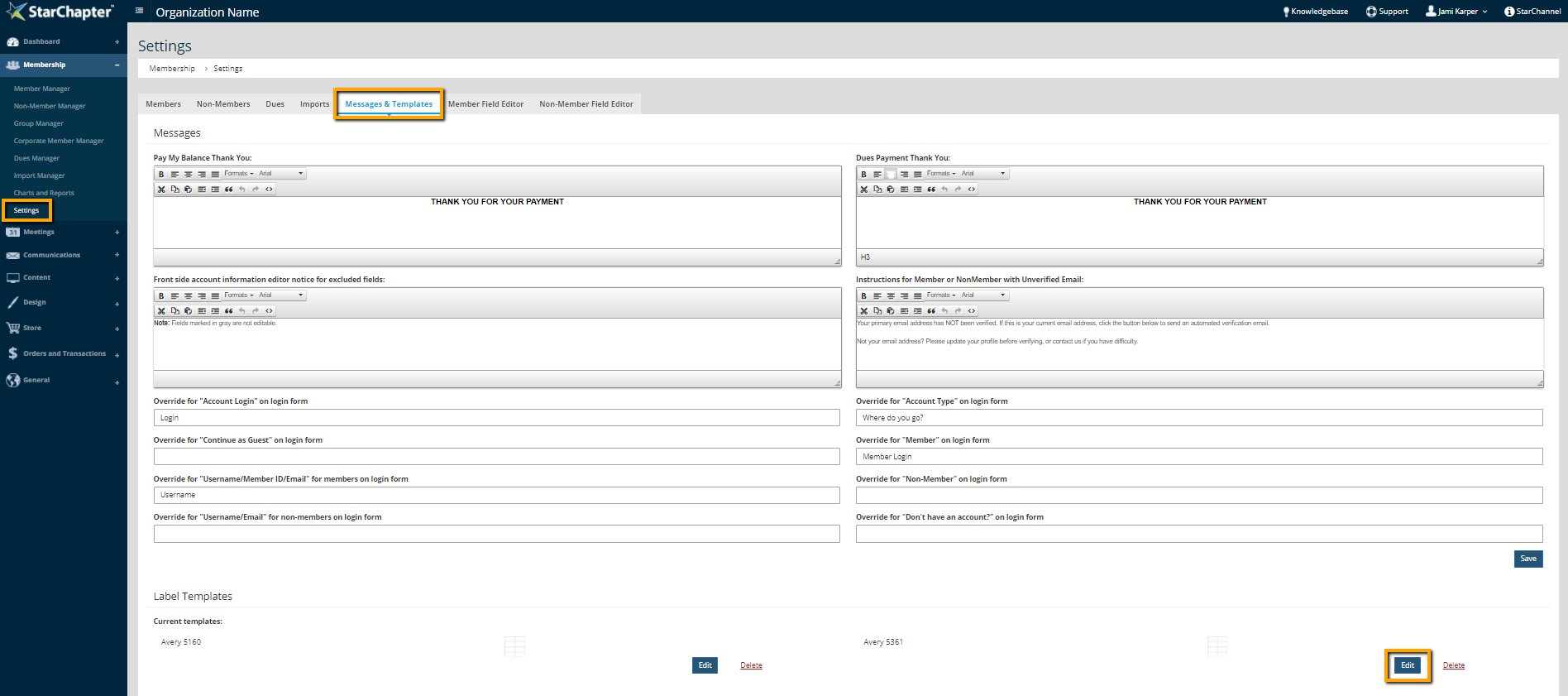
      Screenshot step 1
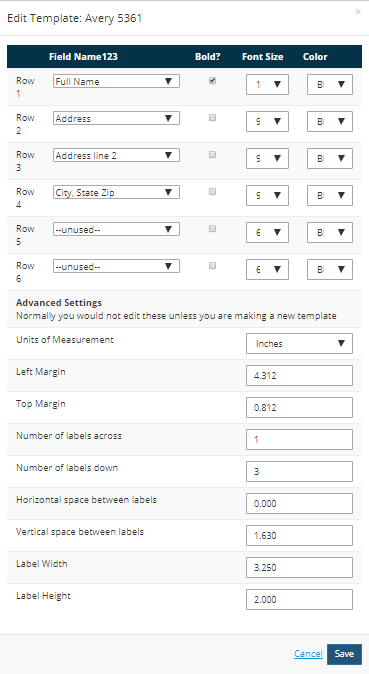
    3. Update and reformat fields, as needed

      Screenshot step 2
    4. Click Save

    Print ID Cards

    1. Go to Membership > Charts and Reports > Reports
    2. Click the ID Cards report
    3. Add the Members or Member Groups to be included
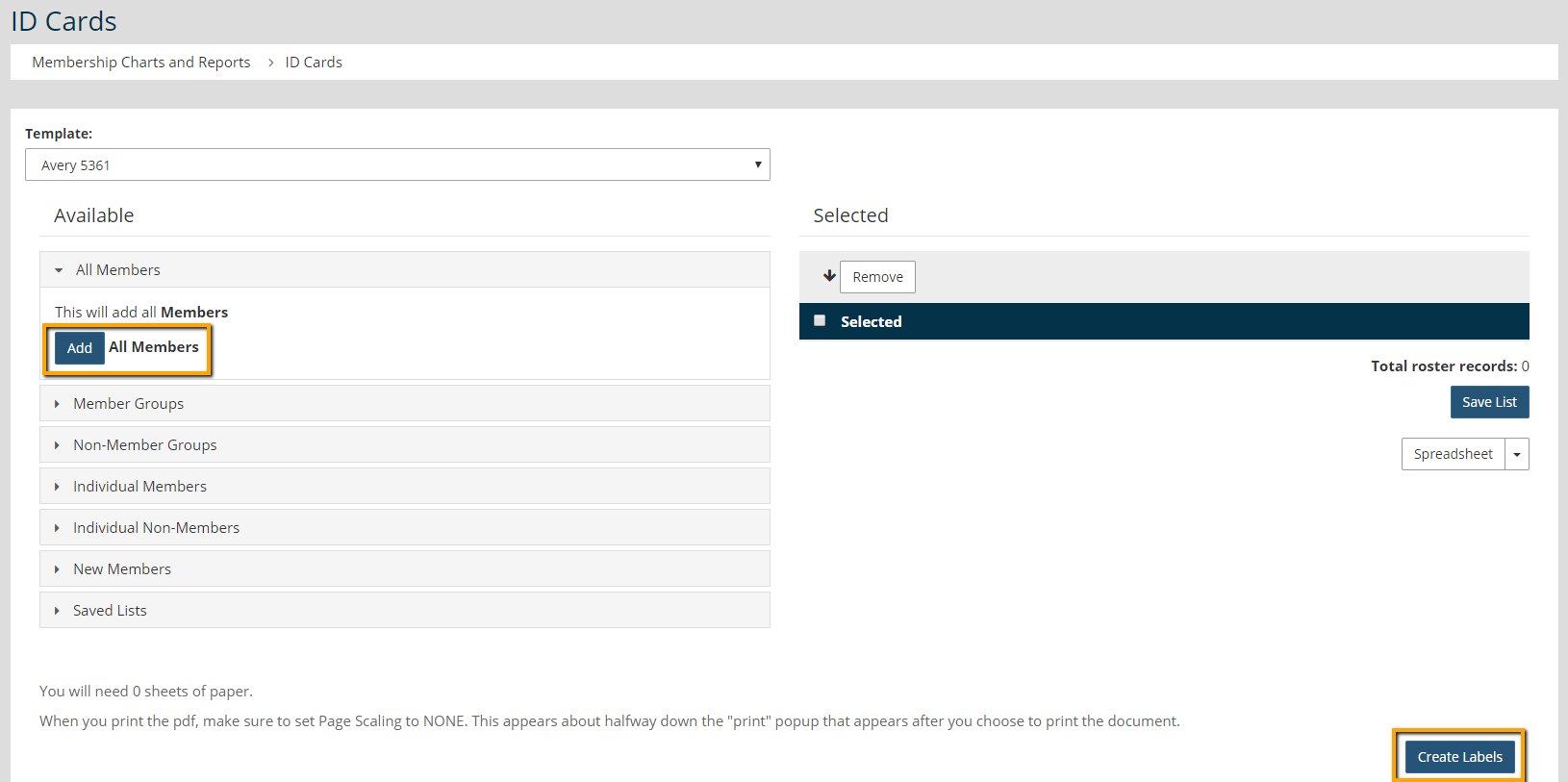
      Screenshot step 3

      Tip Icon

      Tip: Member Groups can be created and edited in Membership > Group Manager.

    4. Click Create Labels
    5. Use the resulting PDF to print to Avery 5361 compatible sheets on a local computer

      Tip Icon

      Tip: Confirm that the Page Scaling function in your printer driver is set to "None."

    Chapter Insights

    Posted by [email protected] on 02/12/2018 4:33 pm  /   Membership

    engaging members

    Are You Engaging with Your Members or Putting Everything on Hold?

    members engaged and active

    Making Chapter Changes that Keep Members Engaged and Active

    retention strategy

    Does Your Board Have a Member Retention Strategy?


    why members join

    Why Do Your Members Join? It's Not for the Reasons You May Think

    improve member retention

    Use Members' Reasons for Leaving to Keep Them from Going

    © 2026 StarChapter Software LLC All rights reserved.

    •  
      Board Training
    •  
      Services
    •  
      KB Home
    • Master Service Agreement
    • |
    • Privacy Policy
    . .