Manage Product Inventory
Inventory Manager is useful when inventory adjustments are being made to a larger number of products. This tool allows for efficient updates without editing the product profile for each item. Inventory tracking must be enabled, as described above, before Inventory Manager can be used for a product.
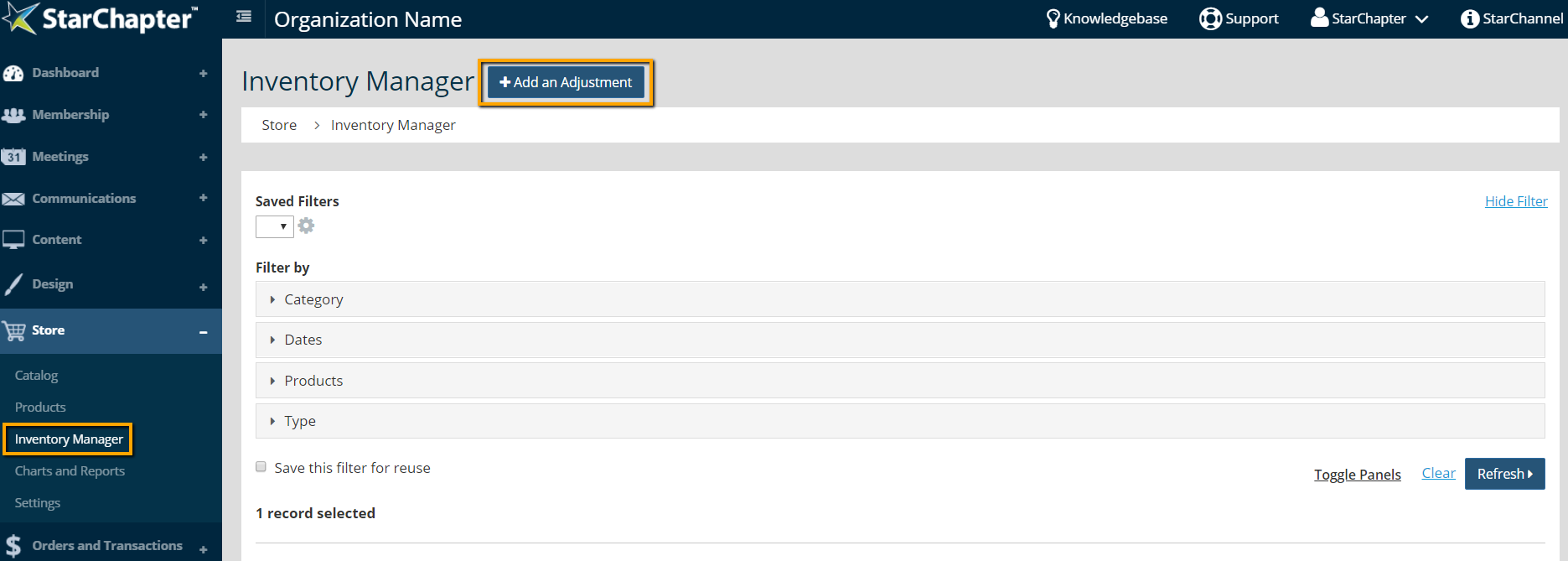
- Go to Store > Inventory Manager.
- Click Add an Adjustment.
- Select the appropriate product from the drop-down menu.
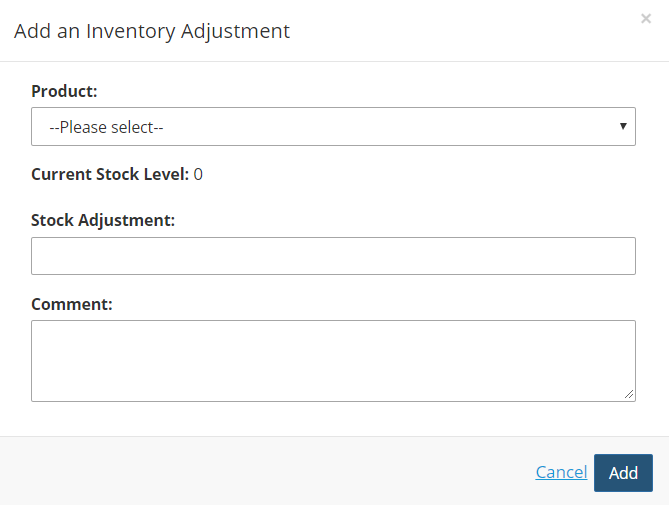

Tip: If the product is not included in the drop-down menu, inventory tracking has not been enabled. Return to Store > Products and set the initial inventory, as described above.
- Enter the Stock Adjustment. Positive numbers will add inventory. Negative numbers will decrease inventory.
- Enter a comment regarding the reason for the adjustment.
- Click Add.