Enable Inventory Tracking
Physical products are often subject to quantity limitations. Inventory limits can be set and managed within StarChapter to ensure that published products do not over-sell and the appropriate chapter leaders are notified of orders. Inventory can be increased or reduced within the product listing or within the Inventory Manager.
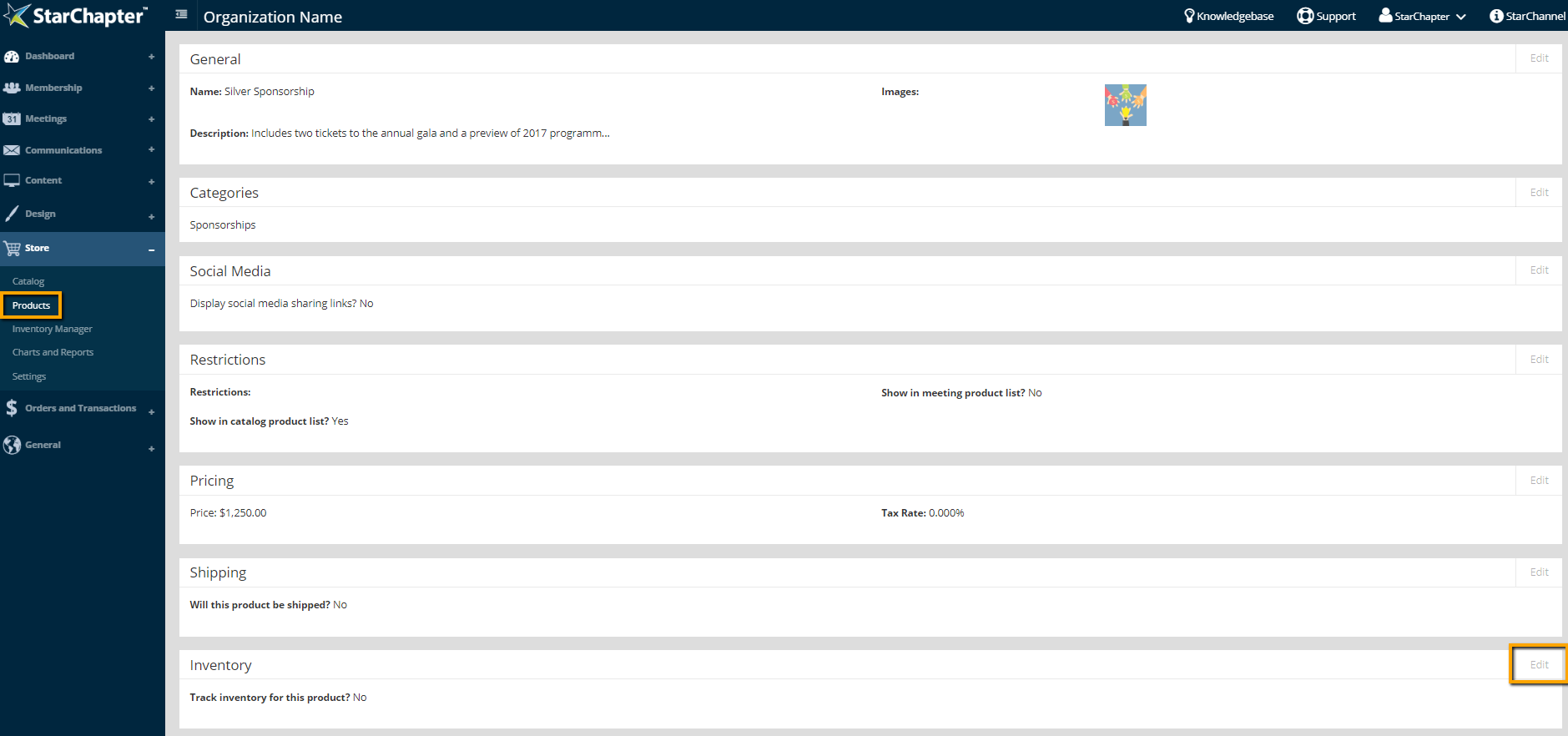
- Go to Store > Products.
- Click the product of interest.
- Click Edit in the Inventory section of the product.
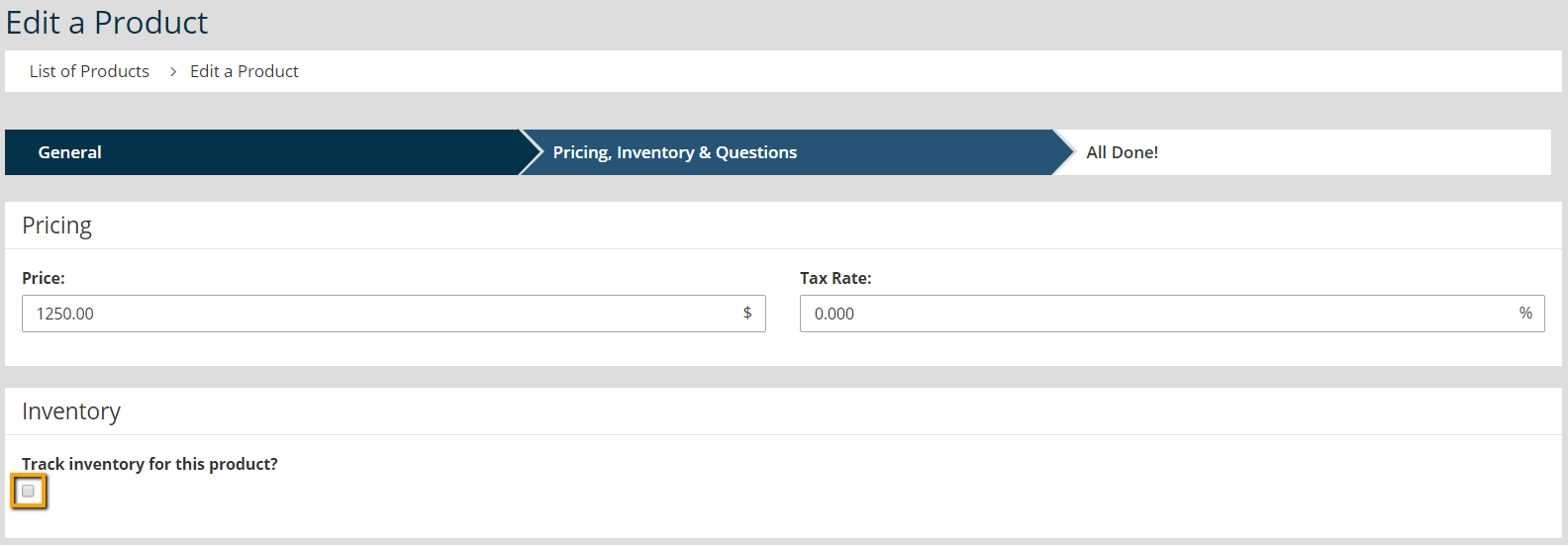
- Enable "Track inventory for this product?"
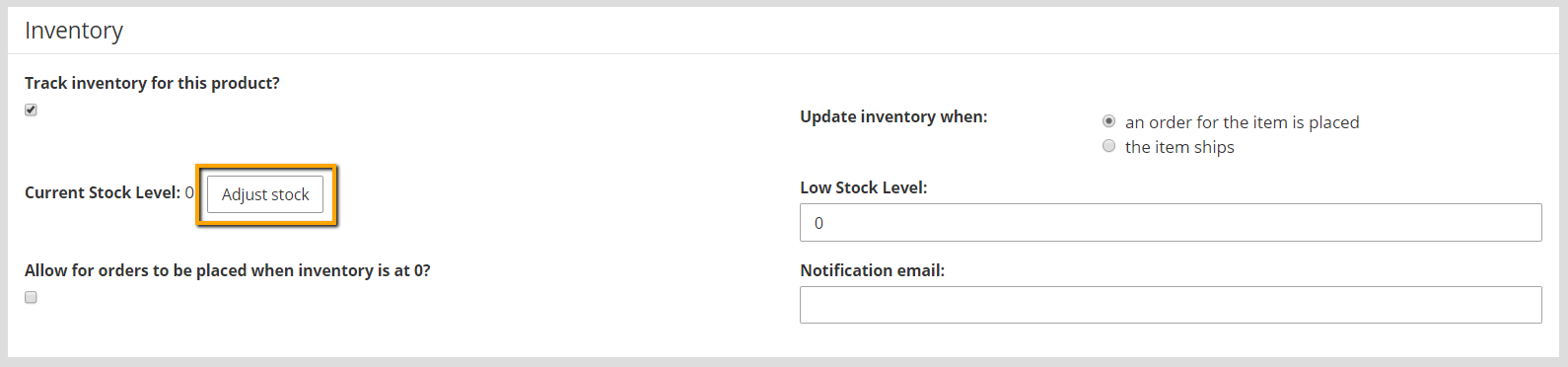
- Click Adjust Stock.
- Enter a description for the adjustment, such as "Initial Inventory" or "New Shipment."
- Enter the current quantity of inventory.
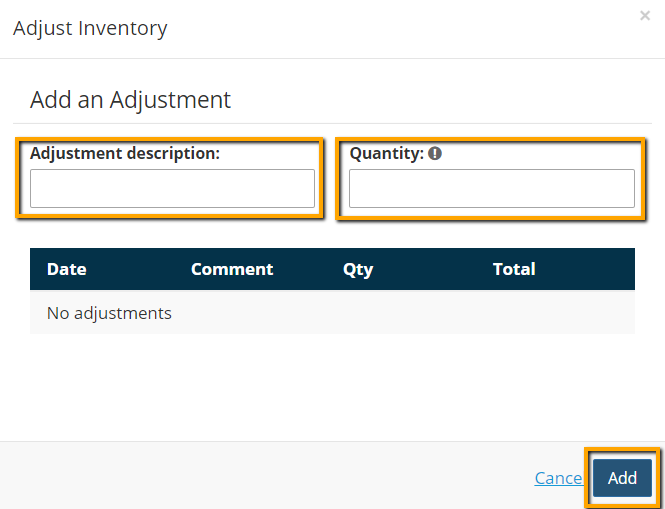

Tip: If this is an adjustment to existing inventory, only enter the change rather than the total inventory. Positive numbers will add inventory. Negative numbers will decrease inventory.
- Click Add.
- Consider if orders should be permitted when the inventory is at 0, and enable "Allow for orders to be placed when inventory is at 0?," if appropriate.
- Determine if the inventory should be adjusted when the order is placed or shipped, and select that option for "Update inventory when."
Tip: To ensure that the item is not oversold, the "an order for the item is placed" option is recommended.
- If notification is needed at a particular inventory level, enter that threshold in the "Low Stock Level" field. This would typically be the point when more inventory is ordered.
- Enter the "Notification email." This is the email that will received notification of orders and stock levels.
- Click Next.