Create a Product
Products provide a flexible way to collect payment for a variety of items. Depending on the type of product or service being sold, it can be added to a catalog or a meeting for purchase, inventory can be tracked, donations can be made, and downloads can be offered at a cost. Products are also a good fit for sponsorships that are not specific to a meeting and do not require that a logo file be provided. Regardless of how a product will be made available, it must be created in the Store first.
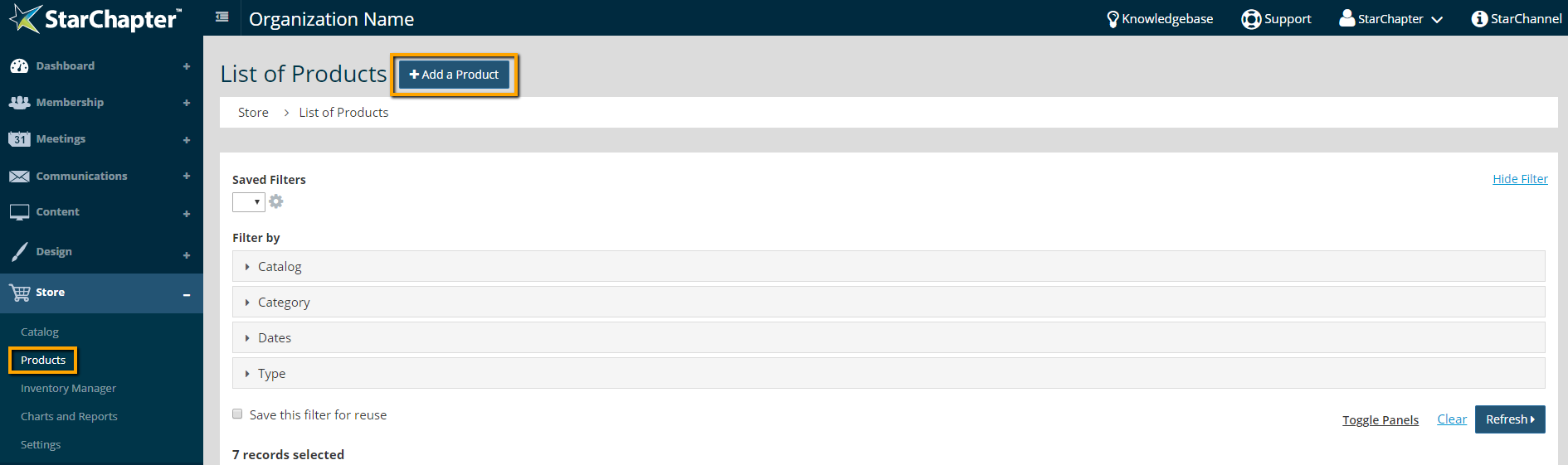
- Go to Store > Products.
- Click Add a Product.
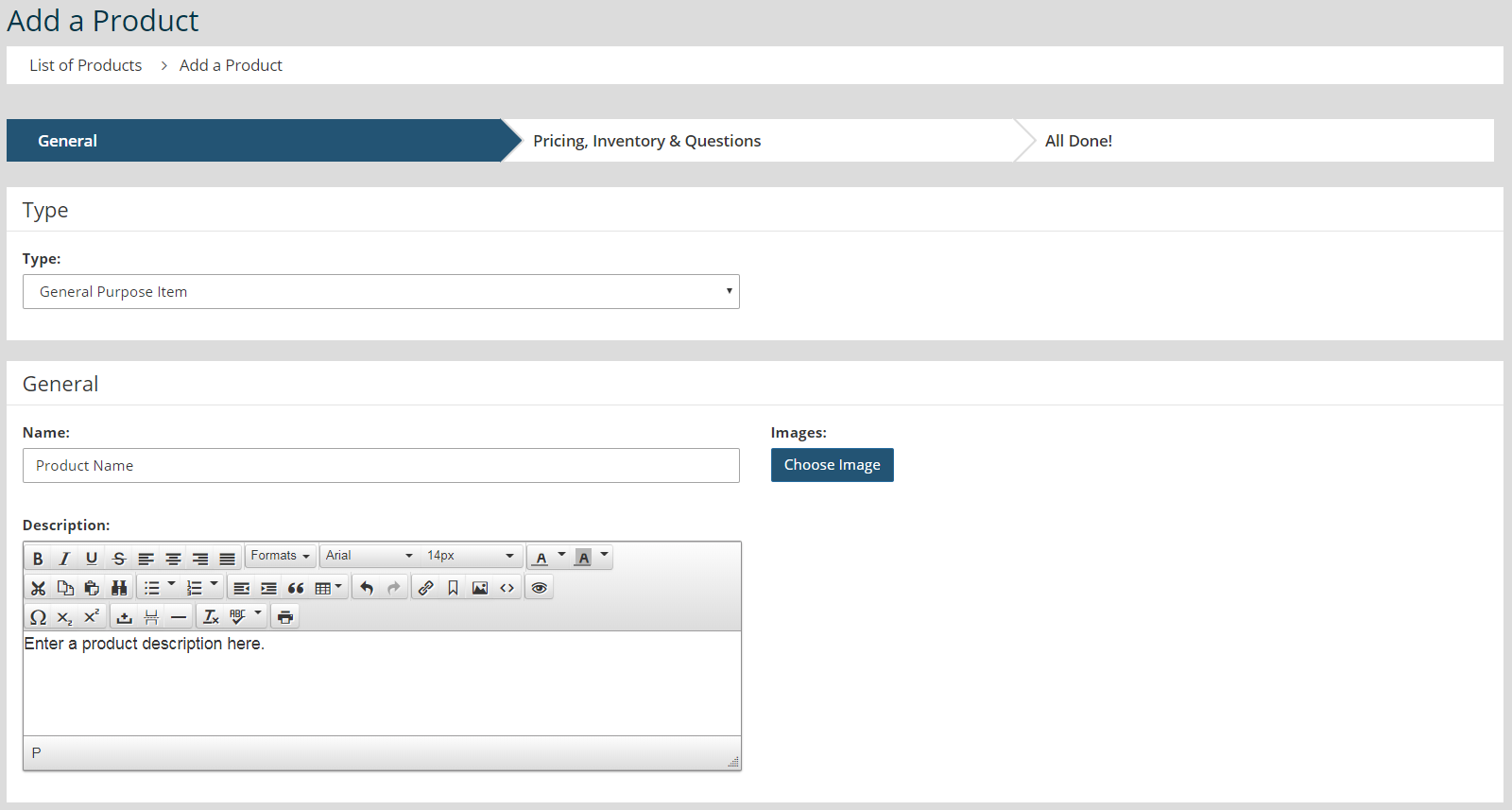
- Select the Type of product.
Donation - Donations can be setup as "open," meaning that the purchaser sets the amount they will pay, or "fixed," meaning that the donation amount is pre-determined. Often, several donation products will be set up and added to a single catalog with several fixed amount suggestions and one open donation option.
Downloadable Item - Downloadable products provide the opportunity to sell files. Users select and pay for the document and receive a download link by email. Downloadable items are subject to the standard file limitation of 20MB.
General Purpose Item - Most products tend to be general purpose items, which simply means that it's not a donation or a downloadable item.
Inventory Item - Inventory items are almost interchangeable with general purpose items and the functionality available with inventory management is available for both types of products.
Raffle Ticket - Raffle tickets are commonly set up as products so this option is for organizational purposes. Raffle numbers or designations will not be assigned by your StarChapter system. - Name the product. This will be the name that appears in your catalog or meeting list.
- If a photo of the product is available, click Choose Image and upload that image.
- If setting up a donation, select the Donation Type (open or fixed). If setting up a Downloadable Item, upload the file to be sold.
- Enter a Description for this product. This will display in the catalog entry and is a required field.
- If this product will be available for purchase during meeting registration, check the "Show in meeting product list?" in the Restrictions area.
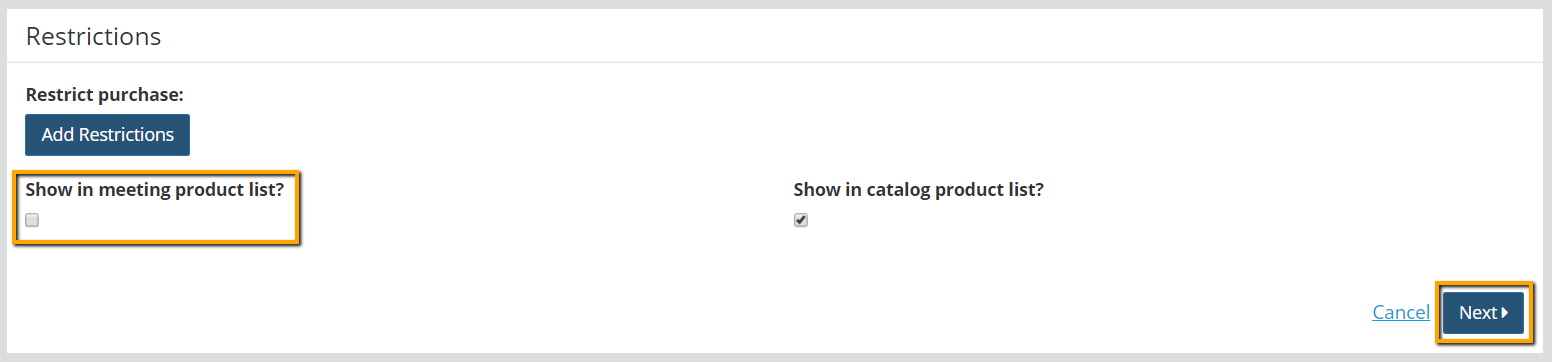
- Click Next.
- Enter the Price of the item and a tax rate, if applicable.

Warning: The Tax Rate field cannot be used to pass on transaction fees from your payment processor. Any rate added to the Tax Rate field will be labeled as Tax on receipts and invoices.
- If inventory is limited and should be tracked, check "Track inventory for this product?" and enter the starting inventory. This option will also allow a Notification Email to be set allowing a specific person to receive a notice when orders are placed.
- If additional information is needed, questions can be added to the product. These responses are reflected in the actual order but will not be available to pull into a larger report. These questions would be appropriate if purchasers can make requests about their product.
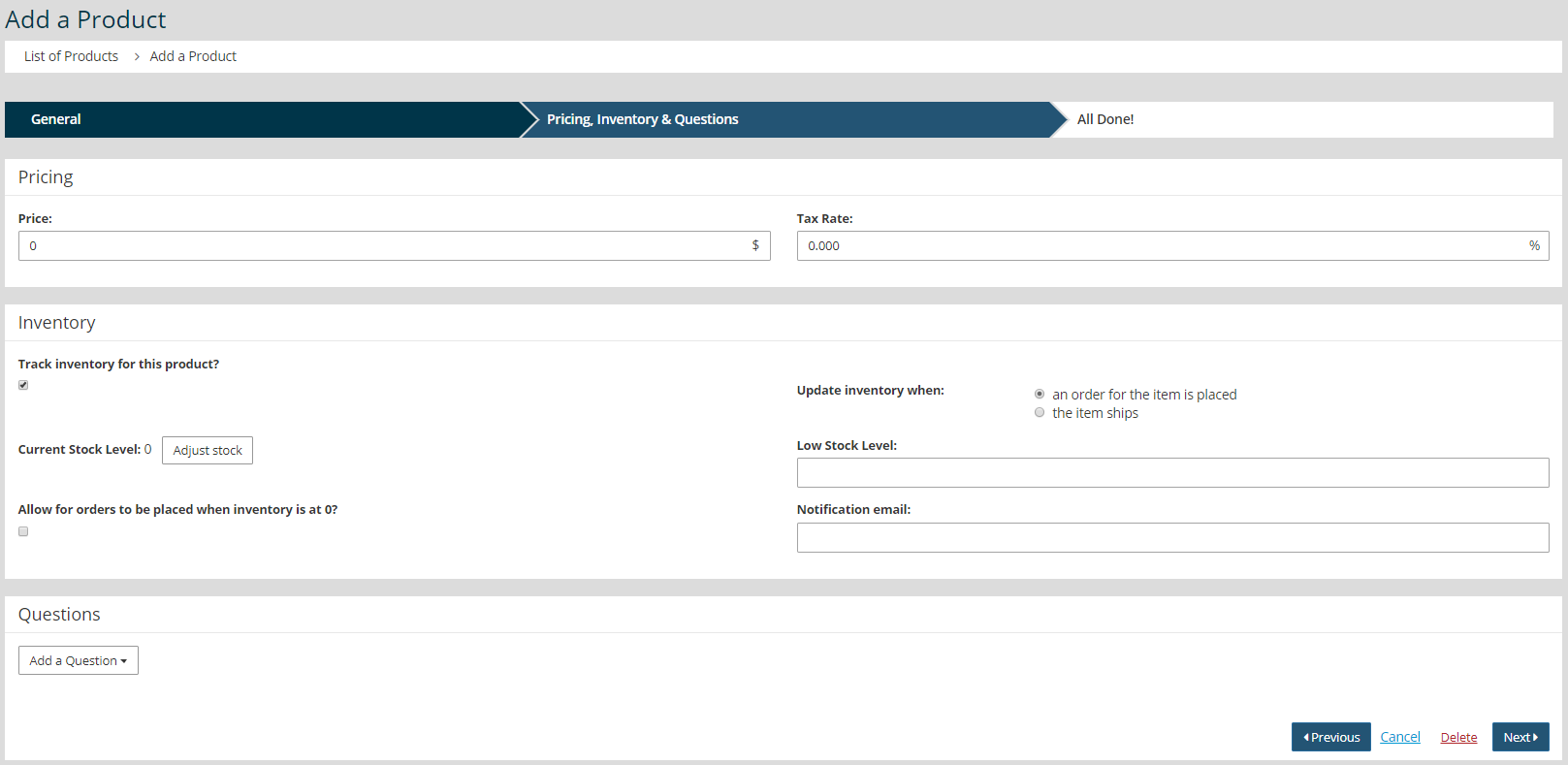
- Click Next.
- To make this product available, add it to a published catalog or meeting.