Create a Newsletter
StarChapter's Newsletter tool provides a way to easily organize and post a regular publication to the /news.php page of your StarChapter website and pull that same content into email using the Newsletter Email template. Past newsletters are auto-archived to /news_arch.php.
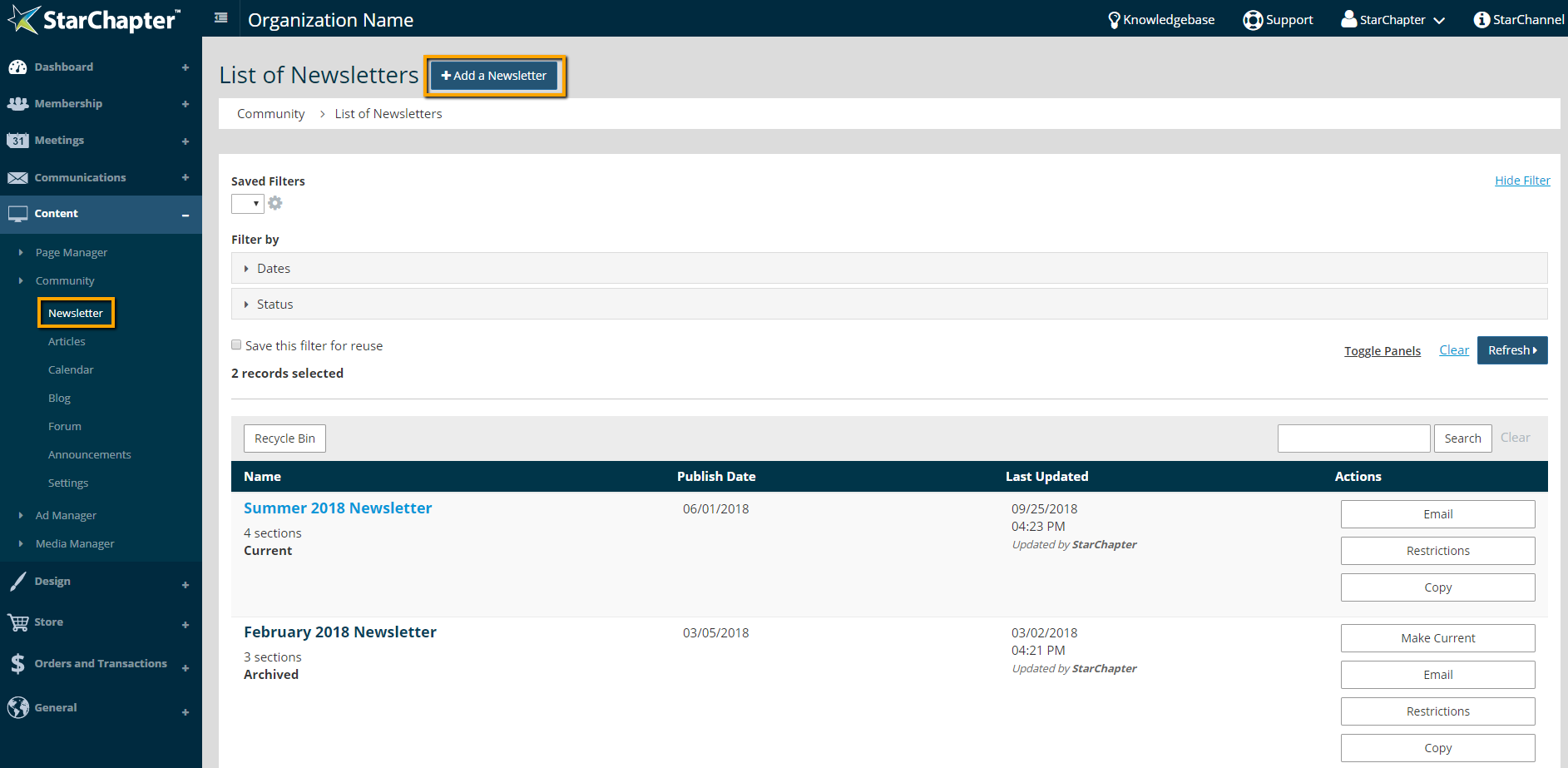
- Go to Content > Community > Newsletter.
- Click on the button at the top to add a new newsletter.
- Enter a name and adjust the publish date.
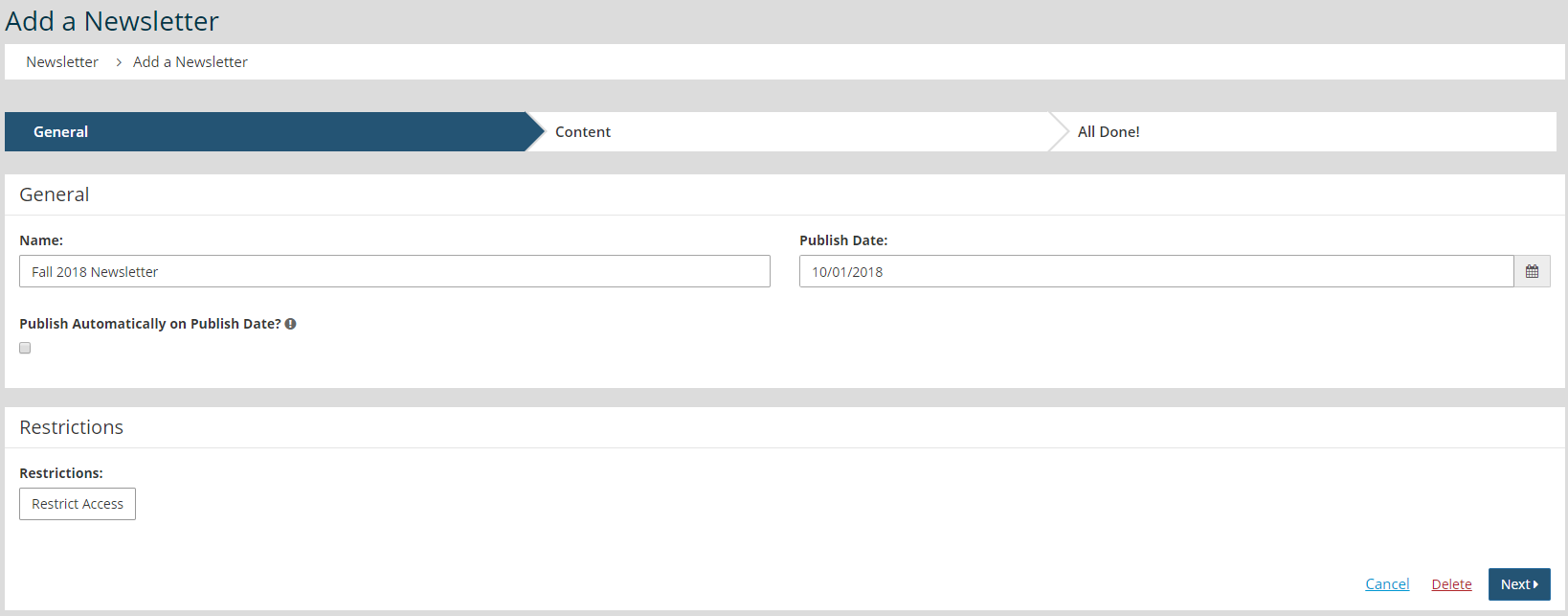

Tip: If your newsletter should auto-publish on the date specified, click "Publish Automatically on Publish Date?"
- Click Next.
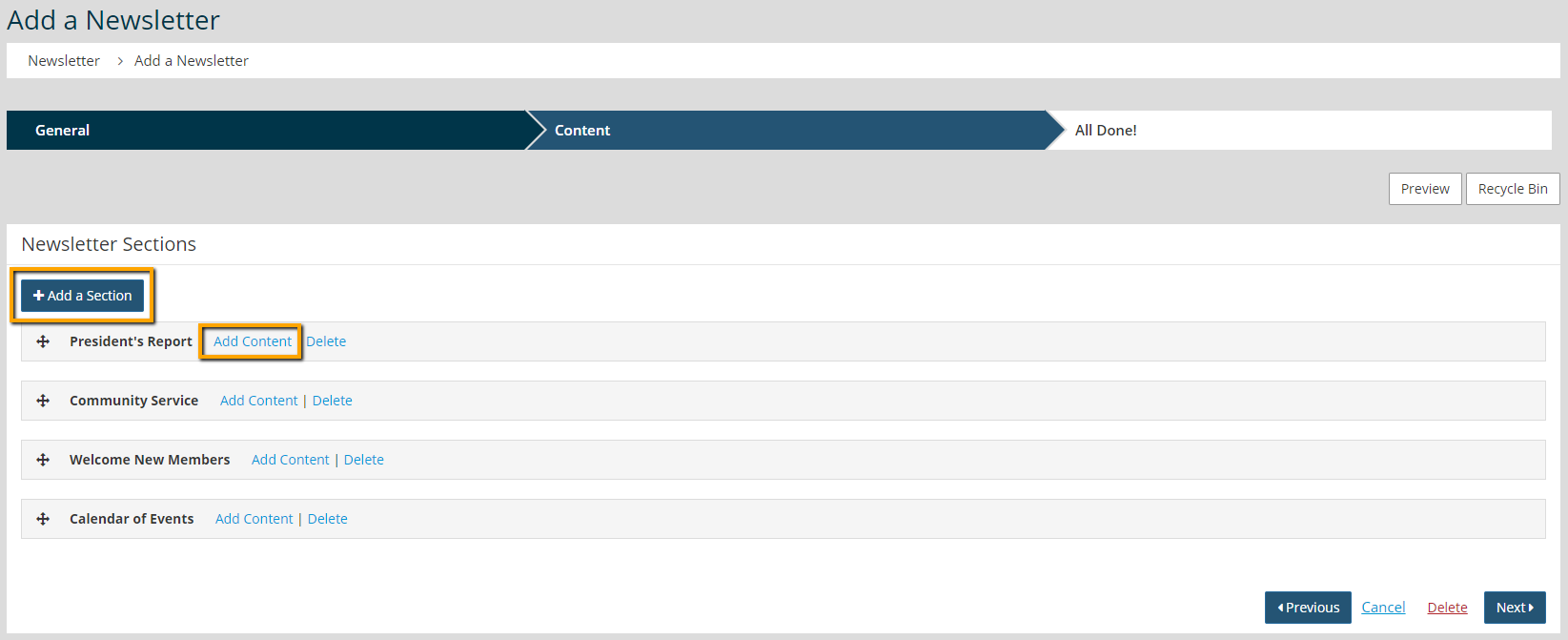
- A list of default content sections (and/or ones that you've used in the past) appears here. These section labels are headlines that you can add content under. Click Add Content to edit a content section, or click the button at the top to add a new one with a unique headline. If you are adding a new one, be sure to enter the section name.
- If you share newsletter headlines and "Read More" links on your Home Page and this section should be included in that list, check the box labeled "Include in Newsletter Article List." This says that the headline, icon, and short excerpt should display in the newsletter section on your home page. If that list of newsletter sections is not shared on your Home Page or if this section shouldn't be highlighed, leave that box unchecked.
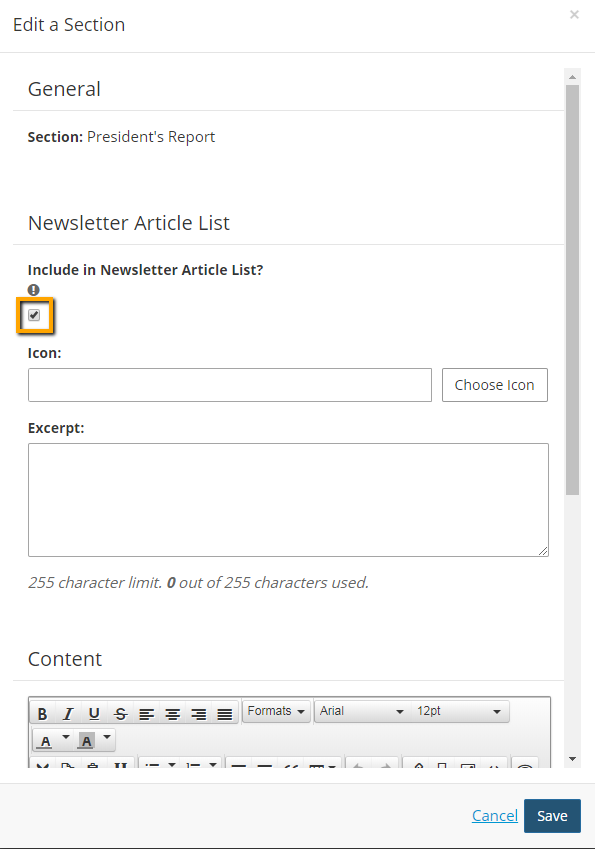
- Enter the excerpt and load an icon if appropriate.
- In the Content area, enter the full content for this section.
- Click Save when you're done.
- Repeat these steps for other sections in your newsletter.
Tip: To make a section appear in the left sidebar of the Newsletter page, go to Content > Community > Settings > Newsletters and open locate that section. Open it and click "Show in Sidebar?"
- After the sections you want to use are filled in, click Next.
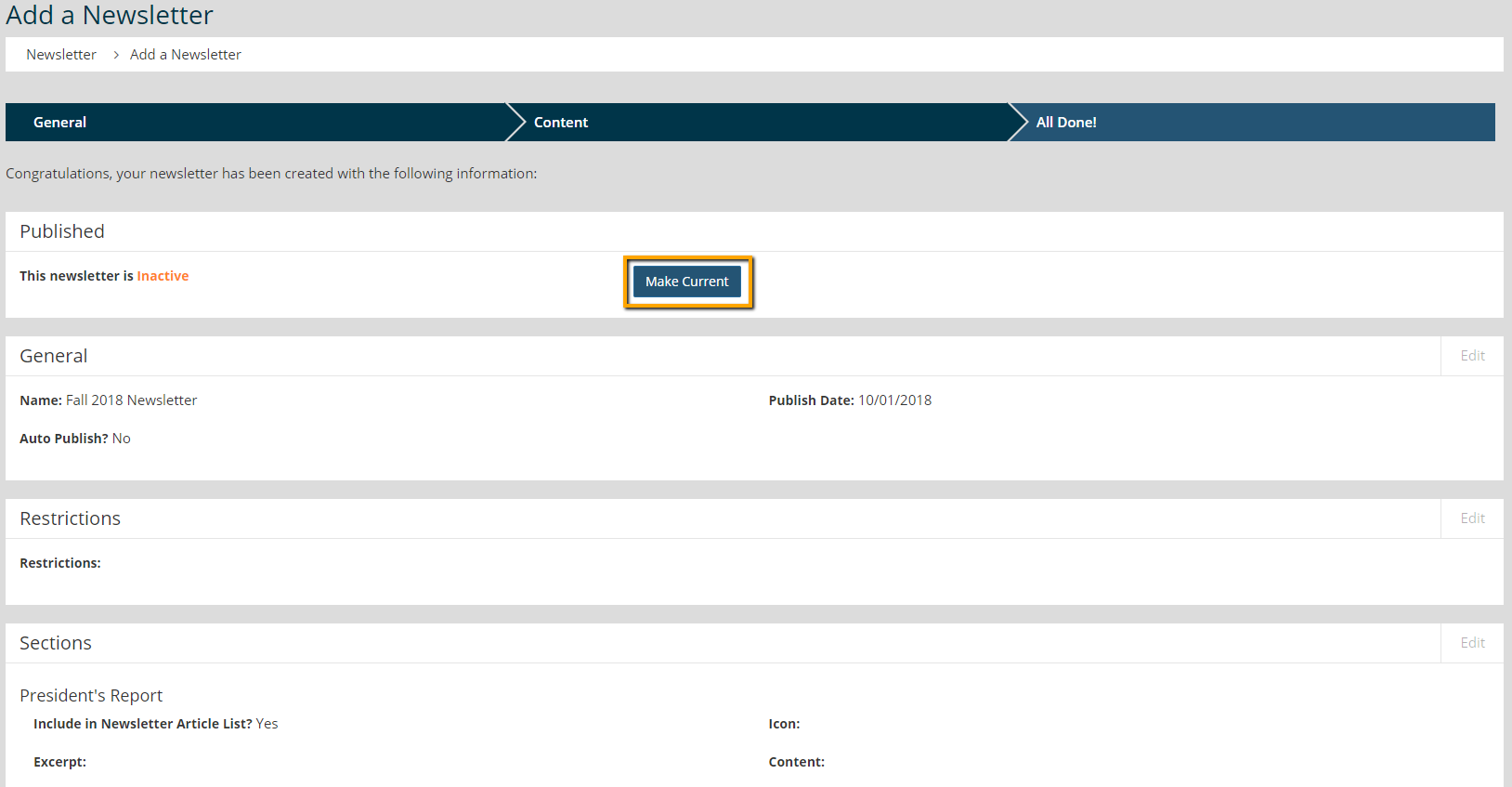
- If you are ready to publish this newsletter, click on the Make Current button.