Create a General Form
General forms should be used to collect information that isn't going to be saved to any other tool within StarChapter. They should not be used for member applications, non-member information submission, sponsor sign-up, or classified ad submission.
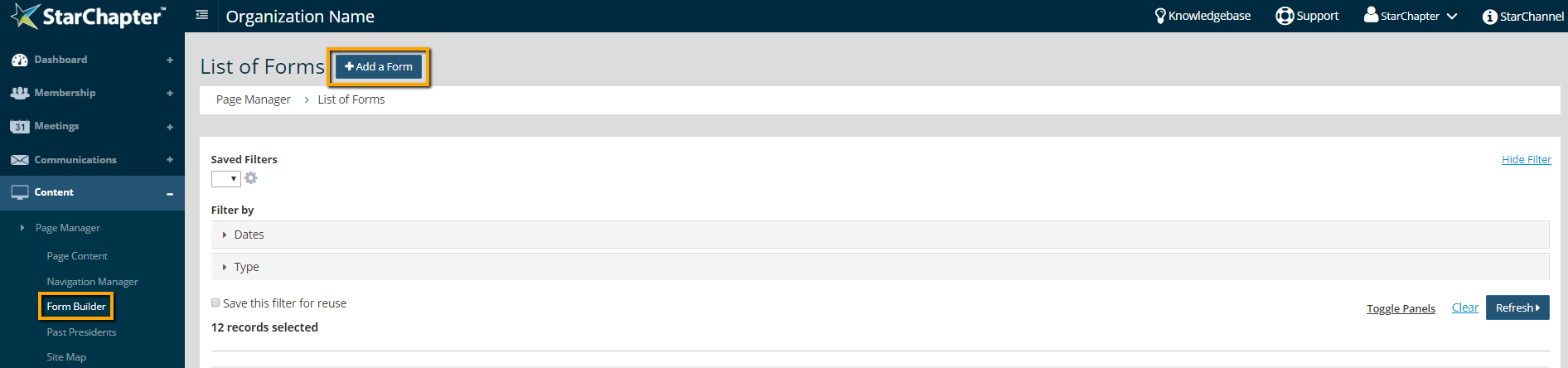
- Go to Content > Page Manager > Form Builder.
- Click Add a Form.
- Name the form. This name will appear as the page title for the new form.
- Update the "Enter email address" field, if someone other than the Default chapter contact should receive submission notifications.
- In the "Type" field, select "General."
- If a fee is appropriate for this form, check "Charge a fee to fill out this form?" and add the amount. The fee will be required before the form submission is final.
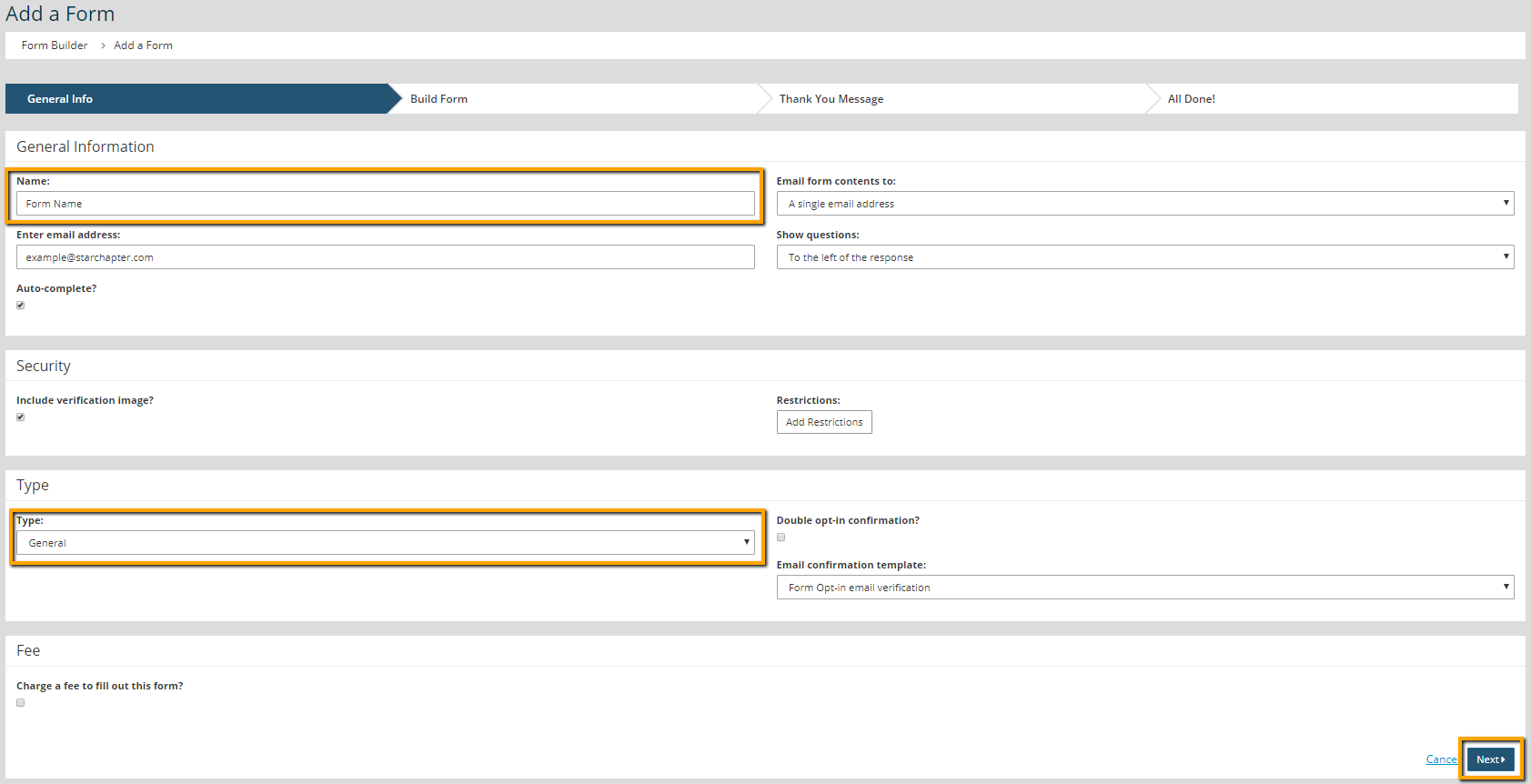
- Click Next.
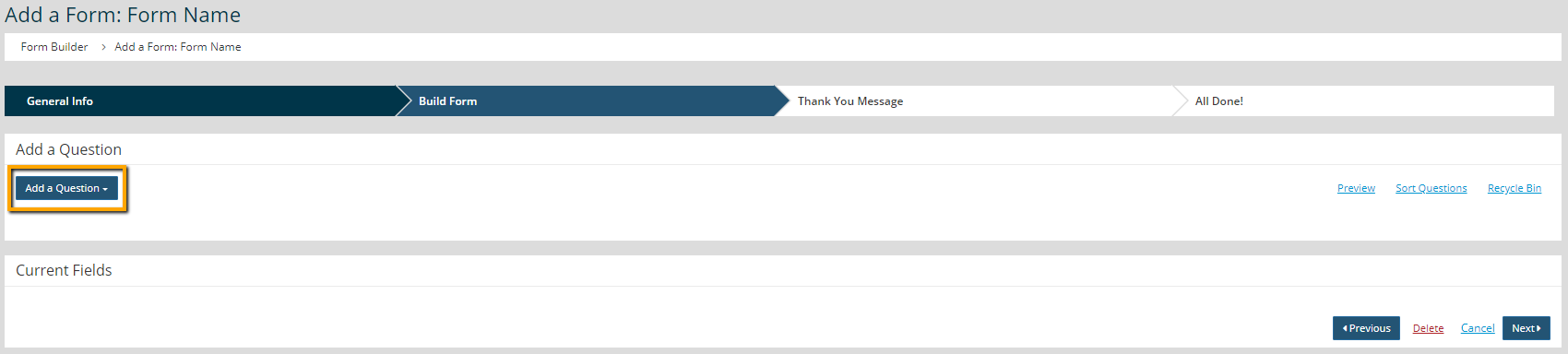
- Click Add a Question and select the type of question or layout to add.
- If a Question type was selected, enter the "Question title" and "Help Text," if necessary.

- Click Save.
- If a Layout type was selected, enter a "Comment title" (internal designation only) and a "Comment" (the text to be displayed on the form.)
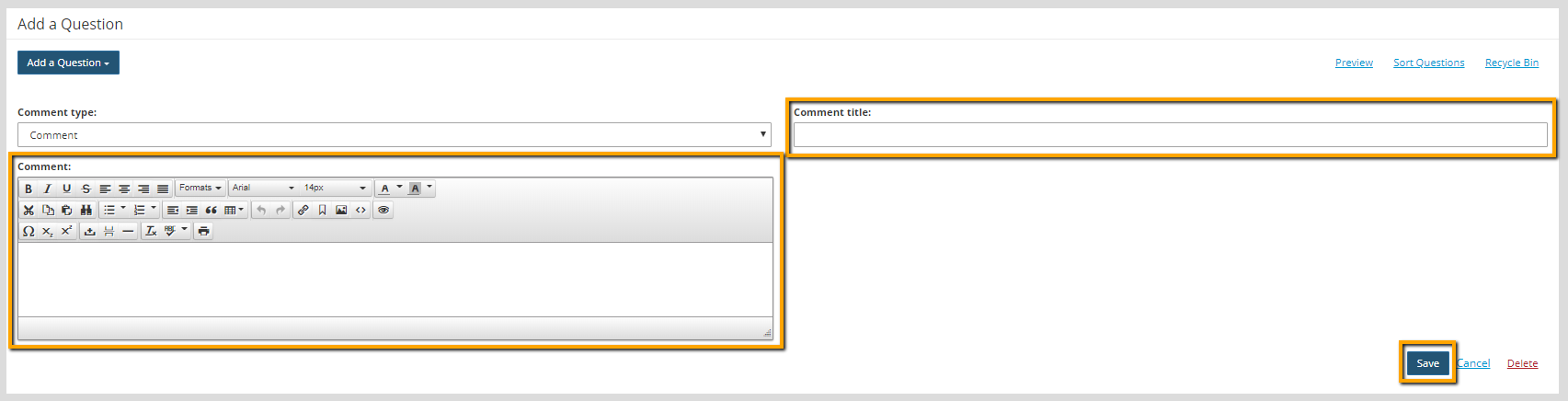
- Click Save.
- Repeat creating form questions and comments as needed.
- Click Preview to see a mock-up of the form.
- Click Sort Questions and drag/drop questions into the desired order, if needed.

- Click Next twice to complete the form setup.

Tip: To review the form on the front-end of the website copy the URL displayed at the top of the All Done! screen and paste that into your preferred browser.