Create a Board Member-Only Discussion Forum
The Forum tool within Content > Community can be a great way to engage members and/or the public, but it can also be a way for board members to easily communicate about chapter needs and goals. This article reviews how to configure the Forum for use as a board member-only tool.
Restrict the Forum
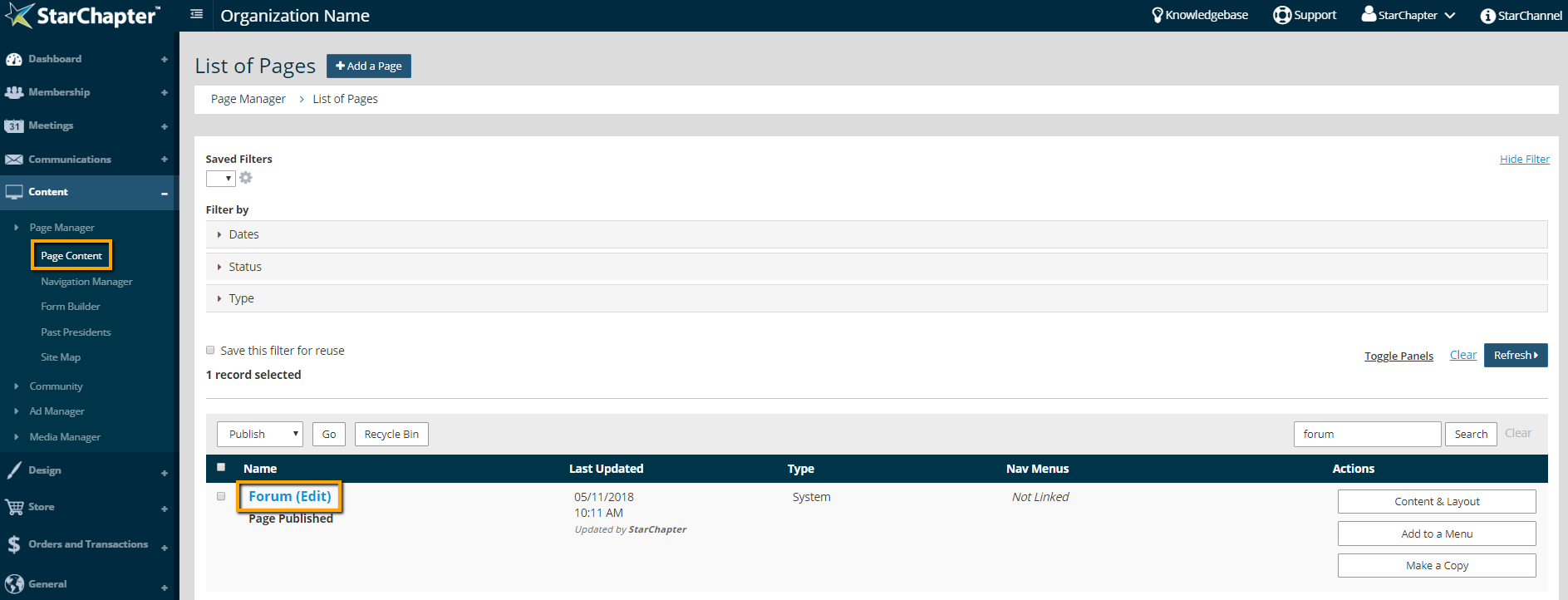
- Go to Content > Page Manager > Page Content.
- Search for the Forum page and click the name of the page.
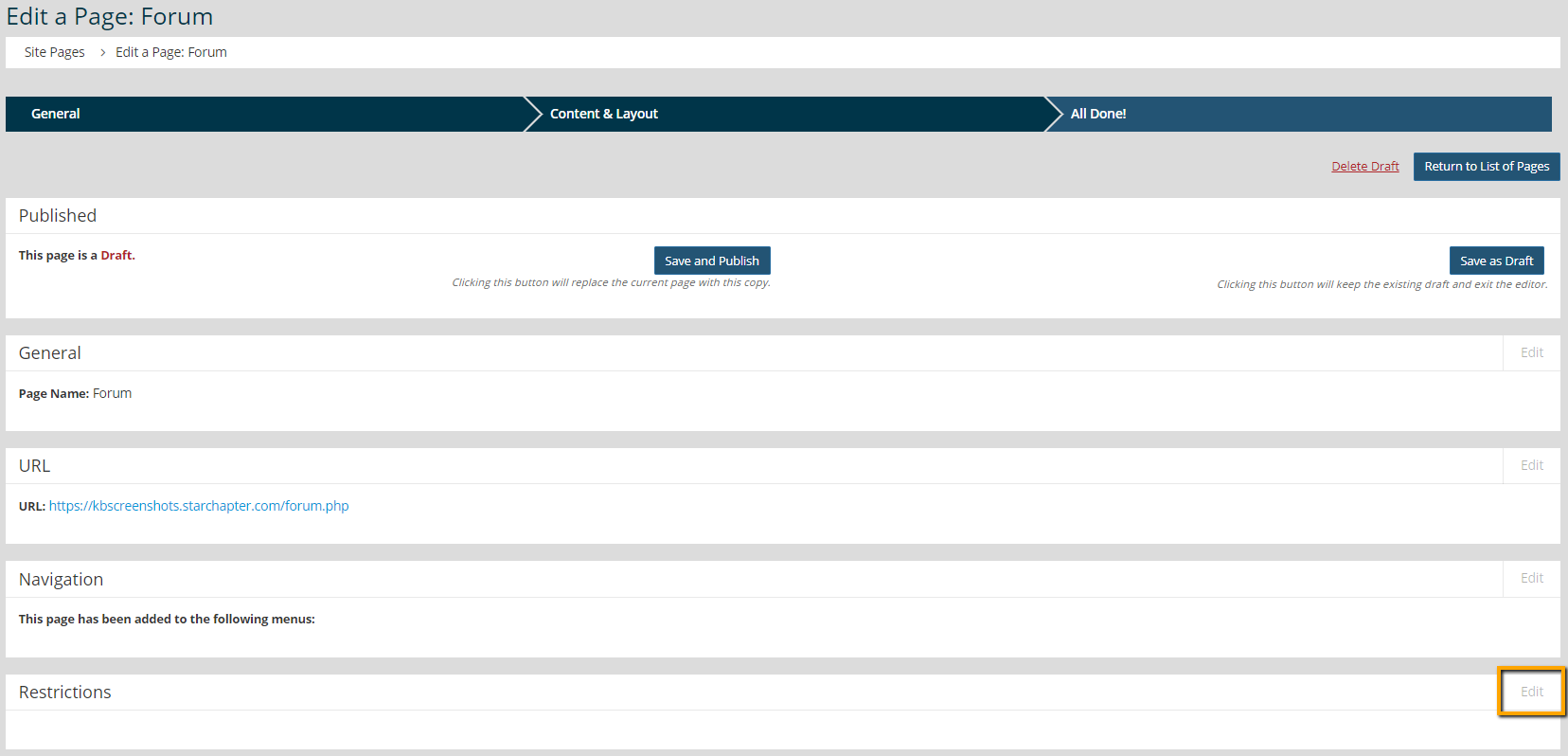
- Click Edit in the Restrictions box.
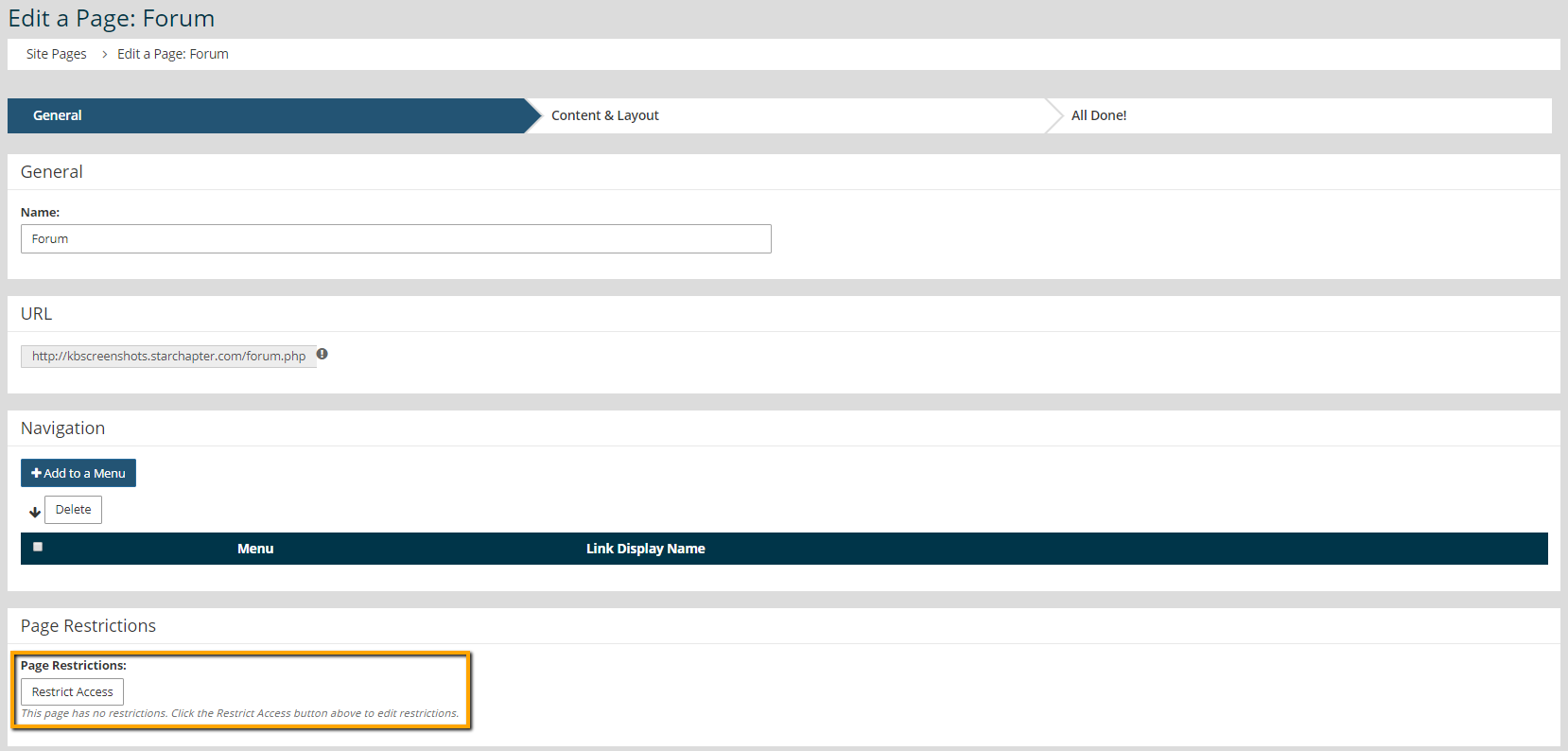
- Click Restrict Access.
- Click the Board of Directors filter to expand that group.
- Click Add next to each board position.
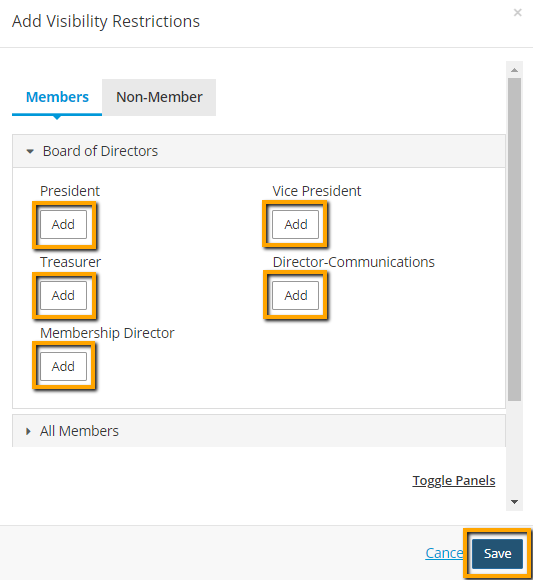
- Click Save.
- Click Next.
- Click Save and Publish.
Add Forum Link to Member Area Navigation
- Go to Content > Page Manager > Navigation Manager.
- Click Add Links next to the Member Area navigation menu.
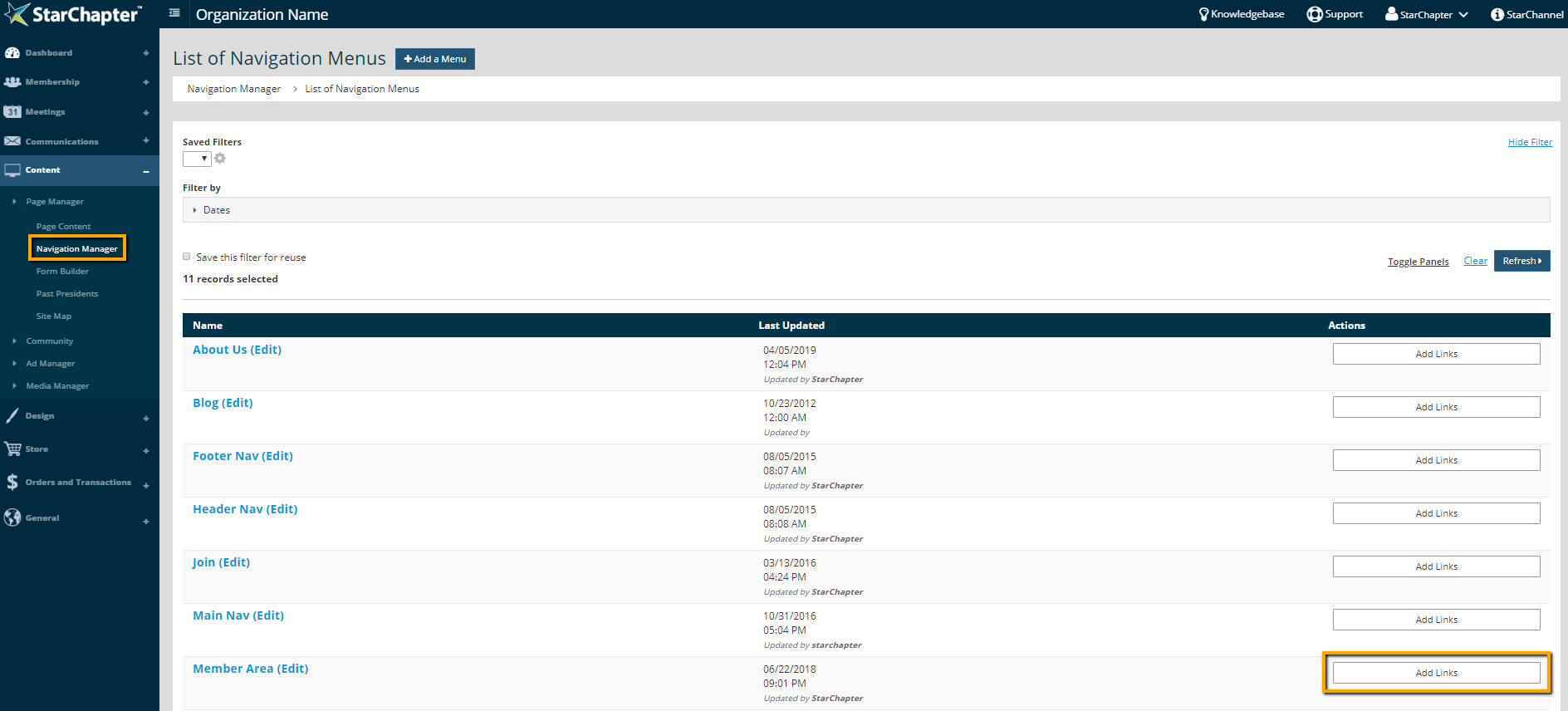
- Click Add a Link.
- Type "Forum" into the Page field and select that page from the drop-down menu that appears.
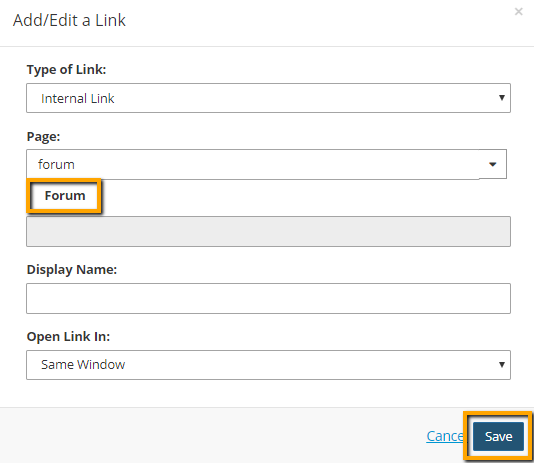
- Click Save.
Configure Forum Settings
- Go to Content > Community > Settings > Forum.
- Update the General and Website Display with your preferred archive and display options.
- In the Threads area, update the "Who can start a thread" field to "Members" and confirm that "Manually approve threads?" is not checked.
- In the Replies area, update the "Who can reply" field to "Members" and confirm that "Manually approve replies?" is not checked.
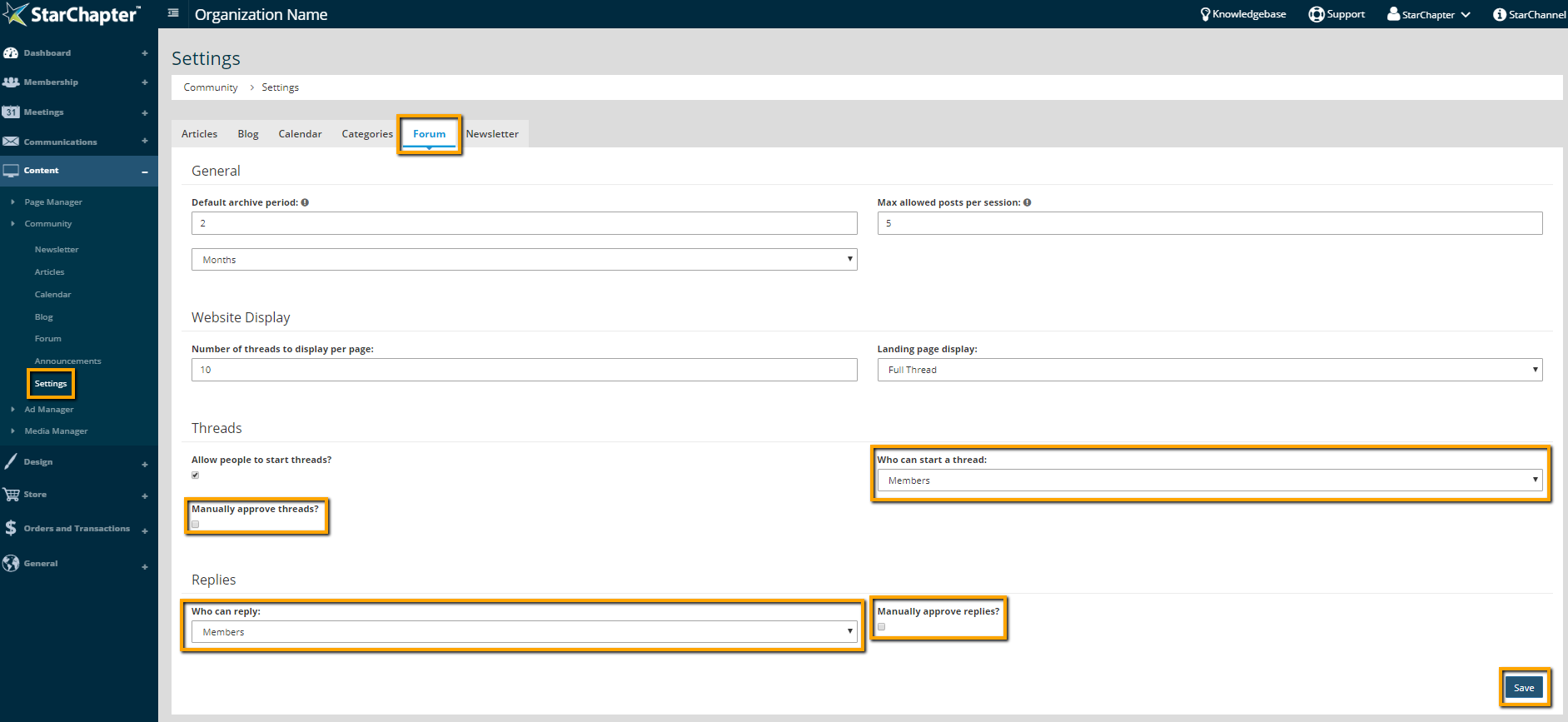
- Click Save.