Create Anchor Links
Anchor links allow for quick and easy navigation over a long page of content. Typically, anchor links are placed at headers and a navigation menu is added to the top of page to allow users to jump to the section they seek.
Create Anchor Links
- Draft content within the WYSIWYG editor.
- Place the cursor at the beginning of the line where the anchor link should be placed.
- Click the Anchor button.
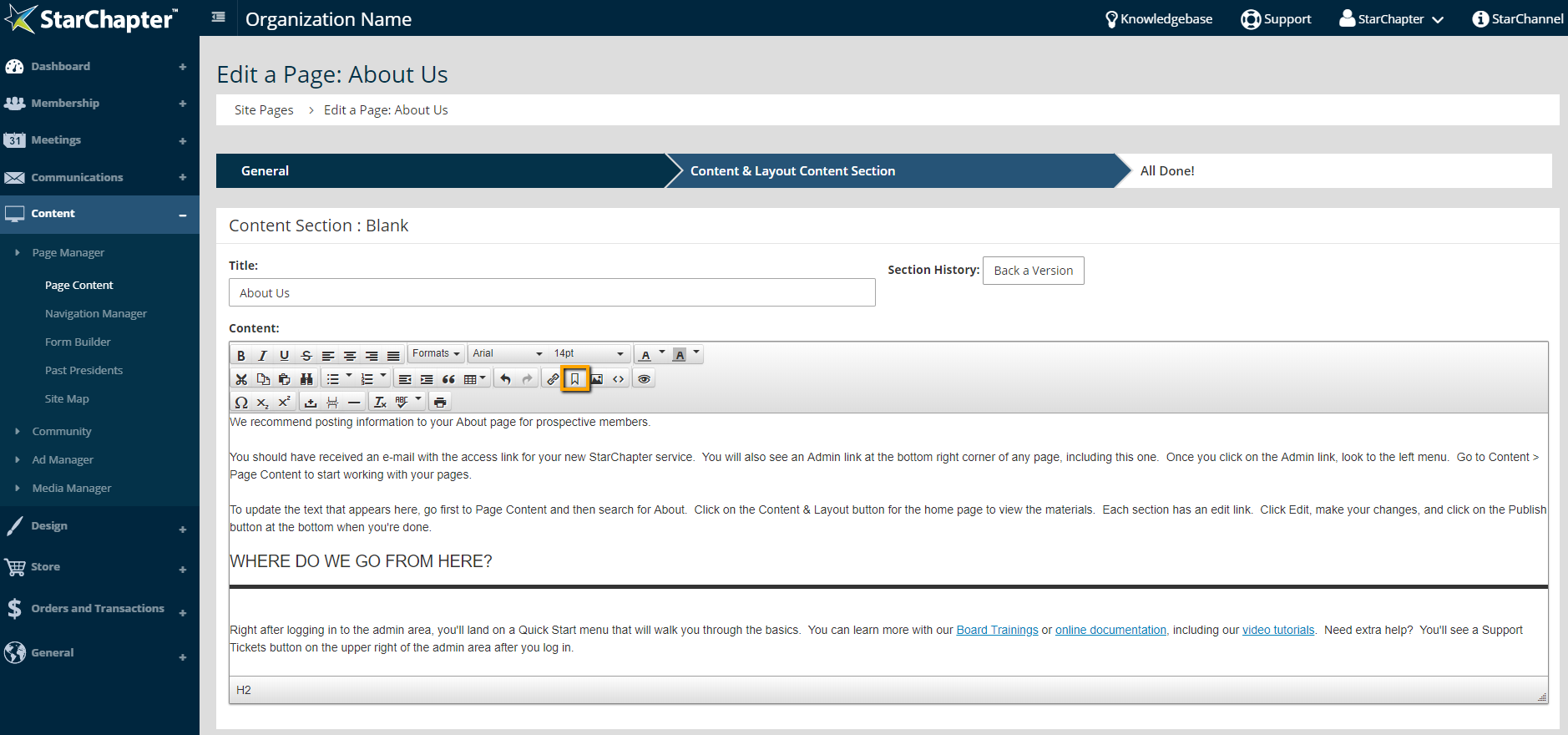
- Add the name of the link to the "ID" field. This should be an alpha-numeric name that will be visible in the link when the anchor link is used.
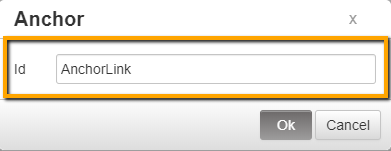
- Click OK.
Use Anchor Links
Anchor links are most often placed and used on the same page to allow users to "jump" to the content they are seeking, but this isn't necessary. Anchor links can be added to the end of the page url and used on any other webpage, email communication, or marketing material.
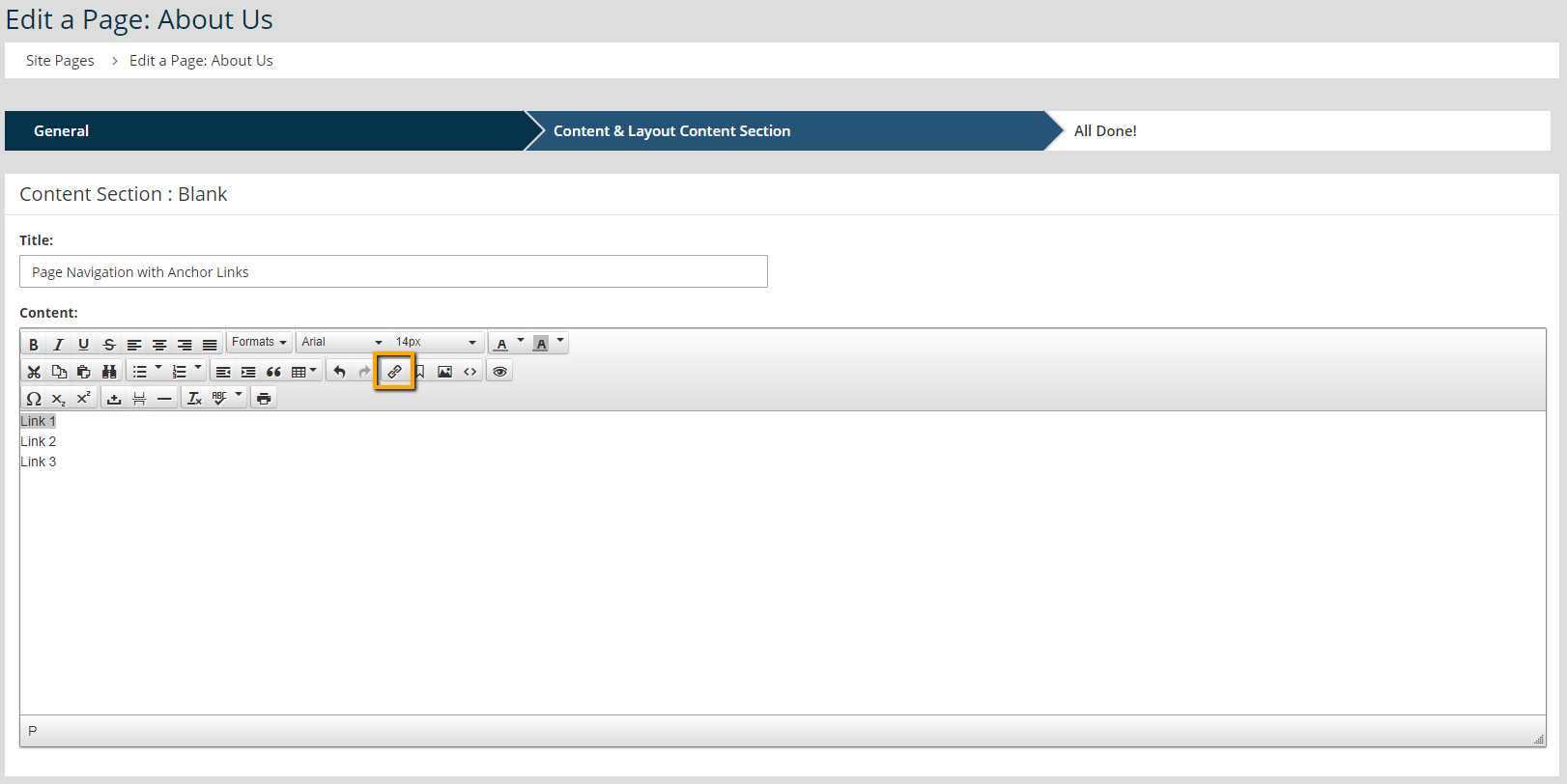
- Within a WYSIWYG Editor, add the text that will be linked.
- Highlight the text and click the Hyperlink button.
- In the "URL" field, type a hashtag (#) and the link text that was previously set for the anchor link.
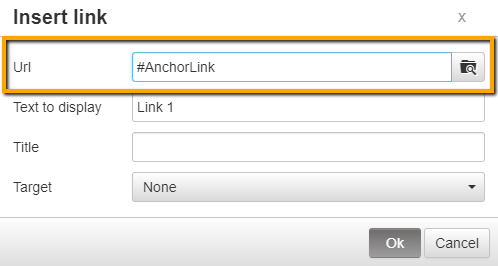

Tip: If the hyperlink is being placed on a different page from the anchor link, enter the full url of the page with the hashtag and anchor link name at the end of the url, such as https://kb.starchapter.com/Create_Anchor_Links#AnchorLink. That specific example has been anchored to the Use Anchor Links header.
- Click OK.