Change a Page Layout
As priorities change, content changes. To ensure that content is organized in a useful way and without too much extra space, the layout of the page can be changed as needed. Containers from 1 to 5 columns are available and these containers can be nested inside of one another for more flexibility.
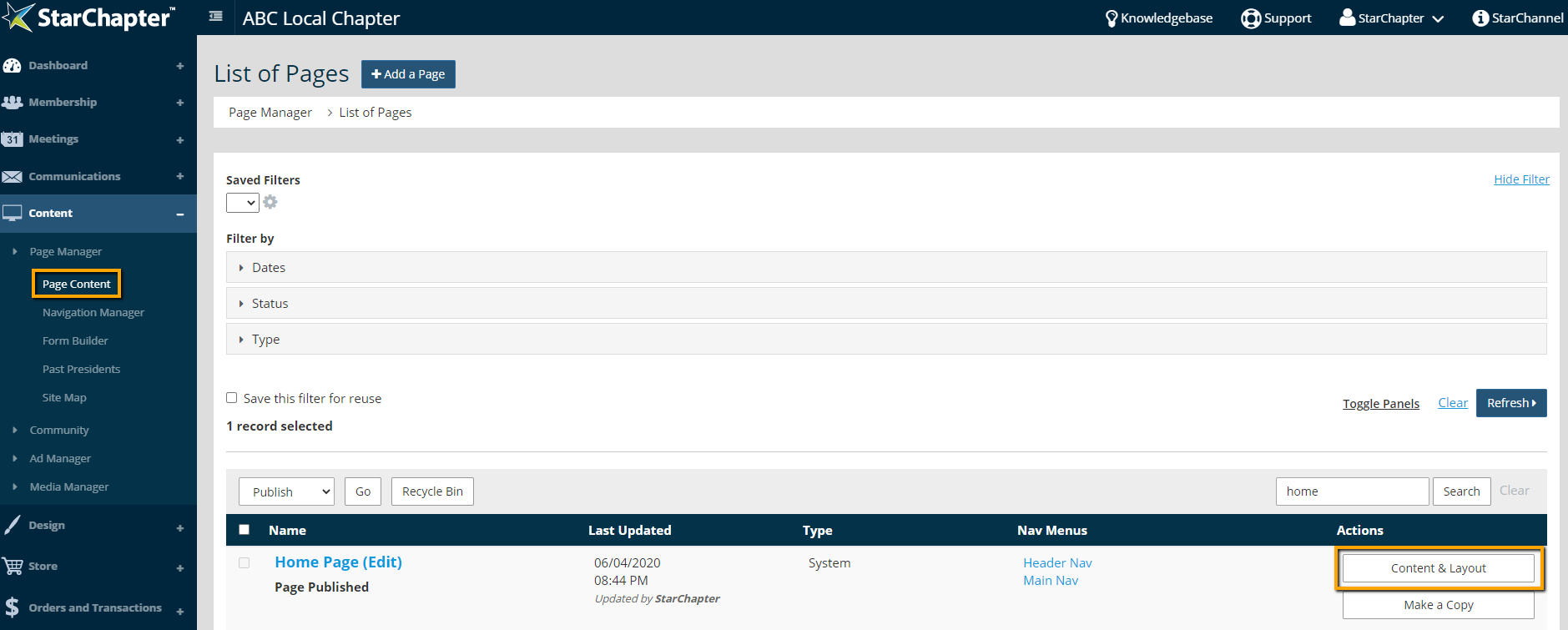
- Go to Content > Page Manager > Page Content.
- Search for the page of interest.
- Click Content & Layout.
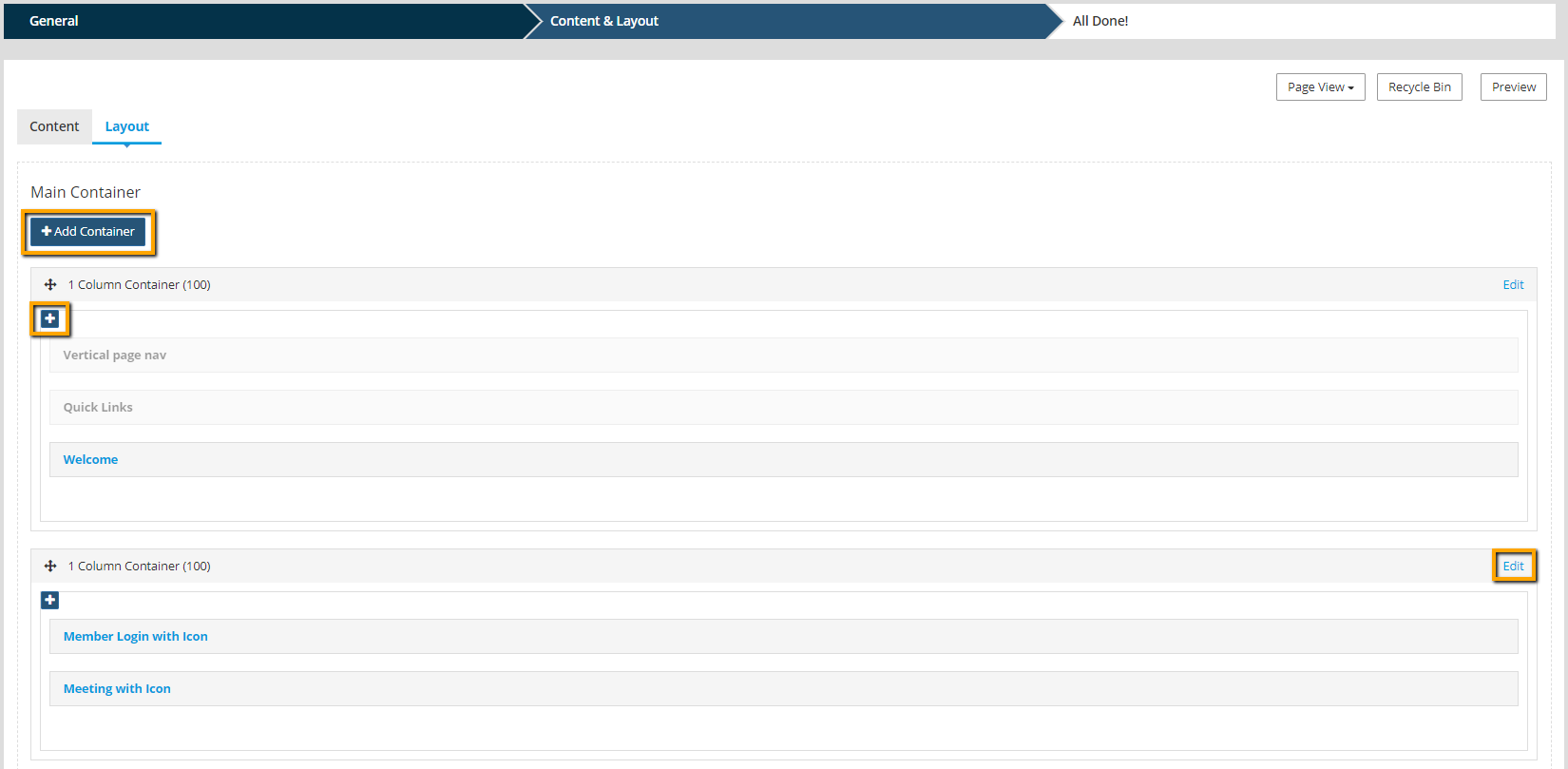
- Go to the Layout tab.
- Click Add a Container to add a new container to the page, click Edit on an existing container to change it's structure, or click the blue "+" within any existing container to nest a new container within. For this example, the second container will be edited.
- Choose the Main or Alternate color scheme, if pertinent, and click Select.
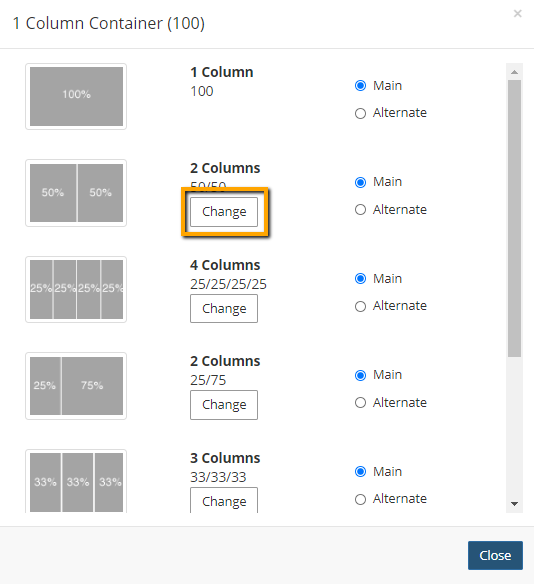

Tip: On newer layouts, top-level containers can be added with an alternate background defined in that design. Nested containers on any layout plus all containers on Legacy or Classic layouts will not have the alternate background option available.
- Go to the Content tab.
- Drag and drop content sections into the new container or click the blue + to add new content sections.
Tip: Each top-level containers display if a "Main Design" has been selected for that container or if an "Alternate Design" has been selected. You can see this display text in both the Content and the Layouts Tabs.
- When all containers and content are in their preferred places, click Publish.
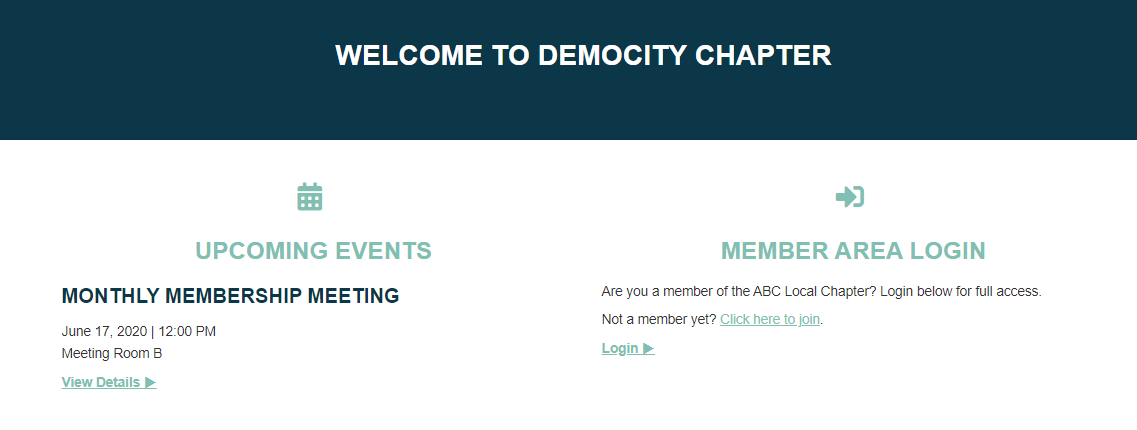
Before the Layout Change
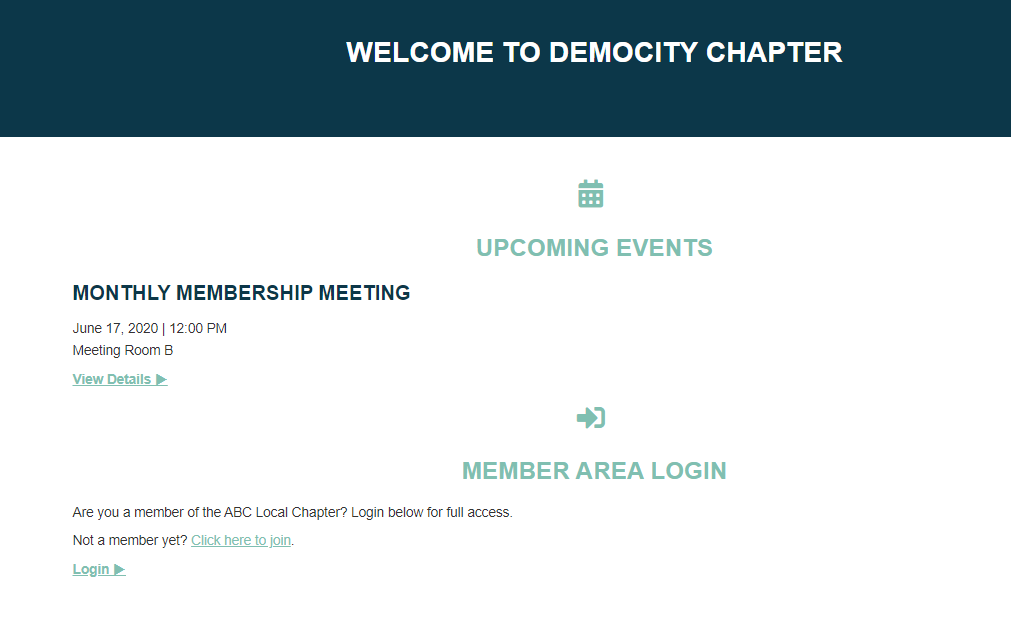
After the Layout Change