Change Full-Width Background Styles
Alternate background colors are available on all current designs. While the primary background color of your website is typically white, the alterate background is set as part of your design and complements the overall color scheme. When a new top-level container is added to a page, the alternate color can be enabled. This will result in a full-width band of color behind that container with coordinating text formatting. These are most often used on the Home Page to break up content and provide some visual interest.
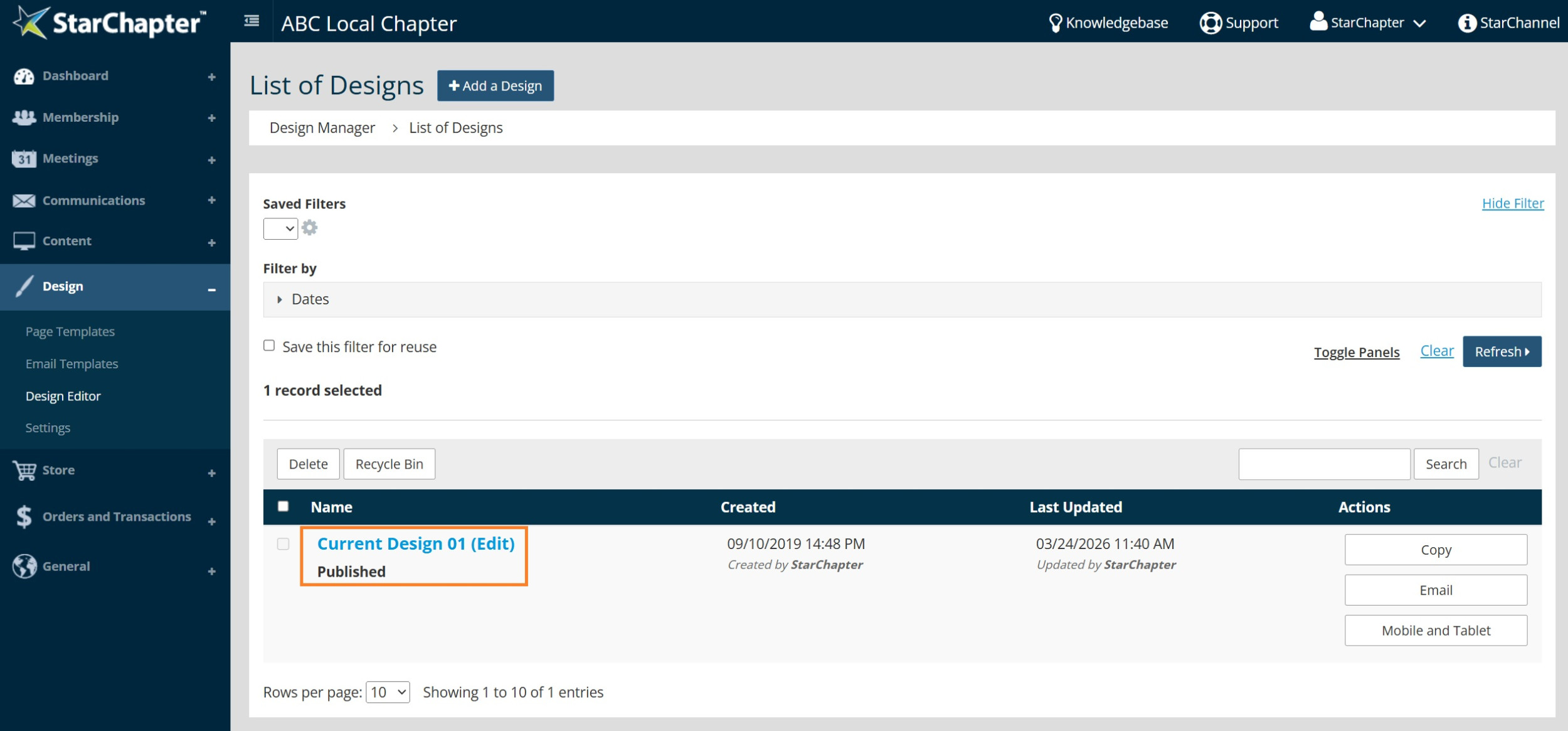
- Go to Design > Design Editor.
- Click on the Published design.
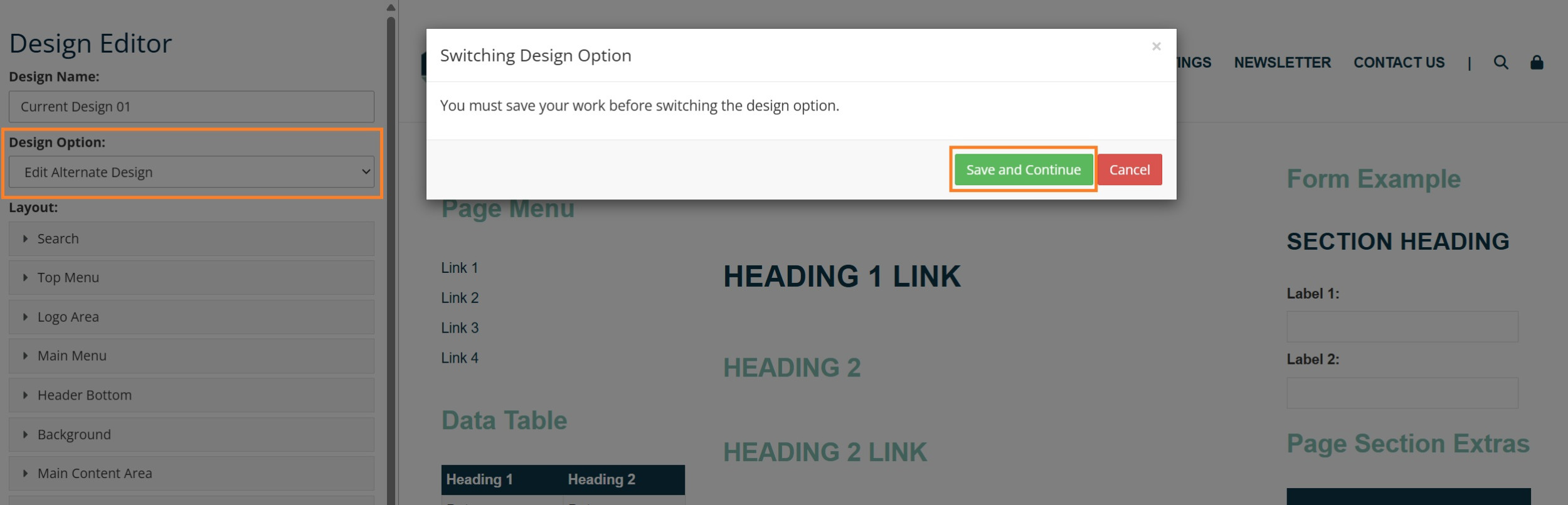
- In the Design Option field, select "Edit Alternate Design."
- Click Save and Continue in the pop-up window.
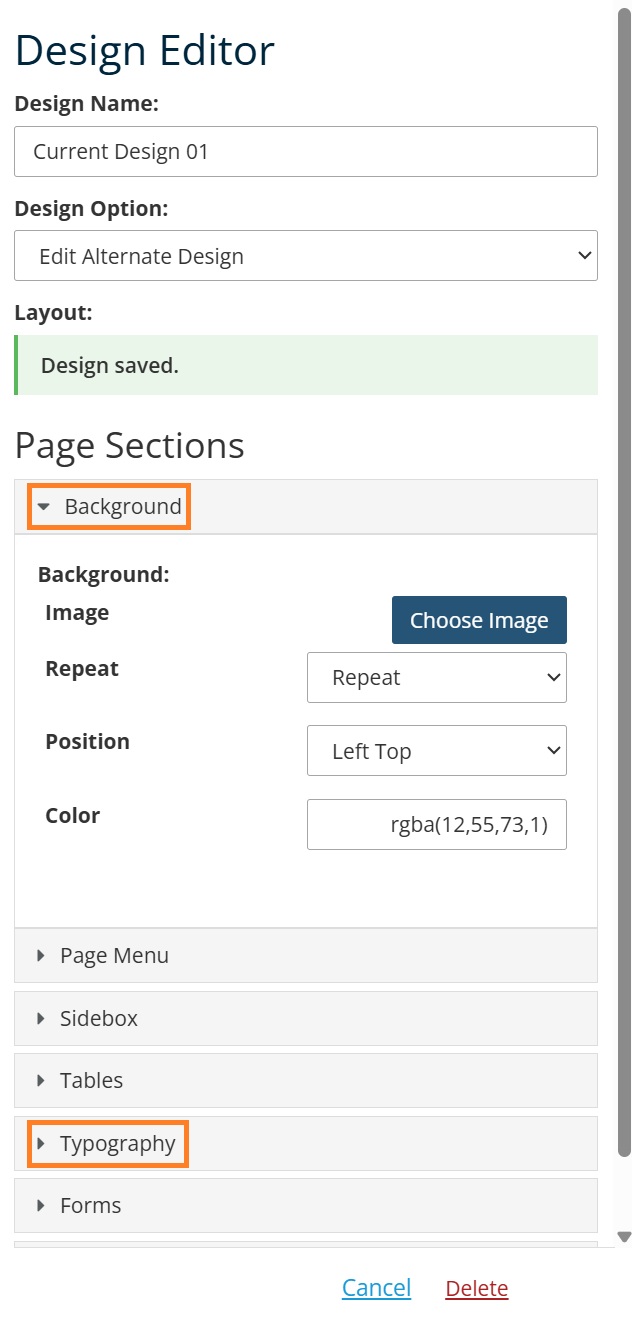
- Make any desired edits. The background color is set in Background > Color. Header formatting is set in Typography.
- Click Save.
- In the pop-up window, click Keep Working, if more edits are needed, or Return to List, if design edits are complete.