Adding a Web Safe Font Family
A web-safe font is a font that is pre-installed by many operating systems. Using only web-safe fonts on your website will ensure a consistent display for most users.
Adding a Web Safe Font Family
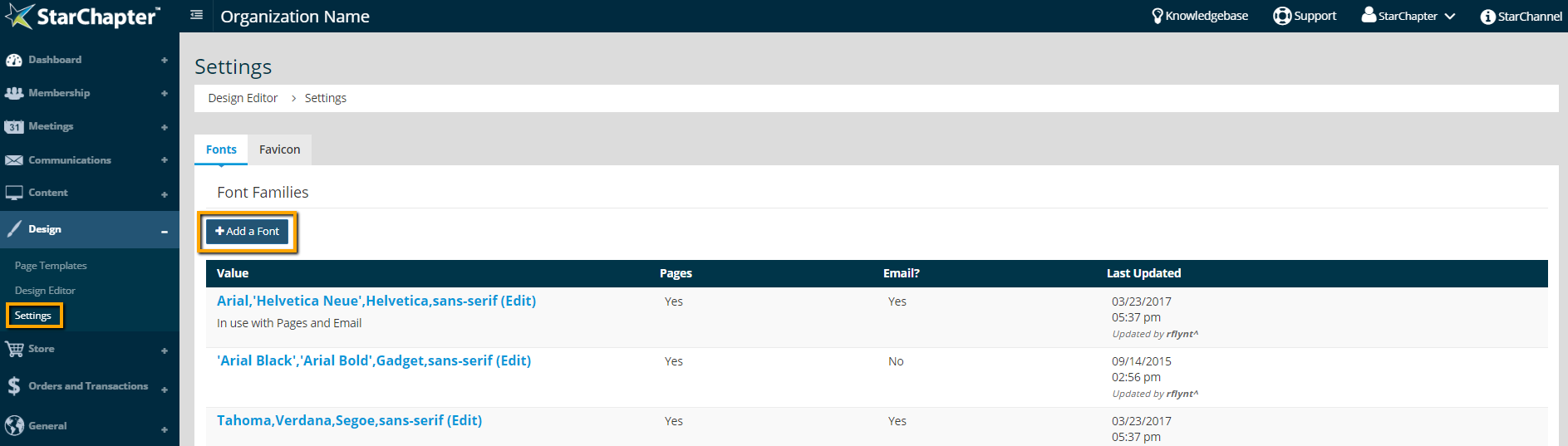
- Go to Design > Settings.
- In the Fonts tab, click the Add a Font button.
- In the pop up, add fonts to the text box.
a. Add the main font. This can be any font but should be the one you want as the primary font, if available by the browser.
b. Add extra fonts as backups. This is called a font stack. Choosing fonts that are a similar style to the main font will give the best overall result for all viewers.

Tip: Stacking font families is important. This means adding multiple fonts, separated by commas, in the order the font should appear when someone views the website. In case the first font isn’t supported by a viewer’s browser, the next font in the stack will be used, and so on.
c. End the font stack with a generic font classification. A generic font classification is the type of font family that is trying to be achieved like “sans-serif”, “serif”, “cursive”, “monospace”, or “fantasy”. This is the last option for the font stack in the unlikely event that all other specific fonts listed before are unavailable.
Tip: Add as many fonts as desired to the font stack as long as each one is separated by a comma. A good rule of thumb for length of the font stack is 3-6 fonts.
- Leave “External Font” unchecked. This check box is for external fonts only, such as a Google fonts.
- Check "Enabled." This will make the font stack available in Design Editor, which can then be selected as the font on the website.
- Check "Email Enabled." This will make the font stack available in Email Design Editor, which can then be selected as the font to use in emails.

- Click Add.
Examples of a sans-serif font stack
Arial, ‘Helvetica Neue’, Helvetica, sans-serif
Impact, ‘Arial Black’, Arial, sans-serif
Examples of a serif font stack
‘Times New Roman’, Times, Baskerville, Georgia, serif
Georgia, Palatino, ‘Times New Roman’, Times, serif
|
Tip: When adding a font family with more than one word in its name, it is recommended to wrap it with a single quotes, so it is known that it is one font family. As you see above in the examples Arial isn’t wrapped in single quotes, but Times New Roman is. |