You are viewing this design in preview mode. The design MUST be published to be live on your website.
    •   New Board Member?
    •   Support
    •   Video Library
    • Workflow Library
    •  Page Content Library
    •  Email Builder Content Library

    Knowledgebase

    • Home
    • > Design
    • > Settings
    • > Add A Favicon

    Add A Favicon

    A favicon is a small icon that appears next to the organization name on a browser tab.

    Favicon

    1. StarChapter supports favicon icons. Prior to uploading it into StarChapter:
      - Resize the icon so it is 16x16 in any image editing software.
      - Save with the .ico extension. Other extensions like .png or .jpg are not supported.
    2. After saving the favicon with the .ico extension, go to Design > Settings > Favicon. Locate the favicon tab.
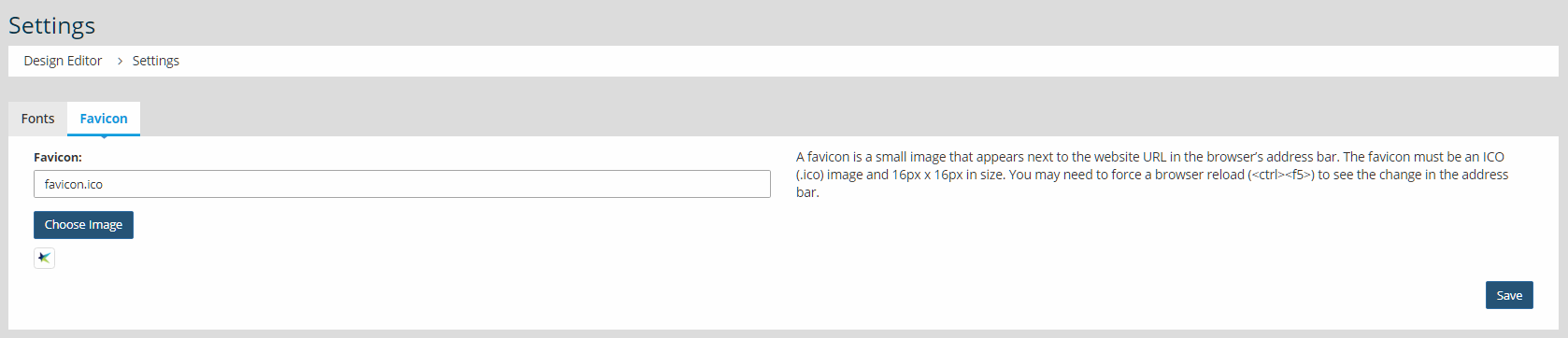
      Locate the favicon tab
    3. Press 'Choose Image'. Then, press 'Upload' to get a screen. Drag and drop the favicon file to the browser, and press 'Upload' underneath 'Add Files.' Then, press 'Insert.'
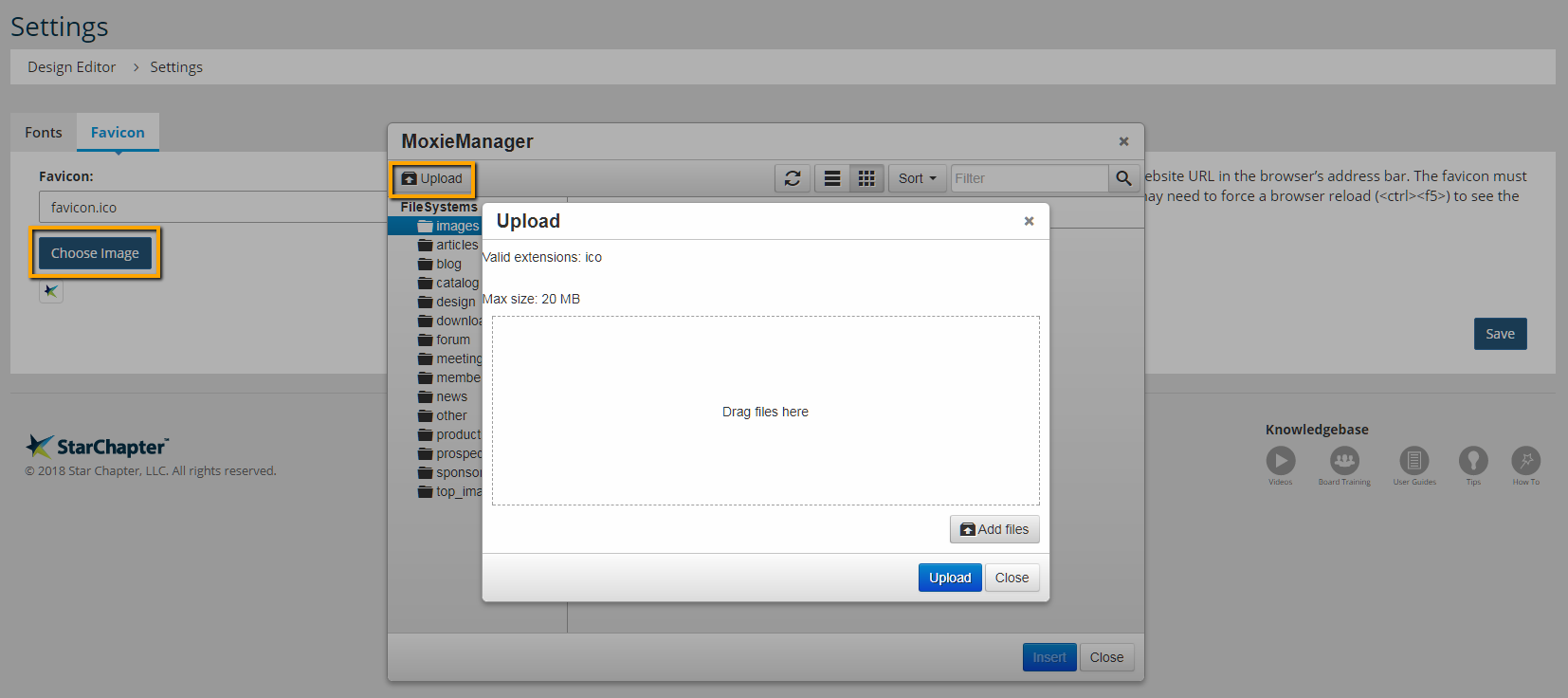
      Choose Image - Upload - Insert
    4. The new favicon displays next to the organization name in most browser tabs.

    Chapter Insights

    Posted by [email protected] on 03/07/2018 9:39 am  /   Design

    Design Blog Image - Email Design Basics to Engage Your Members

    Email Design Basics to Engage Your Members

    launch a new redesigned website

    How to Launch a New or Newly Redesigned Website

    © 2026 StarChapter Software LLC All rights reserved.

    •  
      Board Training
    •  
      Services
    •  
      KB Home
    • Master Service Agreement
    • |
    • Privacy Policy
    . .