You are viewing this design in preview mode. The design MUST be published to be live on your website.
    •   New Board Member?
    •   Support
    •   Video Library
    • Workflow Library
    •  Page Content Library
    •  Email Builder Content Library

    Knowledgebase

    • Home
    • > Content
    • > Page Content
    • > Link Text and Images

    Link Text and Images

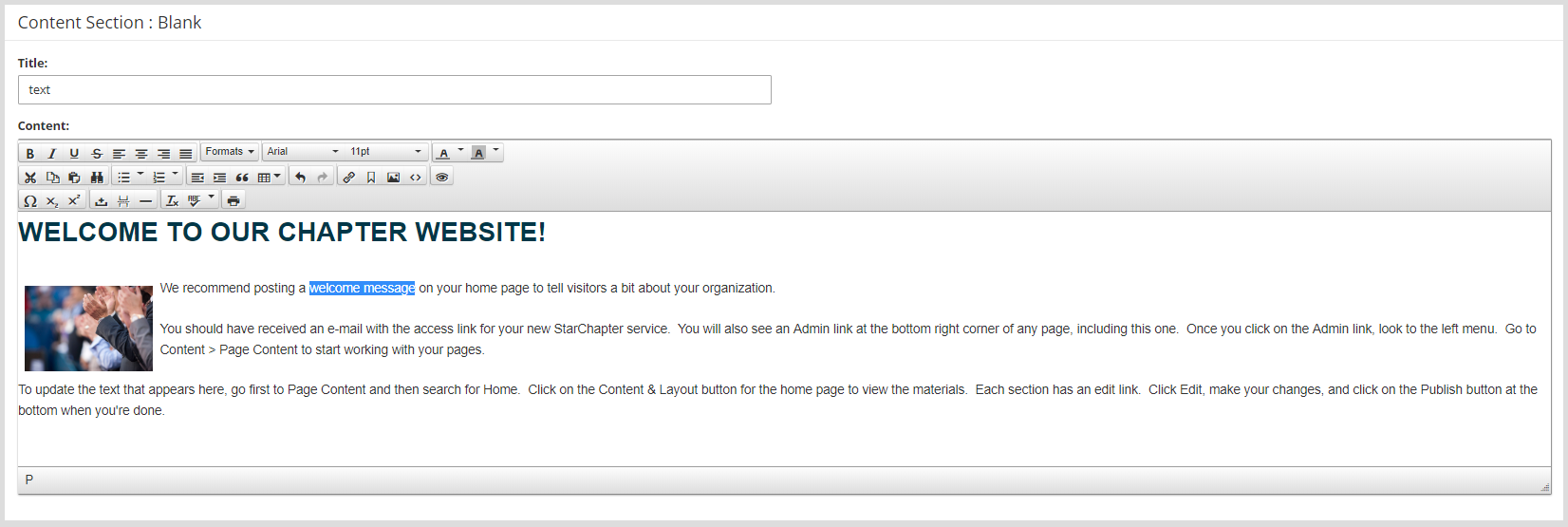
    1. Access the WYSIWYG Editor in any area of StarChapter. 
    2. Highlight the text or image to be linked.
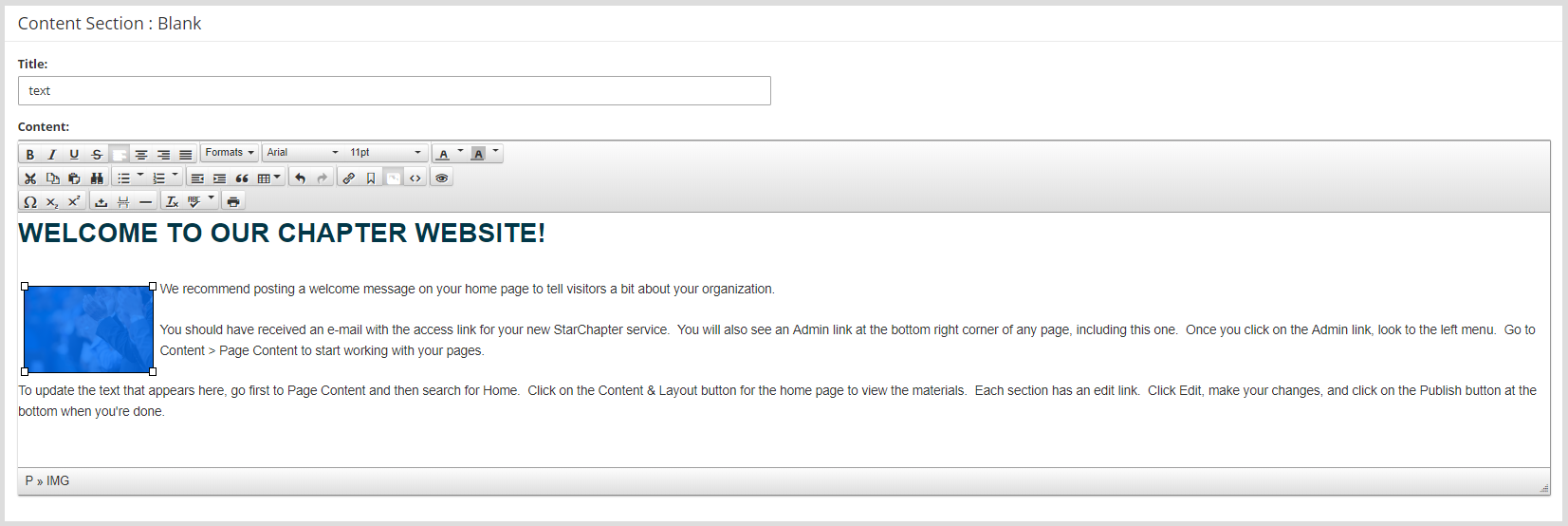
      highlight image

      highlight text

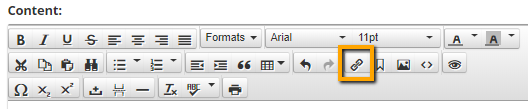
    3. Click the Hyperlink button.

      hyperlink button

    4. Update the URL field with the desired destination.
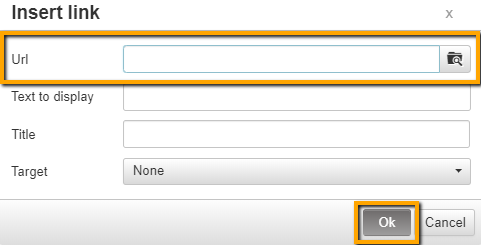
      Hyperlink Pop-Up

    5. If the link will take users off of the website, update the Target field to select "New Window."
    6. Click OK.

    Chapter Insights

    Posted by [email protected] on 02/14/2018 11:41 am  /   Content

    content part of redesign

    Consider Your Content as Part of Your Website Redesign

    member stories

    3 Reasons to Invest in Member Stories

    Cotent Blog Image - Advanced SEO – Name it Right, and they will Read

    Advanced SEO – Name it Right, and they will Read

    Content Blog Image - Advanced SEO – The 80/20 Rule for Success

    Advanced SEO – The 80/20 Rule for Success

    video for sponsorship

    Video is Key to Your Sponsor Strategy

    © 2026 StarChapter Software LLC All rights reserved.

    •  
      Board Training
    •  
      Services
    •  
      KB Home
    • Master Service Agreement
    • |
    • Privacy Policy
    . .