You are viewing this design in preview mode. The design MUST be published to be live on your website.
    •   New Board Member?
    •   Support
    •   Video Library
    • Workflow Library
    •  Page Content Library
    •  Email Builder Content Library

    Knowledgebase

    • Home
    • > Content
    • > Page Content
    • > Edit The Footer

    Edit The Footer

    Social media icons, mailing list sign-up, and contact information are popular content items for the footer. On many layouts, the footer content displays on all pages.

    Any content that displays on all pages on the front end is set up via Content > Page Manager > Page Content > search for Default. Click on 'Content & Layout' to the right of the page name.
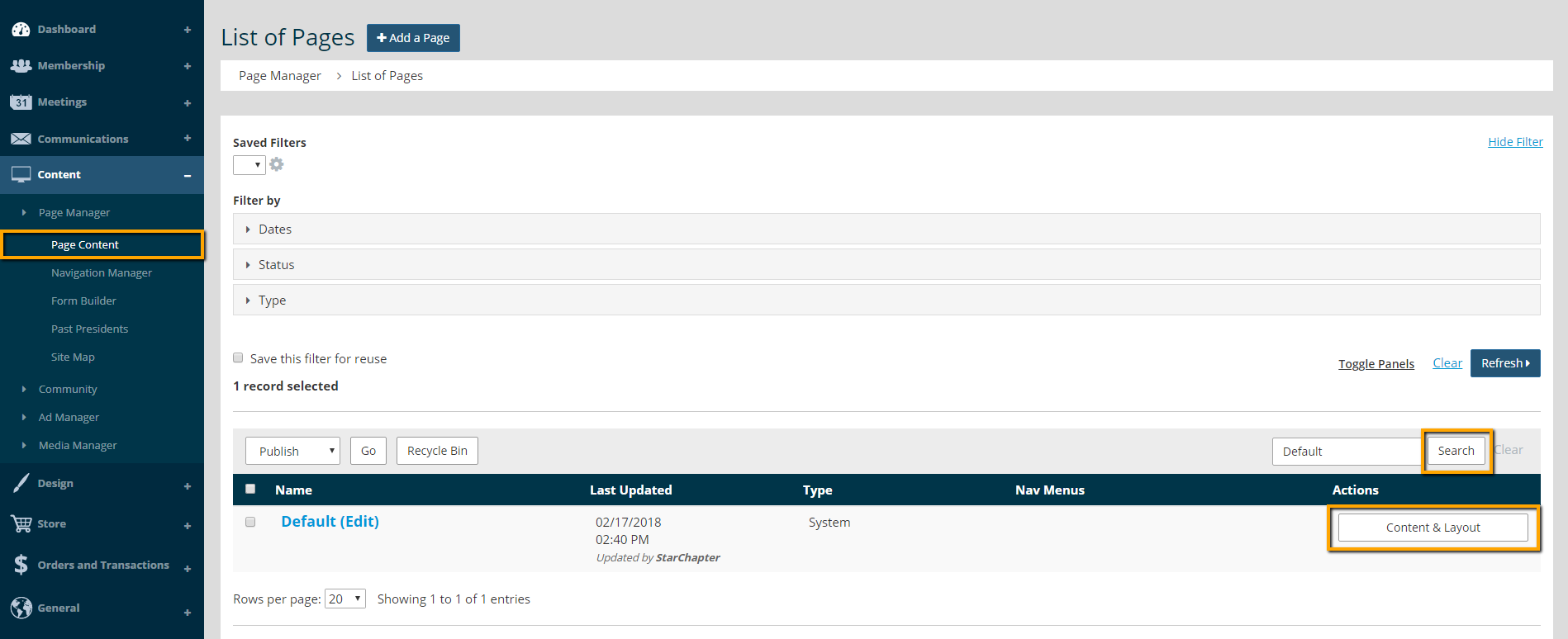
    Default Page in Page Content

    Hover over Page View and select Footer Top.

    The footer content appears. Click edit next to any content section to change social media, contact information, and mailing list sign-up options.

    Footer on Default Page

    Make any edits or add a new content section using the blue plus sign button. Then, press Publish.

    Tip Icon

    Tip: See the Knowledgebase article on How To: Edit Page Content for additional guidance for modifying content

    Chapter Insights

    Posted by [email protected] on 02/14/2018 11:41 am  /   Content

    content part of redesign

    Consider Your Content as Part of Your Website Redesign

    member stories

    3 Reasons to Invest in Member Stories

    Cotent Blog Image - Advanced SEO – Name it Right, and they will Read

    Advanced SEO – Name it Right, and they will Read

    Content Blog Image - Advanced SEO – The 80/20 Rule for Success

    Advanced SEO – The 80/20 Rule for Success

    video for sponsorship

    Video is Key to Your Sponsor Strategy

    © 2026 StarChapter Software LLC All rights reserved.

    •  
      Board Training
    •  
      Services
    •  
      KB Home
    • Master Service Agreement
    • |
    • Privacy Policy
    . .