Display a Specific Meeting on the Meeting Countdown
The Meeting Countdown content section displays the next upcoming, published meeting by default but can be configured to display the next upcoming meeting of a specific category. In order to maximize control of that display, use a category specific to the type of meeting you want to display. Then, assign that category to your most important meetings will ensure that they're the ones highlighted.
- Create a meeting category, if needed. If you already have a meeting category created for this meeting type, there is no need to do so again.
- In Meetings > Meeting Manager, select the appropriate meeting and choose the appropriate category within the Category drop-down menu.

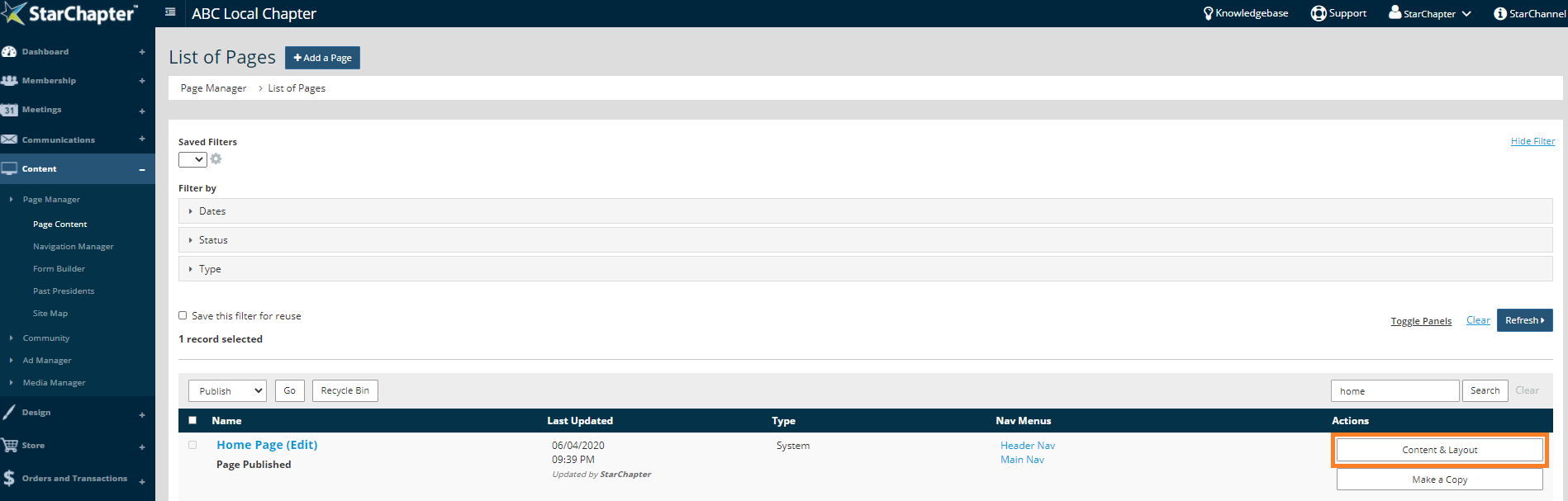
- Go to Content > Page Manager > Page Content and locate the appropriate page.
- Click the Content & Layout button.
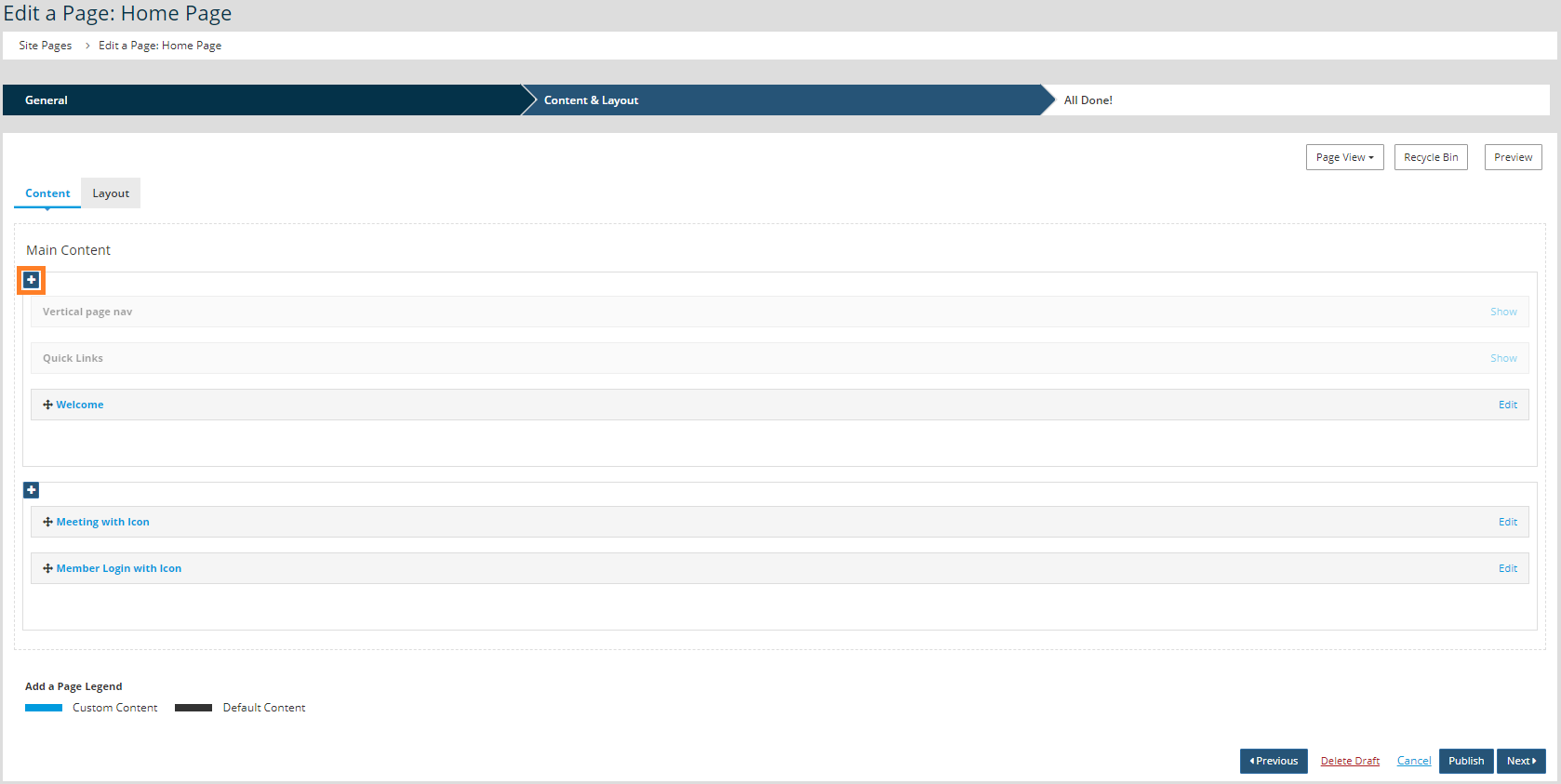
- Click the blue + in the content container that should display the Meeting Countdown.
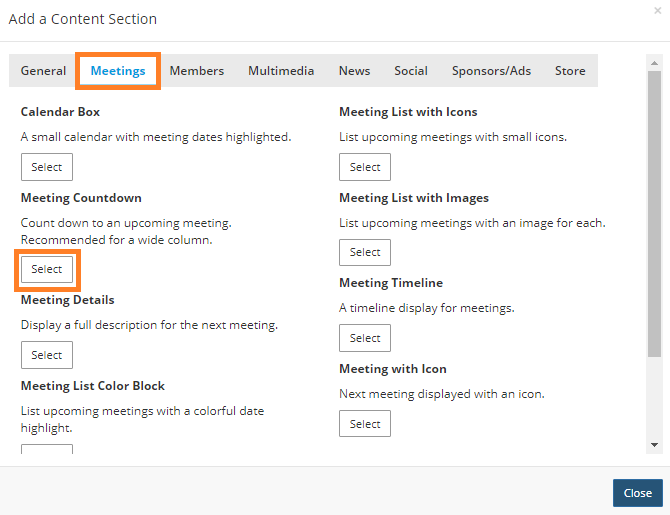
- From the Meeting tab, click Select under the Meeting Countdown option.
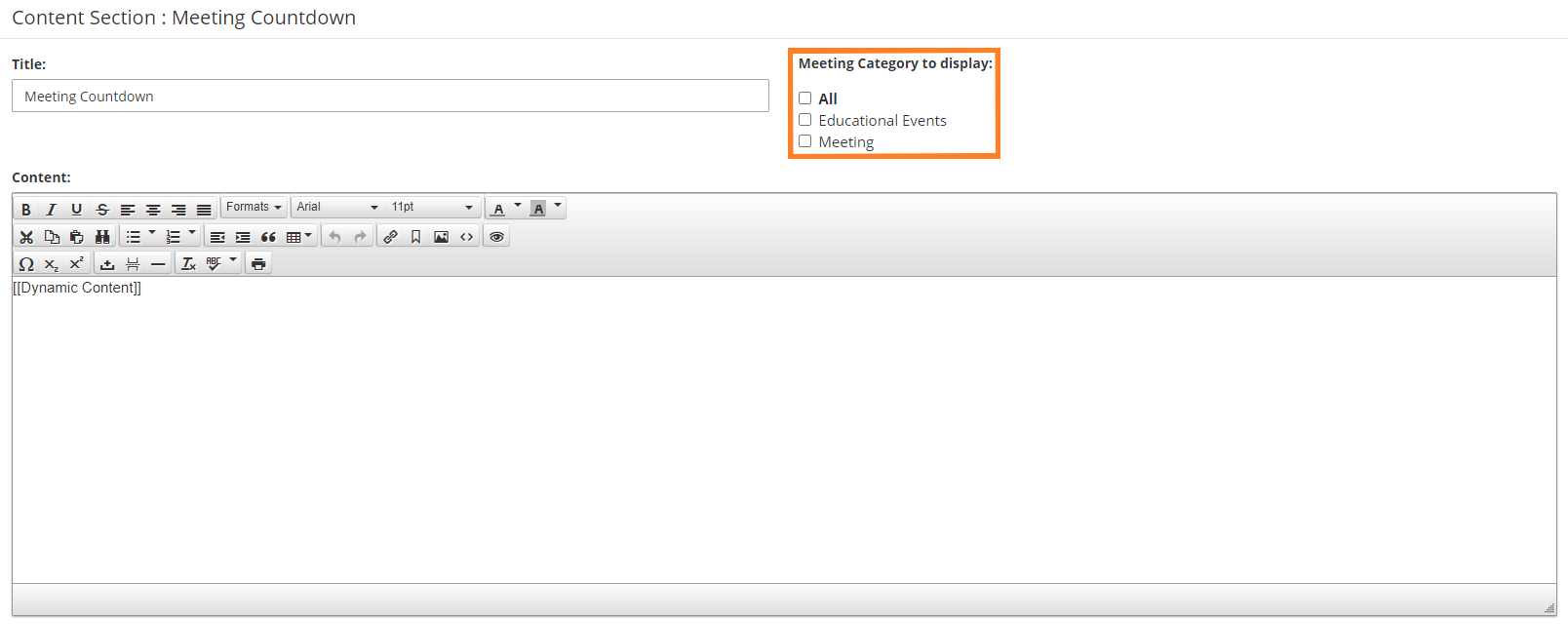
- Use the "Meeting Category to display" to select the targeted category.
- Click Publish to make the page live with this addition.