You are viewing this design in preview mode. The design MUST be published to be live on your website.
    •   New Board Member?
    •   Support
    •   Video Library
    • Workflow Library
    •  Page Content Library
    •  Email Builder Content Library

    Knowledgebase

    • Home
    • > Orders & Transactions
    • > Payments & Adjustments
    • > Delete a Saved Credit Card

    Delete a Saved Credit Card

    Delete a Saved Credit Card in the Member Area

    When possible, members should manage their own credit card information. 

    1. Login to the Member Area page and access the member profile. This is most often linked in a menu on the left side of the page but can vary.
    2. Locate the Saved Payment Information section of the profile.
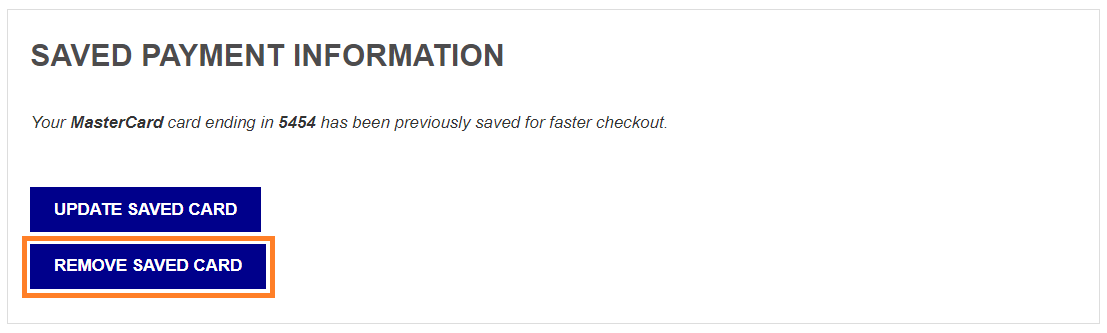


    3. Click Remove Saved Card.

    Delete a Saved Credit Card in the Admin Area

    If a member is unable to log in to delete their card information, admin users can handle this on their behalf. 

    1. Go to Membership > Member Manager.
    2. Locate the appropriate member's profile.
    3. Select Transactions > Delete Stored Card.
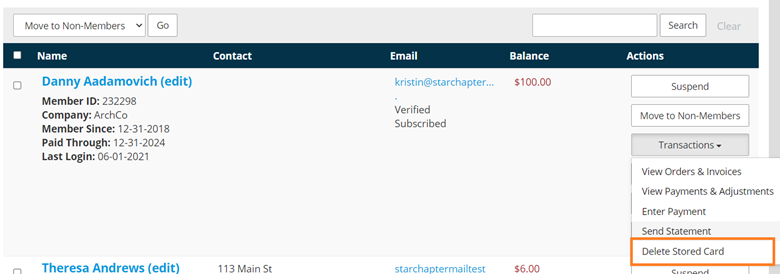
      delete member's stored card information

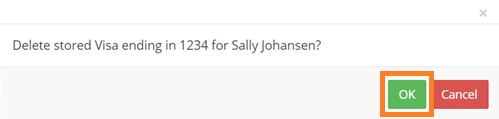
    4. Click OK in the pop-up confirmation.

      confirm card deletion

    Chapter Insights

    Posted by [email protected] on 02/20/2018 2:21 pm  /   Orders and Transactions

    Increase non-dues revenue

    How to Increase Your Non-Dues Revenue and Build a Strong Revenue Stream


    sponsorship revenue

    Building a Sustainable Revenue Stream with a Formal Sponsorship Program


    chapter finances

    A Plan for Your Chapter Finances is Key to Your Long-Term Success


    charge for meetings

    Why You Need to Charge for Meetings and Even More for Your Guests

    © 2026 StarChapter Software LLC All rights reserved.

    •  
      Board Training
    •  
      Services
    •  
      KB Home
    • Master Service Agreement
    • |
    • Privacy Policy
    . .