Create Member and Non-Member Classified Forms
Classified forms can be used to collect job listings, resumes, or classified listings for items for sale. The most common use is for a job board to benefit members and can be a benefit to both those looking for employees and employment. Please follow these guidelines to create seperate classified forms for your members and non-members. This is beneficial if you charge different fees for submitting classified ads, depending on whether or not someone is a member with your chapter.
Create your Classified Form for Members
- Go to Content > Page Manager > Form Builder, and click on the Classified/Job Listing form to edit.
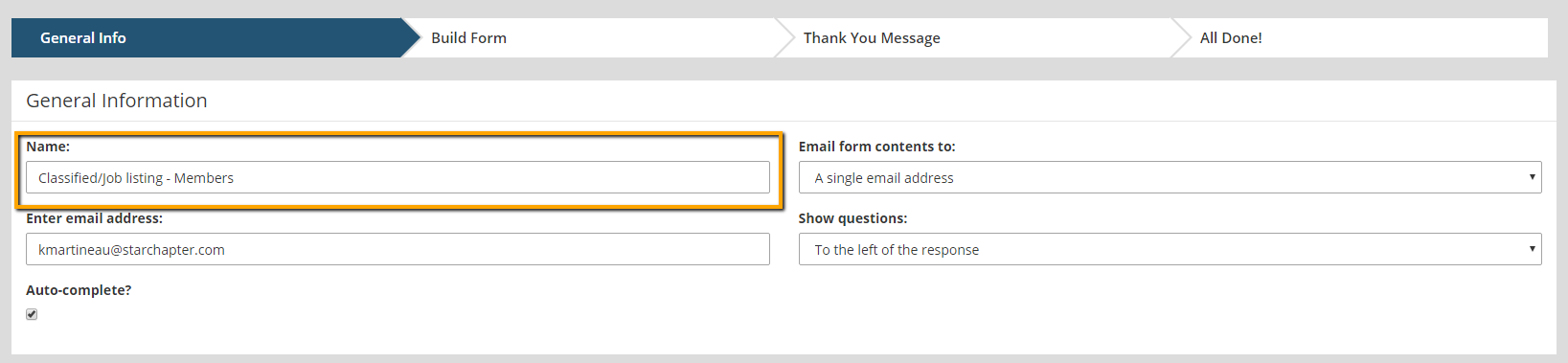
- In the "General Info" section, click the Edit button to update the "Name" field to indicate that this is the form for members.
- Edit the "Security" section and click on the Add Restrictions button. Add "All Members" to your visibility restrictions. This ensures that only logged in members have access to this particular form.

- Save your changes.
- If you will charge a fee for this form, go to the "Fee" section, and check the box. A field will appear where you can enter the fee amount.

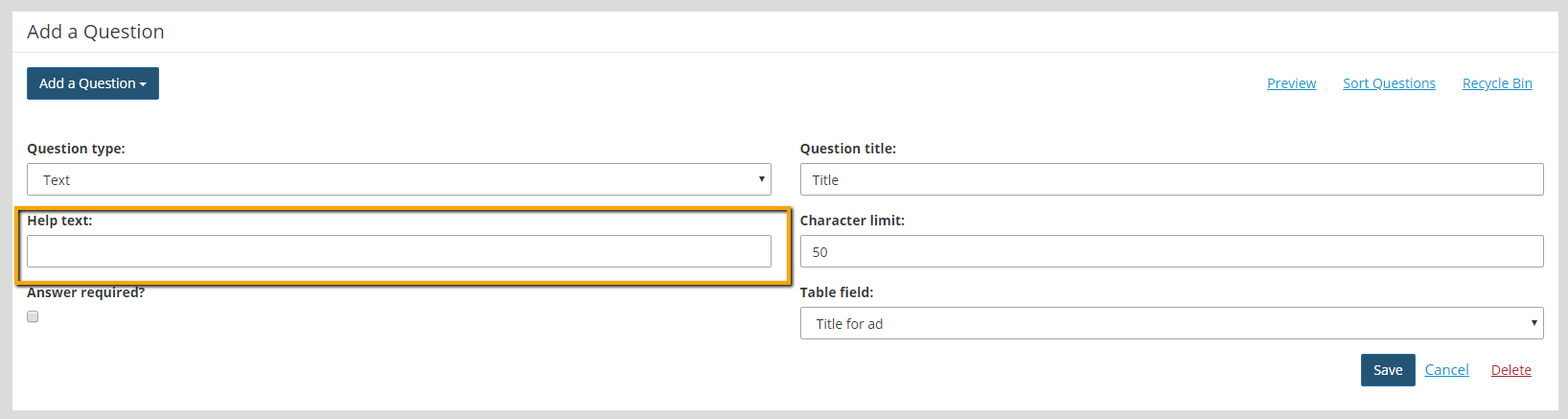
- The form has basic questions already included. If you want to change question labels or add help text to questions to request specific information, you can edit those questions.
- Save your changes, and click Next once complete.
- Update the On Screen Thank You Message, if needed. Click Next until you reach the "All Done" screen.
Create your Classified Form for Non-Members
- Within the Form Builder, find the Classified/Job Listing form again, and click on the Copy action button to create a copy of this form. Click on the name of the copy to edit.

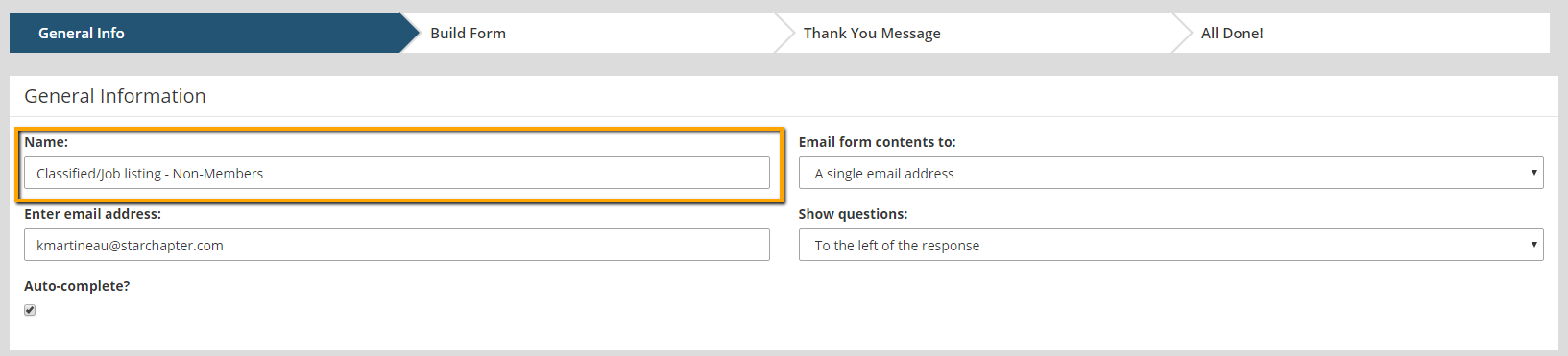
- In the "General Info" section, click the Edit button and update the "Name" field to indicate that this is the form for your non-members.
- Edit the "Security" section, click the Add Restrictions button, and update the visibility restrictions to remove "All Members" in order to ensure this form is open to the public.
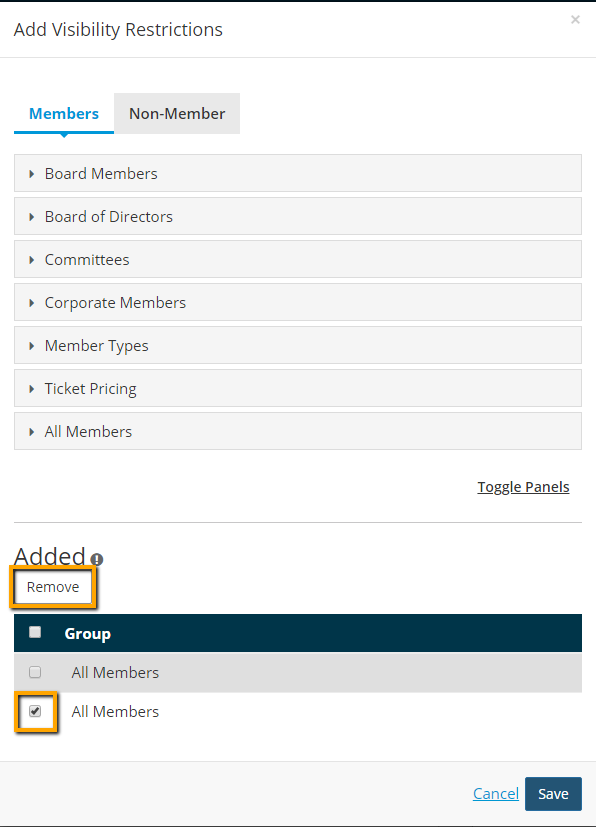
- Edit the "Fee" section to update the fee amount that your non-members should pay.

- Progress through the remaining sections until you reach the "All Done" screen.
Update the Buttons on the "Classifieds" Page Template
- For this step, you'll need the URL to both of the forms. Click on each form, and then highlight and copy the URL within the General Info section. Paste the URL into a document that you can reference.

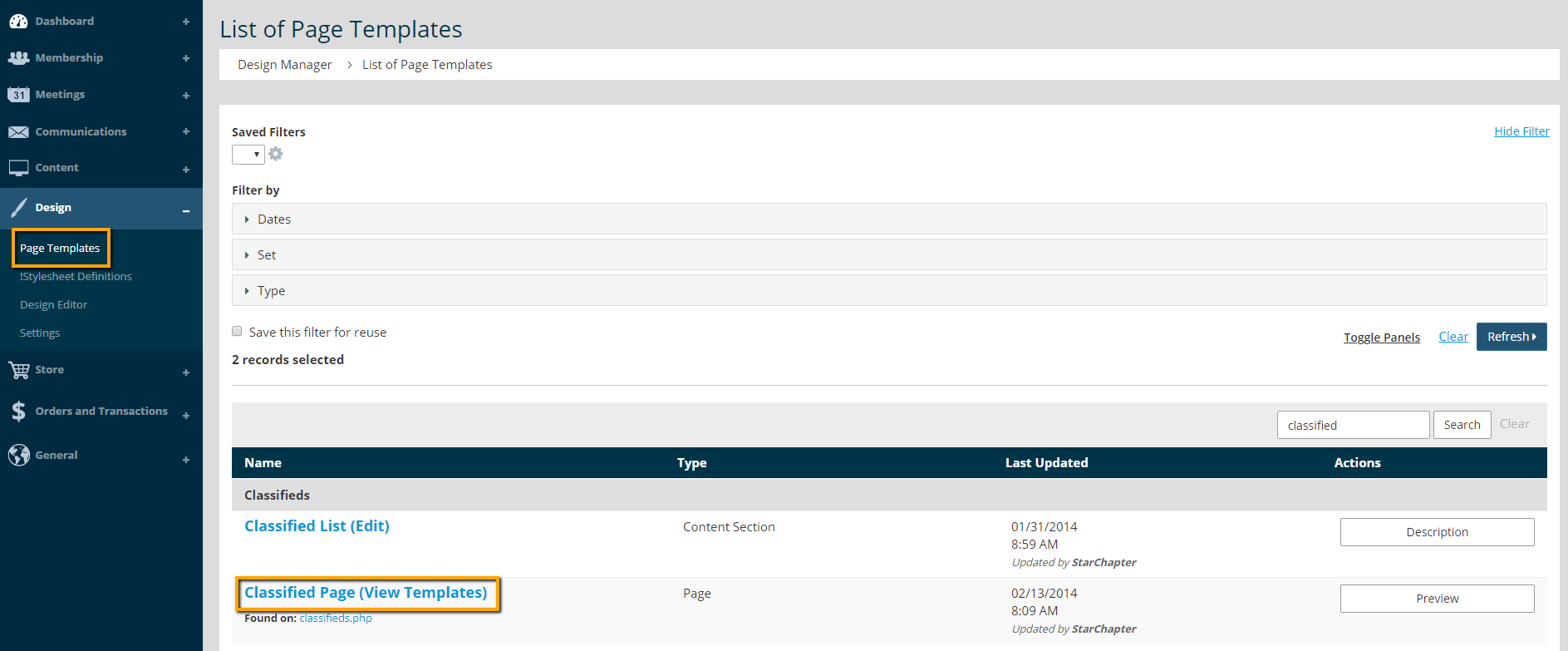
- Go to Design > Page Templates > Classified Page
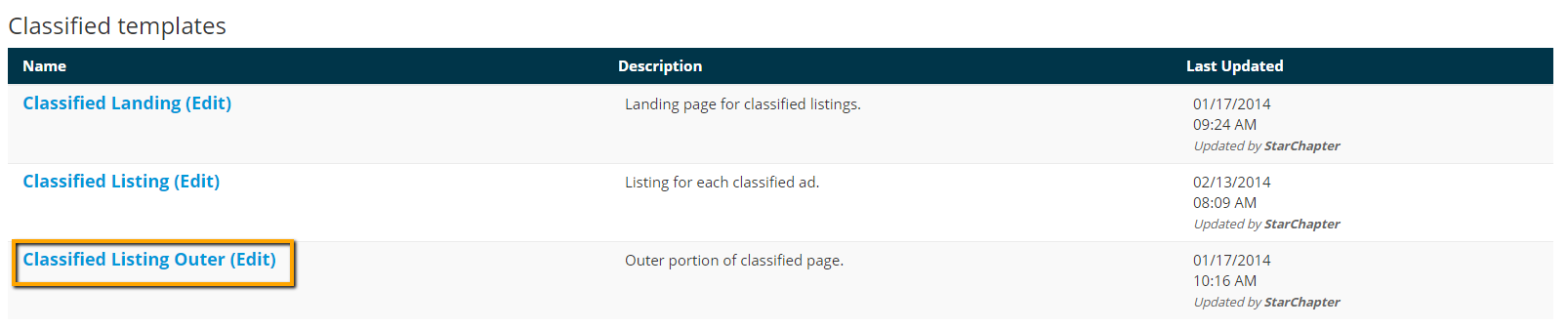
- Click on Classified Listing Outer to edit.
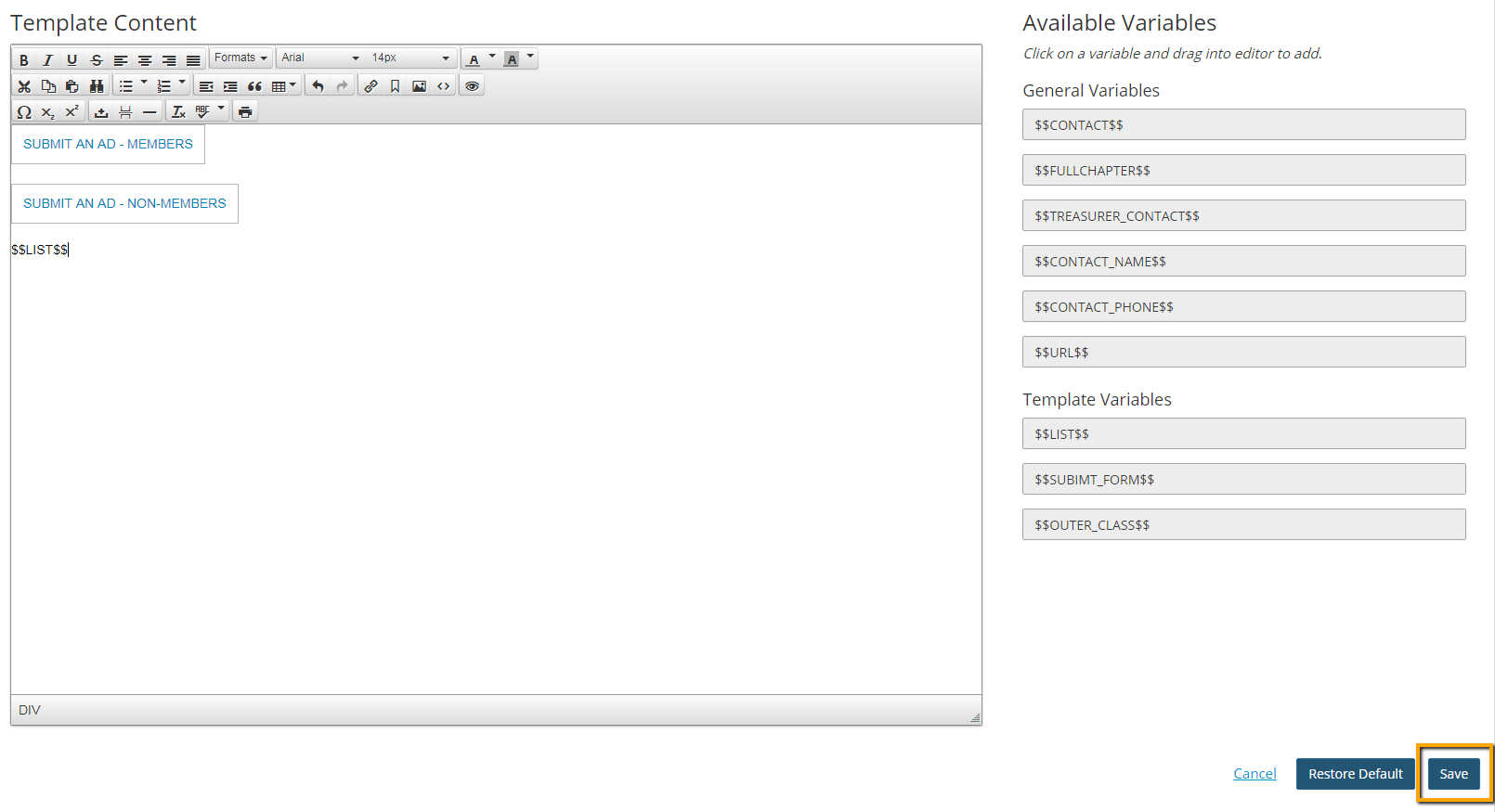
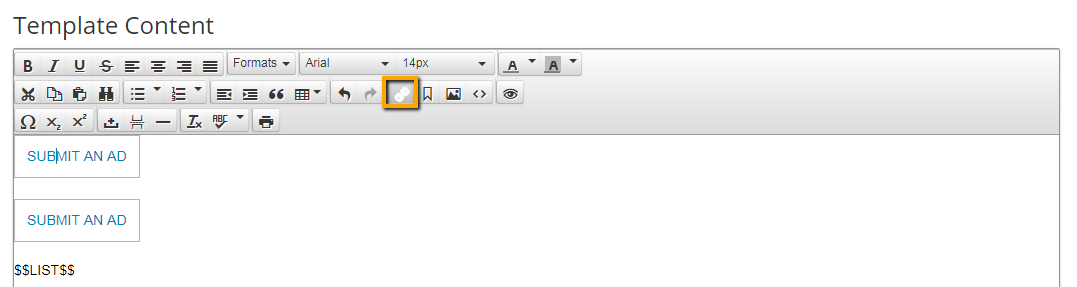
- Highlight and copy the existing button, and then paste a new button.
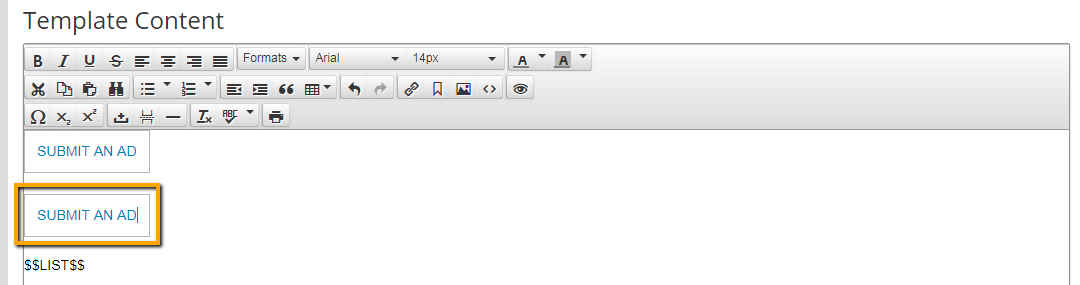
- Click on the first button, and then select the chain link icon from the task bar.
- Paste the URL to your member form into the URL field. Update the "Text to Display" to indicate that this is the members-only form. Click OK to save your changes.
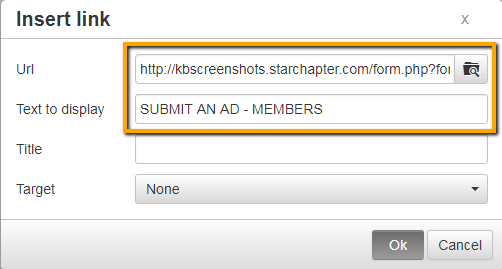
- Click on the second button, and then select the chain link icon from the task bar.
- Paste the URL to your non-member form into the URL field. Update the "Text to Display" to indicate that this is the non-member form. Click OK to save your changes.
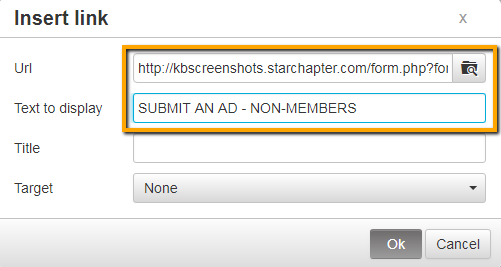
- Click Save.