
Connect Your StarChapter System to a QuickBooks Online Account
Integrate your QuickBooks Online account with your StarChapter system for automated creation of journal entries when orders are placed or paid. StarPay is required for access to this feature. Customers on the Starter Plan or Legacy Plans must upgrade to a current plan to access this feature. If you do not see QuickBooks Configuration as an option in your Orders & Transactions area, please open a Support Ticket to learn about upgrading to a current plan.
- Enable account numbers within your QuickBooks Online account, if they are not already in use. Classes are optional, but can also be linked after the accounts are integrated.
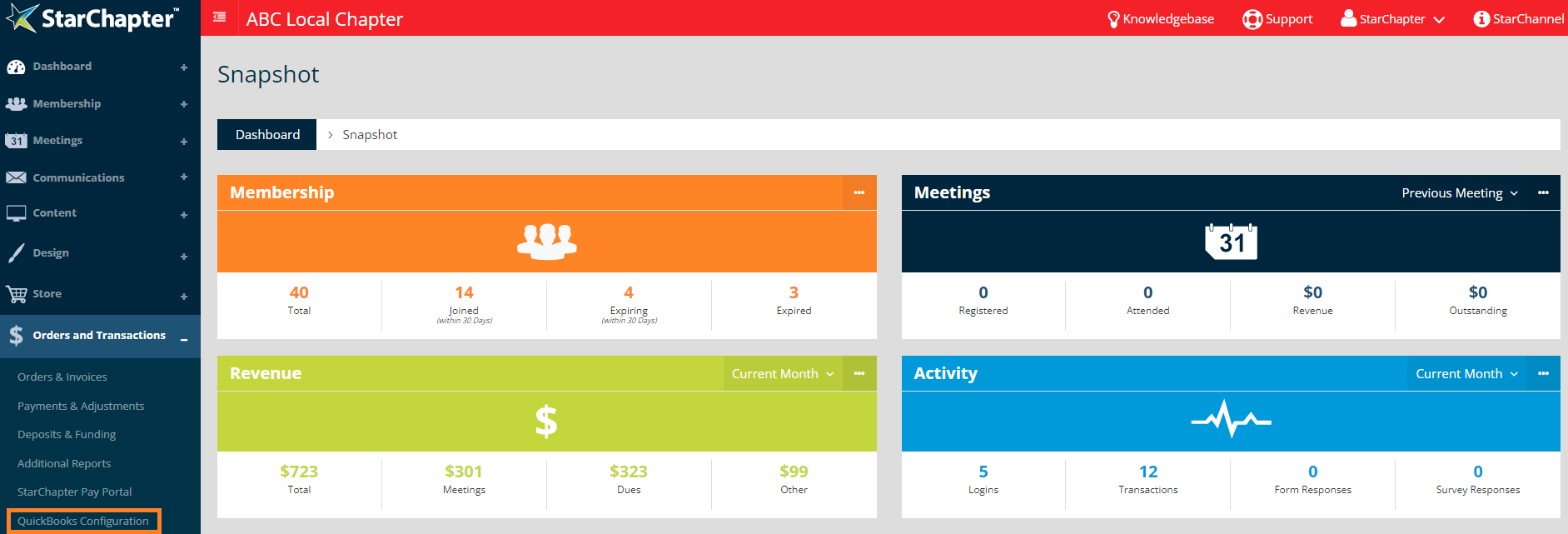
- Go to Orders and Transactions > QuickBooks Configuration.
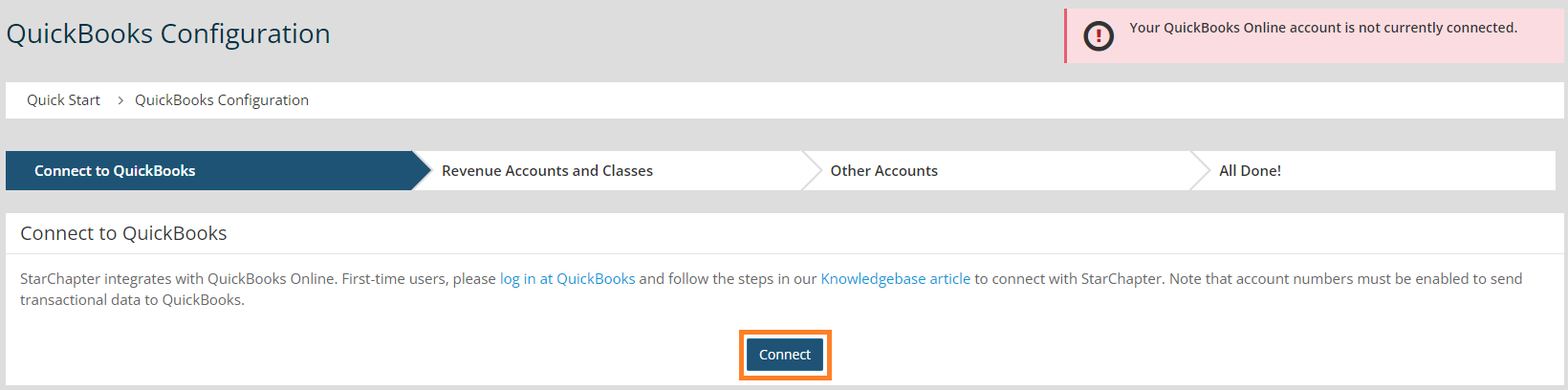
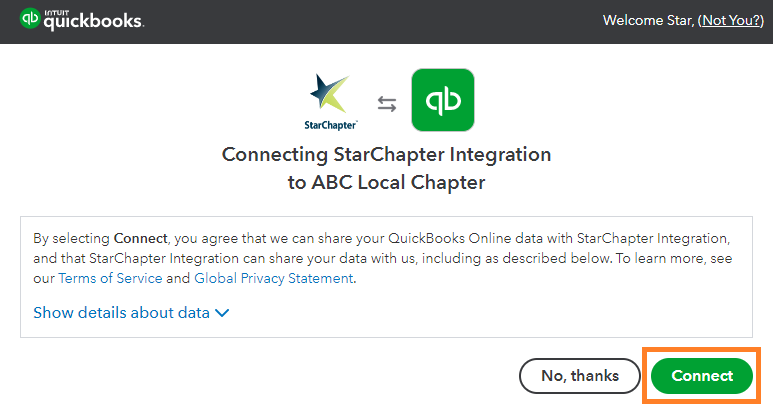
- Click Connect.
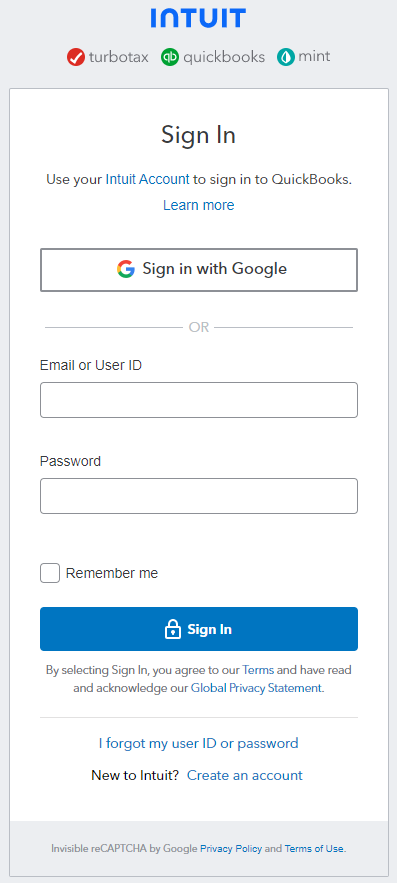
- Enter your Intuit login details in the pop-up window.
- If you have multiple QuickBooks Online accounts, select your chapter's QuickBooks Online account from the drop-down menu. If you only have a single QuickBooks Online account, you may not see this step.
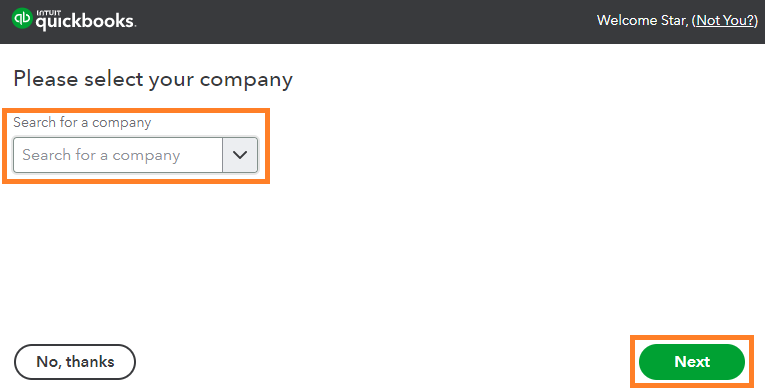
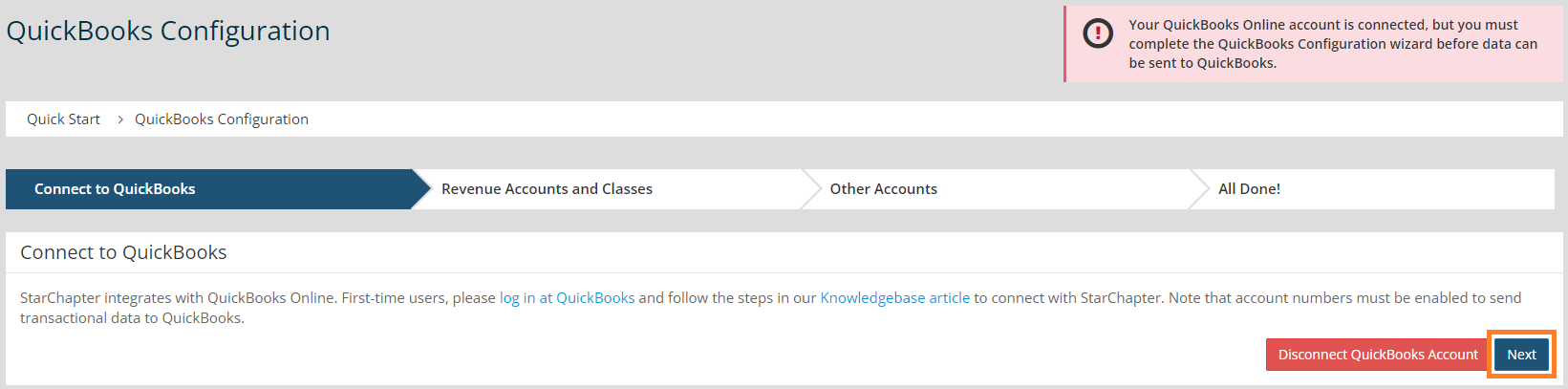
- Click Next.
- Click Connect.
- Click Next.
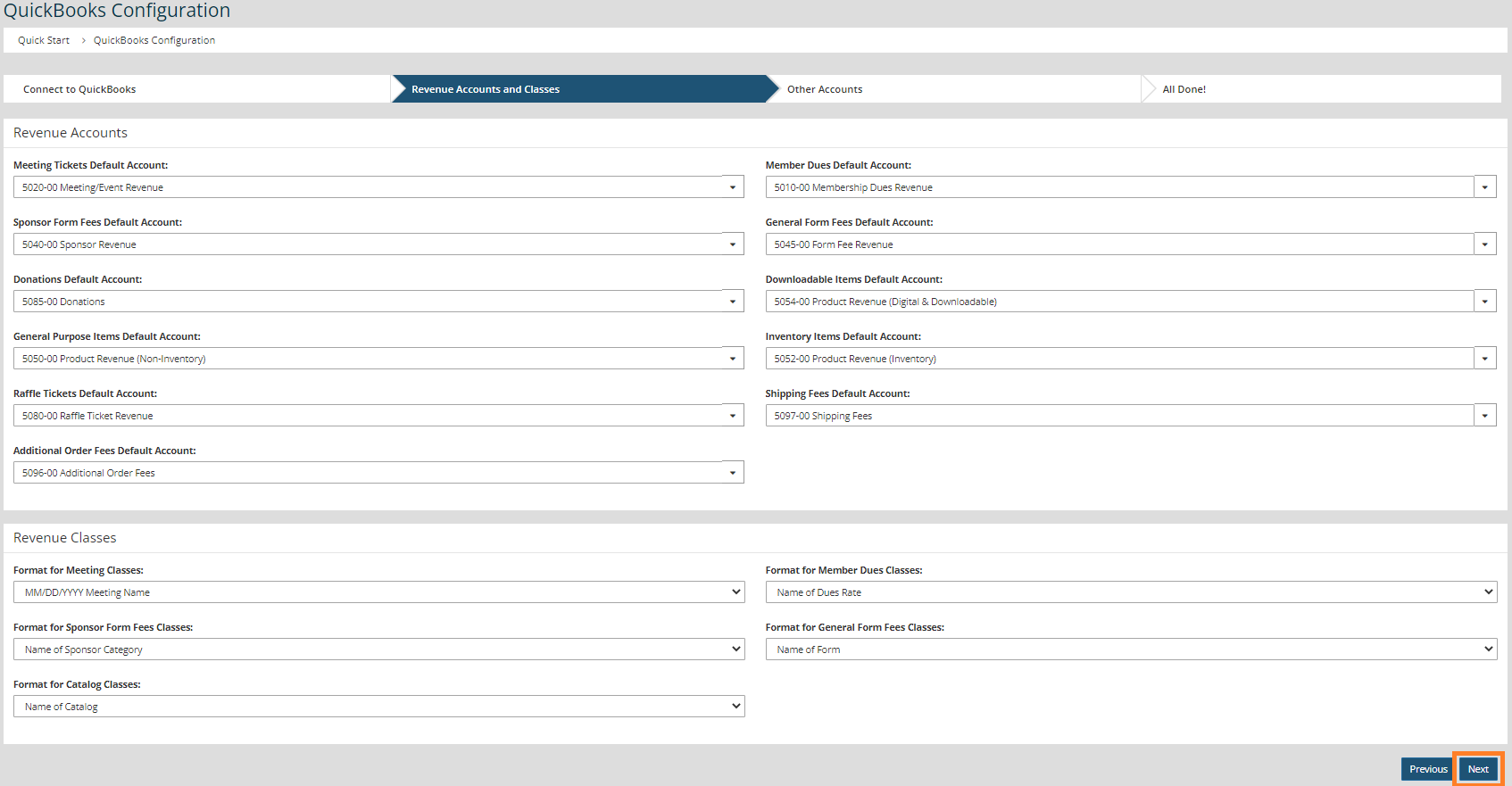
- Select the appropriate Account for each category of charge collected by StarChapter. The same account can be used for multiple selections.
- If Classes are enabled in your QuickBooks Online account, defaults can also be selected in this step.
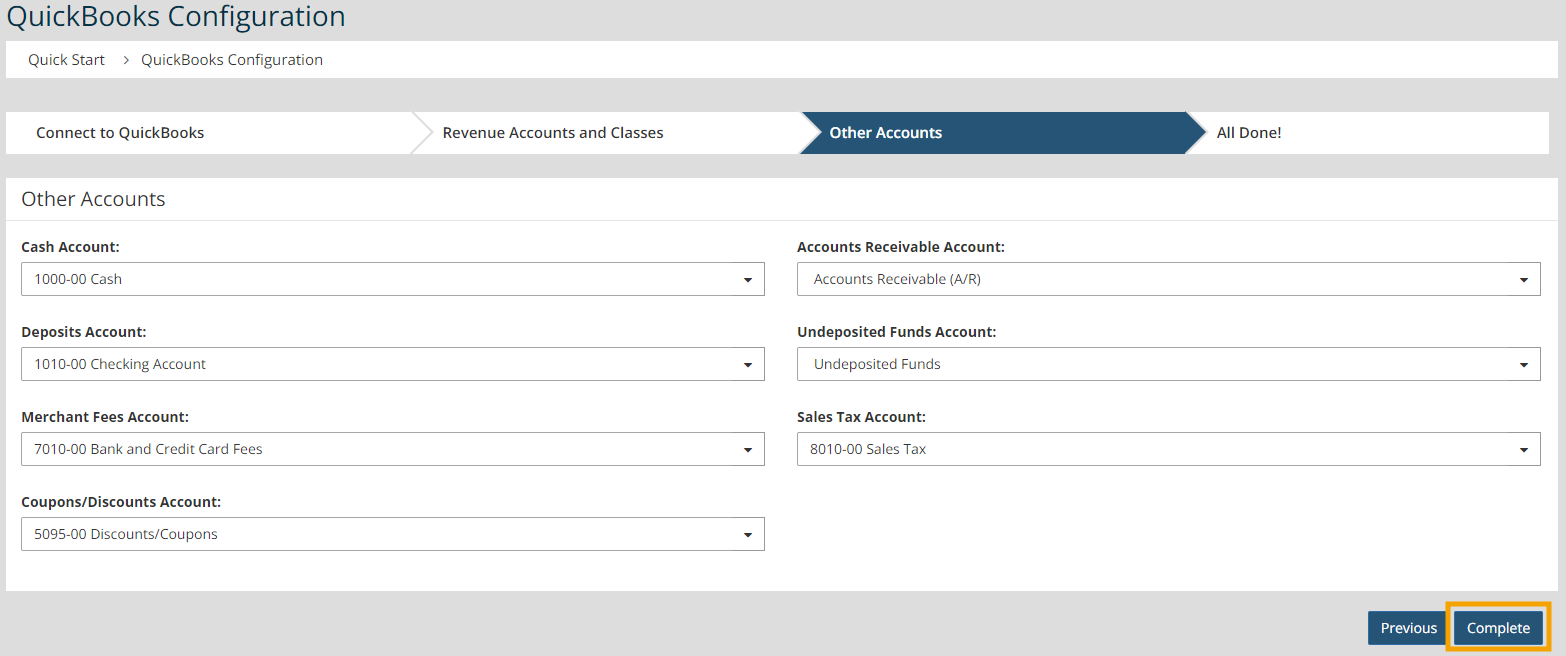
- Click Next.
- Select the appropriate Account for other types of fees and discounts.
- Click Complete.
Intuit and QuickBooks are registered trademarks of Intuit Inc. Used with permission.


