Configure Spreadsheet for Group Import
The Import Manager is the best tool to use for bulk group assignments. This process can be quick and easy, but it requires having a properly formatted spreadsheet to define the group assignments.
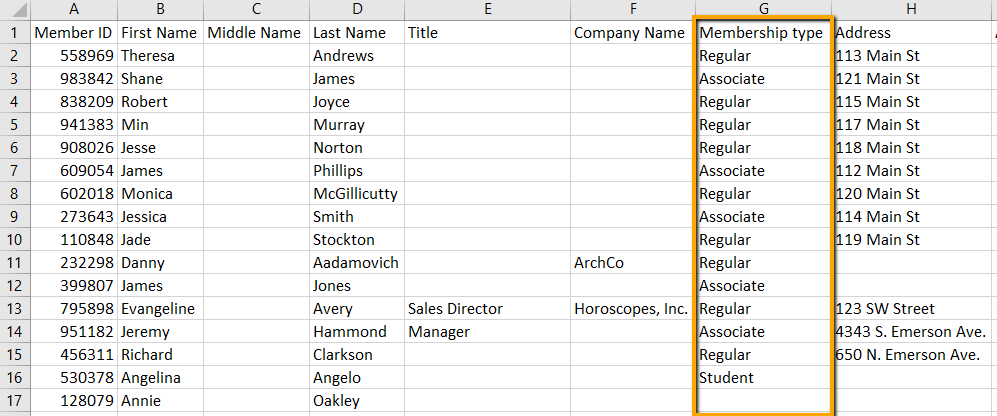
For any imported spreadsheet, group assignments must be defined with one column mapping to one group. The labeling of the column doesn't matter as long as each row includes the name of the subgroup that person should be added to. Leaving a row blank will result in that individual not being assigned to that group at all.
In the following example, the column "Membership Type" would be mapped to the Member Type group within StarChapter. Members will be added to the Regular, Associate, and Student subgroups. Annie Oakley would not be assigned to the group at all since that column is blank for her row of the spreadsheet.
When preparing to populate groups through an import, keep the following items in mind:
Member Imports
-
The spreadsheet must include ALL current members and their Member ID. The easiest way to generate this roster is to export it from the Member Manager.
-
A new column is needed for each group that will be mapped.
-
Multiple subgroups cannot be assigned within the same group during an import.
Non-Member Imports
-
The spreadsheet can be a partial list of non-members.
-
The email address must be included as that is the unique identifier linked to each non-member profile.
-
A new column is needed for each group that will be mapped.
-
Multiple subgroups cannot be assigned within the same group during an import.