Clean Up Non-Member Contacts
Over time, bad email addresses will accumulate in any mass mailing system. This occurs when someone changes their email address and disables the former one, when someone has a typo when providing their email address, or even when someone provides a valid email address but never engages with your organization. These bad email addresses make it difficult to determine how many valid contacts your organization has and can contribute damage to your email sender reputation. While monitoring mass mailings and addressing individual delivery issues is ideal, there will be times when a larger clean-up is needed.
The approach to remove contacts in bulk is to export a list of contacts from the system, make necessary changes to the resulting spreadsheet, and then re-import that spreadsheet to the system while using an option to delete all contacts not included in the import.
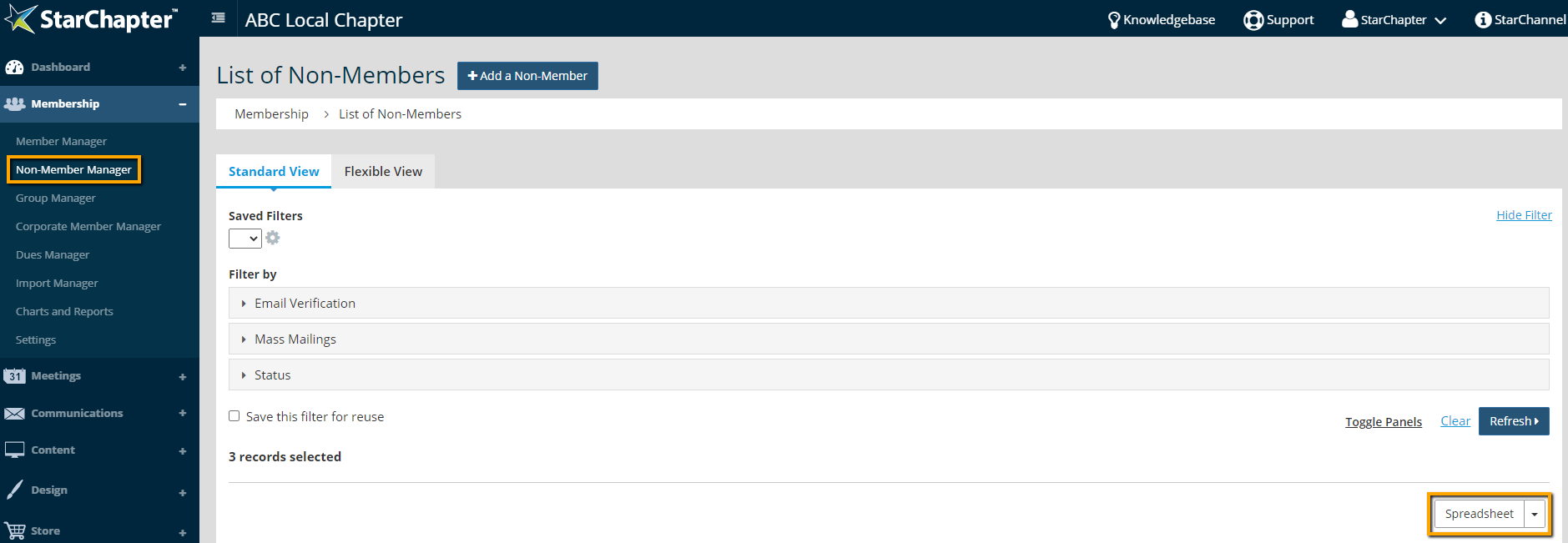
- Go to Membership > Non-Member Manager.
- Click the Spreadsheet button to export a full contact list.

Tip: If a filter option is available that will remove unwanted contacts, be sure to apply that filter prior to exporting the spreadsheet. Common options are to export only verified and/or subscribed contacts, thereby leaving the unverified and/or unsubscribed contacts to be deleted.
- Edit the spreadsheet to remove any contacts that shouldn't be kept in the mailing list. Delete full rows and ensure that blank rows do not remain in the spreadsheet.
- Import the edited spreadsheet to the Non-Member Manager.
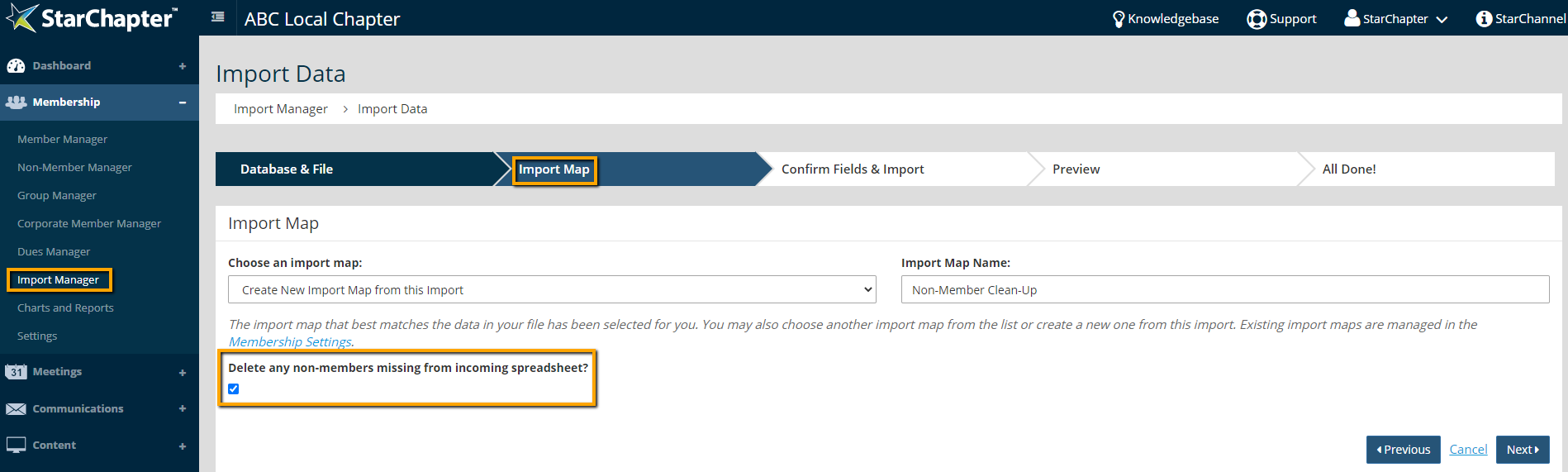
- On the Import Map screen of the import process, choose "Create New Import Map from this Import" and name it something obvious such as "Non-Member Clean-Up."
- Check the option to "Delete any non-members missing from incoming spreadsheet?"
- On the Confirm Fields & Import screen, only map the email address field. No other field is needed.
- Complete the import, as show in the video linked above.
- Review the Non-Member Manager to confirm that the expected number of contacts remain.