Add a Caption to a Slider Image
Captions on slider images will be overlaid. The position of the caption and any background on the text will be based on the website design. Some captions will run along the bottom of the image while others will overlay in a semi-transparent color block. The position of captions will be consistent on all images but each image can have a unique caption.
- Go to Content > Media Manager > Photo Gallery.
- Locate the slider gallery. It is typically named "Home Page Slider." If there are a lot of galleries and it is difficult to locate, use the Type filter to find "Slider" galleries.
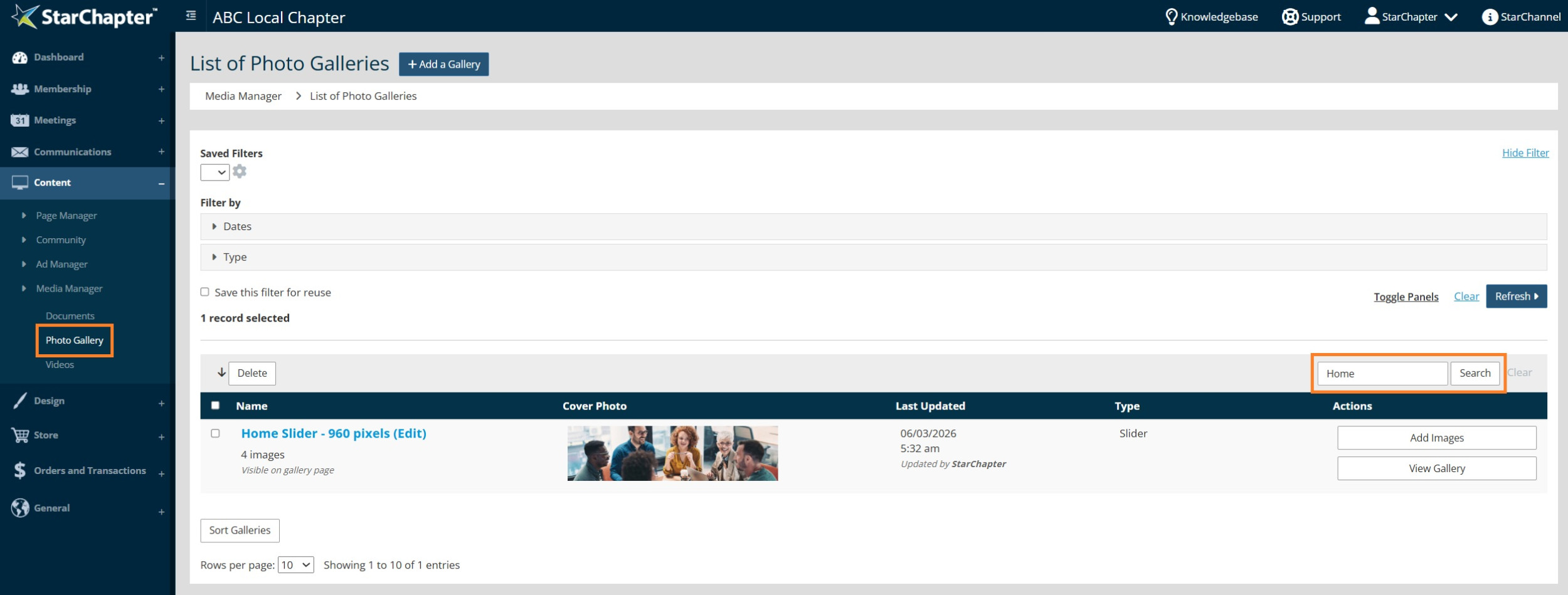
- Click on the blue hyperlinked name of the Slider Gallery.
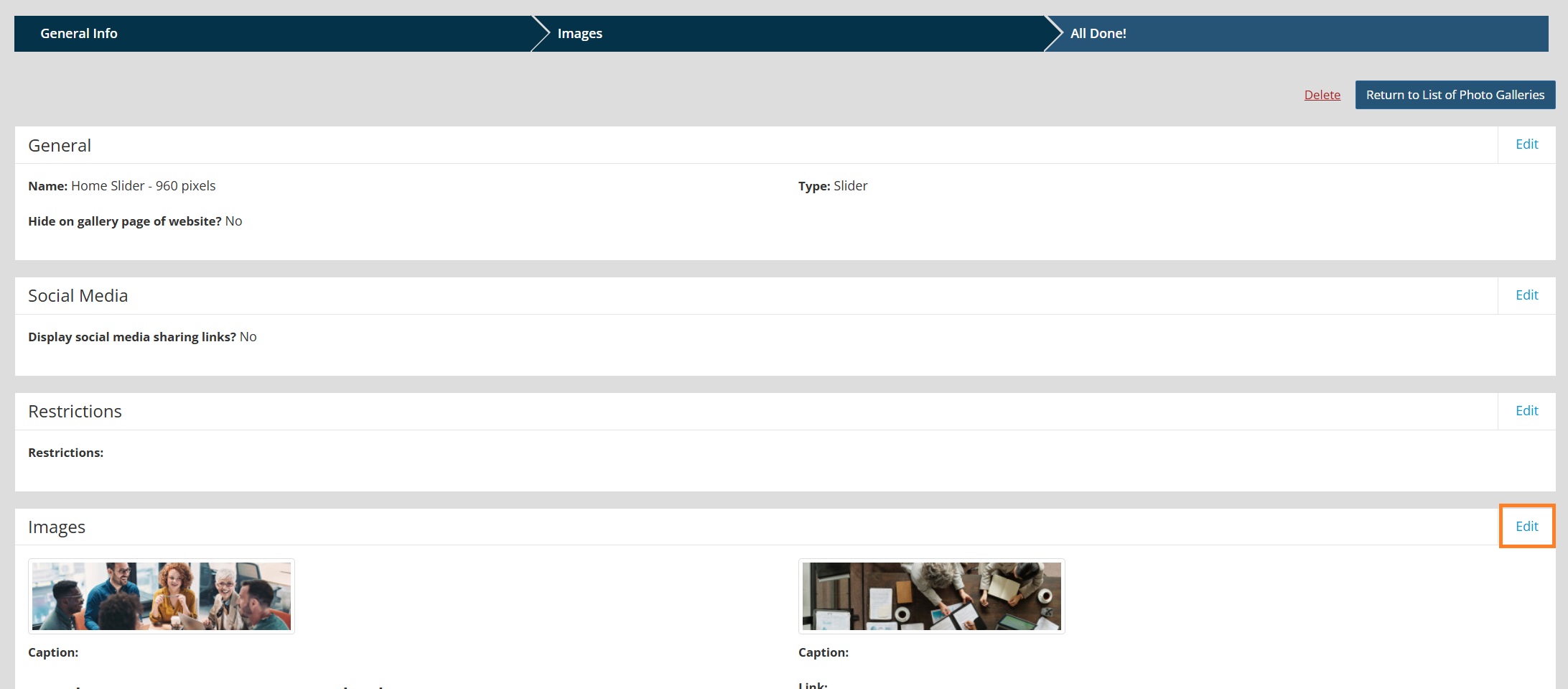
- Click Edit in the Images section of the Gallery.
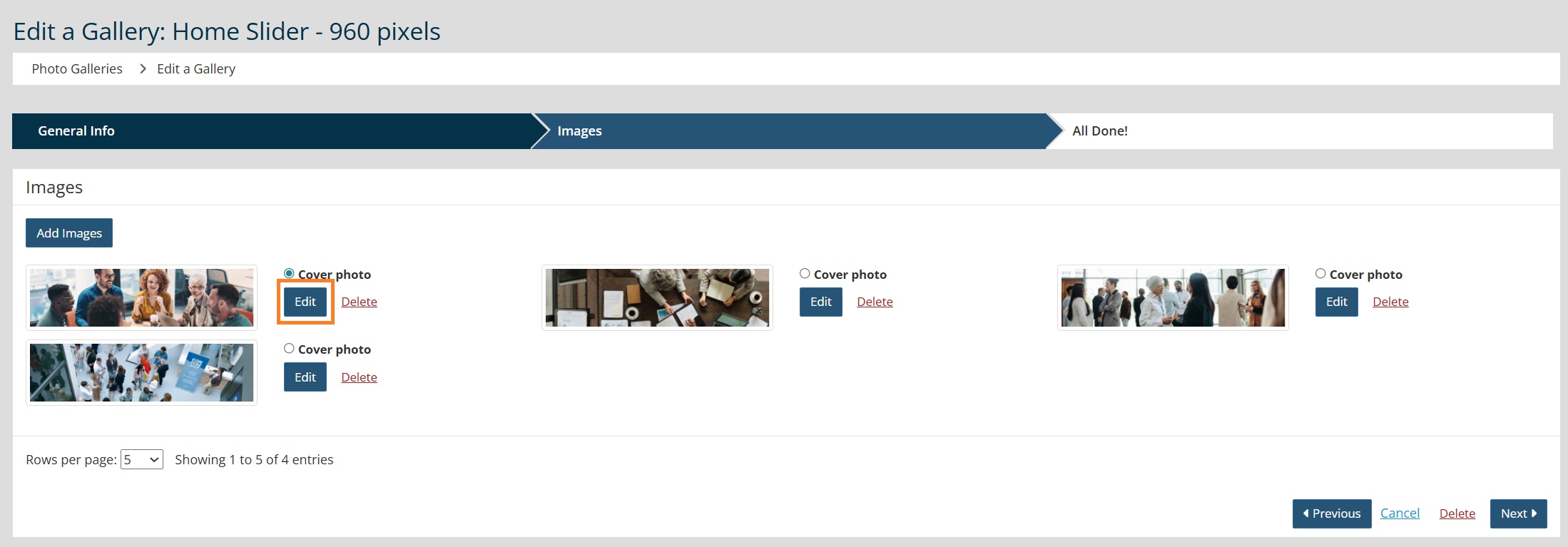
- Click Edit on the image to be captioned.
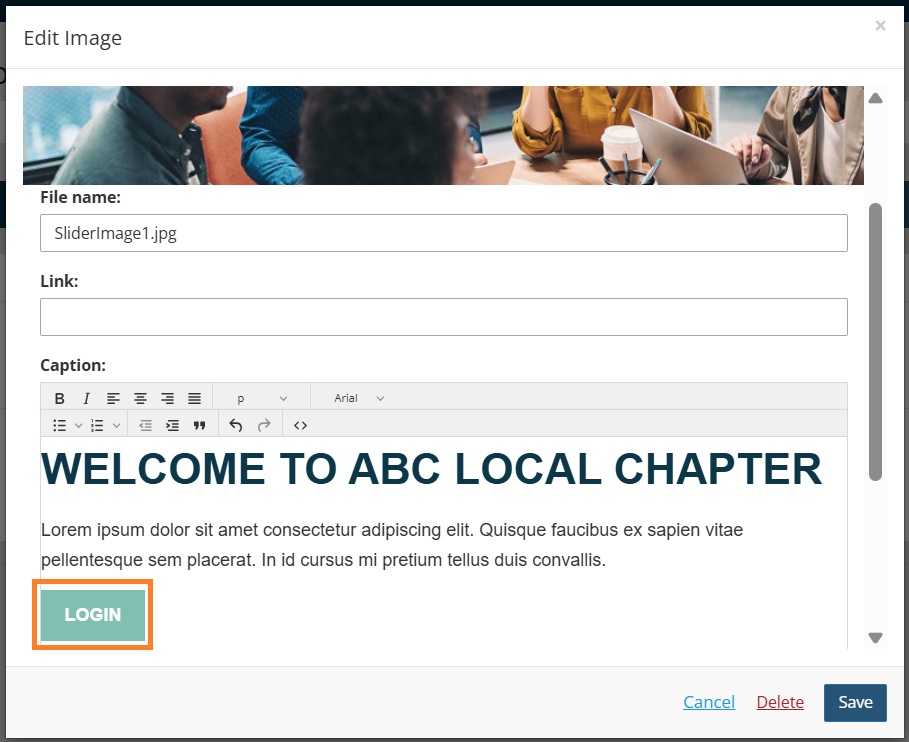
- Update the "Caption" field with appropriate text.

Tip: Most chapters will place a header, short paragraph, and button in the caption. Click HERE for directions on adding a button to your caption.
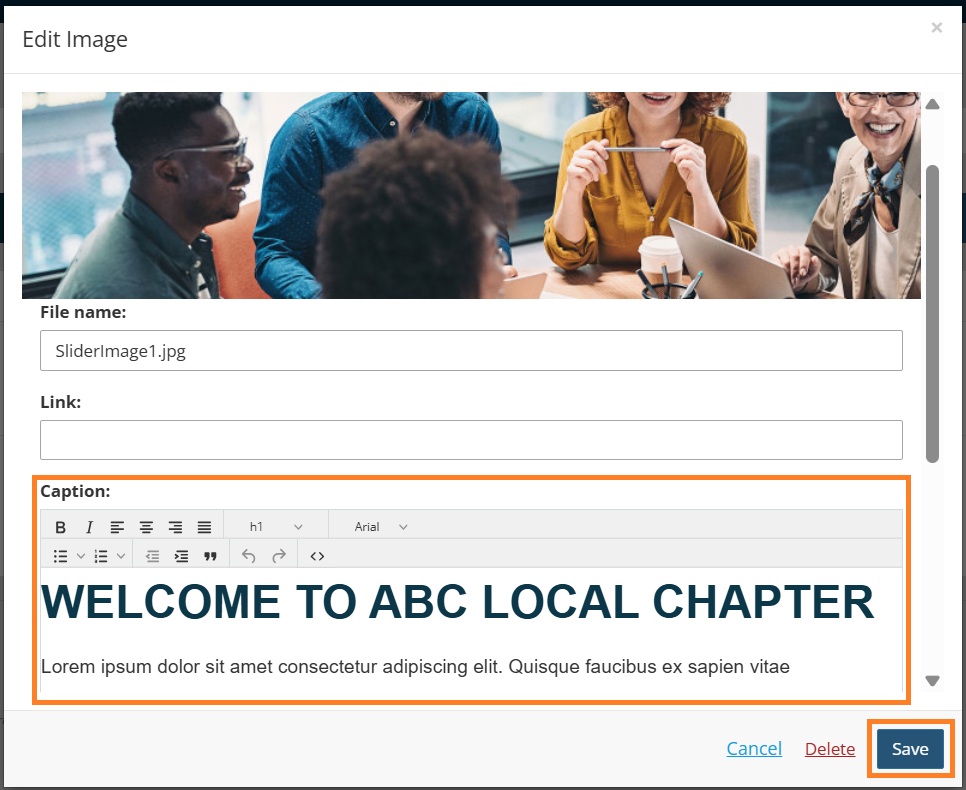
- Click Save.
Copy and Paste a Button
- Go to the front end of your site, and highlight and copy an existing button. The login button is a good option since it's often easily accessible on your home page.

- Paste the button into the Content section of the Caption WYSIWYG editor.
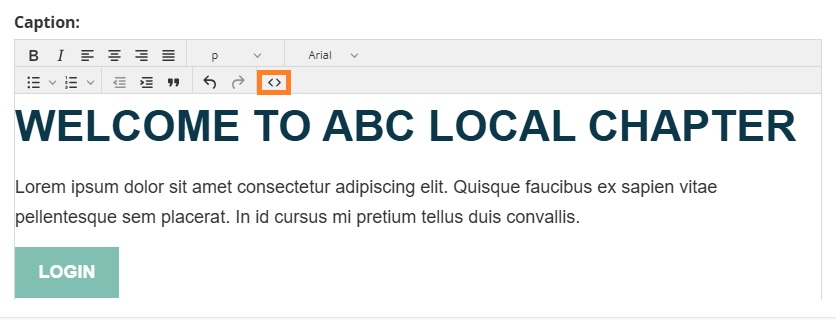
- Click on the '< >' icon in the tool bar to access the source code.
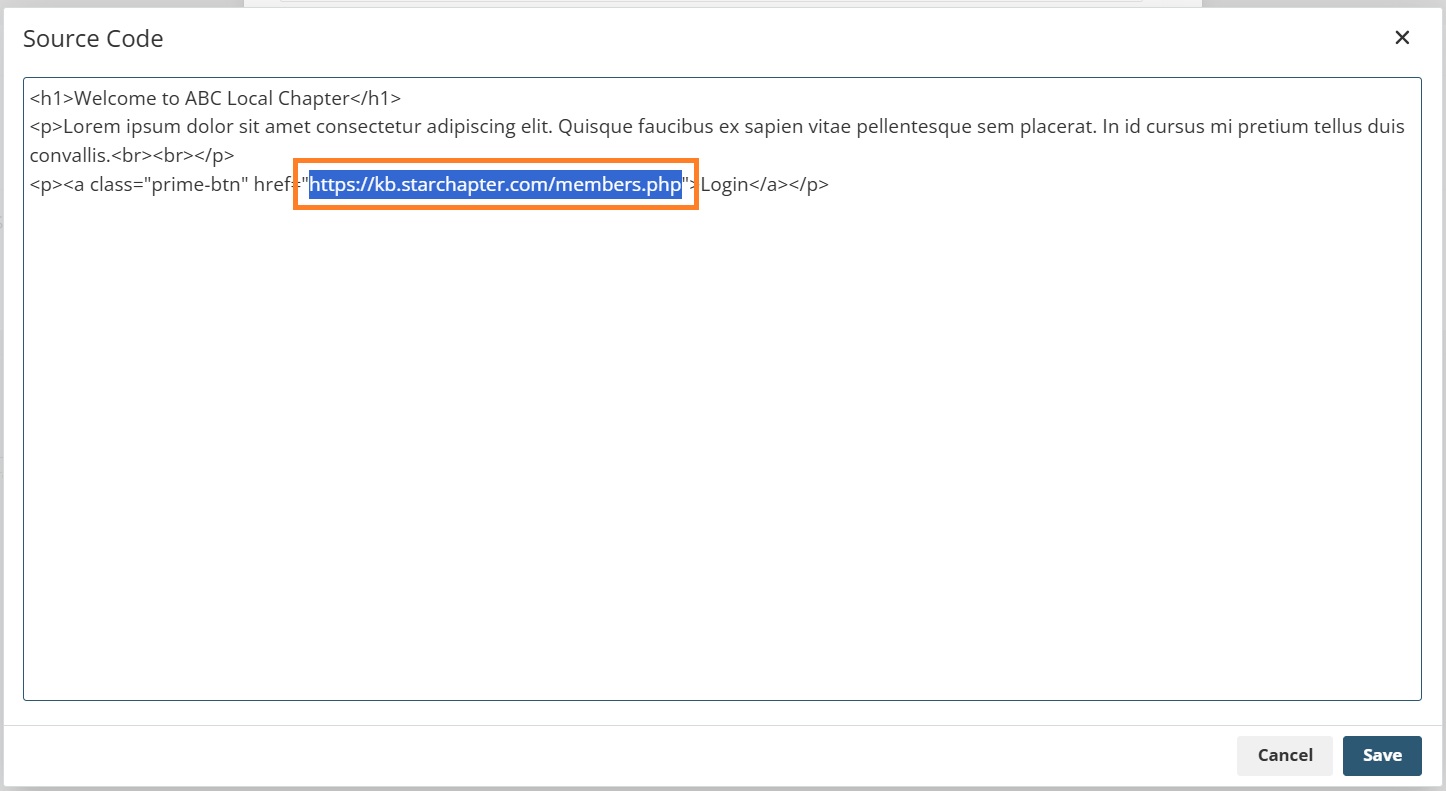
- Update the URL between the quotation marks in the source code. Ensure to leave the quotation marks around this URL. Click Save to save your changes.
- Click Save when done editing the WYSIWYG Editor.