Add Page Content
- Go to Content > Page Content
- Search for the name of the page you would like to add content to.
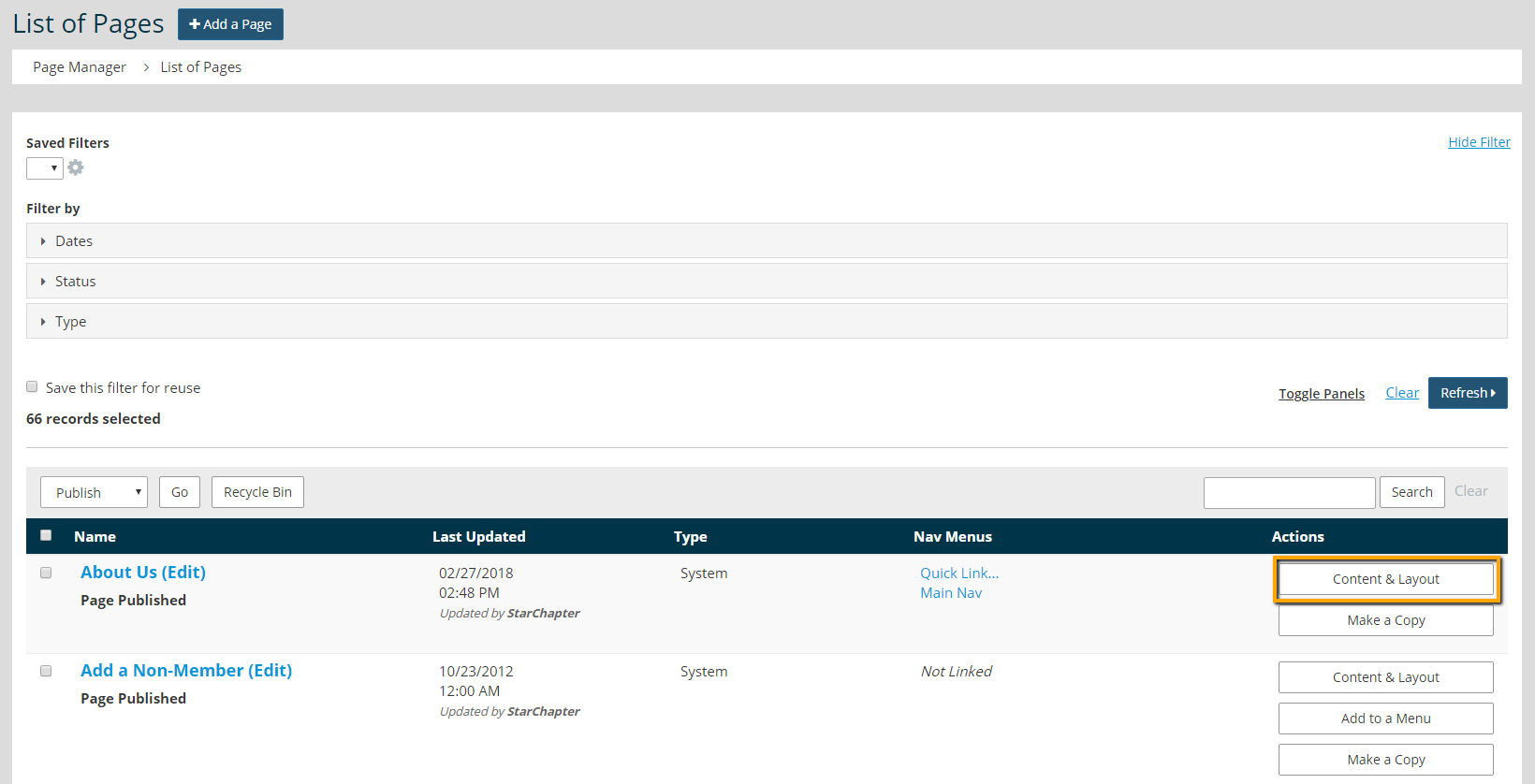
- Click on the Content & Layout button to the right of that page.
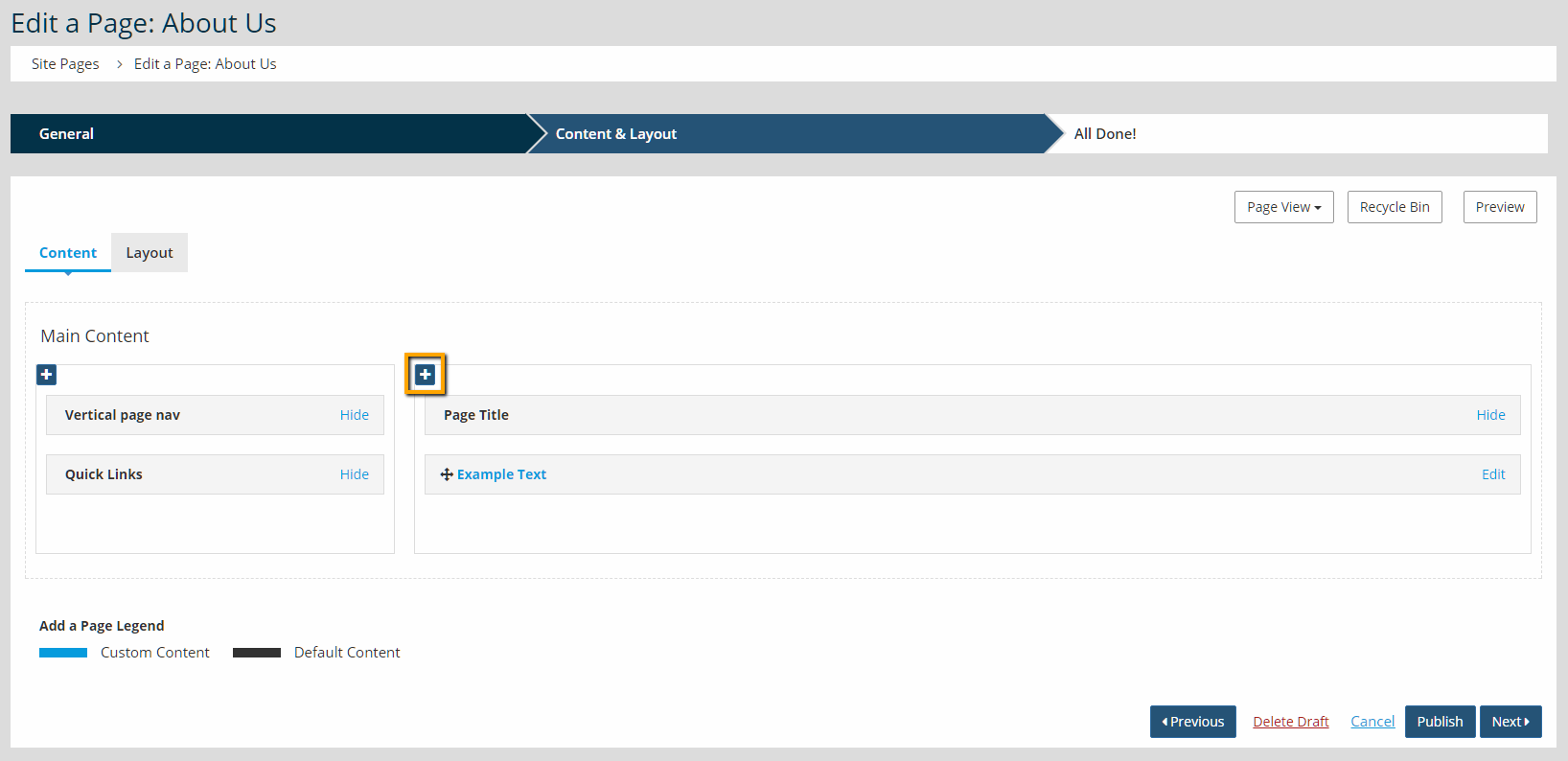
- In the Content & Layout screen, you'll see a rough view of the columns and gray bars representing the sections of the page. Each bar is labeled and anything specific to that page will have an Edit link on the right side. Find the column where you'd like to add content. Click the blue plus sign for that column.
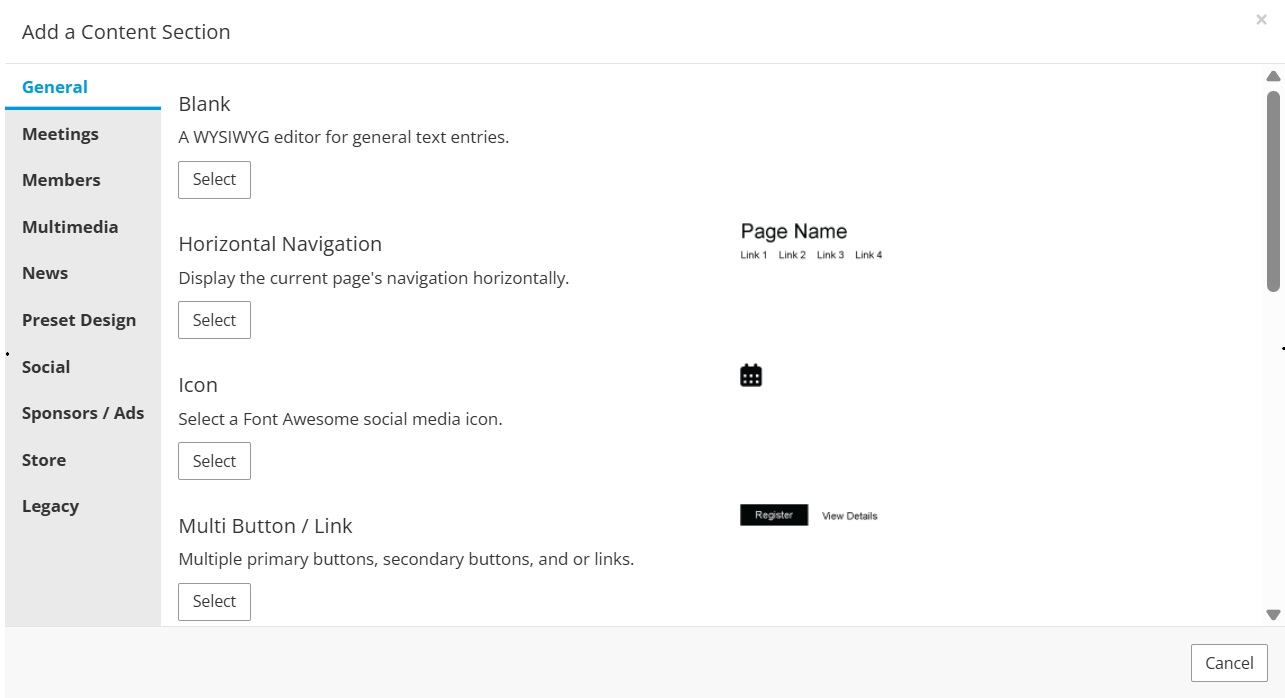
- Choose your content section. Blank is the most commonly used one; the others draw content from elsewhere in the system.
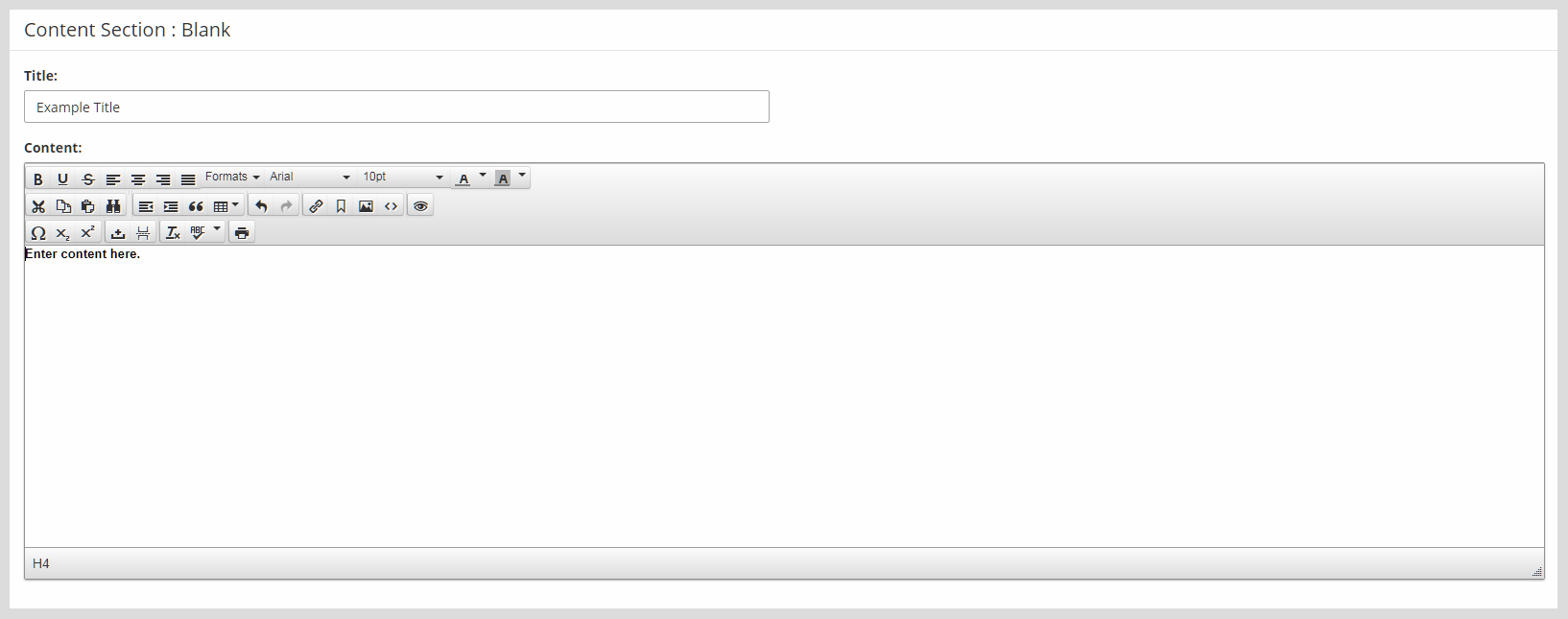
- Make any changes necessary to the section title and body.
- Click the Publish button at the bottom right to publish the page.


Warning: Leaving a page without Publishing the final draft will result in the published page remaining locked. The published page will not be accessible until the draft is either published or deleted. This ensures that no more than one draft ever exist. To leave a page in draft form, click the Save as Draft button on the All Done screen.
Leaving a draft in any other way will result in the draft remaining locked to all edits for approximately 5 minutes. A note stating "Edit in Progress" will display which this occurs. Waiting for 5-10 minutes will clear that warning and the draft will be accessible again.